Exchange 2010 management tools do not start after the installation of .NET hotfix KB 2449742


UPDATE 4/20/2011: We have now identified the problem and have a solution for customers that were impacted by it

Please see the following KB article for the resolution of this problem:

http://support.microsoft.com/kb/2540222

The content of the original post (please see above for updates!):

We have become aware of a problem that impacts Exchange management tools on servers running Exchange 2010 on Windows Server 2008 SP2.

Note: Windows 2008 R2 SP1 systems do not seem to be impacted. Windows 2008 R2 RTM is impacted.

The symptoms of the problem are:

  • Exchange Management Shell does not start
  • Exchange Management Console does not start
  • There might be a crash in Exchange Mailbox Replication Service (it is not clear yet if this is related)
  • Event Viewer might have trouble opening

The following events could be logged in the Application event log:

  • Event ID: 1023
    Source: .NET Runtime
    Event ID: 1023
    Level: Error
    Description: .NET Runtime version 2.0.50727.5653 – Fatal Execution Engine Error (000007FEF9216D36) (80131506)
  • Event ID: 1000
    Source: Application Error
    Level: Error
    Description: Faulting application PowerShell.exe, version 6.0.6002.18111, time stamp 0x4acfacc6, faulting module mscorwks.dll, version 2.0.50727.5653, time stamp 0x4d54a59c, exception code 0xc0000005, fault offset 0x00000000001d9e19, process id 0x%9, application start time 0x%10.

While we are still investigating this problem, the failures seem to start after the .NET security update KB 2449742 (MS11-028) is installed. The only workaround that we have identified up to now is a removal of this security update.

Warning: We do not recommend that you uninstall any security updates, but we are providing this information so that you can implement this procedure at your own discretion. Use this procedure at your own risk. Removing a security update could may make a computer or a network more vulnerable to attack by malicious users or by malicious software such as viruses.

We will update this blog post with more information as it becomes available.

Source: Nino Bilic

Exchange 2010 Sessions From TechEd North America 2011…


TechEd_North_America_CYB

Below are the Exchange related sessions from TechEd North America 2011.

Announcing Exchange 2010 Service Pack 2


The Exchange Team is pleased to announce that in the second half of calendar year 2011 we will be releasing Exchange Server 2010 Service Pack 2 (SP2) to our customers. With SP2, the following new features and capabilities will be included:

  • Outlook Web Access (OWA) Mini: A browse-only version of OWA designed for low bandwidth and resolution devices. Based on the existing Exchange 2010 SP1 OWA infrastructure, this feature provides a simple text based interface to navigate the user’s mailbox and access to the global address list from a plurality of mobile devices.
  • Single Sign-on for Outlook Web Access: Providing the ability for users who have already authenticated with their directory credentials to not need to re-enter them again upon opening OWA.
  • Hybrid Configuration Wizard: Organizations can choose to deploy a hybrid scenario where some mailboxes are on-premises and some are in Exchange Online with Microsoft Office 365. Hybrid deployments may be needed for migrations taking place over weeks, months or indefinite timeframes. This wizard helps simplify the configuration of Exchange sharing features, like: calendar and free/busy sharing, secure mailflow, mailbox moves, as well as online archive.
  • Address Book Policies: Allows organizations to segment their address books into smaller scoped subsets of users providing a more refined user experience than the previous manual configuration approach. We also blogged about this new feature recently in GAL Segmentation, Exchange Server 2010 and Address Book Policies.
  • Customer Requested Fixes: All fixes contained within update rollups released prior to Service Pack 2 will also be contained within SP2. Details of our regular Exchange 2010 release rhythm can be found in Exchange 2010 Servicing.

In order to support these newly added features, there will be a requirement for customers to update their Active Directory schema. We’ve heard the feedback loud and clear from our customers on multiple occasions regarding delays that can be caused to deployment as a result of needing to update your schema and as such with the release of Exchange 2010 SP2 are communicating the required changes ahead of release in order to assist our customers with planning their upgrade path ahead of time.

We hope these announcements come as welcome news to you. It is our custom to provide ongoing improvements to features, functionality and security of Exchange Server, based largely on customer feedback, and to provide continual innovation on an already great messaging product. We look forward to receiving your comments and announcing more detailed information as we continue to develop the features that will be included in SP2.

Source: Kevin Allison

Office 365 Beta Service Descriptions


Quite a view subscribers to the Office 365 Beta have been given access to their beta tenant, as I gather by following the tweets on #Office365.

For more information on Office 365, just go to: http://www.office365.com

Given the amount of questions that are raised, I just felt like posting this blog post, with first the one link that you have to go to download all official information Office 365, and that is this one: http://www.microsoft.com/downloads/en/details.aspx?FamilyID=6c6ecc6c-64f5-490a-bca3-8835c9a4a2ea

SNAG-0182

While going through the Microsoft Exchange Online Beta Service Descriptions, a few things popped out Glimlach

Limits

  • Message Size Limit for Exchange Online is 25MB (including attachments), this cannot be adjusted up or down. But, by creating transport rules, it is possible as an administrator to limit the maximum size of individual attachments
  • Recipient Limits:
  • Each Exchange Online mailbox can send messages to a maximum of 500 recipients per day
  • A distribution group stored in the GAL counts as one recipient
  • Message rate limits: users can send only 30 messages per minute (if more are sent per minute by a recipient, they will be queues and delivered)

Deleted Item & Mailbox Retention Time

  • Deleted Item Retention Time is set to 14 days
  • Single Item Recovery is enabled by default, and set to 14 days
  • Single Item Recovery can be extended, but depends on O365 USL
  • Deleted Mailbox Retention Time is set to 30 days

Supported clients

  • Outlook 2003 is NOT supported!

Outlook Web App

  • OWA Logon Page can be customized when using ADFS v2 to provide Single Sign-On with Office 365
  • Public Computer or Private Computer Options are not offered
  • Change password from within OWA is possible, when NOT using ADFS v2

Shared Mailbox

  • Do not need a license
  • But all users accessing a shared mailbox requires a USL (Exchange Online Kiosk workers cannot access shared mailboxes!)

Something you can’t do in Exchange On Premise environment = Connected Accounts!!

  • Enables users to connect external email accounts to their Exchange Online accounts, and use OWA to send and receive mail from these connected accounts
  • Can be disabled by an administrator

Address Lists

  • Creating of custom address lists, Global Address Lists views is not supported

Calendar Sharing through iCal is possible!

Conference Rooms

  • Do not require a USL
  • Mailbox quota is 250MB

Various

  • Exchange Online uses the same RBAC framework as Exchange Server 2010 Service Pack1
  • Exchange Online provides Administrator Audit Logging, and Mailbox Audit Logging
  • Exchange Online can be used as an SMTP delivery service to relay email messages sent from fax gateways, network appliances, and custom applications
  • Exchange Online provides the ability to route outbound mail through an on-premises server or a hosted service

In the Appendix, you can find a nice Exchange Online and Exchange Server 2010 Service Pack 1 Feature Comparison!

How to manage groups with groups in Exchange 2010


You’ve migrated from Exchange 2003 to Exchange 2010. Your users are reporting that they’re unable to modify distribution groups that they could in the past. In How to Manage Groups that I already own in Exchange 2010?, we showed you that in Exchange 2010, users had permissions to create new distribution groups and remove the distribution groups they owned.

This did help a few of your users but some are still unable to modify their distribution groups. You need to look into this….

Issue

When User1 tries to add a new member to the DistributionGroup1 distribution group, she gets this error:

Changes to the distribution group list membership could not be saved. You do not have sufficient permissions to perform this operation on this object.


Figure 1: User gets a permissions error when trying ot modifying a distribution group membership in Microsoft Outlook

In the past, User1 was able to add/remove members to the distribution group by using Outlook and didn’t need to call the help desk for assistance. What has changed?

You know that you had previously configured SecurityGroup1 to be able to manage this distribution group. Did someone make a change to User1’s security group membership? You look at ADUC first. No change – the user’s still a member of SecurityGroup1.


Figure 2: The user’s still a member of the security group that’s configured to manage the distribution group

Next, you check the distribution group configuration in ADUC to verify that DistributionGroup1 is still being managed by SecurityGroup1.


Figure 3: The user’s still a member of the security group that’s configured to manage the distribution group

Okay, so what’s the deal here? You know you recently migrated to Exchange 2010. So you take a look at DistributionGroup1 in EMC (which reveals that it’s managed by SecurityGroup1, but also displays an ‘Object Not Found’ error).


Figure 4: EMC displays the security group with an ‘Object not found’ error

Why is Exchange 2010 doing this?

This behavior is by design. In Exchange 2010, distribution groups can’t be managed by groups – only individual users can manage groups. So it’s possible that using Exchange 2003, you used groups to manage a distribution group. Group ownership was handled at a different level. Now that these mailboxes have been moved to Exchange 2010, members of these groups can’t modify the group.

So are there any workarounds?

We’ve created a script to work around this limitation. Download Set-DistributionGroupOwners.ps1 from the Script Center.

The script will allow you to simulate a group having ownership of a distribution group in Exchange 2010. The script can be run in three different modes depending on the switches you pass.

  1. Mode 1 – Set Ownership for a particular distribution group. Modifications to the ManagedBy attribute are not set at this time. It will simply modify a Custom Attribute to have the information needed later when the script sets the ManagedBy attribute.
  2. Mode 2 – Modify the ManagedBy attribute of a specific distribution group so the members of either a security group or distribution group can manage it.
  3. Mode 3 – Is designed to be run as a scheduled task and ensure individual members of a group have ownership of the Distribution Group which they are set to own. This mode is used if you prefer to automate the process and perhaps run it nightly to look for any changes to security group and distribution group membership.
How do I run this thing?
  1. Windows 2008 R2 is required to run the script. This was needed in order to support Security Groups owning Distribution Groups. This does not have to be run on an Exchange server but the Exchange management tools must be installed.
  2. Download the script. The Set-DistributionGroupOwners.ps1 script is now available from TechNet Script Center. Download it and change the file extension to .ps1. I recommend Set-DistributionGroupOwners.ps1.
  3. Decide what CustomAttribute can be used in your environment. The script will populate the Distinguished Name (DN) of the group (specified in the ManagedBy attribute of the distribution group you want to manage) in a custom attribute. By default, this is CustomAttribute5, but this can easily be changed to use one of the fifteen custom attributes in the default schema. Find the following in Set-DistributionGroupOwners.ps1:

    $dn_storage = "CustomAttribute5"

    Change CustomAttribute5 to the custom attribute of your choice.

    You’re now ready to run the script.

Mode 1 – Set Ownership of a Group

In this mode, run the script with both -DistributionGroup AND –GroupOwner parameters. Specify the distribution group (-DistributionGroup) and the group that you want to manage it (-GroupOwner). This will then set the DN of the owning group from –GroupOwner into the CustomAttribute you specified on the Distribution Group from –DistributionGroup.

In order to have DistributionGroup1 managed by SecurityGroup1, you would run the following:


Figure 5: The script populates the group owner’s DN in a custom attribute

A dump of the DL above shows that CustomAttribute5 is populated with the DN of SecurityGroup1 and the ManagedBy attribute remains with only SecurityGroup1 listed. Mode 2 is needed in order for members of SecurityGroup1 to be able to modify DistributionGroup1.

Mode 2 – Modify the ManagedBy attribute for one Group

Neither Mode 2 nor Mode 3 will work until you have set the value of the customer attribute to the DN of the Owning Group. If you have already run the Script in Mode 1, then Mode 2 will configure the ManagedBy attribute for a single group. To run in Mode 2, simply specify only the –DistrubitionGroup switch and list the DL that you want to have processed.

In our example, we have specified group, DistributionGroup1. This step will then set members of the owning group on the ManagedBy attribute. They are now listed by individual name.


Figure 6: The script populates the distribution group’s ManagedBy attribute with (individual) members of the owning group

Mode 3 – Run the Script as a Scheduled Task to look all new modifications to Group Ownership

When you run the script with no switches, it will search AD for all Groups that have the defined custom attribute set to a DN. It will then process all of them as in Mode 2.

The script is designed to be run in this mode as either a one off type operation when you know updates are needed or as a scheduled task to keep everything in sync. A key point is that when populating the ManagedBy attribute, it overwrites existing values with the current members of the owning group.

Note: This script in its current form will NOT chase nested groups. It will only take members of the group that’s listed in the defined custom attribute. There are currently no plans to add nested group functionality to the script.

Many special thanks to our scripting genius Matt Byrd, whose motto continues to be “If this needs to be done more than once, it’s getting scripted!”


Source: Tammy Anthony

How to Create Rules in OWA 2010


Καλό μήνα και Χρόνια Πολλά..
Στο παρόν Post θα δούμε κάτι απλό και χρήσιμο για τους χρήστες του Outlook Web App (OWA), πώς θα δημιουργήσουμε E-mail rules στο Outlook Web App 2010.

Πάμε λοιπόν να δούμε την διαδικασία δημιουργίας E-mail rules στο Outlook Web App 2010, βήμα προς βήμα:

1. Κάνουμε login στο site του OWA 2010 https://mail.yourcompany.com/owa

2. Δημιουργούμε φακέλους στο Inbox όπου θέλουμε να μεταφέρονται τα emails μας, από μια ομάδα ανθρώπων ή ενός.

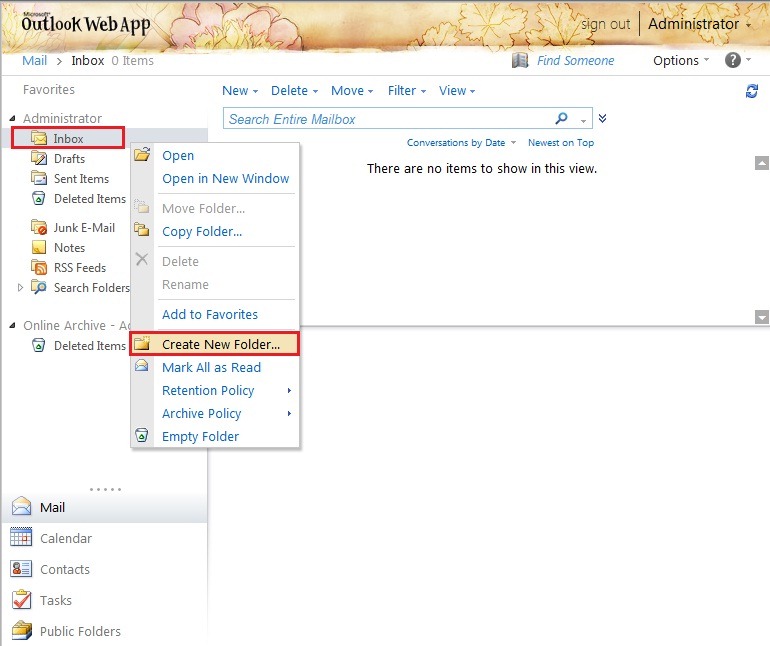
3. Επιλέγοντας δεξί κλικ στο Inbox μας, μας δίνετε η επιλογή “Create New Folder..”

Image_1

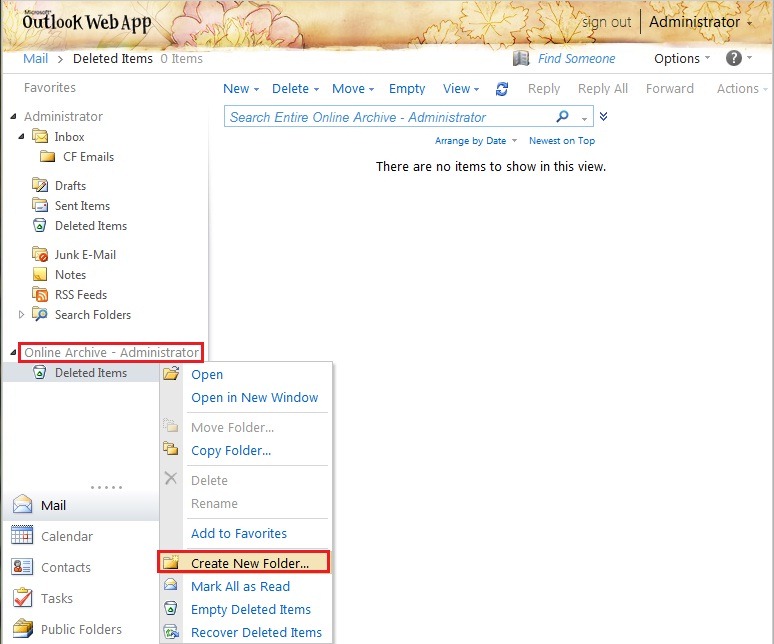
4. Σε περίπτωση, που ο χρήστης μας έχει ενεργοποιημένο το Online Archive (όπως στο παράδειγμα μας), μπορούμε να δημιουργήσουμε φάκελο ή φακέλους στο Online Archive.

Image_2

Σημείωση: Όπως έχω αναφέρει και σε παλιότερα post μου, με τον ερχομό του Exchange 2010 SP1 μας δόθηκε η δυνατότητα Personal Archive Mailboxes σε ξεχωριστές Databases, στην ουσία, μας δίνει την δυνατότητα επιλογής αποθήκευσης του Personal Archive σε ξεχωριστή Mailbox DB (Data Base). Εδώ περιγράφετε και η διαδικασία: Εισαγωγή στο Online Archiving του Exchange Server 2010 SP1

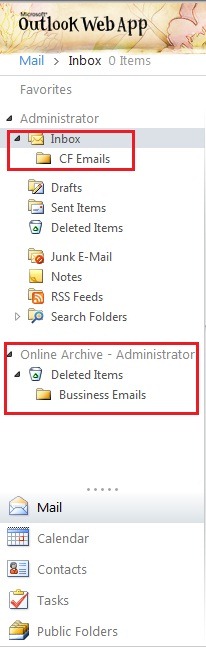
5. Από την στιγμή που δημιουργήσαμε τον/τους φακέλους μας, προχώρημα στο επόμενο μας βήμα για την δημιουργία και την οργάνωση των Rules μας.

Image_3

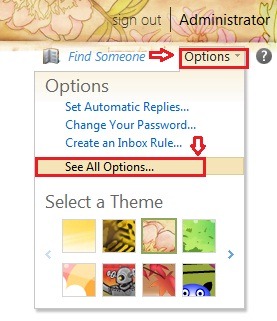
6. Για να δημιουργήσουμε Rules, θα πρέπει να μεταβούμε στην ECP (Exchange Control Panel). Επιλέγουμε επάνω δεξιά Options και επιλέγουμε See all options.

Image_3.1

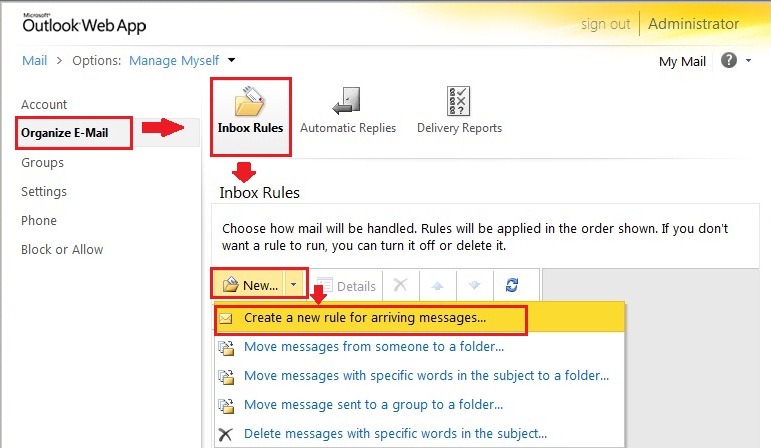
7. Στο επόμενο βήμα, επιλέγουμε Organize EMail και στην δεξιά πλευρά του παραθύρου Inbox rules και έπειτα NewàCreate a new rule for arriving messages.

Image_4

8. Θα δούμε την δημιουργία ενός απλού Rule, που όταν λαμβάνουμε μηνύματα από έναν συγκεκριμένο χρήστη , θα μεταφέρονται σε συγκεκριμένο φάκελο που τον έχουμε ονομάσει «CF Emails».

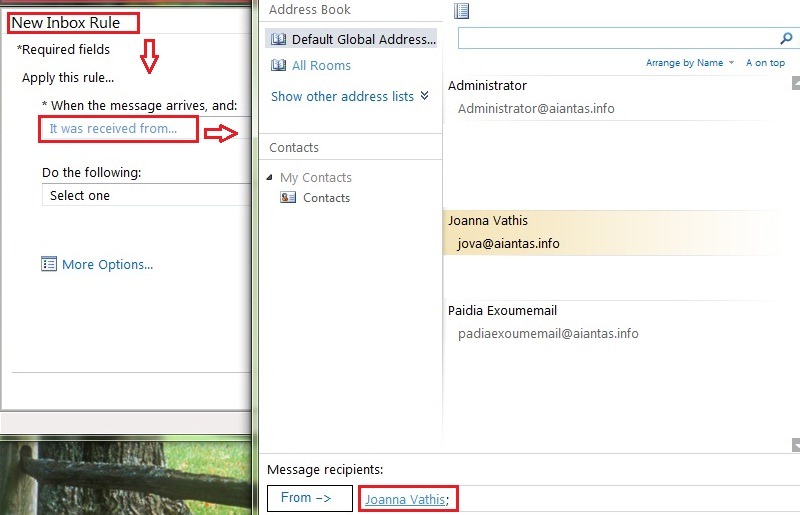
9. Στο παράθυρο διαλόγου New Inbox Rule, θα επιλέξουμε στο When the message arrives, and: την επιλογή It was received from…. και επιλέγουμε από τα Contacts μας το email του αποστολέα μας.

Image_5

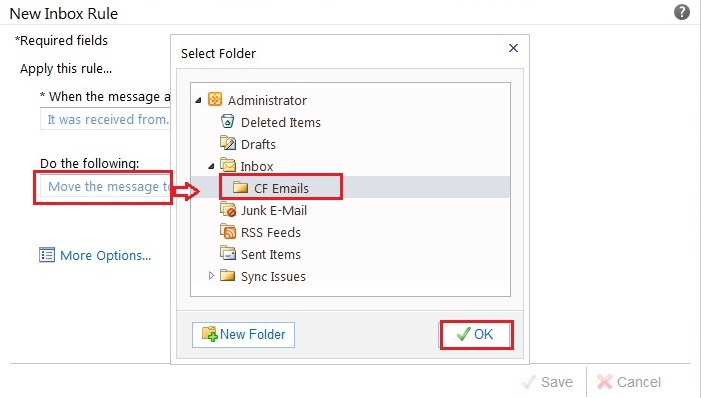
10. Επόμενο βήμα, είναι η επιλογή του φακέλου, που θέλουμε να πηγαίνουν τα μηνύματα του συγκεκριμένου αποστολέα.

Image_6

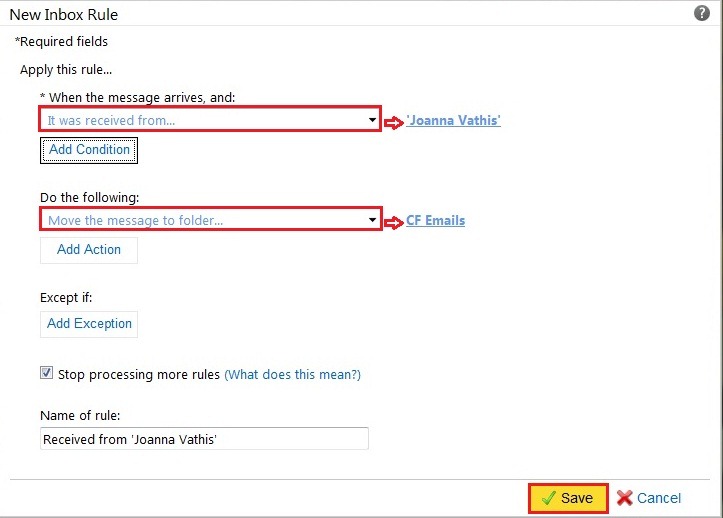
11. Επιλέγουμε Save .

Image_7

12. Πάμε να κάνουμε δοκιμή, να στείλουμε μήνυμα από τον χρήστη Joanna Vathis στον Administrator. Όπως φαίνεται και στην εικόνα μας, το μήνυμα παραλήφτηκε και μεταφέρθηκε στον φάκελο με επιτυχεία.

Image_10

Jetstress Field Guide – April 2011 Release


When I released the first version of this guide back in November 2010 I had no idea how many people were out there having problems with Jetstress testing. Over the last 5 months I have had the opportunity to work through and discuss some interesting cases with a number of you.

So I thought it was about time that I updated the guide with the lessons learned from those cases and to include some stuff that I had forgotten to include in the first release. I have also included some feedback from the internal Microsoft Jetstress community. Hopefully this has produced some more useful information and clarified some sections.

So, here is version 1.0.0.11.

Change List

  • Updated for version 14.01.225.017 of Jetstress
  • Added Exchange Server 2003 instructions
  • Added more troubleshooting information
  • Added guidance for running Jetstress on a production Exchange Server
  • Included guidance for testing Raid Arrays
  • Included information and guidance on Background Database Maintenance
  • General corrections and clarity improvements

Lastly I want to thank everyone that contributed to this guide, from the Exchange product group, our partners and my Exchange colleagues out there in the real world, working at the sharp end every day – without the feedback from you all this guide would not be possible, so huge thanks to everyone and please keep the feedback coming!

You can download the updated whitepaper here.

Happy Jetstressing!

Source: Neil Johnson