Office 365 User Creation and License assignment


Today, I manage to complete the bellow script, in order some basic Office 365 User Creation and License assignment to be automate with one click

This script automate execute steps for Office 365 Administrator Tasks.
By choosing only a number, you can manage your Office 365 Tasks.

What do you need to know before you begin?

  • Make sure you have already installed Windows Azure AD PowerShell
  • You must check and be sure your server or your computer has access to the internet

Let’s have a quick look how to execute the script O365Tool_v1.0 on Windows PowerShell and what this script do for us.

  1. Login to your computer with Administrator credentials
  2. Start Windows Azure AD PowerShell “As Administrator”

clip_image001[4]

  1. Next step, copy the script O365Tool_v1.0 on (C:\O365Tool_v1.0) folder or create the O365Tool_v1.0 folder in your preferred destination

clip_image002[4]

  1. Let’s start by running the script from Windows Azure AD PowerShell itself.
    In case you get weird error messages when you try to run a script, the reason is only one, security settings built into Windows PowerShell include something called the “execution policy” the execution policy determines how (or if) PowerShell runs scripts. By default, PowerShell’s execution policy is set to Restricted that means that scripts – including those you write yourself – won’t run.
    Navigate back to Windows PowerShell and set the Execution policy to unrestricted in order to be able to run the script, in that case, use this command to set your execution policy to RemoteSigned or Unrestricted

clip_image003[4]

Note: The Set-ExecutionPolicy cmdlet enables you to determine which Windows PowerShell scripts (if any) will be allowed to run on your computer.

Windows PowerShell has four different execution policies:

  • Restricted – No scripts can be run. Windows PowerShell can be used only in interactive mode.
  • AllSigned – Only scripts signed by a trusted publisher can be run.
  • RemoteSigned – Downloaded scripts must be signed by a trusted publisher before they can be run.
  • Unrestricted – No restrictions; all Windows PowerShell scripts can be run.
  1. The most common (default) way to run a script is by calling it:

PS C:\> & “C:\Admin\My first Script.ps1”

If the path does not contain any spaces, then you can omit the quotes and the ‘&’ operator

PS C:\> C:\Admin\Myscript.ps1

If the script is in the current directory, you must indicate this using .\ (or ./ will also work)

PS C:\> .\Myscript.ps1

Create the folders:

Main folder: O365Tool

Subfolder’s: Logs and Exports

clip_image004[4]

In our case scenario we run the script in the current directory “C:\O365Tool_v1.0” so, we must indicate this using .\ and we click Enter

clip_image005[5]

  1. Prepare the CSV file ” the file is included on the script zip”

clip_image006[5]

  1. Type your Global Admin credentials, Username and Password in order to login

clip_image007[5]

  1. Our script now it starts running, select an option from the menu. In my case scenario, I will select option 1, to start the creation of the new users and then to proceed with the rest of the options.

clip_image008[6]

Users are now created:

clip_image009[4]

Option 2, Set UsageLocation:

clip_image010[4]

Option 3, as I have only EnterprisePack:

clip_image011[5]

Option 5, Export Mailboxes from Office 365:

clip_image012[4]

Option 6: The script has a timer for how long the script is execute:

clip_image013[4]

Enjoy…

Download the Script here: https://gallery.technet.microsoft.com/Office-365-User-Creation-b8e48121

Office 365 Message Encryption


Deliver confidential business communications with enhanced security, allowing users to send and receive encrypted email as easily as regular email directly from their desktops. Customize the email viewing portal to enhance your organization’s brand. Email can be encrypted without complex hardware and software to purchase, configure, or maintain, which helps to minimize capital investment, free up IT resources, and mitigate messaging risks.

Scripts:ExportO365UserList_v2.0 and Import_UserList_For_Archive_Mailbox


    Today, I manage to complete the bellow script, in order to automate exporting user list from Office 365 and also with a second script to enable mailbox archive for specific users

    Let’s take a closer look and see how it works

    What do you need to know before you begin?

    • Make sure you have already installed Windows Azure AD PowerShell
    • You must check and be sure your server or your computer has access to the internet

    Let’s have a quick look how to execute the script ExportO365UserList_v2.0 and Import_UserList_For_Archive_Mailbox.ps1 on Windows PowerShell and what this script do for us.

    1. Login to your computer with Administrator credentials
    2. Start Windows Azure AD PowerShell “As Administrator”

    clip_image001

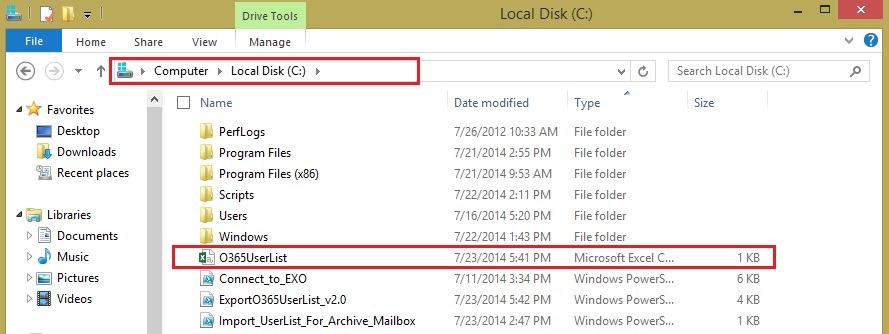
3. Next step, copy the scripts ExportO365UserList_v2.0 and Import_UserList_For_Archive_Mailbox.ps1 on (C:\) drive

    clip_image002

4. Let’s start by running the script from Windows Azure AD PowerShell itself.
In case you get weird error messages when you try to run a script, the reason is only one, security settings built into Windows PowerShell include something called the “execution policy” the execution policy determines how (or if) PowerShell runs scripts. By default, PowerShell’s execution policy is set to Restricted that means that scripts – including those you write yourself – won’t run.
Navigate back to Windows PowerShell and set the Execution policy to unrestricted in order to be able to run the script, in that case, use this command to set your execution policy to RemoteSigned or Unrestricted

    clip_image003

    Note: The Set-ExecutionPolicy cmdlet enables you to determine which Windows PowerShell scripts (if any) will be allowed to run on your computer.

    Windows PowerShell has four different execution policies:

    • Restricted – No scripts can be run. Windows PowerShell can be used only in interactive mode.
    • AllSigned – Only scripts signed by a trusted publisher can be run.
    • RemoteSigned – Downloaded scripts must be signed by a trusted publisher before they can be run.
    • Unrestricted – No restrictions; all Windows PowerShell scripts can be run.
    1. The most common (default) way to run a script is by calling it:

    PS C:\> & “C:\Admin\My first Script.ps1”

    If the path does not contain any spaces, then you can omit the quotes and the ‘&’ operator

    PS C:\> C:\Admin\Myscript.ps1

    If the script is in the current directory, you must indicate this using .\ (or ./ will also work)

    PS C:\> .\Myscript.ps1

    In our case scenario we run the script in the current directory “C:\” so, we must indicate this using .\ and we click Enter

    clip_image004

5. Type your Global Admin credentials, Username and Password in order to login and the script automatically will export the Office 365 User List on C:\

    clip_image005

6. Go to C:\ drive and check the list which is exported there, with the name O365UserList.csv

    clip_image006

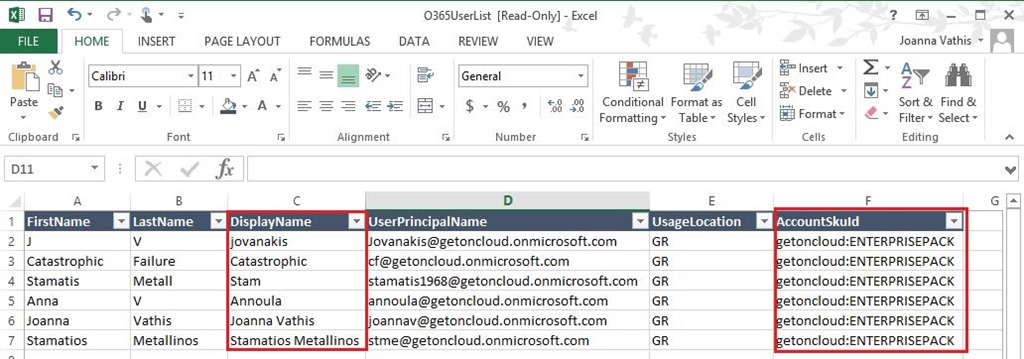
7. Next step, is to open the exported list with the excel file, on the list we can see all licensed users, SMTP addresses and display name

    clip_image007

    Now we will filter this list and we’ll select only the users that we want to enable mailbox archive

    clip_image008

8. I will copy on notepad only the SMTP addresses (UserPrincipalName) and paste them on the notepad as follow

    Note: on the top of the file type Identity

    clip_image009

    Save the file on C:\ drive as UserListForMailboxArchive.csv

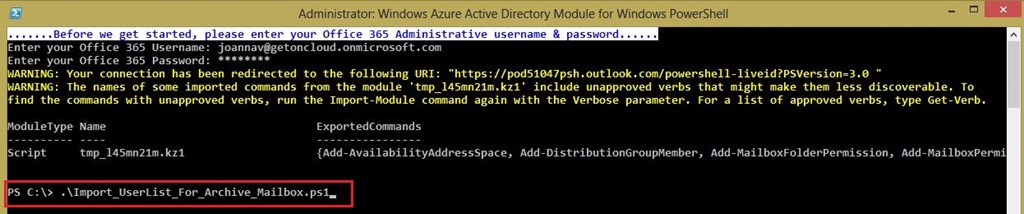
9. Navigate to Windows Azure Active Directory Module for Windows PowerShell and run the Import_UserList_For_Archive_Mailbox.ps1 script

    clip_image010

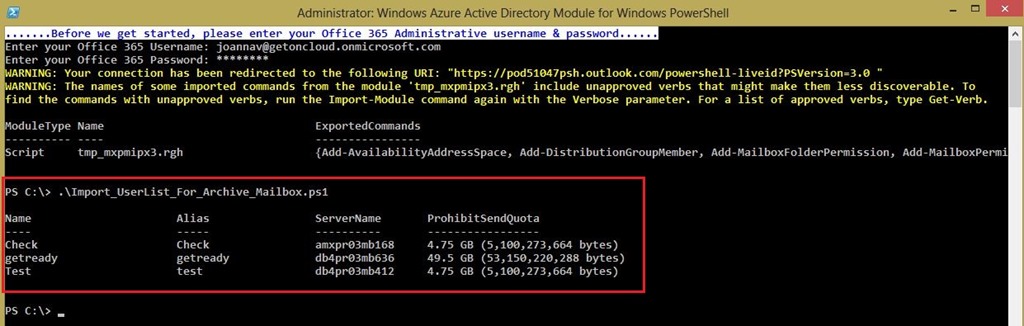
    As we can see Mailbox Archive was enabled for those users

    clip_image011

    You can download the scripts from TechNet Gallery, click here 

Script: Exchange Server 2013 SP1 Prerequisites (Exchange2013SP1Prerequisites_W2008R2SP1_v1.0)


This script automate execute steps for installing the necessary Windows Server 2008 R2 SP1 operating system prerequisites for the Microsoft Exchange 2013 Mailbox, Client Access, Multirole and Edge Transport server roles. The prerequisites that are needed to install Exchange 2013 on a Windows Server 2008 R2 SP1 computer depends on which Exchange roles you want to install.

What do you need to know before you begin?

  • The Edge Transport server role is available starting with Exchange 2013 SP1.
  • Make sure that the functional level of your forest is at least Windows Server 2003, and that the schema master is running Windows Server 2003 with Service Pack 2 or later.
  • The full installation option of Windows Server 2008 R2 SP1 must be used for all servers running Exchange 2013 server roles or management tools.
  • You must first join the computer to the appropriate internal Active Directory forest and domain.
  • You must check and be sure your server has access to the internet
  • Some prerequisites require you to reboot the server to complete installation.

Let’s have a quick look how to execute the script Exchange2013SP1Prerequisites_W2008R2SP1_v1.0 on Windows PowerShell and what this script do for us.

  1. Login to Windows Server 2008 R2 SP1 with Enterprise Administrator credentials
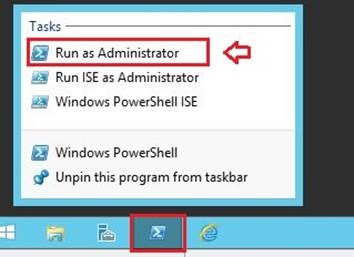
  2. Start Windows PowerShell “As Administrator”

clip_image001

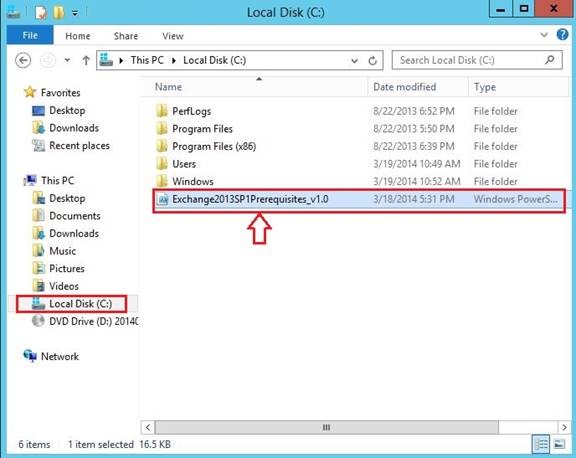
  1. Next step, copy the script Exchange2013SP1Prerequisites_W2008R2SP1_v1.0 on (C:\) drive
  1. Let’s start with running scripts from within Windows PowerShell itself.
    In case you get weird error messages when you try to run a script, the reason is only one, security settings built into Windows PowerShell include something called the “execution policy” the execution policy determines how (or if) PowerShell runs scripts. By default, PowerShell’s execution policy is set to Restricted that means that scripts – including those you write yourself – won’t run.
    Navigate back to Windows PowerShell and set the Execution policy to unrestricted in order to be able to run the script, in that case, use this command to set your execution policy to RemoteSigned or Unrestricted

clip_image002

Note: The Set-ExecutionPolicy cmdlet enables you to determine which Windows PowerShell scripts (if any) will be allowed to run on your computer.

Windows PowerShell has four different execution policies:

  • Restricted – No scripts can be run. Windows PowerShell can be used only in interactive mode.
  • AllSigned – Only scripts signed by a trusted publisher can be run.
  • RemoteSigned – Downloaded scripts must be signed by a trusted publisher before they can be run.
  • Unrestricted – No restrictions; all Windows PowerShell scripts can be run.
  1. The most common (default) way to run a script is by calling it:

PS C:\> & “C:\Admin\My first Script.ps1”

If the path does not contain any spaces, then you can omit the quotes and the ‘&’ operator

PS C:\> C:\Admin\Myscript.ps1

If the script is in the current directory, you must indicate this using .\ (or ./ will also work)

PS C:\> .\Myscript.ps1

In our case scenario we run the script in the current directory “C:\” so, we must indicate this using .\ and we click Enter

clip_image003

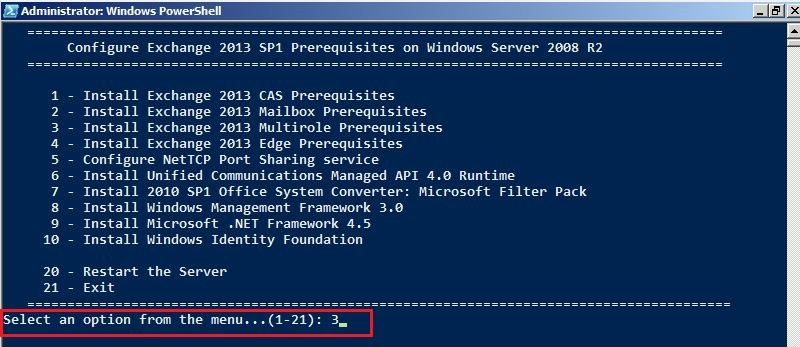
  1. Our script now it starts running, select an option from the menu. In my case scenario, I will select option 3 (E2013 Multirole installation) and click Enter

clip_image004

  1. As you can easy check bellow, my Multirole Prerequisites are in progress to be download and install

clip_image005

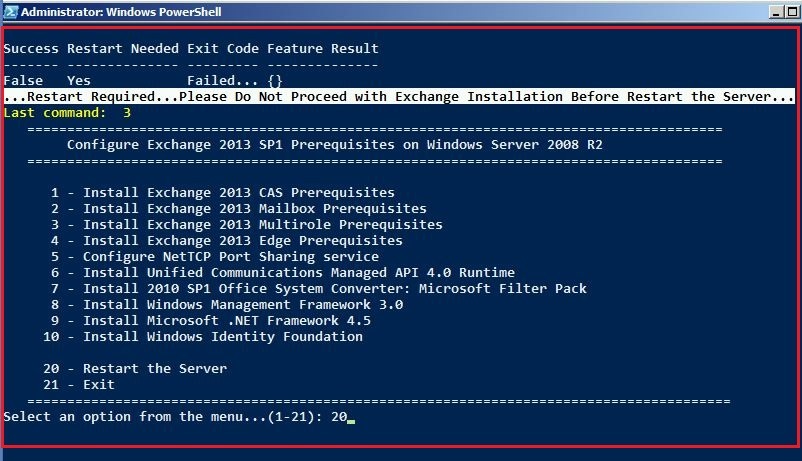
  1. After the Prerequisites successfully installed, we have to choose the option 10 in order to restart our server

clip_image006

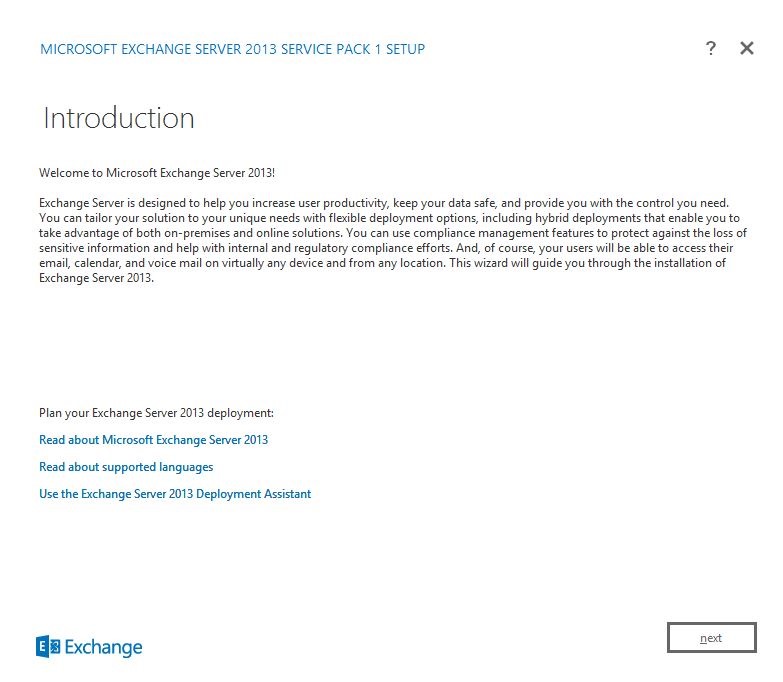
  1. After restart your server, login as EA and proceed to install your Microsoft Exchange Server 2013 SP1

clip_image007

You can download the script from TechNet Gallery Script Center Capture

Exchange Server 2013 SP1 Prerequisites (Exchange2013SP1Prerequisites_v1.0)


Exchange Server 2013 SP1 Prerequisites (Exchange2013SP1Prerequisites_v1.0)

This script automate execute steps for installing the necessary Windows Server 2012 R2 and Windows Server 2012 operating system prerequisites for the Microsoft Exchange 2013 Mailbox, Client Access, Multirole and Edge Transport server roles. The prerequisites that are needed to install Exchange 2013 on a Windows Server 2012 R2 or Windows Server 2012 computer depends on which Exchange roles you want to install.

What do you need to know before you begin?

o The Edge Transport server role is available starting with Exchange 2013 SP1.

o Make sure that the functional level of your forest is at least Windows Server 2003, and that the schema master is running Windows Server 2003 with Service Pack 2 or later.

o The full installation option of Windows Server 2012 R2 and Windows Server 2012 must be used for all servers running Exchange 2013 server roles or management tools.

o You must first join the computer to the appropriate internal Active Directory forest and domain.

o You must check and be sure your server has access to the internet

o Some prerequisites require you to reboot the server to complete installation.

Let’s have a quick look how to execute the script Exchange2013SP1Prerequisites_v1.0 on Windows PowerShell and what this script do for us.

1. Login to Windows Server 2012 R2 and Windows Server 2012 with Enterprise Administrator credentials

2. Start Windows PowerShell “As Administrator”

clip_image002

3. Next step, copy the script Exchange2013SP1Prerequisites_v1.0 on (C:\) drive

clip_image004

4. Let’s start with running scripts from within Windows PowerShell itself.
In case you get weird error messages when you try to run a script, the reason is only one, security settings built into Windows PowerShell include something called the “execution policy” the execution policy determines how (or if) PowerShell runs scripts. By default, PowerShell’s execution policy is set to Restricted that means that scripts – including those you write yourself – won’t run.
Navigate back to Windows PowerShell and set the Execution policy to unrestricted in order to be able to run the script, in that case, use this command to set your execution policy to RemoteSigned or Unrestricted

clip_image006

Note: The Set-ExecutionPolicy cmdlet enables you to determine which Windows PowerShell scripts (if any) will be allowed to run on your computer.

Windows PowerShell has four different execution policies:

o Restricted – No scripts can be run. Windows PowerShell can be used only in interactive mode.

o AllSigned – Only scripts signed by a trusted publisher can be run.

o RemoteSigned – Downloaded scripts must be signed by a trusted publisher before they can be run.

o Unrestricted – No restrictions; all Windows PowerShell scripts can be run.

5. The most common (default) way to run a script is by calling it:

PS C:\> & “C:\Admin\My first Script.ps1”

If the path does not contain any spaces, then you can omit the quotes and the ‘&’ operator

PS C:\> C:\Admin\Myscript.ps1

If the script is in the current directory, you must indicate this using .\ (or ./ will also work)

PS C:\> .\Myscript.ps1

In our case scenario we run the script in the current directory “C:\” so, we must indicate this using .\ and we click Enter

clip_image008

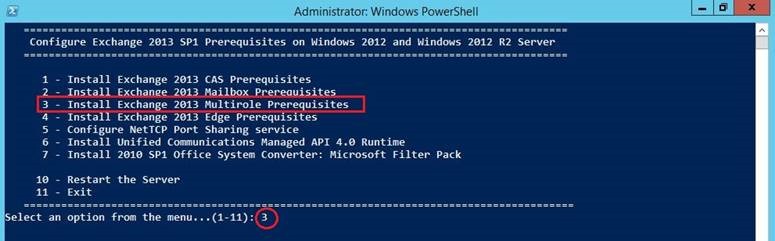
6. Our script now it starts running, select an option from the menu. In my case scenario, I will select option 3 (E2013 Multirole installation) and click Enter

clip_image010

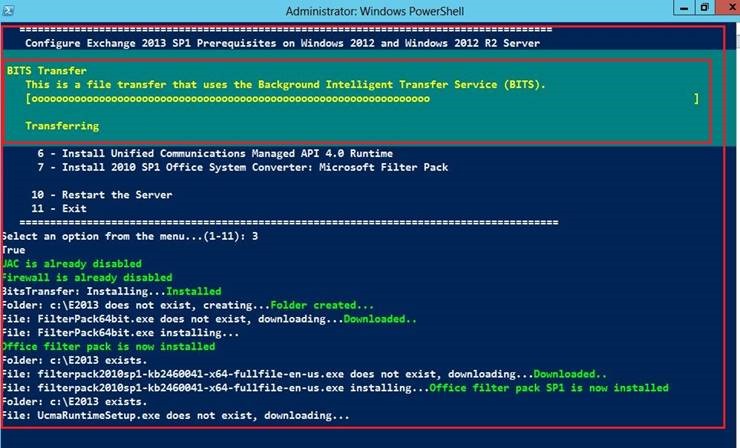
7. As you can easy check bellow, my Multirole Prerequisites are in progress to be download and install

clip_image012

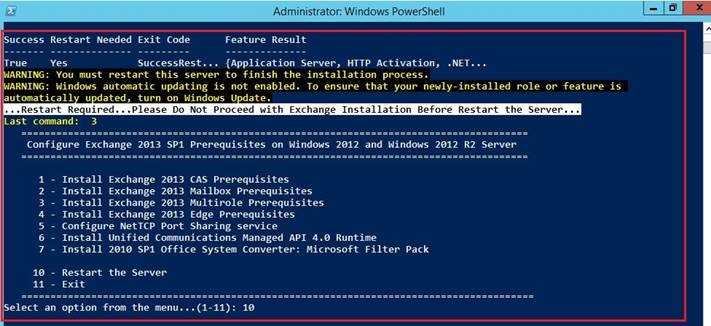
8.  After the Prerequisites successfully installed, we have to choose the option 10 in order to restart our server

clip_image014

9. After restart your server, login as EA and proceed to install your Microsoft Exchange Server 2013 SP1

clip_image016

You can download the script here

Enjoy…..Winking smile

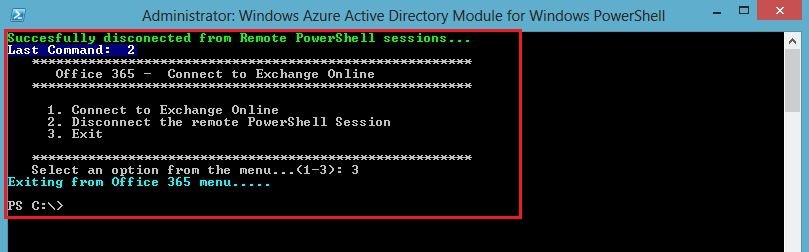
Script to automate connect and disconnect from Office 365


This script automate execute steps for connecting to Office 365.
By choosing only a number, you can manage your Office 365 connection or disconnect

what-you-need-to-know


What do you need to know before you begin?

  • Make sure you have already installed Windows Azure AD PowerShell
  • You must check and be sure your server or your computer has access to the internet

Let’s have a quick look how to execute the script Connect_to_EXO_v1.0 on Windows PowerShell and what this script do for us.

  1. Login to your computer with Administrator credentials
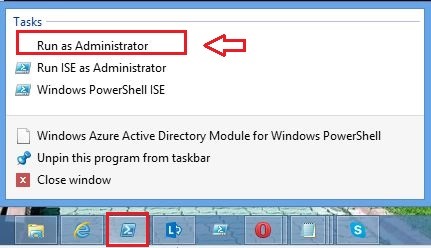
  2. Start Windows Azure AD PowerShell “As Administrator”

clip_image001

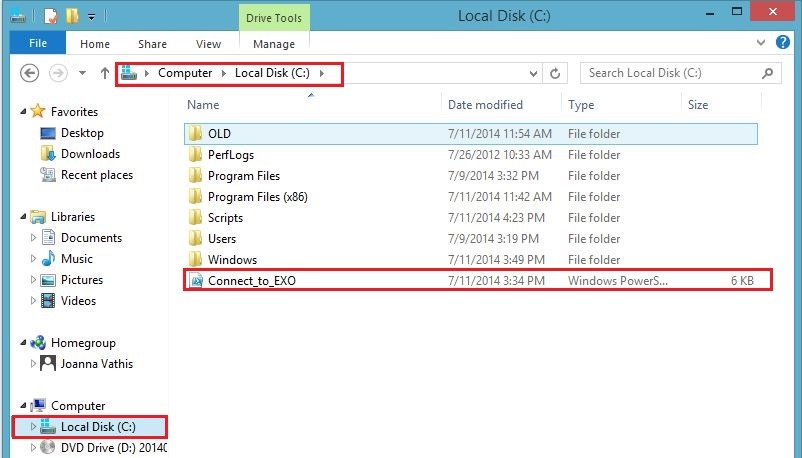
3. Next step, copy the script Connect_to_EXO_v1.0 on (C:\) drive

clip_image002

4. Let’s start by running the script from Windows Azure AD PowerShell itself.
In case you get weird error messages when you try to run a script, the reason is only one, security settings built into Windows PowerShell include something called the “execution policy” the execution policy determines how (or if) PowerShell runs scripts. By default, PowerShell’s execution policy is set to Restricted that means that scripts – including those you write yourself – won’t run.
Navigate back to Windows PowerShell and set the Execution policy to unrestricted in order to be able to run the script, in that case, use this command to set your execution policy to RemoteSigned or Unrestricted

clip_image003

Note: The Set-ExecutionPolicy cmdlet enables you to determine which Windows PowerShell scripts (if any) will be allowed to run on your computer.

Windows PowerShell has four different execution policies:

  • Restricted – No scripts can be run. Windows PowerShell can be used only in interactive mode.
  • AllSigned – Only scripts signed by a trusted publisher can be run.
  • RemoteSigned – Downloaded scripts must be signed by a trusted publisher before they can be run.
  • Unrestricted – No restrictions; all Windows PowerShell scripts can be run.

5. The most common (default) way to run a script is by calling it:

PS C:\> & “C:\Admin\My first Script.ps1”

If the path does not contain any spaces, then you can omit the quotes and the ‘&’ operator

PS C:\> C:\Admin\Myscript.ps1

If the script is in the current directory, you must indicate this using .\ (or ./ will also work)

PS C:\> .\Myscript.ps1

In our case scenario we run the script in the current directory “C:\” so, we must indicate this using .\ and we click Enter

clip_image004

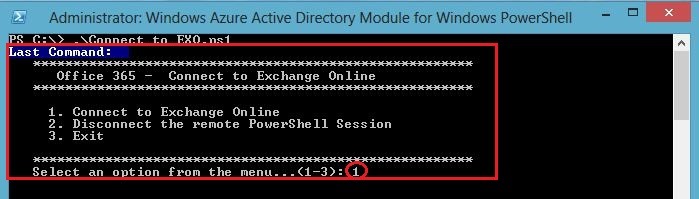
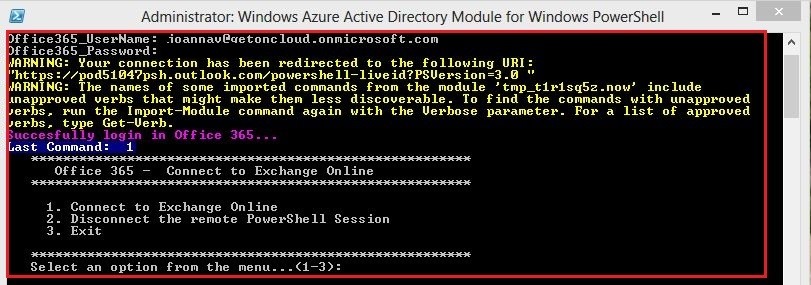
6. Our script now it starts running, select an option from the menu. In my case scenario, I will select option 1 (Connect to Exchange Online) and click Enter

clip_image005

7. Type your credentials (Username and Password) and let the script do the rest for you…

clip_image006

clip_image007

You can download the script, from here Microsoft TechNet Gallery

Enjoy…..Winking smile

Office 365 "W15" Hybrid Deployment (Part VI) – Configuring a Microsoft Exchange Online Hybrid Deployment


After having in Part 5 configure part of Microsoft Exchange Server, in Part 6 and final part we will continue with Exchange Server configuration based migrations to Office 365 or more precisely Exchange Online, we ran the Exchange 2010 SP3 hybrid configuration wizard in order to set up the basic Exchange hybrid configuration.

Let’s go.…

Look at Current Hybrid Configuration

Let’s take a look at the stuff that was created behind the scene, when we ran the Hybrid Configuration Wizard (HCW).
Let’s first look at the hybrid configuration object itself. We can do so by launching the Exchange Management Shell (EMS), and run the following command: Get-HybridConfiguration

clip_image002

As you can see above, the settings (such as hybrid Client Access and Hub transport server, on premise smart host and federation domains) you specified when we ran the wizard have been set on the hybrid configuration object. But, this is not the only thing that have been configured. You can also see which features have been enabled (FreeBusy, MoveMailbox, MailTips, MessageTracking, OwaRedirection, OnlineArchive, SecureMail and CentralizedTransport), which are features we wish to enable between the on premise Exchange organization and the Exchange Online organization in Office 365.
In addition, the following has also been performed in the on premise Exchange organization:
A federation trust with the Microsoft Federation Gateway (MFG) has been established for the specified domain:

clip_image004

Creating a federation trust with the MFG is required in order to be able to set up an organizational relationship, which again is required in order to share free/busy information and calendars between the on premise Exchange organization and the Exchange Online organization in Office 365. With this said, it’s important to note that a trust isn’t set up with the MFG, instead the MFG merely acts as a trust broker between the involved Exchange organizations.

“tenant_name.mail.onmicrosoft.com” has been added as an accepted domain:

clip_image006

Adding the “tenant_name.mail.onmicrosoft.com” domain to the “Accepted Domains” list as an authoritative domain is required in order for the on premise Exchange organization to accept inbound e-mail messages destined for a mailbox user located in Exchange Online. When a mailbox is moved from the on premise Exchange organization to Exchange Online, the source mailbox user object is converted to a mail user object, which is configured with an external address of “alias@office365labdk.onmicrosoft.com“. We will look more at this later in this article series.

“tenant_name.mail.onmicrosoft.com” and “onprem.local” has been added as a remote domain:

clip_image008

A remote domain is an SMTP domain that is external to our Exchange organization. When a new remote domain is created, it’s possible to specify the remote domain is used for Exchange Online purposes. With a remote domain, we can configure out of office and message formatting settings. The HCW sets the ideal setting for a hybrid and enables the SMTP domain as the domain used for an Office 365 tenant, which is important in relation to provisioning of new remote mailbox users (users that get a mailbox created directly in Exchange Online).
The default E-Mail Address policy has been updated, so that it stamps a secondary proxy address (alias@tenant_name.mail.onmicrosoft.com) on mailbox user objects:

clip_image010

The SMTP address “alias@lacosanostra365.mail.onmicrosoft.com“ is added to the default E-mail address policy, so that it can be stamped as an additional proxy address on the mail objects in the organization. As mentioned earlier, when a mailbox is moved to Exchange Online, the source mailbox user object is converted to a mail user object and in order to be able to set “alias@office365labdk.mail.onmicrosoft.com“ as the external e-mail address, it must already be stamped on the object. The HCW also creates a receive connector on each of the hybrid servers. The purpose of this receive connector is to accept inbound mail that comes directly from Exchange Online in Office 365. The receive connector accepts anonymous connections secured using TLS, but only from the IP range used by Office 365.
In addition, the HCW will create a send connector that will route all e-mail messages destined for “tenant_name.mail.onmicrosoft.com” to Exchange Online in Office 365.

clip_image012

And finally, an organizational relationship has been established with the Exchange Online organization in Office 365:

clip_image014

The organization relationship is used to configure what kind of features should be enabled between the on premise Exchange organization and Exchange Online and for availability sharing at what level.
Let’s take a closer look at the organization relationship that has been created. We can do this by running the following command in the Exchange Management Shell (EMS): Get-OrganizationRelationship | fl
By default, free/busy is enabled with limited details. In addition, mailbox moves, delivery reports, MailTips and online archive are enabled. Moreover, a target OWA URL is specified and by default, it will be set to: “http://outlook.com/owa/tenant_name.onmicrosoft.com”. The target OWA URL is the URL that a user will be non-transparently redirected to (we will look at this later in this article series), when he tries to access his mailbox using the existing OWA namespace (i.e. http://mail.domain.com/owa) after his mailbox has been moved to Exchange Online. Lastly, a target autodisocver has been set by the HCW.
This is the endpoint used to reach out to the Exchange Online organization for the configured features, when a request comes from the on premise Exchange organization to the Exchange Online organization.
In Office 365, the following was configured, when we ran the HCW
Just like for the on premise Exchange organization, the domains used for routing between on premise and Exchange Online has been added as “Accepted Domains” in the Exchange Online organization.

clip_image015

Likewise, for remote domains, these have been configured in Exchange Online. An organization relationship has been configured in Exchange Online, so the sharing requests etc. from an Exchange Online mailbox user to an on premise mailbox user is sent to the on premise Exchange organization.

clip_image017

Just like is the case with the on premise Exchange organization, we can get additional information about the configuration of the organization relationship by running the following command: Get-OrganizationRelationship | fl

Update Hybrid Configuration

If you at some point wish to update the hybrid configuration in your environment, you can do so via the HCW or EMS.
If you want to use the HCW, you simply click on the hybrid configuration object in the EMC, and select “Manage Hybrid Configuration” in the context menu.

clip_image018

If you want to use EMS, you first set the required configuration using the Set-HybridConfiguration cmdlet and then you run the Update-HybridConfiguration cmdlet to push the new configuration to Office 365.
Read more about the Set-HybridConfiguration cmdlet here and the Update-HybridConfiguration cmdlet here.

That is we will move an on premise Exchange mailbox to Exchange Online and then we will test the browser and client behavior and see what to expect when a mailbox has been moved from on premise Exchange to Exchange Online. Moreover, we will be provisioning a new mailbox in Exchange Online using the “New Remote Mailbox” wizard and the “New-RemoteMailbox” cmdlet.
Lastly, I explain what to consider when it comes to decommissioning your Exchange on premise servers or just the legacy Exchange servers within your on premise environment.

Moving a Mailbox

Now that we have configured a hybrid deployment, let’s test things out to ensure they work as expected. First, we will move an on premise mailbox to Exchange Online using the “New Remote Move Request” wizard. This can be done by right-clicking on an on premise mailbox and selecting “New Remote Move Request” in the context menu as shown in

clip_image020

On the “Introduction” page, click “Next”.

clip_image022

On the “Connection Configurations” page, make sure “Target forest” is set to “the name you gave the additional Exchange forest”, then enter the FQDN for the Exchange hybrid server that has the Client Access server role installed. Also, enter the credentials for an on premise administrator and click “Next”.

clip_image024

On the “Move Settings” page, click “Browse” and then select the target delivery domain (in this case “office365labdk.mail.onmicrosoft.com”). Since, we’re moving a mailbox to Exchange Online, we cannot select the target database (it will be picked randomly). Click “Next

clip_image026


On the “Configuration Summary” page, click “New” in order to create the remote move request in Exchange Online.

clip_image028

On the “Completion” page, click “Finish

clip_image030

Let’s go and see how to migrate mailbox data by using the Exchange Admin Center in Office 365

1. Sign in to the Office 365 portal (https://portal.microsoftonline.com).

2. Click Admin, and then click Exchange.

3. Click Migration, click New (+), and then click Onboarding.

4. Select the migration option that you want, and then click Next. Migration options are as follows:

· Remote move

· Staged migration

· Cutover migration

· IMAP
The following screen shot shows the migration options:

clip_image032

In New migration batch window, click New (+)

clip_image034

Select the user/s that you want to move and click add and then ok and Next

clip_image036

clip_image038

In the next window enter on premise account credentials and click Next

clip_image040

After the wizard finish, the mailbox will be moved successful to Office 365

Enjoy…

Script: Set Exchange 2013 Name Space & Virtual Directories


This script Set-VirtualDirectory.ps1 automate configure all Exchange 2013 virtual directories:

o OWA

o ECP

o OAB

o ActiveSync

o Web Services

o AutoDiscover

o Outlook Anywhere

You just type the External Url and Internal Url you want to set, and automatically Url’s are set

Let’s have a quick look how to execute the script Set-VirtualDirectory.ps1 on Windows PowerShell and what this script do for us.

1. Login to Windows Server with Enterprise Administrator credentials

2. Start Windows PowerShell “As Administrator”

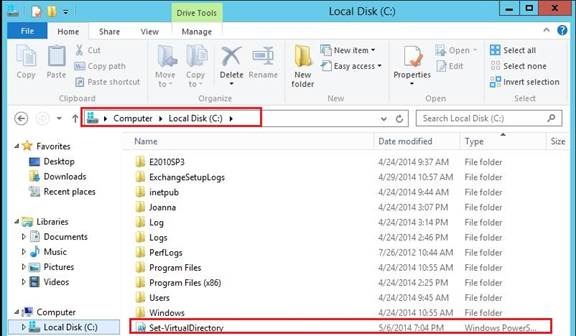
3. Next step, copy the script Get-ActiveMailboxList.ps1 on (C:\) drive

clip_image002

4. Let’s start with running scripts from within Windows PowerShell itself.
In case you get weird error messages when you try to run a script, the reason is only one, security settings built into Exchange PowerShell include something called the “execution policy” the execution policy determines how (or if) PowerShell runs scripts. By default, PowerShell’s execution policy is set to Restricted that means that scripts – including those you write yourself – won’t run.
Navigate back to Exchange PowerShell and set the Execution policy to unrestricted in order to be able to run the script, in that case, use this command to set your execution policy to RemoteSigned or Unrestricted

clip_image004

Note: The Set-ExecutionPolicy cmdlet enables you to determine which Windows PowerShell scripts (if any) will be allowed to run on your computer.

Windows PowerShell has four different execution policies:

o Restricted – No scripts can be run. Windows PowerShell can be used only in interactive mode.

o AllSigned – Only scripts signed by a trusted publisher can be run.

o RemoteSigned – Downloaded scripts must be signed by a trusted publisher before they can be run.

o Unrestricted – No restrictions; all Windows PowerShell scripts can be run.

5. The most common (default) way to run a script is by calling it:

PS C:\> & “C:\Admin\My first Script.ps1”

If the path does not contain any spaces, then you can omit the quotes and the ‘&’ operator

PS C:\> C:\Admin\Myscript.ps1

If the script is in the current directory, you must indicate this using .\ (or ./ will also work)

PS C:\> .\Myscript.ps1

In our case scenario we run the script in the current directory “C:\” so, we must indicate this using & ‘.\’ and we click Enter

If you’re running some command and the command path has spaces in it, then you need the command invocation operator ‘&’ (see help about_operators, look for “call operator”).

The call operator (&) allows you to execute a command, script or function.

Many times you can execute a command by just typing its name, but if the command (or the path) contains a space then this will fail.

Putting the command in quotes would make PowerShell treat it as a string, so in addition to quotes, use the call operator to force PowerShell to treat the string as a command to be executed.

Syntax
& “[path] command” [arguments]

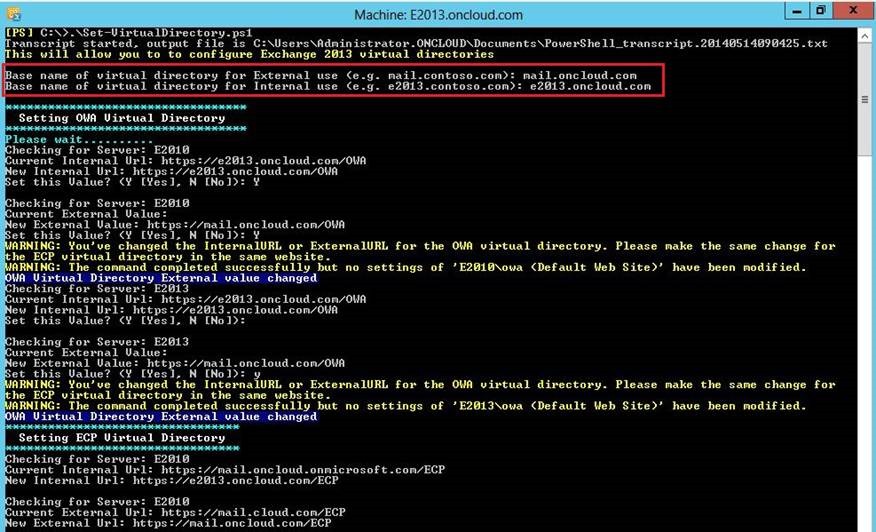
6. Our script now it starts running, automatically on C:\ drive

clip_image006

7. You have to “Set” type the External and Internal Url you want to use

clip_image008

As you can see now, the Name Spaces are set with the External and Internal Url you set

You can download it here

Script: Install Exchange Server 2010 SP3 Prerequisites on Windows Srv 2012 and Windows 2012 R2


This script automate execute steps for installing the necessary Windows Server 2012 and Windows Server 2012 R2 operating system prerequisites for the Microsoft Exchange 2010 SP3 Mailbox, Client Access, HUB Transport, Multirole and Edge Transport server roles. The prerequisites that are needed to install Exchange 2010 SP3 on a Windows Server 2012 and Windows Server 2012 R2 computer depends on which Exchange roles you want to install.

What do you need to know before you begin?

  • The Edge Transport server role is available starting with Exchange 2010 SP3.
  • Make sure that the functional level of your forest is at least Windows Server 2003, and that the schema master is running Windows Server 2003 with Service Pack 2 or later.
  • The full installation option of Windows Server 2012 and Windows Server 2012 R2 must be used for all servers running Exchange 2010 server roles or management tools.
  • You must first join the computer to the appropriate internal Active Directory forest and domain.
  • You must check and be sure your server has access to the internet
  • Some prerequisites require you to reboot the server to complete installation.

Let’s have a quick look how to execute the script Exchange2010SP3Prerequisites on Windows PowerShell and what this script do for us.

  1. Login to Windows Server 2012 and Windows Server 2012 R2 with Enterprise Administrator credentials
  2. Start Windows PowerShell “As Administrator”

clip_image001

3. Next step, copy the script Exchange2010SP3Prerequisites on (C:\) drive

clip_image002

4. Let’s start with running scripts from within Windows PowerShell itself.
In case you get weird error messages when you try to run a script, the reason is only one, security settings built into Windows PowerShell include something called the “execution policy” the execution policy determines how (or if) PowerShell runs scripts. By default, PowerShell’s execution policy is set to Restricted that means that scripts – including those you write yourself – won’t run.
Navigate back to Windows PowerShell and set the Execution policy to unrestricted in order to be able to run the script, in that case, use this command to set your execution policy to RemoteSigned or Unrestricted

clip_image003

Note: The Set-ExecutionPolicy cmdlet enables you to determine which Windows PowerShell scripts (if any) will be allowed to run on your computer.

Windows PowerShell has four different execution policies:

  • Restricted – No scripts can be run. Windows PowerShell can be used only in interactive mode.
  • AllSigned – Only scripts signed by a trusted publisher can be run.
  • RemoteSigned – Downloaded scripts must be signed by a trusted publisher before they can be run.
  • Unrestricted – No restrictions; all Windows PowerShell scripts can be run.

5. The most common (default) way to run a script is by calling it:

PS C:\> & “C:\Admin\My first Script.ps1”

If the path does not contain any spaces, then you can omit the quotes and the ‘&’ operator

PS C:\> C:\Admin\Myscript.ps1

If the script is in the current directory, you must indicate this using .\ (or ./ will also work)

PS C:\> .\Myscript.ps1

In our case scenario we run the script in the current directory “C:\” so, we must indicate this using .\ and we click Enter

clip_image004

6. Our script now it starts running, select an option from the menu. In my case scenario, I will select option 4 (E2010 Typical installation) and click Enter

clip_image005

7. As you can easy check bellow, my Multirole Prerequisites are in progress to be download and install

clip_image006

8. After the Prerequisites successfully installed, we have to choose the option 20 or 21 in order to restart our server

clip_image007

9. After restart your server, login as EA and proceed to install your Microsoft Exchange Server 2010 SP3

clip_image008

clip_image009


 You can download the script from here

Enjoy Winking smile

Office 365 Administrator Daily & Weekly Tasks Automate Tool


    Today, I manage to complete the bellow script, in order some basic Office 365 Administrator Task Daily & Weekly to be automate with one click

    This script automate execute steps for Office 365 Administrator Daily & Weekly Tasks.
    By choosing only a number, you can manage your Office 365 Daily & Weekly Tasks
    You can download the Script here.

    imagesCAYLL5MZ 

    What do you need to know before you begin?

    • Make sure you have already installed Windows Azure AD PowerShell
    • You must check and be sure your server or your computer has access to the internet

    Let’s have a quick look how to execute the script O365_DailyAdminTasks_v1.0 on Windows PowerShell and what this script do for us.

  • 1. Login to your computer with Administrator credentials
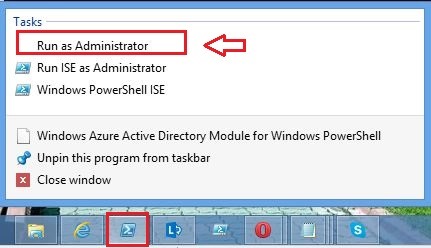
  • 2. Start Windows Azure AD PowerShell “As Administrator”

    clip_image001

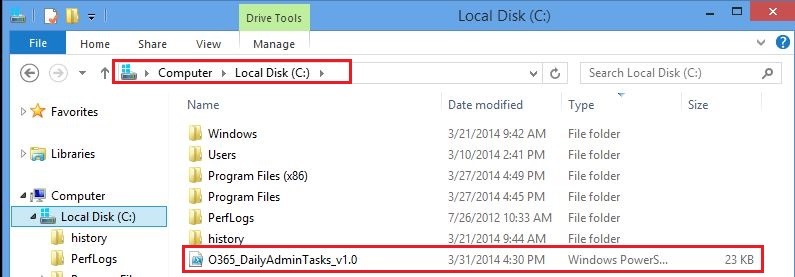
  • 3. Next step, copy the script O365_DailyAdminTasks_v1.0 on (C:\) drive

    clip_image002

  • 4. Let’s start by running the script from Windows Azure AD PowerShell itself.
    In case you get weird error messages when you try to run a script, the reason is only one, security settings built into Windows PowerShell include something called the “execution policy” the execution policy determines how (or if) PowerShell runs scripts. By default, PowerShell’s execution policy is set to Restricted that means that scripts – including those you write yourself – won’t run.
    Navigate back to Windows PowerShell and set the Execution policy to unrestricted in order to be able to run the script, in that case, use this command to set your execution policy to RemoteSigned or Unrestricted

    clip_image003

    Note: The Set-ExecutionPolicy cmdlet enables you to determine which Windows PowerShell scripts (if any) will be allowed to run on your computer.

    Windows PowerShell has four different execution policies:

    • Restricted – No scripts can be run. Windows PowerShell can be used only in interactive mode.
    • AllSigned – Only scripts signed by a trusted publisher can be run.
    • RemoteSigned – Downloaded scripts must be signed by a trusted publisher before they can be run.
    • Unrestricted – No restrictions; all Windows PowerShell scripts can be run.
  • 5. The most common (default) way to run a script is by calling it:

    PS C:\> & “C:\Admin\My first Script.ps1”

    If the path does not contain any spaces, then you can omit the quotes and the ‘&’ operator

    PS C:\> C:\Admin\Myscript.ps1

    If the script is in the current directory, you must indicate this using .\ (or ./ will also work)

    PS C:\> .\Myscript.ps1

    In our case scenario we run the script in the current directory “C:\” so, we must indicate this using .\ and we click Enter

    clip_image004

  • 6. Type your Global Admin credentials, Username and Password in order to login

    clip_image005

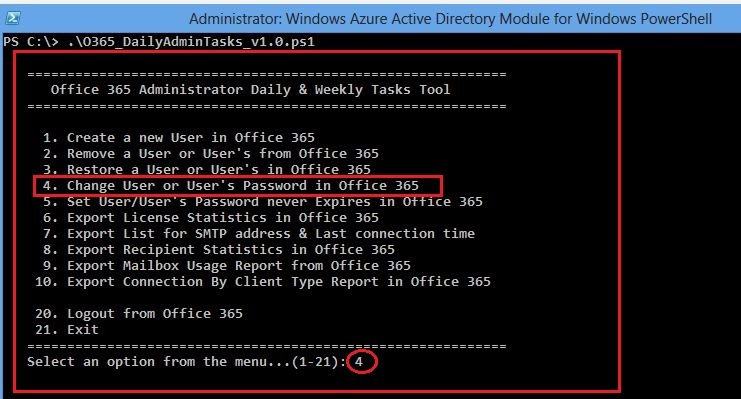
  • 7. Our script now it starts running, select an option from the menu. In my case scenario, I will select option 4 (Change User/s Password) and click Enter

    The 4th choice Change User’s Password, let’s see together how we can change user or users password with one click

    clip_image006

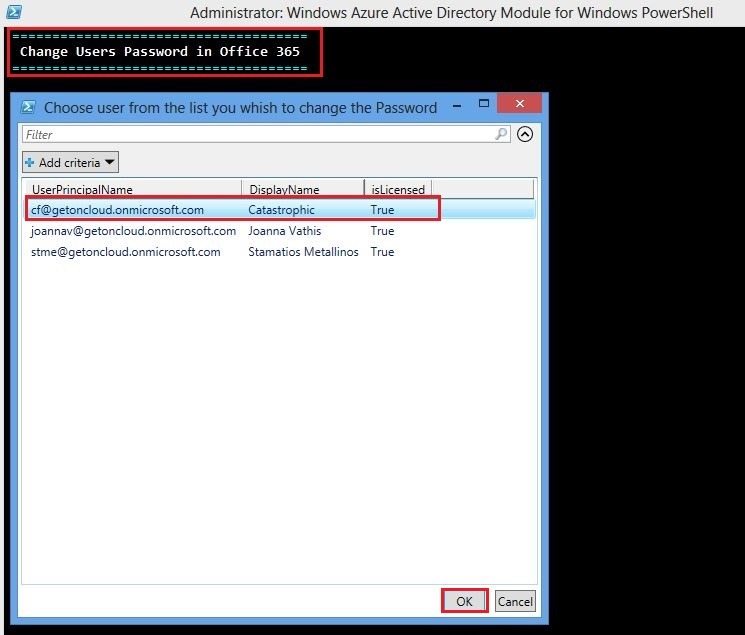
  • 8. When you press Enter, automatically its appear a window with all the users in Office 365.
    Just choose the user or the users by clicking on the user and click OK

    clip_image007

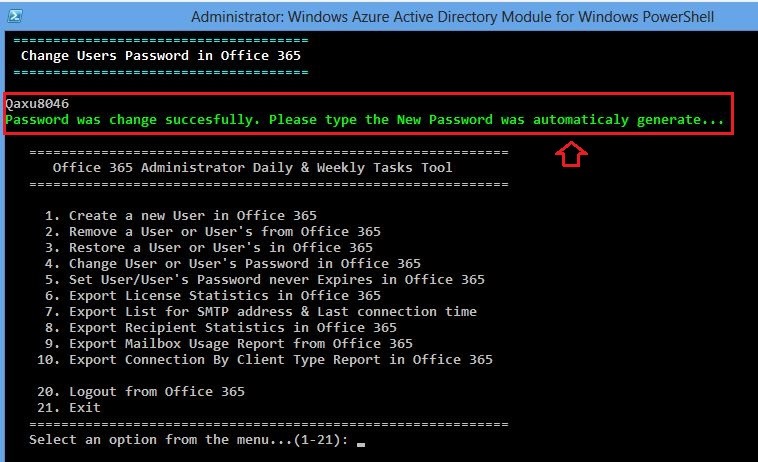
  • 9. Password change and automatically a new pass is generate

    clip_image008

  • 10. Next step, you can choose another option without to need to type again your Office 365 credentials

The Code:
#######################################################################################################

<#
   DESCRIPTION                                                                                                              
   *************                                                                                                                
    This script automate execute steps for Office 365 Administrator daily tasks
                                                                                                                           
   SYNOPSIS                                                                                                                 
   ***********                                                                                                                                                                                                                                           
   Daily:  Mailbox Administrators are constantly responding to any addition, change, and removal requests for their Office365 accounts. 
   According to the data that we analyzed from 365Command, the most common daily tasks are:
  
    Menu
   *******
   1. Create a new User in Office 365                  
   2. Remove a User or User’s from Office 365          
   3. Restore a User or User’s in Office 365            
   4. Change User or User’s Password in Office 365     
   5. Set User/User’s Password never Expires in Office 365
   6. Export License Statistics in Office 365             
   7. Export List for SMTP address & Last connection time 
   8. Export Recipient Statistics in Office 365           
   9. Export Mailbox Usage Report from Office 365         
  10. Export Connection By Client Type Report in Office 365                                                                 

Disclaimer
     Important Note Test it first on Lab environment                                           
     THIS CODE IS MADE AVAILABLE AS IS, WITHOUT WARRANTY OF ANY KIND. THE ENTIRE                        
     RISK OF THE USE OR THE RESULTS FROM THE USE OF THIS CODE REMAINS WITH THE USER                     
#########################################################################
#       To run the script                                                                                                             #
#      *******************                                                                                                             #
#                                                                                                                                              #
# .\O365_DailyAdminTasks_v1.0.ps1                                                                                    # 
# Author: Joanna Vathis                                                                                                        #
# Blog1: https://catastrophicerrors.wordpress.com/                                                        #
# Blog2: http://autoexec.gr/blogs_autoexec_gr/b/cf/default.aspx?pi516=2                   #
# Version: 1.0                                                                                                                        #
# Last Modified Date: 31/03/2014                                                                                        #
# Last Modified By:  Joanna Vathis                                                                                        #                                                                                     
#########################################################################
#>

Function LoginOffice365 {
     # Connect to Office 365 and Exchange Online
      Clear;
      Import-Module Msonline
      $GA_UserName = Read-Host “Please enter your GA Username for Office 365 account”;
      $GA_Password = Read-Host “Please enter your GA Password for Office 365 account” -AsSecureString;
      Write-Host “Don’t press any key, wait until connect……” -ForegroundColor Yellow;
      $GA_Credentials = New-Object -TypeName System.Management.Automation.PSCredential -ArgumentList $GA_UserName, $GA_Password;
      $Connect = Connect-MsolService -Credential $GA_Credentials;
      Start-Sleep -Seconds 10
      $Error = $Connect | ?{$_.gettype().Name -eq “ErrorRecord”}
             If($Error){
                        Write-Host ” $Connect” -ForegroundColor Red;   
                        Read-Host;
                       }
             Else{
      Write-Host ” Succesfully login in Office 365…” -ForegroundColor Green;
  }
  } # End LoginO365  

[string] $menu = @’
    ============================================================
       Office 365 Administrator Daily & Weekly Tasks Tool
    ============================================================
     
      1. Create a new User in Office 365                  
      2. Remove a User or User’s from Office 365          
      3. Restore a User or User’s in Office 365            
      4. Change User or User’s Password in Office 365     
      5. Set User/User’s Password never Expires in Office 365
      6. Export License Statistics in Office 365             
      7. Export List for SMTP address & Last connection time 
      8. Export Recipient Statistics in Office 365           
      9. Export Mailbox Usage Report from Office 365         
     10. Export Connection By Client Type Report in Office 365
 
     21. Exit                                   
    ============================================================
    Select an option from the menu…(1-21)
‘@ # Menu List

Function SmtpReport {
  Clear;
        Write-Host ” ==============================================” -ForegroundColor Cyan;
        Write-Host ”  List for SMTP address & Last connection time ” -ForegroundColor White;
        Write-Host ” ==============================================” -ForegroundColor Cyan;
        Write-Host ” ”   
  # List for SMTP address and Last connection time for all the users
    Get-Mailbox | fl EmailAddresses, identity | Export-Csv -Path ‘C:\Emailaddress.csv’ -NoTypeInformation
    Get-Mailbox -ResultSize unlimited | Get-MailboxStatistics | Select-Object identity,lastlogontime,lastlogofftime,DisplayName | Sort-Object DisplayName -Descending | Export-Csv -Path ‘C:\Lastlogontime.csv’ -NoTypeInformation
} # End SMTP Report

Function CreateUser {
  Clear;
        Write-Host ” =======================================” -ForegroundColor Cyan;
        Write-Host ”    Create a new User in Office 365     ” -ForegroundColor White;
        Write-Host ” =======================================” -ForegroundColor Cyan;
        Write-Host ” ”   
        $DisplayName = Read-Host “Display Name”;
        $FirstName = Read-Host “First Name”;
        $LastName = Read-Host “Last Name”;
        Write-Host “Type the username@yourdomain.onmicrosoft.com” -ForegroundColor Yellow;
        $UserName = Read-Host “User Name”;
        $UserPrincipalName = $UserName;
        #$Role = Read-Host “Assign Role”;
        $Department = Read-Host “Department”;
        $Location = Read-Host “Set user Location”;
        $PassWord = Read-Host “New Password”;
        $Proce = New-MsolUser -FirstName $FirstName -LastName $LastName -UserPrincipalName $UserPrincipalName -DisplayName $DisplayName -UsageLocation $Location -Password $PassWord -ForceChangePassword $false;
        $Error = $Proce | ?{$_.gettype().Name -eq “ErrorRecord”};
       
        If($Error){
             Write-Host $Error -BackgroundColor Black -ForegroundColor Red;
         }
         else{
        Set-MsolUser -UserPrincipalName $UserPrincipalName -UsageLocation $UsageLocation;
        Get-MsolUser | FT DisplayName,UsageLocation,Licenses,IsLicensed -AutoSize | Out-GridView;
        Get-MsolUser | FT DisplayName,UsageLocation,Licenses,IsLicensed -AutoSize | Export-Csv -Path C:\UserStatistics.csv -NoTypeInformation;
        Get-MsolAccountSku |FT AccountSkuId,ActiveUnits,ConsumedUnits;
        Write-Host “User was succesfully created…” -BackgroundColor DarkBlue -ForegroundColor White;
   
      # Proceed to Assign License for the User 
        $SkuPartNumber = Read-Host;
        $LicensesType = Read-Host;
             Write-Host ” ==============================================” -ForegroundColor Cyan;
             Write-Host ”    Office 365 Service Plans AccountSkuID      ” -ForegroundColor White;
             Write-Host ” ==============================================” -ForegroundColor Cyan;
             Write-Host ”                                               “
             Write-Host ”     1. Windows Azure AD Rights                “
             Write-Host ”     2. Office 365 ProPlus                     “
             Write-Host ”     3. Lync Online                            “
             Write-Host ”     4. Office Web Apps                        “
             Write-Host ”     5. SharePoint Online                      “
             Write-Host ”     6. Exchange Online                        “
             Write-Host ”     7. Yammer                                 ”             
             Write-Host “===============================================” -ForegroundColor Cyan;
             Write-Host  “Select a License type to assign…(1-7):”-ForegroundColor White;
            
             # 1. Windows Azure AD Rights
             If($LicensesType -eq “1”){
                  $ServicePlans = Get-MsolAccountSku | Where {$_.SkuPartNumber -eq “RMS_S_ENTERPRISE”} $s.ServiceStatus;
             }
             # 2. Office 365 ProPlus
             elseif($LicensesType -eq “2”){
                     $ServicePlans = Get-MsolAccountSku | Where {$_.SkuPartNumber -eq “OFFICESUBSCRIPTION”} $s.ServiceStatus;
             }
             # 3. Lync Online
             elseif($LicensesType -eq “3”){
                      $ServicePlans = Get-MsolAccountSku | Where {$_.SkuPartNumber -eq “MCOSTANDARD”} $s.ServiceStatus;
             }
             # 4. Office Online
             elseif($LicensesType -eq “4”){
                      $ServicePlans = Get-MsolAccountSku | Where {$_.SkuPartNumber -eq “SHAREPOINTWAC”} $s.ServiceStatus;
             }
             # 5. SharePoint Online   
             elseif($LicensesType -eq “5”){
                     $ServicePlans = Get-MsolAccountSku | Where {$_.SkuPartNumber -eq “SHAREPOINTENTERPRISE”} $s.ServiceStatus;
             }
             # 6. Exchange Online
             elseif($LicensesType -eq “6”){
                     $ServicePlans = Get-MsolAccountSku | Where {$_.SkuPartNumber -eq “EXCHANGE_S_ENTERISE”} $s.ServiceStatus;
             }
             # 7. Yammer
             elseif($LicensesType -eq “7”){
                     $ServicePlans = Get-MsolAccountSku | Where {$_.SkuPartNumber -eq “YAMMER_ENTERPRISE”} $s.ServiceStatus;                     
             }
             ForEach ($LicensesType in $ServicePlans){                       
                Set-MsolUserLicense -UserPrincipalName $UserPrincipalName -AddLicenses $LicenseType.AccountSkuId;
                  }
              
            Write-Host “License was succesfully assigned to the user…” -BackgroundColor DarkBlue -ForegroundColor White;
  }
  }# End CreateUser

Function LicenseStatistics {
    # Export License Statistics   
        Clear;
        Write-Host ” ===================================” -ForegroundColor Cyan;
        Write-Host ”   Office 365 License Statistics    ” -ForegroundColor White;
        Write-Host ” ===================================” -ForegroundColor Cyan;
        Write-Host ” ”   
        $a = Get-MsolAccountSku
        $all = $a.ActiveUnits
        $consumed = $a.ConsumedUnits
        $left = $all – $consumed
       
        # Get Report for All Licensed users in Office 365
          Get-MsolUser -All | Where-Object { $_.isLicensed -eq “True” } | Select-Object UserPrincipalName, DisplayName, Country, Department | Export-Csv C:\LicensedUsers.csv -NoTypeInformation;
          Get-MsolUser -All | Where-Object { $_.isLicensed -eq “True” } | Select-Object UserPrincipalName, DisplayName, Country, Department | Out-GridView;
       
        # Get Report for All UnLicensed users in Office 365
          Get-MsolUser -All | Where-Object { $_.isLicensed -eq “False” } | Select-Object UserPrincipalName, DisplayName, Country, Department | Export-Csv C:\UnLicensedUsers.csv -NoTypeInformation;
          Get-MsolUser -All | Where-Object { $_.isLicensed -eq “False” } | Select-Object UserPrincipalName, DisplayName, Country, Department | Out-GridView;
       
        # Check if we have availiable License in Office 365 Tenant
          If ($all -eq $consumed) { “There are no licences available”}
              Else { “There $left licences available”}
} # End LicenseStatistics

Function RemoveUser {
      # Remove a user from Office 365   
        Clear;
        Write-Host ” ===================================” -ForegroundColor Cyan;
        Write-Host ”   Remove a User from Office 365    ” -ForegroundColor White;
        Write-Host ” ===================================” -ForegroundColor Cyan;
        Write-Host ” ”   
       
        # Proceed to Remove user or users from Office 365
        Get-MsolUser -All | Out-GridView -Title “Choose users from the list you want to delete” -PassThru | ForEach-Object {Remove-MsolUser -UserPrincipalName  $_.UserPrincipalName -force}
        Write-Host “User was succesfully removed….” -ForegroundColor Green;

       # Proceed to Remove user or users from RecycleBin in Office 365
        Get-MsolUser -All | Out-GridView -Title “Choose users from the list you want to Remove from RecycleBin” -PassThru | ForEach-Object {Remove-MsolUser -UserPrincipalName $_.UserPrincipalName -RemoveFromRecycleBin}
        Write-Host “User was succesfully removed from RecycleBin….” -ForegroundColor Green;
} # End RemoveUser

Function RestoreUser{
      # Remove a user from Office 365   
        Clear;
        Write-Host ” ===================================” -ForegroundColor Cyan;
        Write-Host ”   Restore a User from Office 365   ” -ForegroundColor White;
        Write-Host ” ===================================” -ForegroundColor Cyan;
        Write-Host ” ”   
       
        # Proceed to Recover user or users from Office 365
          Get-MsolUser -ReturnDeletedUsers | Out-GridView -Title “Choose users from the list you want to Recover” -PassThru | ForEach-Object {Restore-MsolUser -UserPrincipalName  $_.UserPrincipalName -AutoReconcileProxyConflicts}   
          Write-Host “User was succesfully Recovered…” -ForegroundColor Green;
}# End RestoreUser

Function ChangeUserPass {
        # Change users Password in Office 365   
        Clear;
        Write-Host ” =====================================” -ForegroundColor Cyan;
        Write-Host ”  Change Users Password in Office 365 ” -ForegroundColor White;
        Write-Host ” =====================================” -ForegroundColor Cyan;
        Write-Host ” ”   
       
        # Proceed to change user or users from Office 365
          Get-MsolUser -All | Out-GridView -Title “Choose user from the list you whish to change the Password” -PassThru | ForEach-Object {Set-MsolUserPassword -UserPrincipalName $_.UserPrincipalName -NewPassword $Password}  
          Write-Host “Password was change succesfully. Please type the New Password was automaticaly generate…” -ForegroundColor Green;
     
        # In case you want to set your Password for the User and not the auto-generate pass, disable the previews command, and enable the command bellow
        # $Password = “P@ssword1”
        # Get-MsolUser -All | Out-GridView -Title “Choose user from the list you whish to change the Password” -PassThru | ForEach-Object {Set-MsolUserPassword -UserPrincipalName $_.UserPrincipalName -NewPassword $Password}  
        # Write-Host “Password was change succesfully. Please try to login to the portal with the New Password…” -ForegroundColor Green;
 
} # End ChangeUserPass

Function SetPassNeverExpires {
   # Change users Password NeverExpires in Office 365   
        Clear;
        Write-Host ” ==========================================” -ForegroundColor Cyan;
        Write-Host ”  Users Password NeverExpiresin Office 365 ” -ForegroundColor White;
        Write-Host ” ==========================================” -ForegroundColor Cyan;
        Write-Host ” ”   
       
        # Proceed to change user or users from Office 365
          Get-MsolUser -All | Out-GridView -Title “Choose user from the list you whish to change the Password to Never Expire” -PassThru | ForEach-Object {Set-MsolUser -UserPrincipalName $_.UserPrincipalName -PasswordNeverExpires $true}  
          Write-Host “Password was change succesfully to Never Expires…” -ForegroundColor Green;

       # To view all users and their “Password never expires setting true”
          Get-MSOLUser | Select UserPrincipalName, PasswordNeverExpires | Export-Csv C:\PasswordNeverExpiresUsersTrue.csv -NoTypeInformation
          Write-Host “Recipient Statistics Report was exported succesfully as PasswordNeverExpiresUsers.csv..” -ForegroundColor Green;
          Get-MSOLUser | Select UserPrincipalName, PasswordNeverExpires | Out-GridView

       # To view all users and their “Password never expires setting false”
          Get-MSOLUser | Select UserPrincipalName, PasswordNeverExpires | Export-Csv C:\PasswordNeverExpiresUsersFalse.csv -NoTypeInformation
          Write-Host “Recipient Statistics Report was exported succesfully as PasswordNeverExpiresUsers.csv..” -ForegroundColor Green;
          Get-MSOLUser | Select UserPrincipalName, PasswordNeverExpires | Out-GridView
         
} # End SetPassNeverExpires

Function MailboxUsageReport{
     
      # This command retrieves details for mailboxes that were near or over the maximum mailbox size in Office 365   
        Clear;
        Write-Host ” ===========================================” -ForegroundColor Cyan;
        Write-Host ”  Mailbox Usage Detail Report in Office 365 ” -ForegroundColor White;
        Write-Host ” ===========================================” -ForegroundColor Cyan;
        Write-Host ” ”  

       # This command retrieves details for mailboxes that were near or over the maximum mailbox size       
         Get-MailboxUsageDetailReport | Out-GridView -Title “Mailbox Reports…….”;   
       
} # End MailboxUsageReport

Function RecipientStatisticsReport {
     # We use the Get-RecipientStatisticsReport cmdlet to view the recipient statistics report in Office 365   
        Clear;
        Write-Host ” ===========================================” -ForegroundColor Cyan;
        Write-Host ”  Recipient Statistics Report in Office 365 ” -ForegroundColor White;
        Write-Host ” ===========================================” -ForegroundColor Cyan;
        Write-Host ” ”   
      
       Get-RecipientStatisticsReport | Out-GridView -Title “Recipient Statistics Report…….”;
       Get-RecipientStatisticsReport | Export-Csv -Path C:\RecipientStatisticsReport.csv -NoTypeInformation;
       Write-Host “Recipient Statistics Report was exported succesfully as RecipientStatisticsReport.csv..” -ForegroundColor Green;

} # End RecipientStatisticsReport

Function ConnectionByClientTypeDetailReport {
    # This command retrieves details about the different types of clients used to connect to mailboxes Office 365   
        Clear;
        Write-Host ” ============================================” -ForegroundColor Cyan;
        Write-Host ”  Connect Mailboxes Types Stat in Office 365 ” -ForegroundColor White;
        Write-Host ” ============================================” -ForegroundColor Cyan;
        Write-Host ” ”      
    # This command retrieves details about the different types of clients used to connect to mailboxes 
      Get-ConnectionByClientTypeDetailReport | Out-GridView -Title “Statistics Report…….”;
      Get-ConnectionByClientTypeDetailReport | Export-Csv -Path C:\ConnectionByClientTypeDetailReport.csv -NoTypeInformation;
      Write-Host “Statistics Report was exported succesfully as ConnectionByClientTypeDetailReport.csv..” -ForegroundColor Green;

} # End ConnectionByClientTypeDetailReport

Function ConnectionByClientTypeReport {
    # This command retrieves details about the different types of clients used to connect to mailboxes in Office 365   
        Clear;
        Write-Host ” ============================================” -ForegroundColor Cyan;
        Write-Host ”  Connect Mailboxes Types Stat in Office 365 ” -ForegroundColor White;
        Write-Host ” ============================================” -ForegroundColor Cyan;
        Write-Host ” ”   
    # This command retrieves details about the different types of clients used to connect to mailboxes 
      Get-ConnectionByClientTypeReport | Out-GridView -Title “Statistics Report…….”;
      Get-ConnectionByClientTypeReport | Export-Csv -Path C:\ConnectionByClientTypeReport.csv -NoTypeInformation;
      Write-Host “Statistics Report was exported succesfully as ConnectionByClientTypeReport.csv..” -ForegroundColor Green;
} # End ConnectionByClientTypeReport
 
  LoginOffice365;
Do {
    $existingSession = Get-PSSession -Verbose:$false | Where-Object {$_.ConfigurationName -eq “Microsoft.Exchange”}
    If ($existingSession -eq $null) {Write-Host ” “}
    If ($existingSession -eq $true) {Write-Host “Already connect to Office 365..” -ForegroundColor Green}
    $opt = Read-Host $menu

  Switch ($opt)    {
         1  {# Change Users Password
             CreateUser;
            }
         2  {# Change Folder Permissions
             RemoveUser;
            }
         3  {# Mailbox Forwoarding
             RestoreUser;
            }
         4  {# Create a Shared Mailbox
             ChangeUserPass;
            }
         5  {# Check Mailboxs Report
             SetPassNeverExpires;
            }
         6  {# Give Users Send As Permission
             LicenseStatistics;
            }     
         7  {# Export List for SMTP address & Last connection time
             SmtpReport;
            }     
         8  {# Share calendar in Office 365
             RecipientStatisticsReport;
            }
         9  {# Share calendar in Office 365
             MailboxUsageReport;
            }                  
        10  {# Logout from Office 365
            ConnectionByClientTypeDetailReport;
            ConnectionByClientTypeReport;
            }
        21  {# Exit
            If ($choose -ne -21){
            Write-Host “Exiting from Office 365…..” -ForegroundColor Cyan
            }
            {……………………………..}
            }
}
} While ($opt -ne 21) # Execute cmdlets from the script in order

#########################################################################################################################

    Enjoy…..Winking smile