New Copilot in Planner (preview) in the new Microsoft Planner in Teams


Microsoft announced that Copilot in Planner (preview) is now rolled out to 100% of users with a Project Plan 3 or Project Plan 5 license* in Microsoft Planner in Teams. With the power of generative AI, Copilot in Planner streamlines the planning, management, and execution of your work etc. If you already have a Project Plan 3 or Project Plan 5 license, you can preview Copilot in Planner capabilities*.

If you do not have a Project license, you can request a free 30-day trial. Simply click on the diamond icon within the Planner app in Teams where you can begin your free 30-day trial of advanced capabilities of Planner including Copilot in Planner or proceed with requesting a premium license.

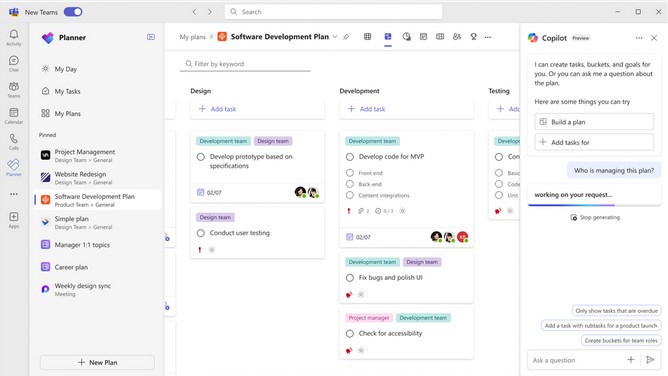
Explore Copilot in Planner (preview) for planning, managing, and tracking projects:

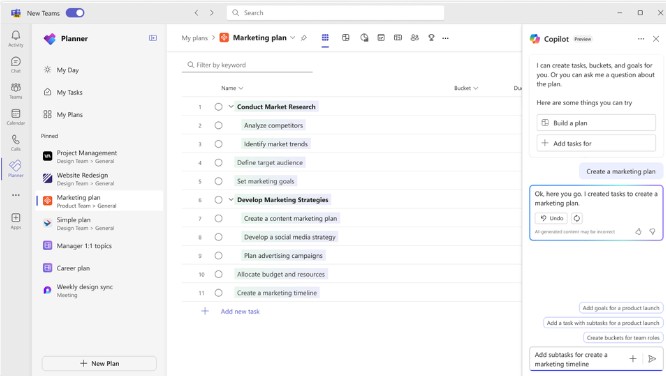
Planning: Copilot assists teams in setting goals, breaking down work, and generating tasks, goals, and buckets based on user prompts, facilitating the creation of a comprehensive project plan.
Effective Execution: Copilot helps streamline processes, identify next steps, and break down large tasks. It manages collaboration, tracks new goals, and identifies workload issues among team members.
Tracking Progress: Copilot aids in tracking complex plans by quickly surfacing necessary information about progress, priorities, and workload, ensuring teams stay informed and on track.

Planning
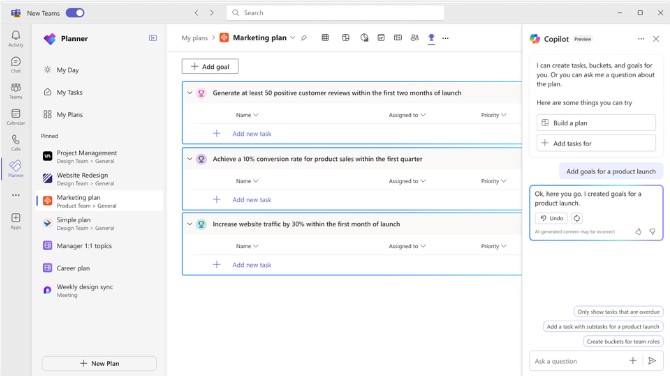
Managing. Effective execution is key to actually achieving your planned goals. With Copilot as your digital assistant, you can streamline this process and stay on track. Copilot can help you identify what to work on next or break up a large work item into actionable steps. It takes direction from users, seeking approval and feedback to manage how people and AI work together to achieve goals. When it’s time to triage an issue, expand scope, or make other changes to the plan, Copilot can help track a new goal, identify what tasks are behind, or which team members have the highest workload
Tracking
In general, Copilot supports the following languages for prompts: Chinese (Simplified), English, French, German, Italian, Japanese, Portuguese (Brazil), Spanish. We plan on to add more languages to Copilot and will update as additional languages are supported
Transform your messages with Microsoft Copilot in Teams


Rewrite your messages with Copilot in Teams chat and channels

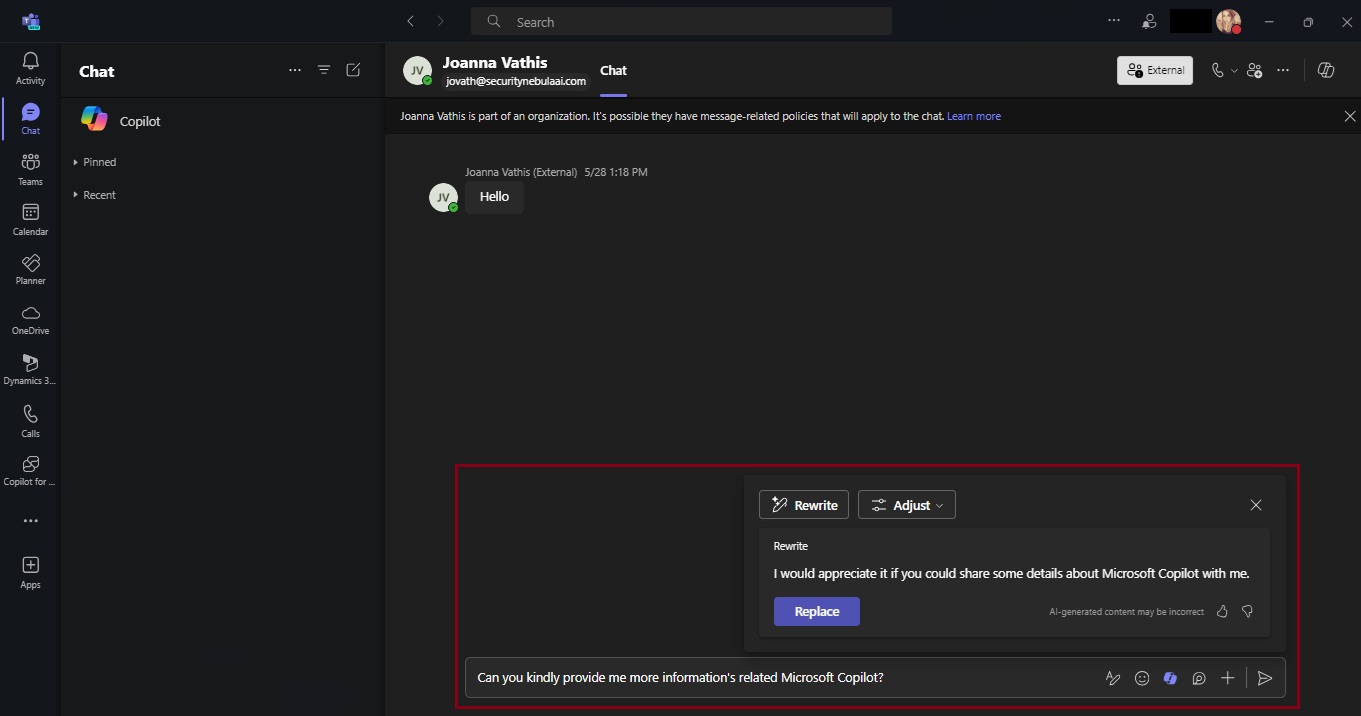
Copilot can assist you in crafting more polished and coherent messages, straight from the text compose box in chat and channels. It goes beyond spell-checking and grammar correction; Copilot also suggests improvements, rewrites, and adjustments to enhance the clarity, tone, and impact of your messages. Whether you’re quickly responding to your coworker or sharing a detailed project update with a VP, Copilot has your back. If you have a Copilot for Microsoft 365 license, you can navigate to the message compose box anywhere in Teams and start crafting your message. To start rewriting click on the Copilot icon in your chat box, press “Rewrite,” and watch your message instantly transform!

Not only is this an easy way to perfect your messages, but it does so without requiring you to type in any prompts. Just choose how you want to modify your message and Copilot does the work for you! If you need further editing, you can always refine your message by stacking different tones and lengths together. “Rewrite” is available for times when you don’t have any specific asks in mind for Copilot and want to use it more like a proofreader, and “Adjust” is there to give you specificity on what you want to change in your message. And remember, Copilot is the foundation of your message, but it is always important to proofread and confirm any generated content before you hit send.

Now available: Custom tone

While having Copilot do the work with those pre-set adjustment options is a great, no-prompt way to rewrite your messages quickly and efficiently, there is a new feature that allows you to tell Copilot exactly how you want to turn your writing into the best version of itself: Custom tone.

Custom tone takes everything touched upon with the “Adjust” feature and gives you the freedom to pick how Copilot can rewrite a message for you via an open prompt. With that comes the freedom to ask for multiple changes to be made, which Copilot will complete simultaneously in your rewrite. Do you want to add persuasive language to make your message more compelling? Or add additional context to your tone to give the right impression? Or turn a long sentence into a bulleted list before sharing it with your team? With custom tone, prompting how to change your message gives you the reins to make Copilot work exactly how you want it to.

Custom tone even allows you to bridge language barriers between global coworkers! Simply ask Copilot to translate your message to a specific language. For example, you can prompt that you want Copilot to make your message “longer and cheerful and in Spanish” and Copilot can apply those changes while translating instantly in the compose box – without you needing to leave your flow of work. Now, Copilot in Teams allows you to reach global audiences like never before, making it easier to write and receive messages adapted to you.

Teams messages – your next superpower

A lot of our workday is spent responding to messages in Teams. That may mean you are swamped with messages waiting to be responded to, some that are truly urgent and get buried by all your other unread chats and channels. With Copilot, you can respond faster and more effectively, driving collaboration forward. It helps reduce complexity for you as a writer, making it easier to land your message with each audience, faster. And you benefit as the message’s receiver, too – a message that is easier to understand allows you to act on it more deliberately. Thanks to Copilot, writing messages in Teams has never been easier, and it’s all thanks to an AI feature – powered by you.


Additional resources

For more examples of prompts that Copilot can help you with, check out Copilot Lab! Filter by specific Microsoft 365 apps to learn what prompts to use for meetings, in chats, and get tips for better optimized prompts with Copilot!