Important: Potential for database corruption as a result of installing Exchange 2007 SP3 RU3


Over the weekend, the Exchange Product Group was made aware of an issue which may lead to database corruption if you are running Exchange 2007 Service Pack 3 with Update Rollup 3 (Exchange 2007 SP3 RU3). Specifically, the issue was introduced in Exchange 2007 SP3 RU3 by a change in how the database is grown during transaction log replay when new data is written to the database file and there are no available free pages to be consumed.

This issue is of specific concern in two scenarios: 1) when transaction log replay is performed by the Replication Service as part of ensuring the passive database copy is up-to-date and/or 2) when a database is not cleanly shut down and recovery occurs.

While only a small number of customers have been affected to date, we believe the risk is significant enough that we are recommending all customers to uninstall Exchange 2007 SP3 RU3 on all Mailbox Servers and Transport servers. Uninstalling the rollup will revert the system back to the previously installed version. We have also removed the Exchange 2007 SP3 RU3 download from the Microsoft Download Center and from Microsoft Update until we are able to produce a new version of the rollup.

We are actively working this issue and based on test results plan to release an updated version of Exchange 2007 SP3 RU3 to the Download Center later this week. In addition, we are conducting an internal review of our processes to determine how to prevent issues such as this in the future.

When this issue occurs, the following similar events are logged in the Application Event log of the Mailbox server. Regardless of whether you see these types of events, you should review the recovery instructions and begin that process. If you are uncomfortable performing any of these steps please contact Microsoft Support for assistance.

  • Event ID: 454
    Event Type: Error
    Event Source: ESE
    Event Category: Logging/Recovery
    Description: Microsoft.Exchange.Cluster.ReplayService (12716) Recovery E20 SG1\DB1: Database recovery/restore failed with unexpected error -4001.
  • Event ID: 2095
    Event Type: Error
    Event Source: MSExchangeRepl
    Event Category: Service
    Description: Log file D:\logs\SG1\E200006AFAE.log in SG1\DB1 could not be replayed. Re-seeding the passive node is now required. Use the Update-StorageGroupCopy cmdlet in the Exchange Management Shell to perform a re-seed operation
  • Event ID: 2097
    Event Type: Error
    Event Source: MSExchangeRepl
    Event Category: Service
    Description: The Microsoft Exchange Replication Service encountered an unexpected Extensible Storage Engine (ESE) exception in storage group ‘SG1\DB1’. The ESE exception is a read was issued to a location beyond EOF (writes will expand the file) (-4001) ().

In addition, in environments utilizing Continuous Replication, comparison of the database file between the active and passive nodes will indicate that the database file has decreased in size.

Regardless of whether you are experiencing this issue, we strongly recommend taking the below actions to ensure that you do not experience any data loss or outage event associated with this issue.

For example:

  • If you have deployed your Mailbox servers utilizing Cluster Continuous Replication (CCR), failure of the active copies may affect your service SLA as you may have no viable passive copies to activate. Hardware failures may result in you not having a means to recover up to the point of failure and thus may experience data loss.
  • If you have deployed your Mailbox servers utilizing Single Copy Clusters (SCC), switchovers or failovers may result in this issue as there is only one copy of the database and recovery is performed during switchovers and failovers.
For environments leveraging CCR and/or Standby Continuous Replication (SCR)

If you note the listed events in your environment the following steps must be taken in order to restore your high-availability configuration:

  1. Rollback the CCR Mailbox server hosting the passive database copies and any SCR target Mailbox servers to the previously installed version (e.g., Exchange 2007 SP3 RU2) by uninstalling RU3.
  2. Re-seed all database copies on the CCR Mailbox server and any SCR target Mailbox servers hosting the passive database copies.
  3. Verify the database copy status is healthy for all passive copies.
  4. Perform a switchover and rollback the remaining CCR Mailbox server to the previously installed version (e.g., Exchange 2007 SP3 RU2).

If you are not seeing these events in your continuous replication enabled environment, we recommend the following steps:

  1. Rollback the CCR Mailbox server hosting the passive database copies and any SCR target Mailbox servers to the previously installed version (e.g., Exchange 2007 SP3 RU2) by uninstalling RU3.
  2. Perform a switchover and rollback the remaining CCR Mailbox server to the previously installed version (e.g., Exchange 2007 SP3 RU2).
For environments leveraging Single Copy Clusters (SCC)
  1. Rollback passive nodes within the SCC environment to the previously installed version (e.g., Exchange 2007 SP3 RU2) by uninstalling RU3.
  2. Perform a switchover and rollback the remaining SCC Mailbox server nodes to the previously installed version (e.g., Exchange 2007 SP3 RU2).
  3. Restore and recover any damaged databases leveraging a last known good backup.
For environments leveraging standalone Mailbox servers
  1. Rollback the standalone Mailbox servers to the previously installed version (e.g., Exchange 2007 SP3 RU2) by uninstalling RU3.
  2. Restore and recovery any damaged databases leveraging a last known good backup.
For Hub Transport and Edge Transport servers
  1. Rollback the standalone transport servers to the previously installed version (e.g., Exchange 2007 SP3 RU2) by uninstalling RU3.
  2. Recover damaged mail.que databases by following the steps in Working with the Queue Database on Transport Servers.

Source: Exchange Team

Hey Outlook 2010, where are my message headers?


Outlook 2010 and Message Headers

We love Office 2010, and it’s no secret that we love Outlook 2010 the most! We love the Office user experience and the ribbon UI. It brings a lot of great Office functionality and frequently-used options to the fore, without having to dive into multiple dialog boxes and layers of menus. It’s a great fit for today’s ultra-high-resolution screens on laptops and desktops, and as this Office Casual video shows, Office 2010 does very well with mutli-touch and stylus/pen-based input as well.

The Office team also made sure most keyboard shortcuts power users are familiar with continue to work (for Outlook 2010, see Keyboard shortcuts for Microsoft Outlook 2010).

As part of this UI overhaul, we lost one of our favorite conveniences in Outlook – the ability to quickly access message headers. Although not something most users would do frequently, Exchange folks do frequently need to see message headers. Sometimes it’s for troubleshooting purposes, but frequently it’s also for the warm fuzzy feeling we get from knowing the message passed through the right SMTP hops, has the expected x-headers, or simply to check if it was processed by the wonderful antispam agents and what the agents really thought of the message.

In previous versions of Outlook, this was as simple as right-clicking a message and selecting Message Options. Quick. No fuss. You’re done, and you’re out. Like a Windows Phone ad. And back to your life.

That shortcut’s gone. No, not the Message Options window itself, but the convenience of the right-click. To access message headers, you must double-click to open the message, click File to access the Backstage view and click the Properties button. Yes, that’s a few more clicks than what most IT folks would like!

Access message headers with 75% fewer mouse clicks

The good news is – Outlook (and Office) is nothing if not customizable.

Here’s how you can add the message headers goodness back to Outlook by customizing the Quick Access Toolbar.

The Quick Access Toolbar is a customizable toolbar that contains a set of commands that are independent of the tab on the ribbon that is currently displayed. Check out more ways to Customize the Quick Access Toolbar (also includes a video).

As an added bonus: you can reduce it to a single click! That’s a whopping 75% fewer mouse clicks (compared to the default method in Outlook 2010), in case you’re counting, and 50% fewer mouse clicks compared to previous versions.

  1. Click Custmize Quick Access Toolbar (it’s the down arrow in the Quick Access Toolbar) and select More Commands
  2. On the Customize the Quick Access Toolbar page, click Choose Commands From and then select All Commands
  3. Select Message Options from the list of commands and then click Add
  4. Click OK


    Figure 1: The Message Options button now shows up in the Quick Access Toolbar

To view message headers (or other message options), select a message and then click the Message Options button.

Source: Bharat Suneja

Information Store timeout detection in Exchange 2007 SP3


Exchange Server 2007 Service Pack 3 introduces a new feature that monitors the Information Store service for long running transactions. Transactions are now timed and if a transaction lasts longer than 60 seconds (hardcoded), it’s considered to be timed out. The transaction isn’t terminated; it’s just flagged as taking too long.

This monitoring has been added to help report on the health of the Information Store. There is a myriad of reasons for long running transactions. Some of these reasons are explained in Understanding the Performance Impact of High Item Counts and Restricted Views.

Exchange Server 2007 Service Pack 3 introduces a new feature that monitors the Information Store service for long running transactions. Transactions are now timed and if a transaction lasts longer than 60 seconds (hardcoded), it’s considered to be timed out. The transaction isn’t terminated; it’s just flagged as taking too long.

This monitoring has been added to help report on the health of the Information Store. There is a myriad of reasons for long running transactions. Some of these reasons are explained in Understanding the Performance Impact of High Item Counts and Restricted Views.

Update: Timeout detection and reporting was introduced in Exchange 2010 RTM and backported to Exchange 2007 SP3. See Understanding the Exchange 2010 Store -> Time-Out Detection and Reporting.

In isolation, an individual long running transaction may or may not be of concern. If the transaction doesn’t involve any locking, it will proceed in isolation without harm (assuming CPU and Memory are scaled appropriately). If it does use locking however, it can be quite harmful to the experience of other clients as they wait for the locked resource to be released.

If the prevalence of long transactions increases over time, the monitoring more than likely indicates that there are various problems (data corruption, high item counts, disk performance, memory pressure, CPU pressure).

The new timeout detection logs entries in the Application event log at the following three levels of severity:

  • Server Level
  • Database Level
  • Mailbox Level

Each level is associated with a scope and threshold: Server – any 20 threads; Database – 10 threads per database; Mailbox – 5 threads per mailbox. The following entries are logged in the event log for each level:

    [Server Level – 20+ threads]

    MessageID=10025
    Source=MSExchangeIS
    Severity=Error
    Facility=General (6)
    Language=English
    There are %1 RPC requests that take abnormally long time to complete. It may be indicative of performance problems with your server.

  • [Database Level – 10+ threads per database]

    MessageID=10026
    Source=MSExchangeIS
    Severity=Error
    Facility=General (6)
    Language=English
    There are %1 RPC requests for the database "%2" that take abnormally long time to complete. It may be indicative of performance problems with your server.

  • [Mailbox Level – 5+ threads per mailbox]

    MessageID=10027
    Source=MSExchangeIS
    Severity=Error
    Facility=General (6)
    Language=English
    There are %1 RPC requests for the mailbox "%2" on the database "%3" that take abnormally long time to complete. It may be indicative of performance problems with your server.

When an Event Log entry is logged, the MSExchangeIS\RPC Request Timeout Detected performance counter is incremented:

This feature can be disabled by setting this registry value to 1. The default is enabled (0 or not set).

Path: HKLM\SYSTEM\CurrentControlSet\Services\MSExchangeIS\ParametersSystem
Name: DisableTimeoutDetection
Type: DWORD
Value: 1

Source: Jun Yan

Important: Exchange 2010 SP1 Rollup 3 and BlackBerrys sending duplicate messages..


We have received notification of an issue impacting some customers which have RIM BlackBerry devices connecting to an Exchange 2010 SP1 RU3 environment. At this stage we are actively working with RIM to identify the exact scenarios in which customers are reporting this issue in order to narrow down the root cause of the problem and identify a suitable resolution for it.

As a precautionary measure we have deactivated the download page for Exchange 2010 SP1 RU3 until we can identify the appropriate next steps.

If you are a customer seeing duplicate messages being delivered when an email is sent from a BlackBerry device and you have RU3 installed within your Exchange 2010 environment, our recommendation is to contact Microsoft Support for assistance in troubleshooting the issue you’re experiencing.

Our recommendation at this time for all customers is to hold off deploying RU3 until we have identified and resolved these issues. If you have already deployed RU3 and you are not seeing any issues within your environment, our recommendation is to leave RU3 in place at this time.

Source: Exchange Team

Your computer may freeze or it may restart to a black screen that has an 0xc0000034 error message after you install Windows 7 Service Pack 1


Symptoms

You install Windows 7 Service Pack 1 (SP1) on your computer. After the service pack is installed, the computer may freeze, or it may restart. If the computer restarts, you see an error message that resembles the following on a black screen:

Fatal Error C0000034

Note If you restart the computer, you experience the same error message.

Cause

The most of the times this issue occurs from software drivers updates on same time we try to install through Window Updates the Windows 7 Service Pack 1 (KB976932).

Resolution

  1. Reboot your computer while it’s starting up.
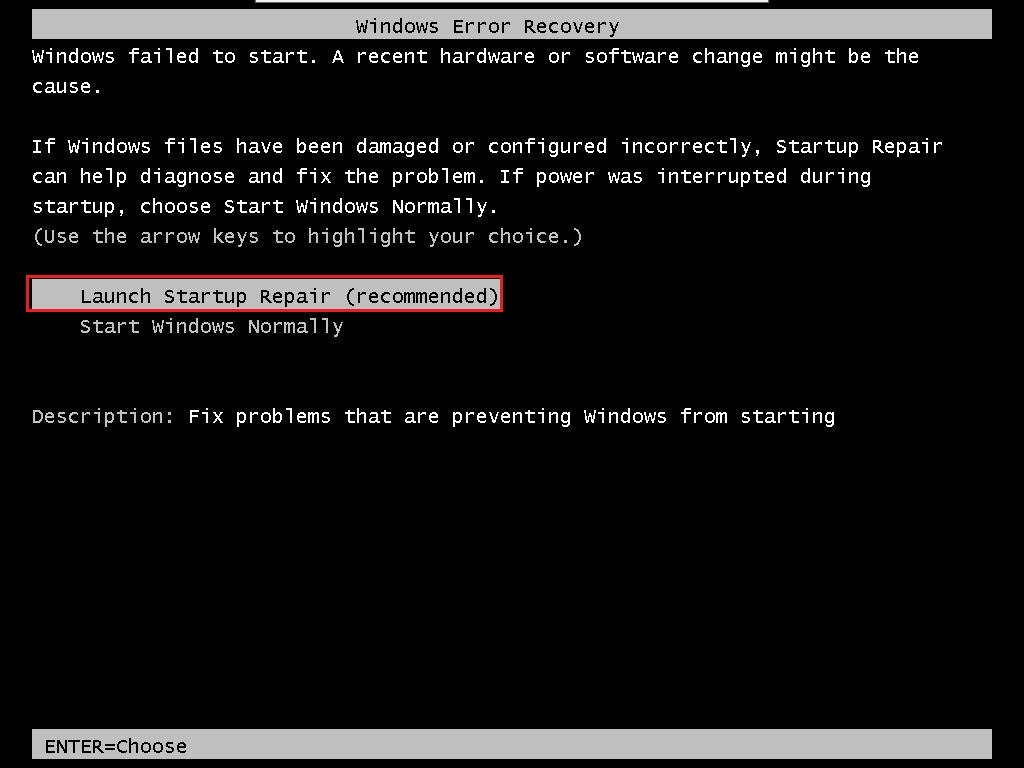
  2. When your computer starts up again, choose the option "Launch Startup Repair"

Image_1

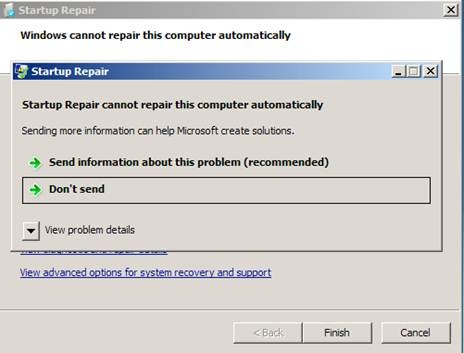
  1. When the Startup repair starts, click cancel.
  2. After you click cancel it will show a box. Click "Don’t Send"

clip_image004

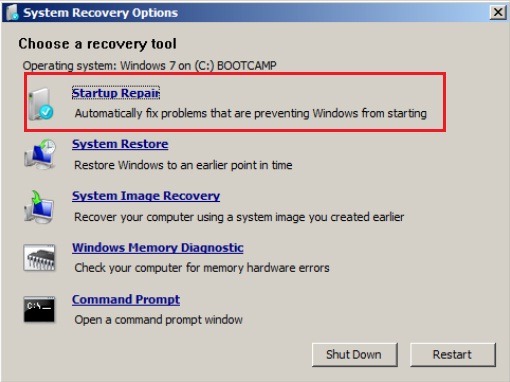
  1. Click the link "View advanced options for recovery and support"
  2. In the new window click Command Prompt at the bottom.

Image_3

7. In Command Prompt type this and press enter: %windir%\system32\notepad.exe

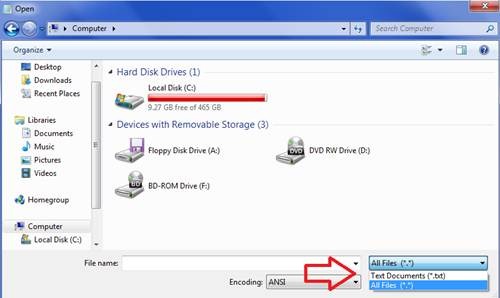
8. Notepad will open. In notepad go to File–>Open.

9. Change the type of files notepad views from .txt to All Files (see the picture)

clip_image008

10. Now in Notepad, go to C:\Windows\winsxs\ (or whichever drive Windows is installed on)

11. In that folder, find pending.xml and make a copy of it

12. Now open the original pending.xml (it will load really slow because the file is huge)

13. Press CNTRL+F and search for the following exactly: 0000000000000000.cdf-ms

14. Delete the following text (yours will be a little different):

<Checkpoint/>

<DeleteFile path="\SystemRoot\WinSxS\FileMaps\_0000000000000000.cdf-ms"/>

<MoveFile source="\SystemRoot\WinSxS\Temp\PendingRenames\

e56db1db48d4cb0199440000b01de419._0000000000000000.cdf-ms" destination="\SystemRoot\WinSxS\FileMaps\_0000000000000000.cdf-ms"/>

Image_5

Your PC might not have all 3 sections of code (<Checkpoint>, <DeleteFile>, <MoveFile>). Just make sure you delete section "Checkpoint" and whatever other sections have "000000000000000.cdf-ms". They will be right next to eachother.

15. Save the file, close notepad, close command prompt, restart your computer.

Additional Information’s:

Windows 7 and Windows Server 2008 R2 Service Pack 1 (KB976932)

http://www.microsoft.com/downloads/en/details.aspx?FamilyID=c3202ce6-4056-4059-8a1b-3a9b77cdfdda

Windows 7 and Windows Server 2008 R2 Service Pack 1

http://www.microsoft.com/oem/en/downloads/pages/windows_7_sp1.aspx

Released: Update Rollup 3 for Exchange 2010 SP1 and Exchange 2007 SP3


Earlier today the Exchange CXP team released the following Update Rollups for Exchange Server 2010 and 2007 to the Download Center. Release via Microsoft Update will occur on March 22nd 2011.

Update Rollup 3 for Exchange Server 2010 SP1

This update contains a number of customer reported and internally found issues since the release of RU1. In particular we would like to specifically call out the following fixes which are included in this release:

  • 2432494 ‘Database Copies’ list is being populated incorrectly (case sensitive) in EMC with DAG in place after upgrade to E14 SP1
  • 2489822 Users without mailbox can’t delete items in shared mailbox via OWA premium
  • 2511471 Folders take a long time to update when an Exchange Server 2010 user uses Outlook 2003 in online mode

Update Rollup 4 for Exchange Server 2010 Service Pack 1 is currently scheduled to release in May 2011.

Update Rollup 3 for Exchange Server 2007 SP3

This update contains a number of customer reported and internally found issues since the release of RU1. In particular we would like to specifically call out the following fixes which are included in this release:

  • 2267661 Exchange should support promotion of multipart/mixed messages into a single aggregate body
  • 2479939 Resource Booking using ScheduleOnlyDuringWorkHours does not consider mailbox’s time zone

Update Rollup 4 for Exchange Server 2007 Service Pack 3 is currently scheduled to release in May 2011.

General Notes

Note for Exchange 2010 Customers using the Arabic and Hebrew language version: We introduced two new languages with the release of Service Pack 1, Arabic and Hebrew. At present we are working through the process of modifying our installers to incorporate these two languages. Customers running either of the two language versions affected are advised to download and install the English language version of the rollup which contains all of the same fixes.

Note for Forefront users: For those of you running Forefront, be sure you perform these important steps from the command line in the Forefront directory before and after this rollup’s installation process. Without these steps, Exchange services for Information Store and Transport will not start back up. You will need to disable ForeFront via “fscutility /disable” before installing the patch and then re-enable after the patch by running “fscutility /enable” to start it up again post installation.

Source: Kevn Bellinger