Microsoft Purview Autolabeling Gets a Major Scale Upgrade: From 4 Million to 20 Million Items

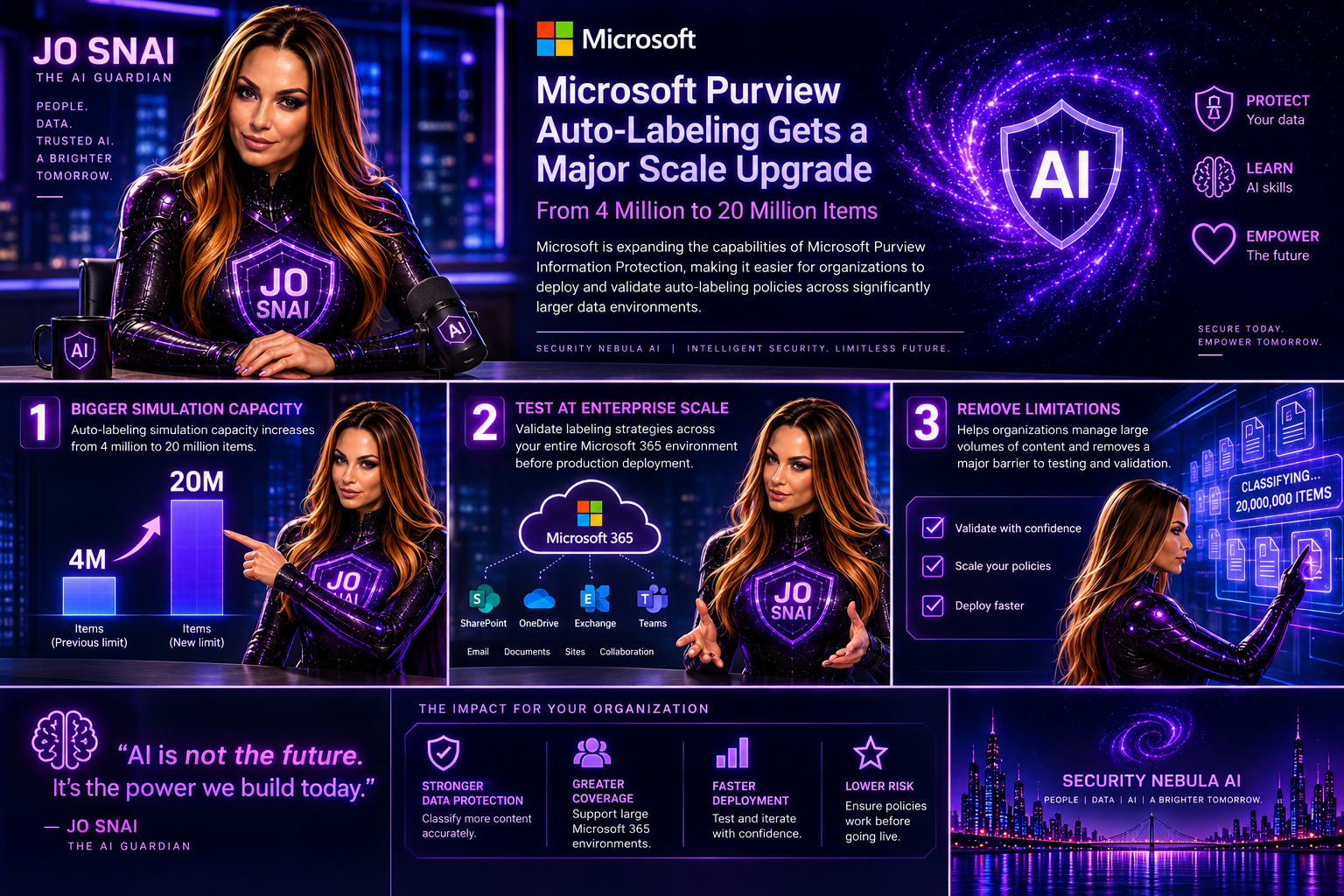
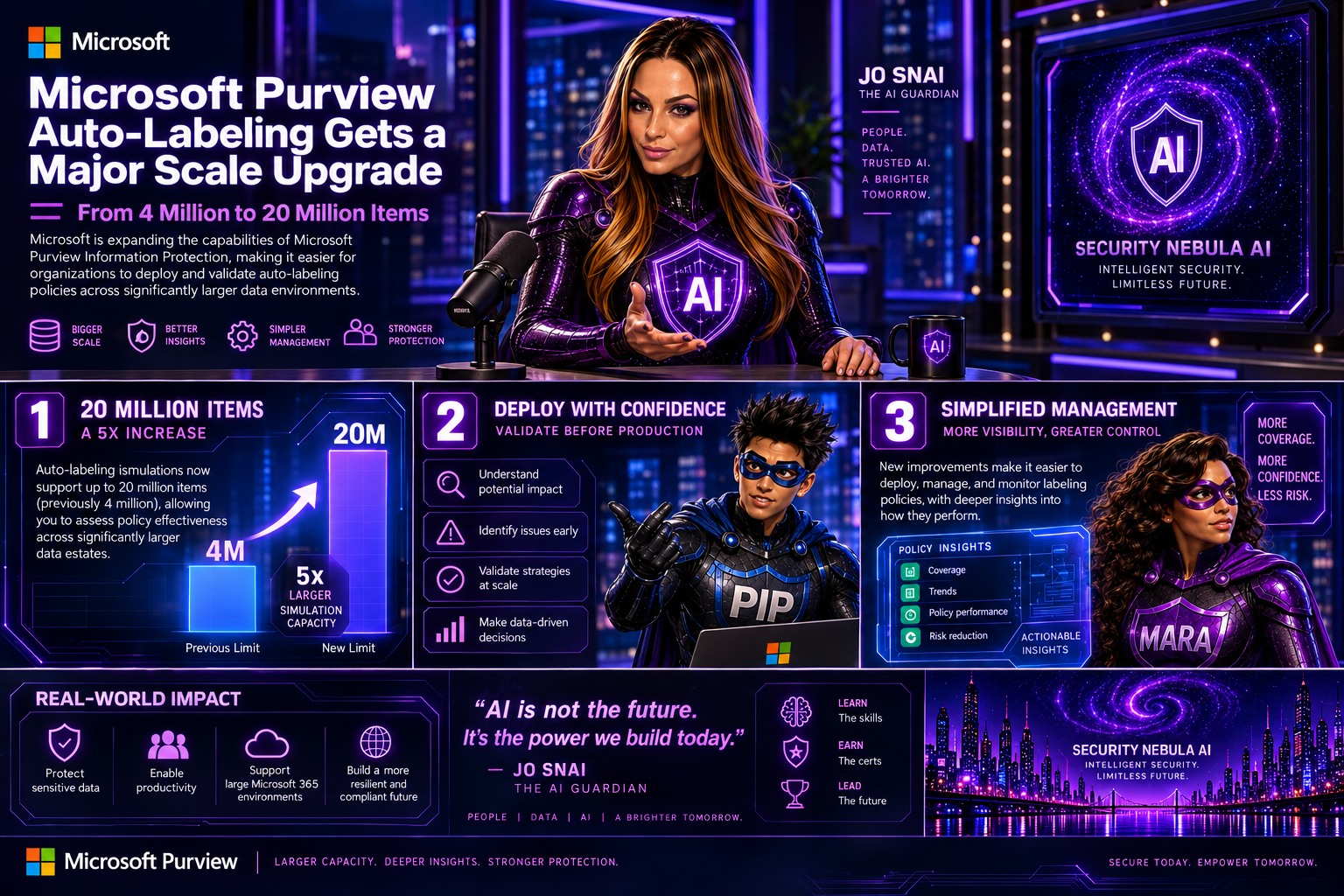
Microsoft is expanding the capabilities of Microsoft Purview Information Protection, making it easier for organizations to deploy and validate autolabeling policies across significantly larger data environments.  The headline enhancement is a substantial increase in autolabeling simulation capacity, growing from 4 million to 20 million items. For organizations managing large volumes of content across Microsoft 365, this change removes a major limitation when testing and validating labeling strategies before production deployment.
What’s Changing?

With this update, administrators will be able to simulate autolabeling policies against much larger datasets, helping them better understand potential policy impact and identify issues before enabling automatic labeling.

Microsoft is also introducing several improvements aimed at simplifying policy management and providing deeper visibility into how labeling policies perform.

Key Enhancements

Autolabeling simulations now support up to 20 million items

The previous simulation limit of 4 million items has been increased fivefold, allowing organizations to assess policy effectiveness across significantly larger data estates.
Expanded SharePoint targeting

Administrators will now be able to:

  • Select up to 1,000 individual SharePoint sites when configuring an autolabeling policy.
  • Use adaptive scopes that support up to 50,000 SharePoint sites per policy.
  • Filter SharePoint sites using the SiteTemplate property during policy creation, providing more granular control over policy targeting.

Improved reporting and visibility

Microsoft is enhancing the audit and reporting experience with new insights, including:

  • Summaries of the Sensitive Information Types (SITs) detected when labels are applied.
  • A new 30-day processing chart that shows the number of files processed each day, helping administrators track policy throughput and identify trends over time.

These reporting enhancements should make it much easier to understand why labels are being applied and monitor the effectiveness of information protection policies.

Rollout Timeline

Microsoft plans to release these capabilities according to the following schedule:

  • Public Preview: Early September 2026 through mid-September 2026
  • General Availability: Beginning in late October 2026

The features will be enabled automatically as they become available in each tenant.

What Does This Mean for Organizations?

For most organizations, no action is required. Existing autolabeling policies will continue to function exactly as they do today.

However, security and compliance teams may want to revisit policies that were previously constrained by simulation limits or SharePoint scope restrictions. The increased scale opens opportunities to include additional repositories and validate policies against much larger datasets before deployment. Organizations should also consider updating their operational and reporting processes to take advantage of the new SIT visibility and processing metrics.

Compliance Impact

The update does not change how labels work, how Sensitive Information Types are defined, or how customer data is handled.

Instead, Microsoft is increasing the scale at which policies can be evaluated while improving monitoring and reporting capabilities. The added visibility into detected Sensitive Information Types and policy processing activity should help compliance teams better demonstrate and validate their information protection efforts.

Final Thoughts

This is a welcome enhancement for enterprises managing large-scale Microsoft 365 environments. The jump from 4 million to 20 million simulated items, combined with expanded SharePoint coverage and richer reporting, makes Microsoft Purview’s autolabeling capabilities more practical for organizations with complex compliance requirements and large volumes of content. For many Purview administrators, the real value will come from being able to test policies more thoroughly, target more content locations, and gain better insight into exactly how their information protection strategy is performing.

Main Improvements Made

  • Converted formal release-note language into a conversational blog style.
  • Added clear section headings and narrative flow.
  • Focused on business value and real-world impact rather than feature descriptions alone.
  • Reduced repetitive compliance wording while preserving all key technical details.
  • Added a concise conclusion with practical takeaways for administrators and compliance teams.

Smarter Insider Risk Coverage with Microsoft Purview

Microsoft is making Insider Risk Management in Purview even more useful with the introduction of a Policy Recommendation panel, a feature designed to help admins quickly spot gaps in their current risk coverage and strengthen their defenses.

Let’s face it: even with policies in place, it’s not always easy to know what you might be missing. That’s where this new capability comes in. It analyzes your existing setup and highlights missing or high-impact policies, offering clear, actionable suggestions to improve your security posture.

What’s new?

The Policy Recommendation panel lives directly on the Policies page and automatically reviews your current configuration. Using built-in analytics, it identifies areas where you could increase protection and recommends policies to cover common insider risk scenarios like:

  • Data leakage
  • Data theft
  • IP theft
  • Risky AI usage
  • Other security violations

It’s essentially a built-in advisor that helps you get more value from Insider Risk Management without needing to manually audit everything.

A quick reminder: what Insider Risk Management does

Microsoft Purview Insider Risk Management works by correlating signals across your environment to detect potentially risky behavior, whether intentional or accidental.

It’s also designed with privacy in mind, including:

  • Pseudonymization by default
  • Role-based access controls
  • Audit logs for transparency

So you can investigate risks while still protecting user privacy.

Rollout timeline
  • Public Preview: Mid–June 2026 → Late June 2026
  • General Availability: Mid–July 2026 → Late July 2026

This message is associated with Microsoft 365 Roadmap ID 560600.

Smarter Role Group Management in Microsoft Purview

Managing permissions in Microsoft Purview is about to get a lot easier.

Microsoft is improving the Role groups experience in the Purview compliance portal, introducing a more intuitive interface that helps admins quickly understand and validate permissions—something many of us have struggled with at some point.

What’s new?

Based on customer feedback, the updated UI adds new ways to view role group assignments so you can find what you need faster and with less guesswork.

Instead of digging through multiple layers, admins can now look up permissions from three different perspectives:

  • By Role – see who has specific roles assigned
  • By Member – check which roles a particular user belongs to
  • My permissions – quickly understand your own access and responsibilities

These views are designed to reduce troubleshooting time and give admins clearer visibility into how permissions are structured.

When is this rolling out?
  • Public Preview: Mid-June 2026 → Mid-July 2026
  • General Availability (Worldwide, GCC, GCC High, DoD): Mid-July 2026 → Mid-August 2026

Roadmap ID: 562033

Why this is useful

This update makes it much easier for admins to see who has access to what—without wasting time searching.

Here’s what that means in practice:

  • Faster answers – Instead of clicking around, you can quickly find permissions by role, user, or your own access
  • Less confusion – It’s clearer how permissions are set up, so fewer mistakes or misunderstandings
  • Easier troubleshooting – When someone doesn’t have access (or has too much), you can figure out why much faster
  • Better for audits – You can easily review and confirm permissions when needed
  • No learning curve – Nothing changes in how things work—just a clearer view of what’s already there
How this improves security

This update doesn’t change permissions—but it makes it much easier to spot problems and fix them quickly, which directly improves security.

Here’s how:

  • Better visibility = fewer hidden risks
    You can clearly see who has access to what, making it easier to catch over-permissioned users or unnecessary roles.
  • Faster detection of mistakes
    If someone has access they shouldn’t (or is missing access), you can identify and correct it much faster.
  • Stronger least-privilege control
    It’s easier to ensure people only have the access they actually need—nothing more.
  • Simpler audits and reviews
    During security or compliance checks, you can quickly validate permissions instead of manually piecing things together.
  • Reduced risk of accidental exposure
    Clearer role assignments help prevent misconfigurations that could lead to data leaks or unauthorized access.

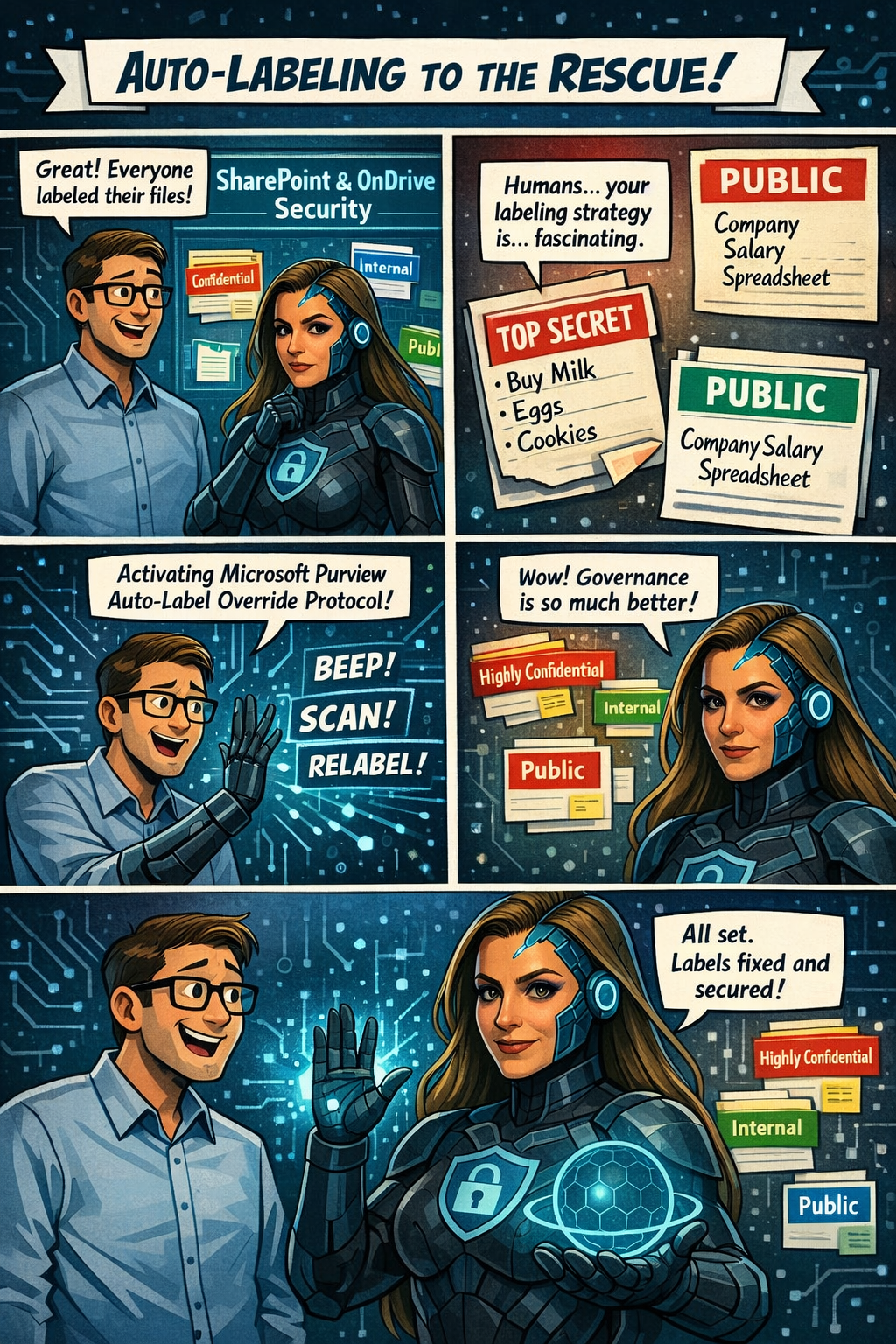
Microsoft Purview Information Protection: Override Manually Applied Labels and Remove Labels Using Auto‑Labeling

Microsoft Purview is rolling out a great new capability for SharePoint and OneDrive: automatic actions for sensitivity labels.

Until now, if someone manually applied the wrong label to a file, admins had limited options—especially when large volumes of content were involved. With this update, Purview can now automatically override or remove manually applied sensitivity labels when they don’t match your organization’s policies.

In simple terms:
Your data stays correctly classified, even when humans make mistakes.

Rollout begins mid‑April 2026, and the feature will be off by default, giving administrators full control over when and how they want to enable it. It’s another step toward stronger, more accurate data governance across Microsoft 365.

Microsoft Purview is getting a meaningful upgrade as part of its ongoing integration with Microsoft Defender for Cloud Apps. The latest improvement brings new auto‑labeling actions to SharePoint and OneDrive, giving organizations more control over how sensitive information is classified across their environment.

What’s new?
Admins can now automatically override sensitivity labels that were applied manually or remove labels entirely when a file no longer meets the criteria for that classification. This means large volumes of content can stay properly labeled—even as information changes—without relying on users to update labels themselves.

This update appears under Microsoft 365 Roadmap ID 558342.

📅 Rollout Timeline

  • General Availability (Worldwide): Starting mid‑April 2026
  • Completion expected by mid‑April 2026

A fast rollout for a very impactful capability.

Who will be impacted

This update mainly affects:

  • Microsoft 365 admins managing Purview Information Protection
  • Organizations using auto‑labeling policies for SharePoint or OneDrive

What’s changing

Admins will now see new actions inside the auto‑labeling configuration panel in the Purview portal.

Auto‑labeling policies can now:

Override existing sensitivity labels

Even if a user applied the label manually, Purview can replace it if the file meets a different policy condition.

Remove a specific sensitivity label

If a file no longer qualifies for a certain label, Purview can automatically strip it from the document.

Applies to files at rest

These changes affect existing content already stored in:

  • SharePoint Online
  • OneDrive for Business

Admin-controlled

Nothing changes until an admin enables these new actions.
By default, the feature is off.

Compliance Considerations

AreaWhat It Means
Does this change how customer data is processed?Yes—files in SharePoint and OneDrive may now have labels automatically overridden or removed based on rules you configure.
Does this modify Information Protection capabilities?Yes—it expands auto‑labeling to include overriding manual labels and removing specific labels.
Does this affect monitoring or compliance evidence?Yes—it improves consistency and auditability because label changes follow formal Purview policies.
Is there an admin control?Absolutely. Admins must explicitly configure these new actions in Purview. Nothing changes automatically.

✨ Excited to share this new Microsoft webinar that breaks down how Copilot empowers organizations with secure, privacy‑first AI.

🚀 Your Data. Your control. Your Copilot.
💡 The future of AI isn’t just powerful — it’s responsible.

Microsoft’s latest vision for Copilot reinforces something essential:
AI should empower you, not replace you. It should protect your data, not access it. And it should enhance your capabilities, not compromise your privacy.

In this new video, Microsoft breaks down how Copilot is designed with:
🔐 Enterprise‑grade security
🛡️ Built‑in data governance
💼 User control at the center
🤖 AI that respects boundaries and boosts productivity
👉Check also the demo for the New DLP protections for Microsoft 365 Copilot

If you want to understand why responsible AI matters — and how organizations can adopt Copilot with confidence — this is a must‑watch.
YouTube 🎥👉 https://www.youtube.com/watch?v=ukjs4BnmPsM

AI is evolving fast, but one principle must stay constant:
Trust is not optional. Trust is engineered.

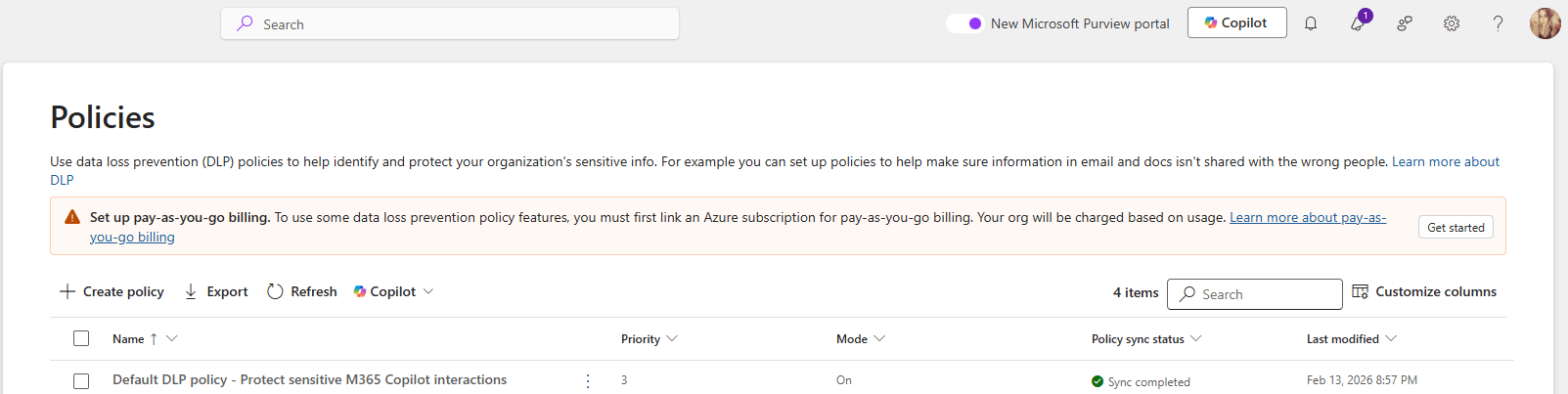
DLP Policies Now Block Copilot Processing Across All Storage Locations

Microsoft is improving how Microsoft Purview Data Loss Prevention (DLP) protects content used by Microsoft 365 Copilot. Until now, DLP rules that block Copilot from processing sensitivity‑labeled content only worked when files lived in SharePoint or OneDrive.

With this update, those same protections will work everywhere, including local files stored on a user’s device. Organizations have asked for more consistent protection across all file locations, and this update delivers exactly that.

This change is associated with Microsoft 365 Roadmap ID 557255.

When it’s coming

General Availability (Worldwide + GCC)
Rollout: Late March 2026 → Late April 2026

Who this impacts

  • Organizations using Microsoft Purview DLP to limit what Copilot can access
  • Admins who manage Purview DLP rules
  • Users working with Copilot in Word, Excel, or PowerPoint

What’s changing

DLP rules that block Copilot from processing certain sensitivity-labeled files will now apply to:

  • SharePoint
  • OneDrive for Business
  • Local device storage
  • Any other file location Office apps can open

So if a DLP policy says “Copilot cannot process Confidential files,” then Copilot will not process those files anywhere, including when they’re opened directly from the desktop.

Key notes:

  • Existing DLP rules continue to work as they do today—no reconfiguration needed.
  • The feature turns on automatically for tenants already using relevant DLP policies.
  • Users will experience consistent protection when using Copilot across Word, Excel, and PowerPoint.

How it works (technical detail)

This update doesn’t change what Copilot can do—it changes how Office apps share sensitivity label information with AugLoop (the Copilot orchestration layer).

Today:
AugLoop reads file labels through Microsoft Graph
This only works for SharePoint or OneDrive files

After the update:

  • Office apps will pass the sensitivity label directly to AugLoop
  • This means DLP rules can finally apply to local and other non-cloud storage files too

This results in uniform, predictable DLP enforcement across all file locations.

🎤AI Cloud & Modern Workplace Conference 2026

I’m truly honored to be speaking at the AI Cloud & Modern Workplace Conference 2026 as a Microsoft MVP in M365 Copilot & Exchange, and to share insights on one of the topics I’m most passionate about:

🎤 Session: “Your Data. Your Control. Your Copilot.”
📅 14 February 2026
🕙 10:00 AM (UTC+2)

📝 Session Description:
This session brings together everything I deeply believe in:

  • Zero Trust as the backbone of AI safety
  • Purview‑driven compliance
  • Responsible Copilot adoption
  • Empowering users without compromising security
  • Making complex topics accessible and practical

I’m grateful for the warm welcome, the recognition, and the opportunity to contribute to a community I truly care about — a community that values inclusion, innovation, and meaningful collaboration.

Looking forward to connecting with everyone on February 14th and sharing practical guidance on how organizations can move forward confidently in this new AI era. 🚀🔐🤖

🔐 New AI Transparency Policy in Microsoft 365

Microsoft 365 will offer a policy to add visual or audio watermarks to AI-generated or altered video and audio content, available via Cloud Policy by February 2026. This enhances transparency but does not apply to images, which users can watermark through privacy settings separately.

To help provide additional transparency about what content has been generated or altered by using AI in Microsoft 365, Microsoft is providing you with a policy setting that visually designates when content, such as video or audio content, is generated or altered by using AI. This policy setting controls your organization’s option to add a visual or audio watermark to video and audio content that your users generate or alter by using AI in Microsoft 365.

To turn on watermarks for video and audio content that your users generate or alter by using AI in Microsoft 365, you need to use the “Include a watermark when content from Microsoft 365 is generated or altered by AI” policy. This policy is available only in Cloud Policy service for Microsoft 365

Note: Watermarks are not turned on unless you set the policy to Enabled. Your organization is always responsible for following the Microsoft Enterprise AI Services Code of Conduct, including not generating or sharing deceptive AI content. 

This change is associated with Microsoft 365 Roadmap ID: 547831.

When this will happen

General Availability (Worldwide): We anticipate that this policy will be available in Cloud Policy by the second half of February 2026.

How this will affect your organization

Who is affected

Users that generate or alter video and audio content by using AI in Microsoft 365

What will happen

If you set the “Include a watermark when content from Microsoft 365 is generated or altered by AI” policy to Enabled in Cloud Policy, a visual or audio watermark is added to video and audio content that is generated or altered by using AI in Microsoft 365. Here are two examples:

  • A visual watermark is added to a video generated with Clipchamp.
  • An audio watermark is added to an audio overview generated by Copilot from a Word document.

Notes:

  • This policy doesn’t affect images generated or altered by using AI in Microsoft 365.
  • Instead, your users will be able to turn on watermarks for images by going to Settings & Privacy > Privacy at https://myaccount.microsoft.com. We anticipate this capability will be available in the second half of February 2026

What you need to do to prepare

Review the information in the following article: Add watermarks to content generated or altered by using AI in Microsoft 365. If you decide to set the “Include a watermark when content from Microsoft 365 is generated or altered by AI” policy to Enabled, inform your users that a visual or audio watermark will be added to video and audio content that they generate or alter by using AI in Microsoft 365

🚨 Now Generally Available: Microsoft Purview Data Security Investigations 🚨

Microsoft Purview Data Security Investigations is officially GA, and to mark the moment, Microsoft is hosting an Ask Microsoft Anything (AMA) – Part 2 with the team behind the solution.

This session will dive into:

  • 🔍 New capabilities in Data Security Investigations
  • 🧠 How investigations are evolving to meet modern insider risk and data misuse challenges
  • 💼 A walkthrough of the refined business model
  • 💬 Live Q&A with the product experts who built it

📅 Date: February 5, 2026
Time: 10:00 – 11:00 AM PST

If you’re working with Microsoft Purview, Insider Risk, Data Loss Prevention, or security investigations, this is one you don’t want to miss.

👉 Save your spot and bring your questions

🤖 Microsoft Purview Data Security Investigations is now generally available

🔐 Microsoft Purview | Enhanced Diagnostics for DLP & Information Protection

Microsoft Purview is introducing new diagnostics for Data Loss Prevention and Information Protection, providing admins deeper insights into triggered policies for files and emails. Rolling out from January to May 2026, these tools require no action, cause no workflow impact, and are enabled by default.

To help administrators troubleshoot Data Loss Prevention (DLP) and Information Protection scenarios more effectively, Microsoft Purview is introducing a new set of enhanced diagnostics. These improvements provide deeper visibility into why specific DLP rules or sensitivity labeling policies are triggered on files and emails, making investigation and policy tuning more efficient.

This update corresponds to Roadmap ID 547833.

📅 Rollout Timeline

Public Preview

  • Start: Mid‑January 2026
  • Completion: Mid‑February 2026

General Availability (Worldwide)

  • Start: Early April 2026
  • Completion: Early May 2026

Impact on Your Organization

Who is Affected

  • Microsoft 365 admins managing:
    • DLP policies
    • Information Protection labels
    • Purview compliance and security operations

What’s Changing

Administrators will gain expanded visibility into:

  • 🔎 Sensitive Information Types detected within files and emails
  • 🏷️ Labels applied to content
  • 🚨 DLP policies triggered based on content inspection

New diagnostics experiences include:

  • DLP SharePoint Diagnostics
    Insights into policy matches within SharePoint Online content.
  • DLP Exchange Online (EXO) Diagnostics
    Validation of DLP triggers across email workflows.
  • Auto-Labeling Diagnostics for SharePoint & OneDrive
    Visibility into label assignment, policy behavior, and alignment for stored files.

No Impact to User or Admin Workflows

  • No changes to policy enforcement
  • No changes to existing configurations
  • Diagnostics are enabled by default
  • No workflow disruptions

For additional learning and internal readiness, you may review: