
We can configure Microsoft Exchange Server 2010 to accept e-mail for more than one SMTP domains. In this article I will show you how to configure the accepted domains and how to create the new email address policy for the new e-mail domain
Scenarios:
•Your Company has different independent business units and the each of them need different e-mail domains; company management doesn’t want to spend money for this.
•You Providing the email hosting service and have to accept e-mail for more than one SMTP domain name
Prerequisites
•A public DNS MX resource record is required for each SMTP domain for which you accept e-mail from the Internet. Each MX record should resolve to the Internet-facing server that receives e-mail for your organization.
•Send and Receive connectors should be configured, so that the Exchange organization can send e-mail to and receive e-mail from the Internet.
There are two steps to configure exchange 2010 to accept e-mail for more than one SMTP domains. The first step is configuring the accepted domain and the second one is create or modify the email policy.
Use the EMC to configure Exchange 2010 to accept e-mail for more than one domain
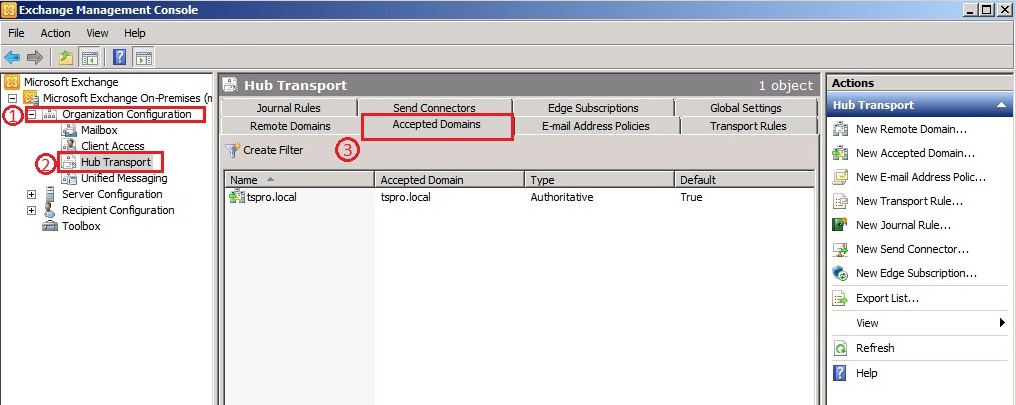
Expand the Organization Configuration node, and then click Hub Transport. In the results pane, click the Accepted Domains tab. In the action pane, click New Accepted Domain, or right-click and select the New Accepted Domain from the Accepted Domains tab. Then the New Accepted Domain wizard appears.
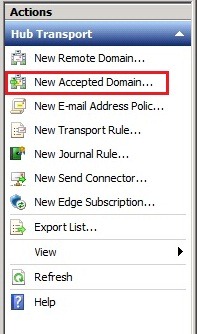
In the action pane, click New Accepted Domain, or right-click and select the New Accepted Domain from the Accepted Domains tab. Then the New Accepted Domain wizard appears.
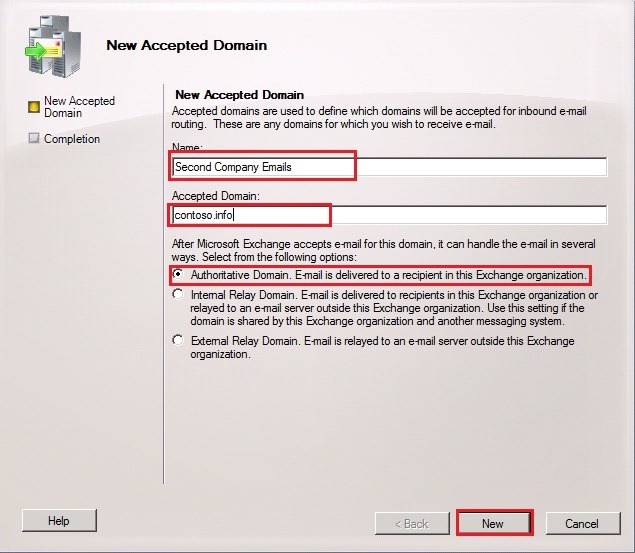
On the New Accepted Domain page, type a name to name the accepted domain entry. In the Accepted Domain field, type the SMTP domain name. Select Authoritative Domain. E-mail is delivered to a recipient in this Exchange organization. Click New to create the Accepted Domain.
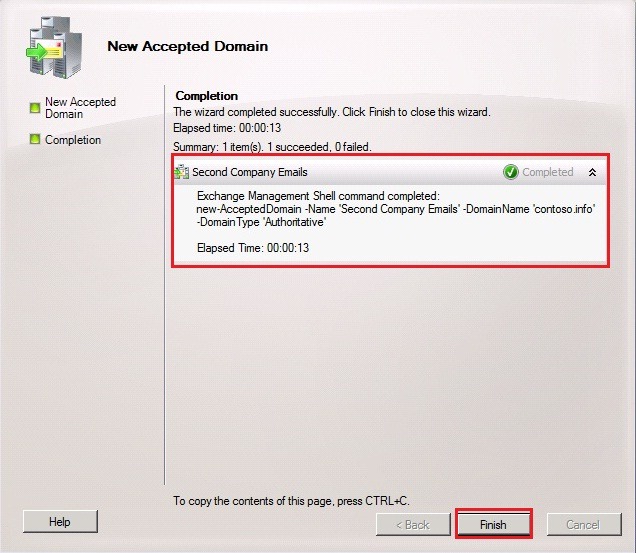
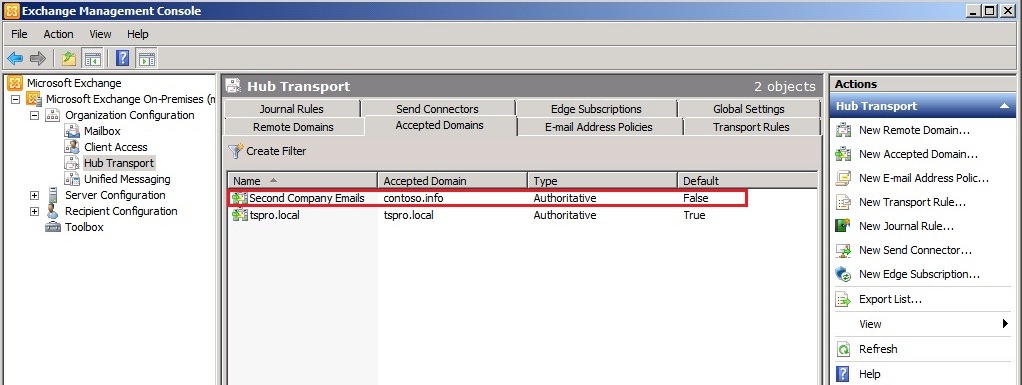
Now you can see that the Authoritative Accepted Domain contoso.info has been created and listed in the Accepted Domain tab.
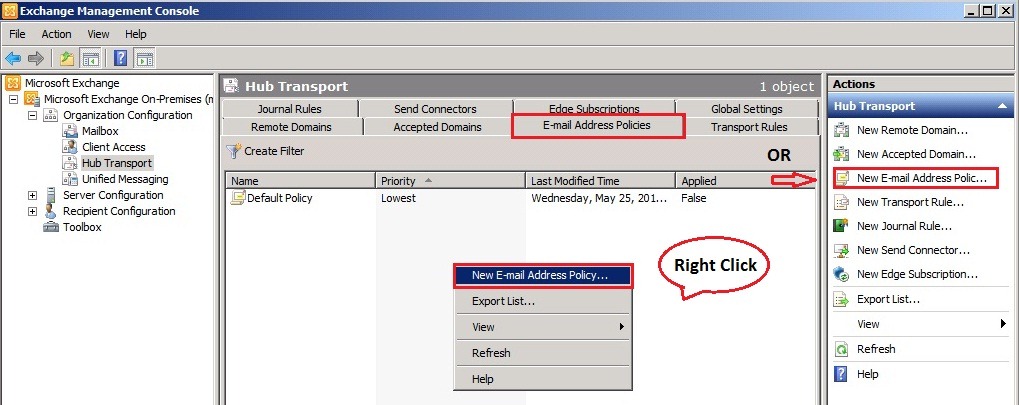
Now we need to configure the email address policy for the newly created authoritative domain. To do this either we can create new email address policy or edit the existing email address policy. I prefer to create the new email address policy. To create the new email address policy expand the Organization Configuration node, and then click Hub Transport. In the results pane, click the E-mail Address Policies tab. In the action pane, click New E-mail Address Policy or right-click and select the New E-Mail Address Policy from the E-mail Address Policies tab.
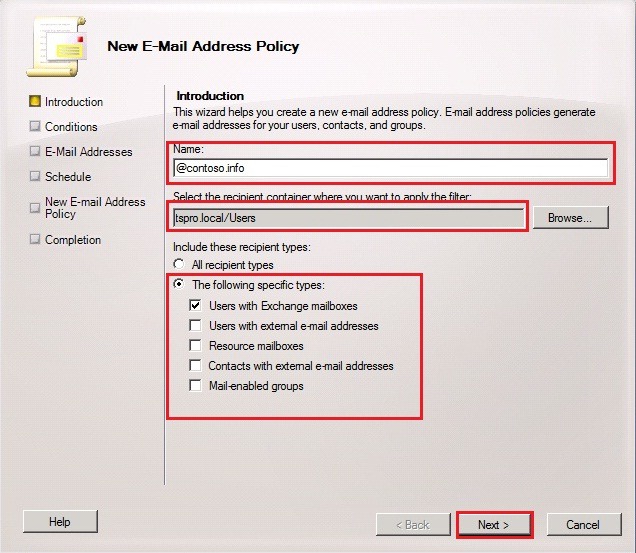
Type a name for the e-mail address policy in this example its @contoso.info. If the users that will be assigned this new e-mail address policy are all in a specific organizational unit (OU), click Browse to restrict this e-mail address policy to that specific OU. Select an option under Include these recipient types to figure which recipient types this e-mail address policy will be applied, in this example I choose Users with Exchange Mailbox, you can select this option as per your exchange environment. Click Next.
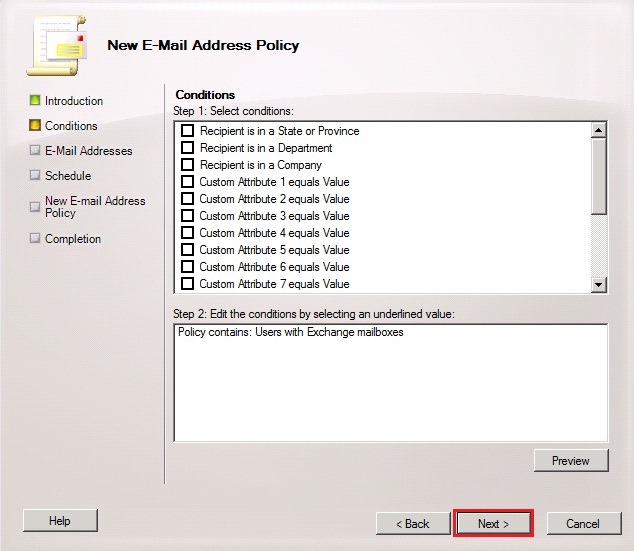
If you want to specify any condition for this policy specify the same. In this example I prefer not to specify any condition. Click Next to continue.
On the E-mail Addresses page, click Add to specify the domain for the E-mail Address and the E-mail address local part.
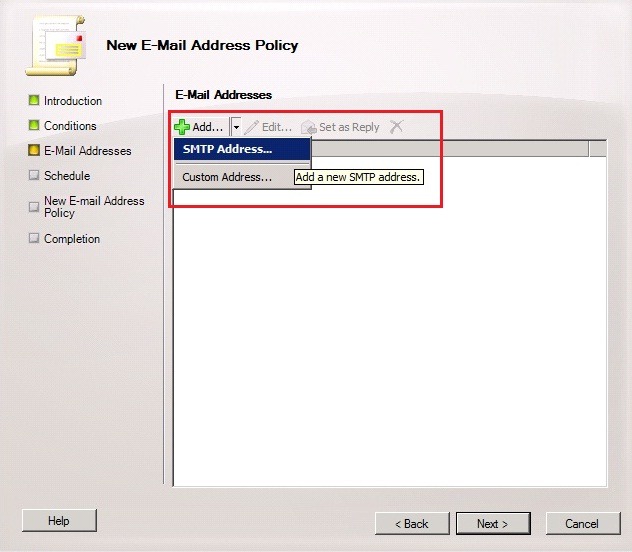
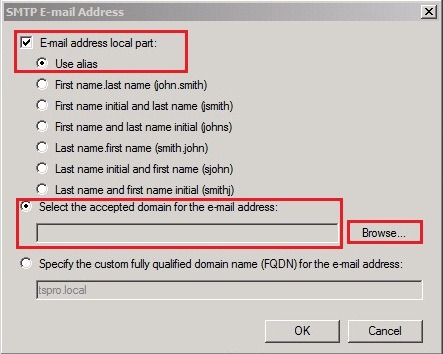
In the SMTP E-mail Address dialog box, select the option under E-mail address local part that determines how the recipient’s e-mail address alias will be generated. Click the Select the accepted domain for the e-mail address option, and then click Browse. In the Select Accepted Domain dialog box, select an accepted domain, in this example its contoso.info and then click OK. Click OK again to close the SMTP E-mail Address dialog box.
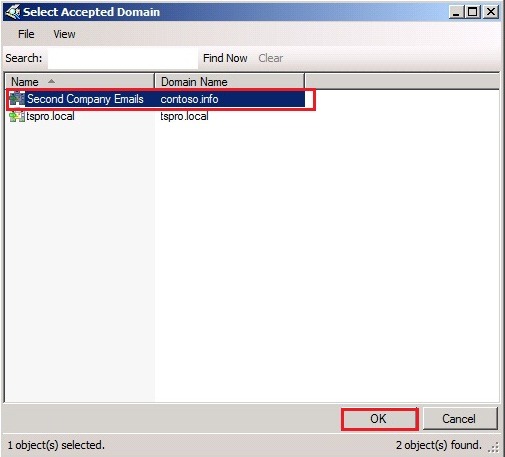
Click Next to continue.
In the Schedule page, select an option to specify when the e-mail address policy will be applied and the maximum length of time that the task is permitted to run. I am choosing Immediately and click Next.
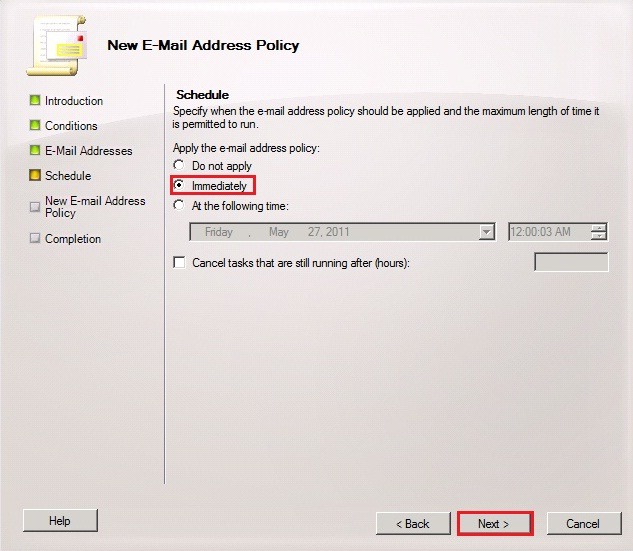
Click New to create the new E-Mail Address Policy
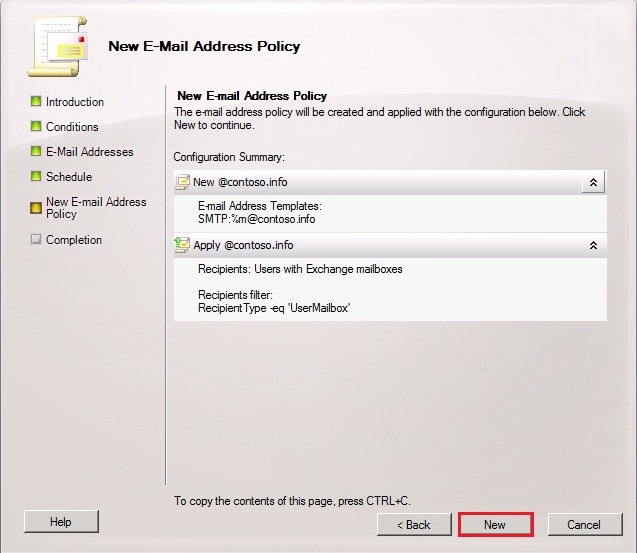
The New E-Mail Address Policy task has been completed successfully. Click Finish to exit the wizard.
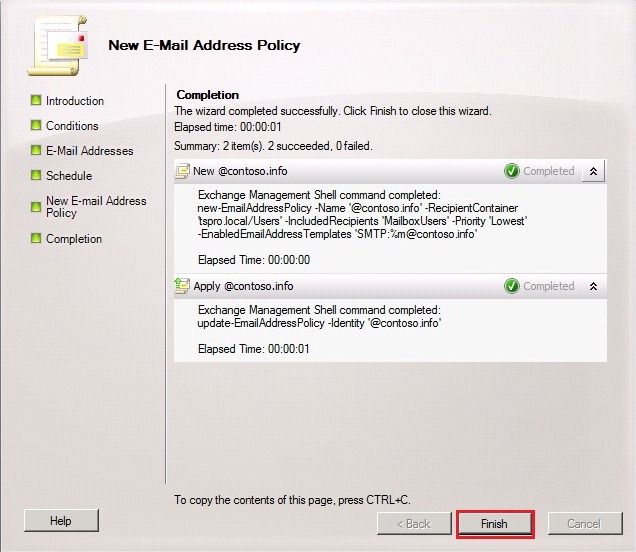
In this screenshot you can see the new email address policy has been applied.

Useful Links
· Configure Exchange 2010 to Accept E-Mail for More Than One Authoritative Domain
· Managing E-Mail Address Policies
 Catastrophic Failure
Realy good…..
Thanks ……………….
you’re actually a good webmaster. The website loading velocity is incredible.
It kind of feels that you’re doing any unique trick. Furthermore, The contents are masterpiece.
you’ve performed a great activity in this matter!
Many thanks.
Enjoy reading 🙂
Hello I am so happy I found your website, I really found you by
accident, while I was researching on Google for something
else, Anyways I am here now and would just like to say cheers for
a tremendous post and a all round entertaining blog (I also love the theme/design), I don’t have time to read through it
all at the moment but I have saved it and
also added your RSS feeds, so when I have time I will be back to
read more, Please do keep up the awesome jo.
Many thanks.
I really appreciate your comment and your very nice words.
Regards,
Joanna
WOW just what I was looking for. Came here by searching for premium domain names
Hi Robert,
I’m glad this post help you.
have a nice day:)
Regards
Joanna
Just wanted to say thanks, and let you know this article is still providing highly useful and valuable information!
Thanks!