
- You have the required software.
- You have set up the correct permissions.
- You understand the performance considerations related to directory synchronization.
In part 2 we installed and configures Active Directory Federation Service (ADFS) 2.0 .
After we configured the servers, we also verified they worked as expected.
In this part 3, we will continue where we left off in part 2 that are we convert our Office 365 domain to a federated domain as well as install the Directory Synchronization (DirSync) tool.
If you are already using Active Directory in your on premise environment, you probably have invested a lot of time creating user accounts, populating their attributes and adding them to the appropriate groups.
Directory Synchronization takes all that information, users, groups, contacts, email addresses, phone numbers, names, etc and synchronizes it from your Active Directory to Office 365.
The synchronization is ongoing which allows you to continue to manage users, groups and contacts from your local Active Directory. The synchronization is 1 way (from Active Directory to Office 365) and at this time, once enabled, cannot be disabled.
Directory Synchronization is required if you want to use Active Directory Federation Services (AD FS). A couple other things to note, Directory Synchronization cannot be used if you are going to do a cutover migration and it’s recommended if you are going to use AD FS that you enable that before enabling Directory Sync.
As an administrator, you need to do some preparation before you synchronize your local Active Directory to Windows Azure Active Directory (Windows Azure AD).
If you are deploying single sign-on, then we recommend that you set up single sign-on before you set up directory synchronization.
After you’ve set up single sign-on, verify that the following statements are true:
Activating directory synchronization should be considered a long-term commitment. After you have activated directory synchronization, you can only edit synchronized objects by using your on-premises Active Directory management tools. For more information, see Directory synchronization and source of authority.
What is Azure Active Directory Dirsync with Password Sync?
Formerly known as Dirsync, this tool has been updated to allow for the synchronization of local Active Directory passwords to Azure Active Directory. In addition to the syncing of users, groups and contacts. This new feature will allow for Same Sign In with Microsoft cloud services such as Office 365 Education powered by Azure Active Directory since the username and the password from local AD will by synced up to Azure AD.
See here on TechNet for more details.
Where can I get the new Dirsync with Password sync bits?
You can grab the latest version of Dirsync here or it is available in the Office 365 portal under ‘users’ and then Dirsync.
Synchronize and Verify Synchronization of Active Directory Objects
a. Switch to the O365-SRV1 Virtual Machine (in my case I named O365-SRV1 my machine which I will install DirSync Tool) and on then. click Start and then click Internet Explorer
b. In Microsoft Internet Explorer, in the Address box, type https://portal.microsoftonline.com and then press Enter.
c. On the Microsoft Online Services page, under sign in, click your online services ID.
d. In the Password box, type your password and then click Sign in.
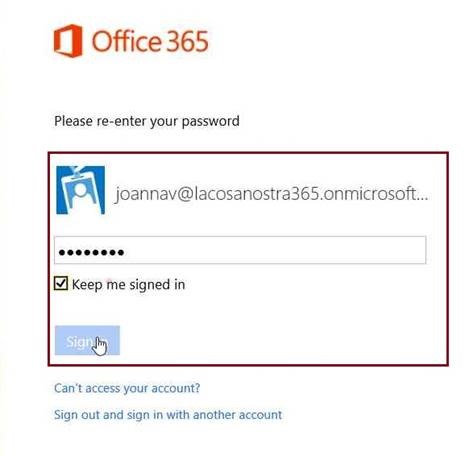
e. On the Admin page, click users and groups
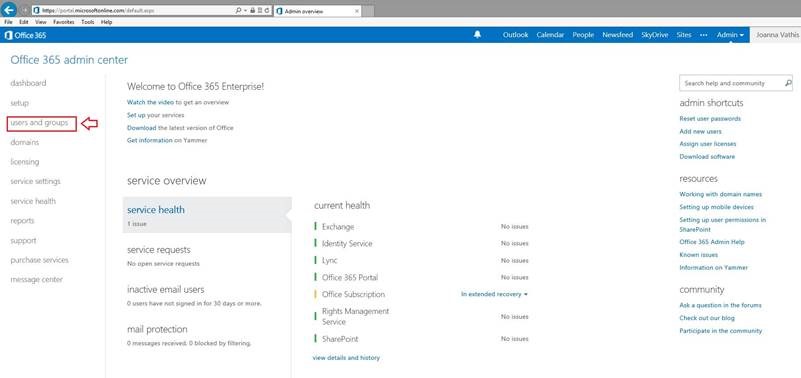
f. On the Users page, next to Active Directory synchronization, click Set up
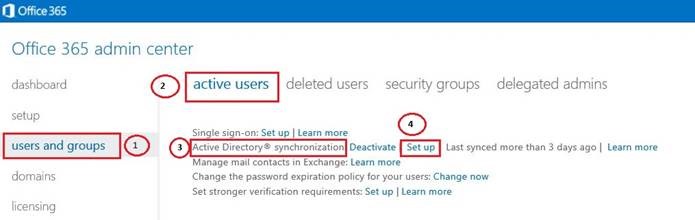
g. On the Set up and manage Active Directory synchronization page, under Step 3 Activate Active Directory synchronization, click Activate (in my case I Activate already the Synchronization)
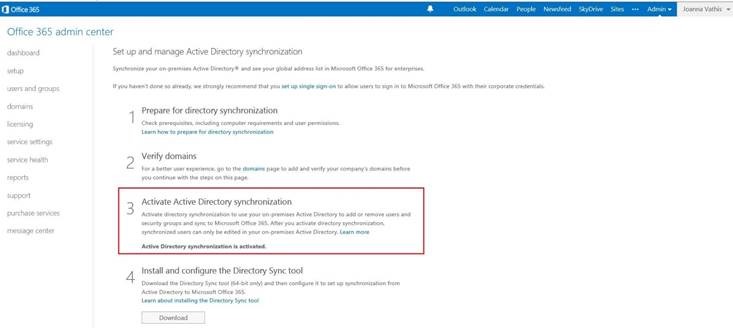
h. In the Do you want to activate Active Directory synchronization dialog box, read the warning information and then click Yes.
i. Close Internet Explorer.
Install the Active Directory Synchronization (DirSync) tool
a. Switch to the O365-SRV1 Virtual Machine and on then. click Start and then click Internet Explorer
b. In Microsoft Internet Explorer, in the Address box, type https://portal.microsoftonline.com and then press Enter.
c. On the Microsoft Online Services page, under sign in, click your online services ID
d. In the Password box, type your password and then click Sign in
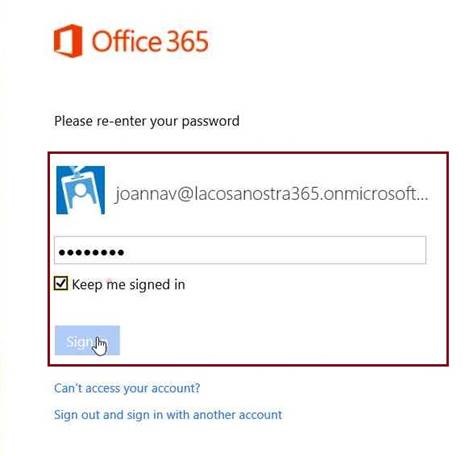
e. On the Admin page, click users and groups
f. On the Users page, next to Active Directory synchronization, click Set up
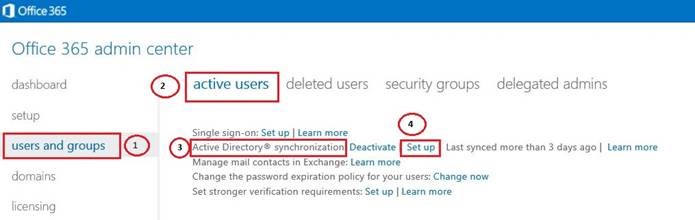
g. On the Set up and manage Active Directory synchronization page, next to step 4 Install and configure the Directory Synchronization tool, click Download
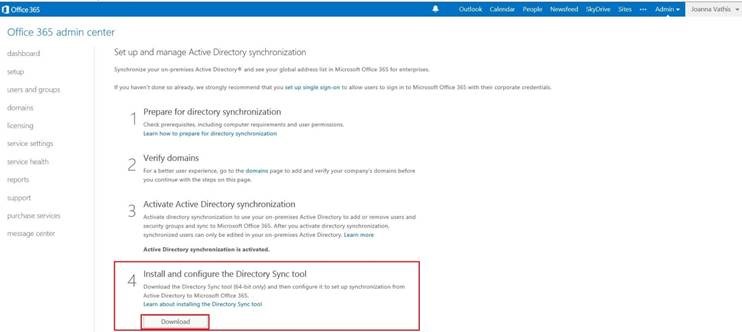
f. In the File Download – Security Warning window, click Run.
i. In the Internet Explorer –Security Warning dialog box, click Run.
j. On the Welcome page, click Next
k. On the Microsoft Software License Terms page, click the I accept the Microsoft Software License Terms radio button and then click Next
l. On the Select Installation Folder page, accept the default location and then click Next (The installation will take several minutes to complete)
m. When the installation is complete, click Next
n. On the Finish page, clear the Start Configuration Wizard now check box and then click Finish.
Synchronize Active Directory
The first time you synchronize your directories, a copy of your local users and groups is written to your Office 365 directory.
From then on, Active Directory synchronization checks for changes to your local Active Directory and updates your Office 365 directory with those changes.
The Microsoft Online Services Directory Synchronization Configuration Wizard creates the MSOL_AD_SYNC account in your Active Directory forest, in the standard Users organizational unit in the Root Domain.
Directory synchronization uses this service account to read and synchronize your local
a. Switch to the O365-SRV1 Virtual Machine
b. Click Start, point to All Programs, click Directory Sync Configuration
c. On the Welcome page, click Next
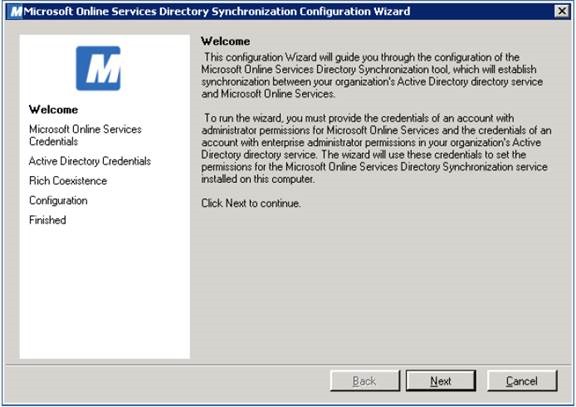
d. On the Microsoft Online Services Credentials page, in the User name box, type your Microsoft Online Services user name
e. In the Password box, type your password and then click Next.
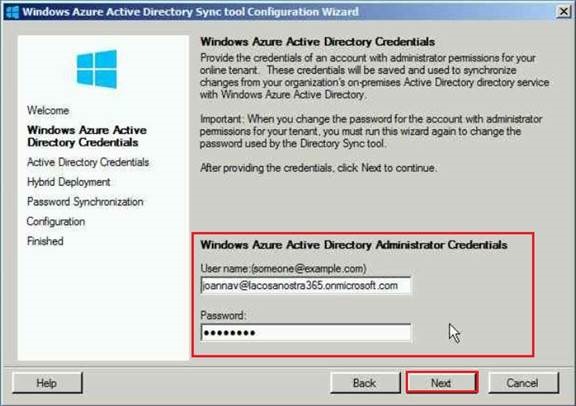
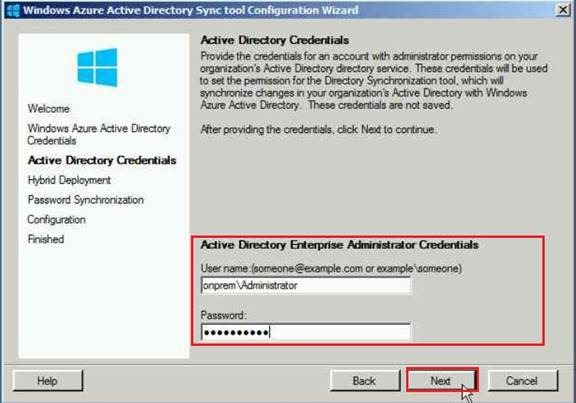
f. On the Active Directory Credentials page, in the User name box, type Onprem\Administrator (domain credential’s)
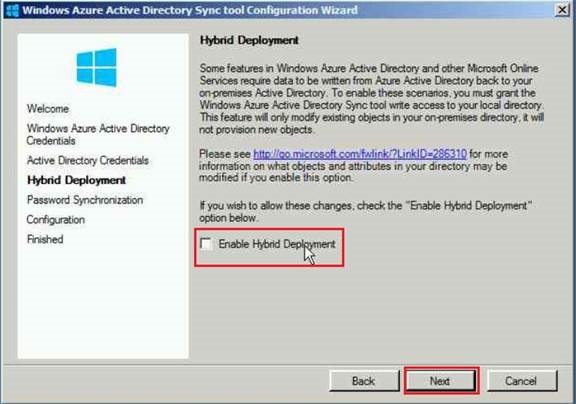
g. On the Hybrid Deployment page, read the information regarding Hybrid Deployment
Select the Enable Hybrid Deployment check box and then click Next
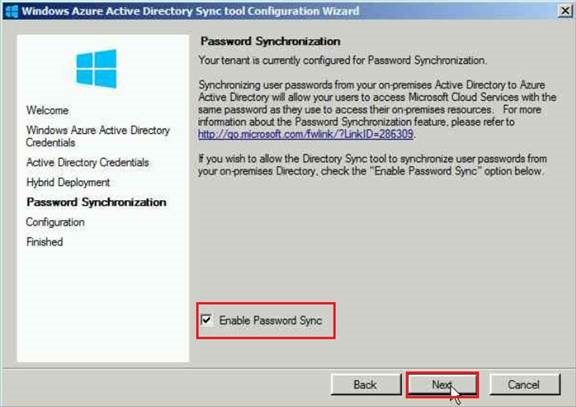
h. On the Password Synchronization page, read the information regarding Password Synchronization
Select the Enable Password Synchronization check box and then click Next
i. On the Configuration page, wait until the Configuration finalize and click Next
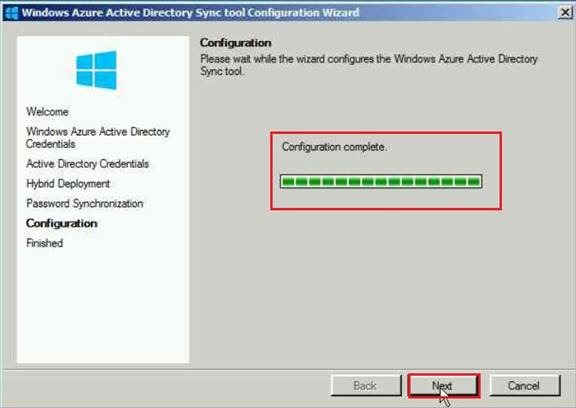
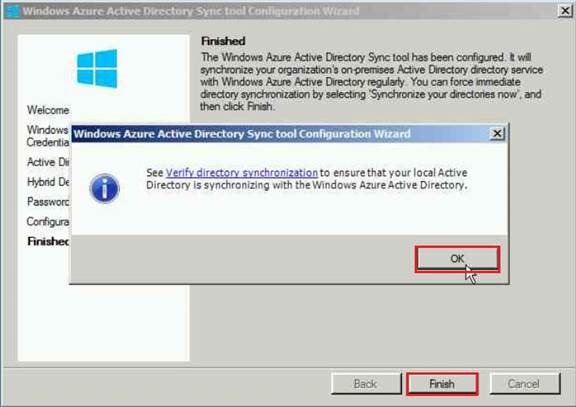
j. On the Finished page, verify that the Synchronize directories now check box is selected, and then click Finish
k. Review the information in the Microsoft Online Services Directory Synchronization Configuration Wizard dialog box and then click OK.
Verify directory synchronization
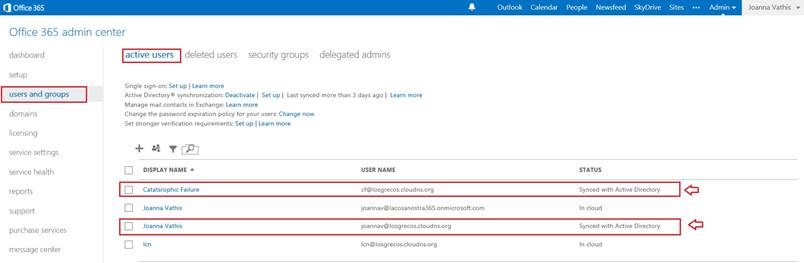
 Catastrophic Failure