
Scenario: In this scenario an Office 365 mailbox is not receiving a message sent from outside of the Office 365 organization.
Step 1: See if Office 365 received the message and was able to deliver it
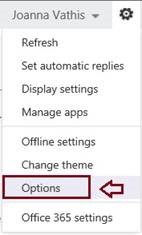
Since you don’t have the item, you will need to enter the delivery report center though Outlook Web App (OWA). Log in to OWA, go to Options
Find the Delivery Reports under Organize Email:
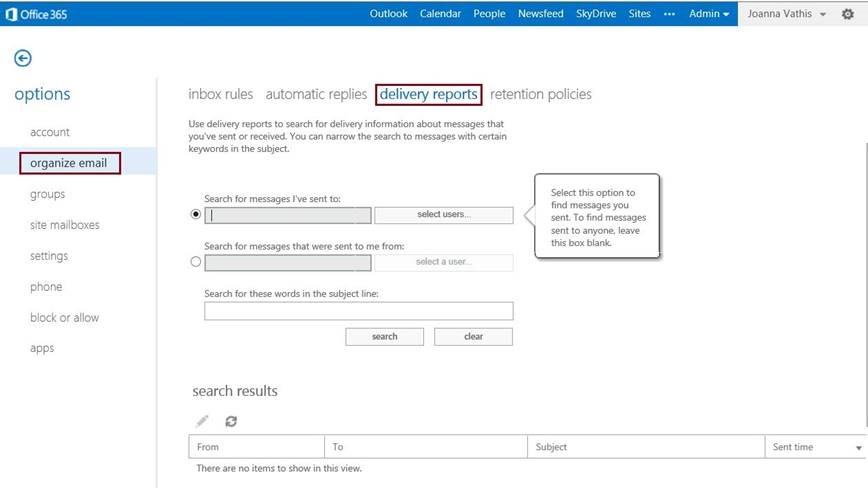
Highlight the Search for messages that were sent to me from button and then in the box that pops up, type the SMTP address of the user you sent mail to:

Things to consider for inbound messages when looking at the Delivery Report results:
· If the message doesn’t appear in the report results, it may never have made it to Office 365.
· If the message appears in the report results, check to make sure it was delivered. If it was delivered, check to see if an inbox rule rerouted or deleted the message. Check to see if the email was moved to the Junk folder. For more information on inbox rules, see Learn About Inbox Rules.
· Administrators: If the message was not delivered, did a transport rule act on the message? For more information on Transport Rules, see Create a new Rule.
Step 2: Work with the sender to determine what happened to the message
Assuming that you still have not solved the issue, this is about as far as you can go right now from the receiving side. If the sender just sent you the message, you may need to give it some time to arrive or timeout. If the message times out, then the sender will get a notification and be able to skip to the troubleshooting notifications section. If, however, the sender does not receive a notification, then the sending side should perform message tracking. In most cases, the remote side should be able to provide you with information to help you make sure that the message was handed off properly. One data point that will be extremely useful is the IP address of the system to which they handed off the message. Frequently, the problem is that a DNS configuration problem causes the sending system to hand off the message to the wrong email server. Having an IP address will help you in this case.
One last thing you can try as a test: have the sender email your onmicrosoft.com email address instead of using your custom domain address. This test can help prove if the issue is with DNS.
Common problems
Here we’ll add links to helpful Knowledge Base articles or other documentation that pertains to this scenario.
· Use of more than one MX record with Office 365 is not recommended or supported by Microsoft. The options are as follows:
o MX record points to Office 365 ONLY
o MX record points to other email server which forwards some/all email to Office 365 (e.g. Hybrid or Simple Shared). Multiple MX records can be used in this scenario, but only if one of the MX records is NOT pointing to Office 365.
Trying to use multiple records can result in:
· Missing email
· Rejected email
· Inconsistent results with spam
To verify that you only have one MX record, open a Command Prompt and type: nslookup -type=MX contoso.com
Where contoso.com is your domain. You should ONLY get one result, like this:
Server: test.contoso.com
Address: 10.2.3.7
Non-authoritative answer: contoso.com MX preference = 5, mail exchanger = contoso_com.mail.eo.outlook.com
If you previously used your domain with BPOS, FOPE, or Exchange Hosted Archive then even after you have verified your domain, you will find that messages sent to your domain may bounce with either a 550 5.4.1 Relay Access Denied or possible mail loop. If both of these conditions are true, you need to contact FOPE support and have them remove your duplicate domain.
· If you recently moved your domain (Professional) or MX records (Enterprise or Education), there is a DNS caching period where some servers may still deliver your email to your old provider. If you have recently moved the domain to Office 365 and are missing email, one thing you should try to do is check the old provider and see if they are still getting some of your email. The problem may be isolated to some senders.
· If you have Office 365 Professional and are having trouble receiving email from your old email provider, the problem may be that the old provider is still hosting stale DNS records for your domain. If the domain you are using was hosted somewhere other than the domain registrar you were using, then you may also need to contact your old DNS provider and have them remove the stale entries for your domain. For more information see Domains in Office 365.
Outbound mail flow
Why is my message taking so long to arrive at its destination?
Scenario: You sent a message from your Office 365 mailbox. One or more recipients are complaining either that they haven’t received the message or that the message took a long time to arrive.
Steps:
Open a delivery report for your message
If you have Outlook 2010, go to your Sent Items folder, and find the message you want to track. Open the message. In the message window, click the File tab. Under Message Delivery Report, click Open Delivery Report.

As an administrator or someone with the ability to track messages (helpdesk), you can also search directly from the Exchange Administrator Control. In the EAC (Exchange Administrator Control) go to Mail flow > Message trace.

Common problems
Here we’ll add links to helpful Knowledge Base articles or other documentation that pertains to this scenario.
· If you are having trouble sending mail to certain domains, you may want to verify that you have the recommended DNS record types for sending mail. Specifically, you want an A record for the domain (example: @.contoso.com – this record should generally point to the same address as your www record), an MX record, and SPF record that designates Outlook.com as a sender. For more information see Domains in Office 365.
 Catastrophic Failure