
- Make sure you have already installed Windows Azure AD PowerShell
- You must check and be sure your server or your computer has access to the internet
- 1. Login to your computer with Administrator credentials
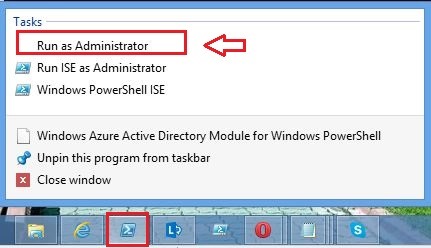
- 2. Start Windows Azure AD PowerShell “As Administrator”

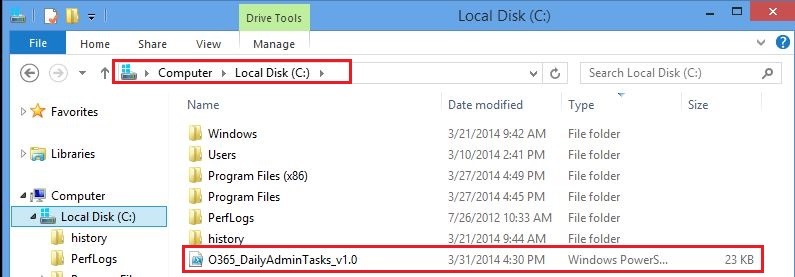
- 3. Next step, copy the script O365_DailyAdminTasks_v1.0 on (C:\) drive

- 4. Let’s start by running the script from Windows Azure AD PowerShell itself.
In case you get weird error messages when you try to run a script, the reason is only one, security settings built into Windows PowerShell include something called the “execution policy” the execution policy determines how (or if) PowerShell runs scripts. By default, PowerShell’s execution policy is set to Restricted that means that scripts – including those you write yourself – won’t run.
Navigate back to Windows PowerShell and set the Execution policy to unrestricted in order to be able to run the script, in that case, use this command to set your execution policy to RemoteSigned or Unrestricted
Note: The Set-ExecutionPolicy cmdlet enables you to determine which Windows PowerShell scripts (if any) will be allowed to run on your computer.
Windows PowerShell has four different execution policies:
- Restricted – No scripts can be run. Windows PowerShell can be used only in interactive mode.
- AllSigned – Only scripts signed by a trusted publisher can be run.
- RemoteSigned – Downloaded scripts must be signed by a trusted publisher before they can be run.
- Unrestricted – No restrictions; all Windows PowerShell scripts can be run.
- 5. The most common (default) way to run a script is by calling it:
PS C:\> & “C:\Admin\My first Script.ps1”
If the path does not contain any spaces, then you can omit the quotes and the ‘&’ operator
PS C:\> C:\Admin\Myscript.ps1
If the script is in the current directory, you must indicate this using .\ (or ./ will also work)
PS C:\> .\Myscript.ps1
In our case scenario we run the script in the current directory “C:\” so, we must indicate this using .\ and we click Enter

- 6. Type your Global Admin credentials, Username and Password in order to login

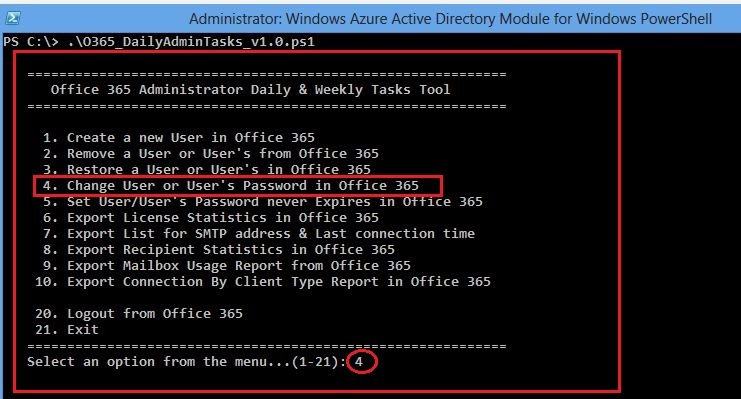
- 7. Our script now it starts running, select an option from the menu. In my case scenario, I will select option 4 (Change User/s Password) and click Enter
The 4th choice Change User’s Password, let’s see together how we can change user or users password with one click
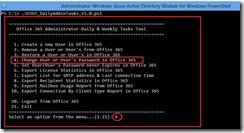
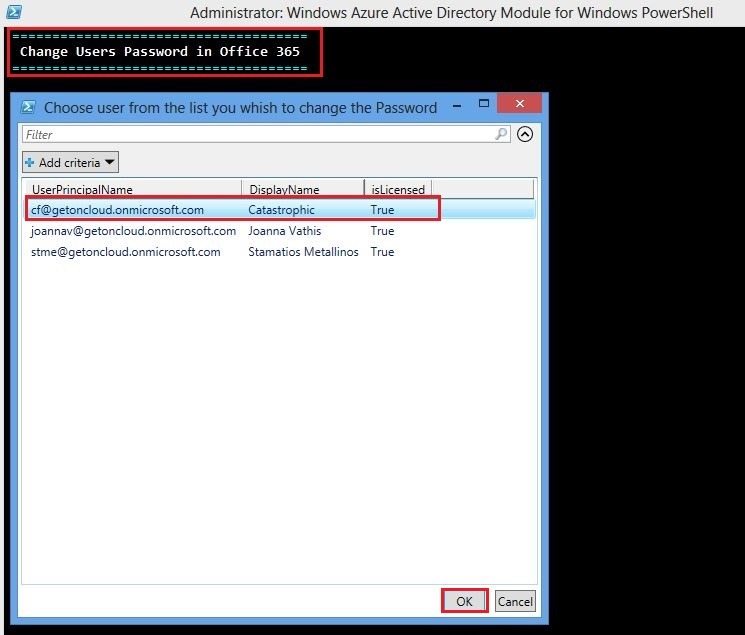
- 8. When you press Enter, automatically its appear a window with all the users in Office 365.
Just choose the user or the users by clicking on the user and click OK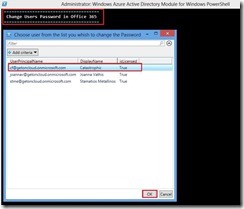
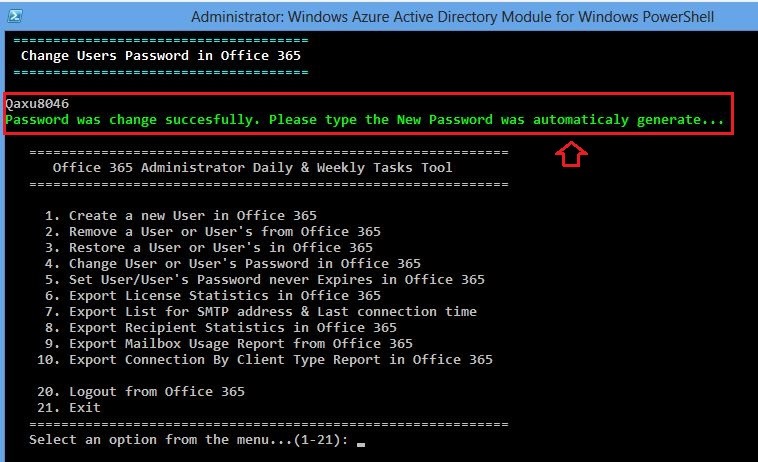
- 9. Password change and automatically a new pass is generate
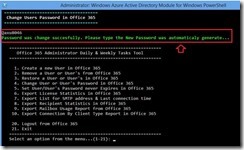
- 10. Next step, you can choose another option without to need to type again your Office 365 credentials
Today, I manage to complete the bellow script, in order some basic Office 365 Administrator Task Daily & Weekly to be automate with one click
This script automate execute steps for Office 365 Administrator Daily & Weekly Tasks.
By choosing only a number, you can manage your Office 365 Daily & Weekly Tasks
You can download the Script here.

What do you need to know before you begin?
Let’s have a quick look how to execute the script O365_DailyAdminTasks_v1.0 on Windows PowerShell and what this script do for us.



The Code:
#######################################################################################################
<#
DESCRIPTION
*************
This script automate execute steps for Office 365 Administrator daily tasks
SYNOPSIS
***********
Daily: Mailbox Administrators are constantly responding to any addition, change, and removal requests for their Office365 accounts.
According to the data that we analyzed from 365Command, the most common daily tasks are:
Menu
*******
1. Create a new User in Office 365
2. Remove a User or User’s from Office 365
3. Restore a User or User’s in Office 365
4. Change User or User’s Password in Office 365
5. Set User/User’s Password never Expires in Office 365
6. Export License Statistics in Office 365
7. Export List for SMTP address & Last connection time
8. Export Recipient Statistics in Office 365
9. Export Mailbox Usage Report from Office 365
10. Export Connection By Client Type Report in Office 365
Disclaimer
Important Note Test it first on Lab environment
THIS CODE IS MADE AVAILABLE AS IS, WITHOUT WARRANTY OF ANY KIND. THE ENTIRE
RISK OF THE USE OR THE RESULTS FROM THE USE OF THIS CODE REMAINS WITH THE USER
#########################################################################
# To run the script #
# ******************* #
# #
# .\O365_DailyAdminTasks_v1.0.ps1 #
# Author: Joanna Vathis #
# Blog1: https://catastrophicerrors.wordpress.com/ #
# Blog2: http://autoexec.gr/blogs_autoexec_gr/b/cf/default.aspx?pi516=2 #
# Version: 1.0 #
# Last Modified Date: 31/03/2014 #
# Last Modified By: Joanna Vathis #
#########################################################################
#>
Function LoginOffice365 {
# Connect to Office 365 and Exchange Online
Clear;
Import-Module Msonline
$GA_UserName = Read-Host “Please enter your GA Username for Office 365 account”;
$GA_Password = Read-Host “Please enter your GA Password for Office 365 account” -AsSecureString;
Write-Host “Don’t press any key, wait until connect……” -ForegroundColor Yellow;
$GA_Credentials = New-Object -TypeName System.Management.Automation.PSCredential -ArgumentList $GA_UserName, $GA_Password;
$Connect = Connect-MsolService -Credential $GA_Credentials;
Start-Sleep -Seconds 10
$Error = $Connect | ?{$_.gettype().Name -eq “ErrorRecord”}
If($Error){
Write-Host ” $Connect” -ForegroundColor Red;
Read-Host;
}
Else{
Write-Host ” Succesfully login in Office 365…” -ForegroundColor Green;
}
} # End LoginO365
[string] $menu = @’
============================================================
Office 365 Administrator Daily & Weekly Tasks Tool
============================================================
1. Create a new User in Office 365
2. Remove a User or User’s from Office 365
3. Restore a User or User’s in Office 365
4. Change User or User’s Password in Office 365
5. Set User/User’s Password never Expires in Office 365
6. Export License Statistics in Office 365
7. Export List for SMTP address & Last connection time
8. Export Recipient Statistics in Office 365
9. Export Mailbox Usage Report from Office 365
10. Export Connection By Client Type Report in Office 365
21. Exit
============================================================
Select an option from the menu…(1-21)
‘@ # Menu List
Function SmtpReport {
Clear;
Write-Host ” ==============================================” -ForegroundColor Cyan;
Write-Host ” List for SMTP address & Last connection time ” -ForegroundColor White;
Write-Host ” ==============================================” -ForegroundColor Cyan;
Write-Host ” ”
# List for SMTP address and Last connection time for all the users
Get-Mailbox | fl EmailAddresses, identity | Export-Csv -Path ‘C:\Emailaddress.csv’ -NoTypeInformation
Get-Mailbox -ResultSize unlimited | Get-MailboxStatistics | Select-Object identity,lastlogontime,lastlogofftime,DisplayName | Sort-Object DisplayName -Descending | Export-Csv -Path ‘C:\Lastlogontime.csv’ -NoTypeInformation
} # End SMTP Report
Function CreateUser {
Clear;
Write-Host ” =======================================” -ForegroundColor Cyan;
Write-Host ” Create a new User in Office 365 ” -ForegroundColor White;
Write-Host ” =======================================” -ForegroundColor Cyan;
Write-Host ” ”
$DisplayName = Read-Host “Display Name”;
$FirstName = Read-Host “First Name”;
$LastName = Read-Host “Last Name”;
Write-Host “Type the username@yourdomain.onmicrosoft.com” -ForegroundColor Yellow;
$UserName = Read-Host “User Name”;
$UserPrincipalName = $UserName;
#$Role = Read-Host “Assign Role”;
$Department = Read-Host “Department”;
$Location = Read-Host “Set user Location”;
$PassWord = Read-Host “New Password”;
$Proce = New-MsolUser -FirstName $FirstName -LastName $LastName -UserPrincipalName $UserPrincipalName -DisplayName $DisplayName -UsageLocation $Location -Password $PassWord -ForceChangePassword $false;
$Error = $Proce | ?{$_.gettype().Name -eq “ErrorRecord”};
If($Error){
Write-Host $Error -BackgroundColor Black -ForegroundColor Red;
}
else{
Set-MsolUser -UserPrincipalName $UserPrincipalName -UsageLocation $UsageLocation;
Get-MsolUser | FT DisplayName,UsageLocation,Licenses,IsLicensed -AutoSize | Out-GridView;
Get-MsolUser | FT DisplayName,UsageLocation,Licenses,IsLicensed -AutoSize | Export-Csv -Path C:\UserStatistics.csv -NoTypeInformation;
Get-MsolAccountSku |FT AccountSkuId,ActiveUnits,ConsumedUnits;
Write-Host “User was succesfully created…” -BackgroundColor DarkBlue -ForegroundColor White;
# Proceed to Assign License for the User
$SkuPartNumber = Read-Host;
$LicensesType = Read-Host;
Write-Host ” ==============================================” -ForegroundColor Cyan;
Write-Host ” Office 365 Service Plans AccountSkuID ” -ForegroundColor White;
Write-Host ” ==============================================” -ForegroundColor Cyan;
Write-Host ” “
Write-Host ” 1. Windows Azure AD Rights “
Write-Host ” 2. Office 365 ProPlus “
Write-Host ” 3. Lync Online “
Write-Host ” 4. Office Web Apps “
Write-Host ” 5. SharePoint Online “
Write-Host ” 6. Exchange Online “
Write-Host ” 7. Yammer ”
Write-Host “===============================================” -ForegroundColor Cyan;
Write-Host “Select a License type to assign…(1-7):”-ForegroundColor White;
# 1. Windows Azure AD Rights
If($LicensesType -eq “1”){
$ServicePlans = Get-MsolAccountSku | Where {$_.SkuPartNumber -eq “RMS_S_ENTERPRISE”} $s.ServiceStatus;
}
# 2. Office 365 ProPlus
elseif($LicensesType -eq “2”){
$ServicePlans = Get-MsolAccountSku | Where {$_.SkuPartNumber -eq “OFFICESUBSCRIPTION”} $s.ServiceStatus;
}
# 3. Lync Online
elseif($LicensesType -eq “3”){
$ServicePlans = Get-MsolAccountSku | Where {$_.SkuPartNumber -eq “MCOSTANDARD”} $s.ServiceStatus;
}
# 4. Office Online
elseif($LicensesType -eq “4”){
$ServicePlans = Get-MsolAccountSku | Where {$_.SkuPartNumber -eq “SHAREPOINTWAC”} $s.ServiceStatus;
}
# 5. SharePoint Online
elseif($LicensesType -eq “5”){
$ServicePlans = Get-MsolAccountSku | Where {$_.SkuPartNumber -eq “SHAREPOINTENTERPRISE”} $s.ServiceStatus;
}
# 6. Exchange Online
elseif($LicensesType -eq “6”){
$ServicePlans = Get-MsolAccountSku | Where {$_.SkuPartNumber -eq “EXCHANGE_S_ENTERISE”} $s.ServiceStatus;
}
# 7. Yammer
elseif($LicensesType -eq “7”){
$ServicePlans = Get-MsolAccountSku | Where {$_.SkuPartNumber -eq “YAMMER_ENTERPRISE”} $s.ServiceStatus;
}
ForEach ($LicensesType in $ServicePlans){
Set-MsolUserLicense -UserPrincipalName $UserPrincipalName -AddLicenses $LicenseType.AccountSkuId;
}
Write-Host “License was succesfully assigned to the user…” -BackgroundColor DarkBlue -ForegroundColor White;
}
}# End CreateUser
Function LicenseStatistics {
# Export License Statistics
Clear;
Write-Host ” ===================================” -ForegroundColor Cyan;
Write-Host ” Office 365 License Statistics ” -ForegroundColor White;
Write-Host ” ===================================” -ForegroundColor Cyan;
Write-Host ” ”
$a = Get-MsolAccountSku
$all = $a.ActiveUnits
$consumed = $a.ConsumedUnits
$left = $all – $consumed
# Get Report for All Licensed users in Office 365
Get-MsolUser -All | Where-Object { $_.isLicensed -eq “True” } | Select-Object UserPrincipalName, DisplayName, Country, Department | Export-Csv C:\LicensedUsers.csv -NoTypeInformation;
Get-MsolUser -All | Where-Object { $_.isLicensed -eq “True” } | Select-Object UserPrincipalName, DisplayName, Country, Department | Out-GridView;
# Get Report for All UnLicensed users in Office 365
Get-MsolUser -All | Where-Object { $_.isLicensed -eq “False” } | Select-Object UserPrincipalName, DisplayName, Country, Department | Export-Csv C:\UnLicensedUsers.csv -NoTypeInformation;
Get-MsolUser -All | Where-Object { $_.isLicensed -eq “False” } | Select-Object UserPrincipalName, DisplayName, Country, Department | Out-GridView;
# Check if we have availiable License in Office 365 Tenant
If ($all -eq $consumed) { “There are no licences available”}
Else { “There $left licences available”}
} # End LicenseStatistics
Function RemoveUser {
# Remove a user from Office 365
Clear;
Write-Host ” ===================================” -ForegroundColor Cyan;
Write-Host ” Remove a User from Office 365 ” -ForegroundColor White;
Write-Host ” ===================================” -ForegroundColor Cyan;
Write-Host ” ”
# Proceed to Remove user or users from Office 365
Get-MsolUser -All | Out-GridView -Title “Choose users from the list you want to delete” -PassThru | ForEach-Object {Remove-MsolUser -UserPrincipalName $_.UserPrincipalName -force}
Write-Host “User was succesfully removed….” -ForegroundColor Green;
# Proceed to Remove user or users from RecycleBin in Office 365
Get-MsolUser -All | Out-GridView -Title “Choose users from the list you want to Remove from RecycleBin” -PassThru | ForEach-Object {Remove-MsolUser -UserPrincipalName $_.UserPrincipalName -RemoveFromRecycleBin}
Write-Host “User was succesfully removed from RecycleBin….” -ForegroundColor Green;
} # End RemoveUser
Function RestoreUser{
# Remove a user from Office 365
Clear;
Write-Host ” ===================================” -ForegroundColor Cyan;
Write-Host ” Restore a User from Office 365 ” -ForegroundColor White;
Write-Host ” ===================================” -ForegroundColor Cyan;
Write-Host ” ”
# Proceed to Recover user or users from Office 365
Get-MsolUser -ReturnDeletedUsers | Out-GridView -Title “Choose users from the list you want to Recover” -PassThru | ForEach-Object {Restore-MsolUser -UserPrincipalName $_.UserPrincipalName -AutoReconcileProxyConflicts}
Write-Host “User was succesfully Recovered…” -ForegroundColor Green;
}# End RestoreUser
Function ChangeUserPass {
# Change users Password in Office 365
Clear;
Write-Host ” =====================================” -ForegroundColor Cyan;
Write-Host ” Change Users Password in Office 365 ” -ForegroundColor White;
Write-Host ” =====================================” -ForegroundColor Cyan;
Write-Host ” ”
# Proceed to change user or users from Office 365
Get-MsolUser -All | Out-GridView -Title “Choose user from the list you whish to change the Password” -PassThru | ForEach-Object {Set-MsolUserPassword -UserPrincipalName $_.UserPrincipalName -NewPassword $Password}
Write-Host “Password was change succesfully. Please type the New Password was automaticaly generate…” -ForegroundColor Green;
# In case you want to set your Password for the User and not the auto-generate pass, disable the previews command, and enable the command bellow
# $Password = “P@ssword1”
# Get-MsolUser -All | Out-GridView -Title “Choose user from the list you whish to change the Password” -PassThru | ForEach-Object {Set-MsolUserPassword -UserPrincipalName $_.UserPrincipalName -NewPassword $Password}
# Write-Host “Password was change succesfully. Please try to login to the portal with the New Password…” -ForegroundColor Green;
} # End ChangeUserPass
Function SetPassNeverExpires {
# Change users Password NeverExpires in Office 365
Clear;
Write-Host ” ==========================================” -ForegroundColor Cyan;
Write-Host ” Users Password NeverExpiresin Office 365 ” -ForegroundColor White;
Write-Host ” ==========================================” -ForegroundColor Cyan;
Write-Host ” ”
# Proceed to change user or users from Office 365
Get-MsolUser -All | Out-GridView -Title “Choose user from the list you whish to change the Password to Never Expire” -PassThru | ForEach-Object {Set-MsolUser -UserPrincipalName $_.UserPrincipalName -PasswordNeverExpires $true}
Write-Host “Password was change succesfully to Never Expires…” -ForegroundColor Green;
# To view all users and their “Password never expires setting true”
Get-MSOLUser | Select UserPrincipalName, PasswordNeverExpires | Export-Csv C:\PasswordNeverExpiresUsersTrue.csv -NoTypeInformation
Write-Host “Recipient Statistics Report was exported succesfully as PasswordNeverExpiresUsers.csv..” -ForegroundColor Green;
Get-MSOLUser | Select UserPrincipalName, PasswordNeverExpires | Out-GridView
# To view all users and their “Password never expires setting false”
Get-MSOLUser | Select UserPrincipalName, PasswordNeverExpires | Export-Csv C:\PasswordNeverExpiresUsersFalse.csv -NoTypeInformation
Write-Host “Recipient Statistics Report was exported succesfully as PasswordNeverExpiresUsers.csv..” -ForegroundColor Green;
Get-MSOLUser | Select UserPrincipalName, PasswordNeverExpires | Out-GridView
} # End SetPassNeverExpires
Function MailboxUsageReport{
# This command retrieves details for mailboxes that were near or over the maximum mailbox size in Office 365
Clear;
Write-Host ” ===========================================” -ForegroundColor Cyan;
Write-Host ” Mailbox Usage Detail Report in Office 365 ” -ForegroundColor White;
Write-Host ” ===========================================” -ForegroundColor Cyan;
Write-Host ” ”
# This command retrieves details for mailboxes that were near or over the maximum mailbox size
Get-MailboxUsageDetailReport | Out-GridView -Title “Mailbox Reports…….”;
} # End MailboxUsageReport
Function RecipientStatisticsReport {
# We use the Get-RecipientStatisticsReport cmdlet to view the recipient statistics report in Office 365
Clear;
Write-Host ” ===========================================” -ForegroundColor Cyan;
Write-Host ” Recipient Statistics Report in Office 365 ” -ForegroundColor White;
Write-Host ” ===========================================” -ForegroundColor Cyan;
Write-Host ” ”
Get-RecipientStatisticsReport | Out-GridView -Title “Recipient Statistics Report…….”;
Get-RecipientStatisticsReport | Export-Csv -Path C:\RecipientStatisticsReport.csv -NoTypeInformation;
Write-Host “Recipient Statistics Report was exported succesfully as RecipientStatisticsReport.csv..” -ForegroundColor Green;
} # End RecipientStatisticsReport
Function ConnectionByClientTypeDetailReport {
# This command retrieves details about the different types of clients used to connect to mailboxes Office 365
Clear;
Write-Host ” ============================================” -ForegroundColor Cyan;
Write-Host ” Connect Mailboxes Types Stat in Office 365 ” -ForegroundColor White;
Write-Host ” ============================================” -ForegroundColor Cyan;
Write-Host ” ”
# This command retrieves details about the different types of clients used to connect to mailboxes
Get-ConnectionByClientTypeDetailReport | Out-GridView -Title “Statistics Report…….”;
Get-ConnectionByClientTypeDetailReport | Export-Csv -Path C:\ConnectionByClientTypeDetailReport.csv -NoTypeInformation;
Write-Host “Statistics Report was exported succesfully as ConnectionByClientTypeDetailReport.csv..” -ForegroundColor Green;
} # End ConnectionByClientTypeDetailReport
Function ConnectionByClientTypeReport {
# This command retrieves details about the different types of clients used to connect to mailboxes in Office 365
Clear;
Write-Host ” ============================================” -ForegroundColor Cyan;
Write-Host ” Connect Mailboxes Types Stat in Office 365 ” -ForegroundColor White;
Write-Host ” ============================================” -ForegroundColor Cyan;
Write-Host ” ”
# This command retrieves details about the different types of clients used to connect to mailboxes
Get-ConnectionByClientTypeReport | Out-GridView -Title “Statistics Report…….”;
Get-ConnectionByClientTypeReport | Export-Csv -Path C:\ConnectionByClientTypeReport.csv -NoTypeInformation;
Write-Host “Statistics Report was exported succesfully as ConnectionByClientTypeReport.csv..” -ForegroundColor Green;
} # End ConnectionByClientTypeReport
LoginOffice365;
Do {
$existingSession = Get-PSSession -Verbose:$false | Where-Object {$_.ConfigurationName -eq “Microsoft.Exchange”}
If ($existingSession -eq $null) {Write-Host ” “}
If ($existingSession -eq $true) {Write-Host “Already connect to Office 365..” -ForegroundColor Green}
$opt = Read-Host $menu
Switch ($opt) {
1 {# Change Users Password
CreateUser;
}
2 {# Change Folder Permissions
RemoveUser;
}
3 {# Mailbox Forwoarding
RestoreUser;
}
4 {# Create a Shared Mailbox
ChangeUserPass;
}
5 {# Check Mailboxs Report
SetPassNeverExpires;
}
6 {# Give Users Send As Permission
LicenseStatistics;
}
7 {# Export List for SMTP address & Last connection time
SmtpReport;
}
8 {# Share calendar in Office 365
RecipientStatisticsReport;
}
9 {# Share calendar in Office 365
MailboxUsageReport;
}
10 {# Logout from Office 365
ConnectionByClientTypeDetailReport;
ConnectionByClientTypeReport;
}
21 {# Exit
If ($choose -ne -21){
Write-Host “Exiting from Office 365…..” -ForegroundColor Cyan
}
{……………………………..}
}
}
} While ($opt -ne 21) # Execute cmdlets from the script in order
#########################################################################################################################
Enjoy…..
 Catastrophic Failure