
This script Set-VirtualDirectory.ps1 automate configure all Exchange 2013 virtual directories:
o OWA
o ECP
o OAB
o ActiveSync
o Web Services
o AutoDiscover
o Outlook Anywhere
You just type the External Url and Internal Url you want to set, and automatically Url’s are set
Let’s have a quick look how to execute the script Set-VirtualDirectory.ps1 on Windows PowerShell and what this script do for us.
1. Login to Windows Server with Enterprise Administrator credentials
2. Start Windows PowerShell “As Administrator”
3. Next step, copy the script Get-ActiveMailboxList.ps1 on (C:\) drive
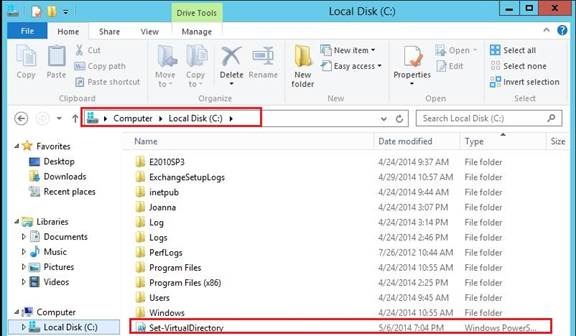
4. Let’s start with running scripts from within Windows PowerShell itself.
In case you get weird error messages when you try to run a script, the reason is only one, security settings built into Exchange PowerShell include something called the “execution policy” the execution policy determines how (or if) PowerShell runs scripts. By default, PowerShell’s execution policy is set to Restricted that means that scripts – including those you write yourself – won’t run.
Navigate back to Exchange PowerShell and set the Execution policy to unrestricted in order to be able to run the script, in that case, use this command to set your execution policy to RemoteSigned or Unrestricted

Note: The Set-ExecutionPolicy cmdlet enables you to determine which Windows PowerShell scripts (if any) will be allowed to run on your computer.
Windows PowerShell has four different execution policies:
o Restricted – No scripts can be run. Windows PowerShell can be used only in interactive mode.
o AllSigned – Only scripts signed by a trusted publisher can be run.
o RemoteSigned – Downloaded scripts must be signed by a trusted publisher before they can be run.
o Unrestricted – No restrictions; all Windows PowerShell scripts can be run.
5. The most common (default) way to run a script is by calling it:
PS C:\> & “C:\Admin\My first Script.ps1”
If the path does not contain any spaces, then you can omit the quotes and the ‘&’ operator
PS C:\> C:\Admin\Myscript.ps1
If the script is in the current directory, you must indicate this using .\ (or ./ will also work)
PS C:\> .\Myscript.ps1
In our case scenario we run the script in the current directory “C:\” so, we must indicate this using & ‘.\’ and we click Enter
If you’re running some command and the command path has spaces in it, then you need the command invocation operator ‘&’ (see help about_operators, look for “call operator”).
The call operator (&) allows you to execute a command, script or function.
Many times you can execute a command by just typing its name, but if the command (or the path) contains a space then this will fail.
Putting the command in quotes would make PowerShell treat it as a string, so in addition to quotes, use the call operator to force PowerShell to treat the string as a command to be executed.
Syntax
& “[path] command” [arguments]
6. Our script now it starts running, automatically on C:\ drive

7. You have to “Set” type the External and Internal Url you want to use
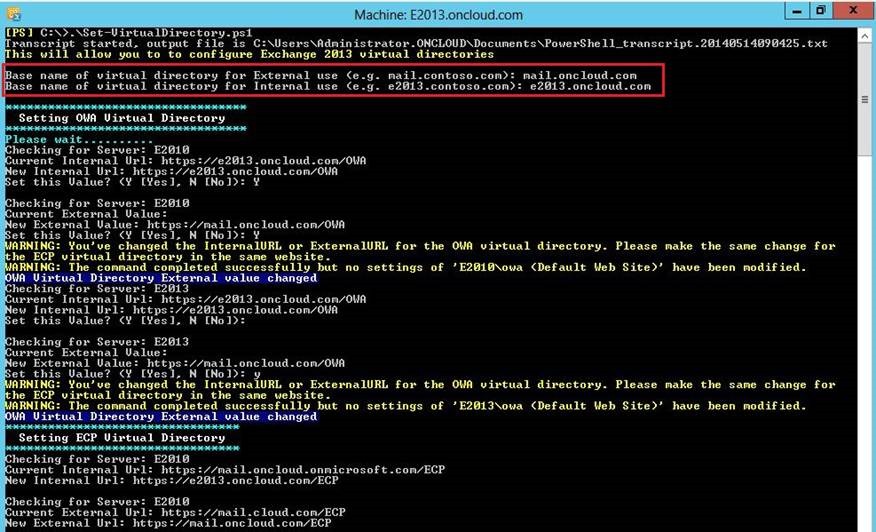
As you can see now, the Name Spaces are set with the External and Internal Url you set
You can download it here
 Catastrophic Failure