Set an expiration date for email encrypted by Microsoft Purview


When you apply your company brand to customize the look of your organization’s email messages, you can also specify an expiration for these email messages. With Microsoft Purview Advanced Message Encryption, you can create multiple templates for encrypted emails that originate from your organization. Using a template, you can control how long recipients have access to mail sent by your users.

When an end user receives mail that has an expiration date set, the user sees the expiration date in the wrapper email. If a user tries to open an expired mail, an error appears in the OME portal.

You can only set expiration dates for emails to external recipients.

With Microsoft Purview Advanced Message Encryption, anytime you apply custom branding, Microsoft 365 applies the wrapper to email that fits the mail flow rule to which you apply the template. You can only use expiration if you use custom branding.

  • Microsoft 365 E5 subscription
  • Compliance Administrator Permissions

How to create a custom branding template to force mail expiration by using PowerShell

  1. Using a work or school account that has sufficient permissions in your organization, such as Compliance Administrator, start a Windows PowerShell session and connect to Exchange Online. For instructions, see Connect to Exchange Online PowerShell.
  2. Run the New-OMEConfiguration cmdlet

Where:

  • Identity is the name of the custom template.
  • ExternalMailExpiryInDays identifies the number of days that recipients can keep mail before it expires. You can use any value between 1–730 days.

More information about Microsoft Purview Advanced Message Encryption

Data Loss Prevention: Restrict Microsoft 365 Copilot from processing emails with sensitivity labels


Microsoft Purview’s Data Loss Prevention (DLP) now allows you to prevent Microsoft 365 Copilot from processing emails and other content marked with specific sensitivity labels by configuring DLP policies in the Microsoft Purview portal.

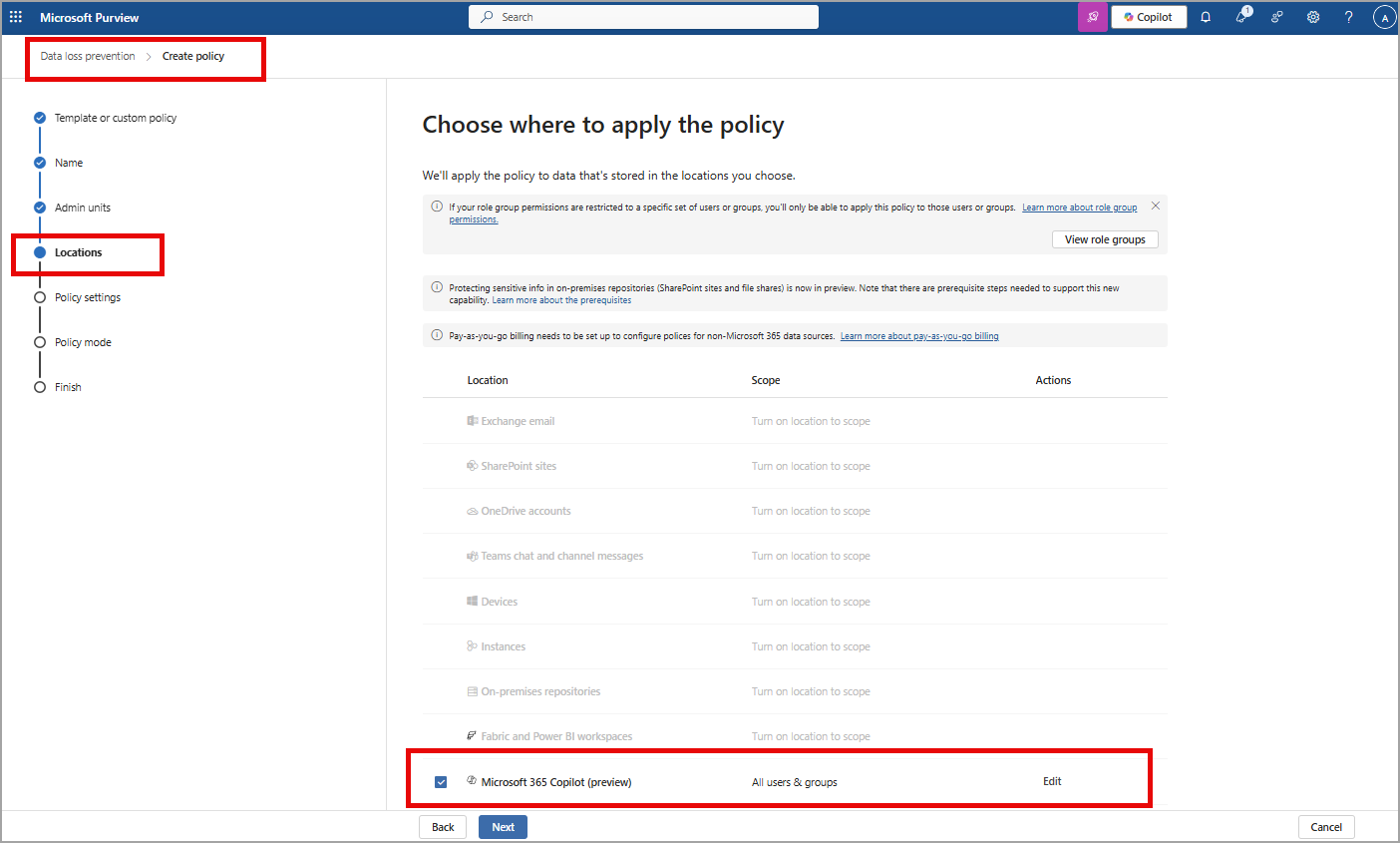
By creating a DLP policy with the “Content contains > Sensitivity labels” condition for the Microsoft 365 Copilot policy location, you can restrict Copilot from using this sensitive content in its responses and summarizations, thereby enhancing data protection.

This feature will allow DLP policies to provide detection of sensitivity labels in emails as enterprise grounding data and restrict access of the labeled emails in Microsoft 365 Copilot chat experiences. This feature only works for emails on or after 1/1/2025.

How this will affect your organization:

Organizations with no existing DLP for Microsoft 365 Copilot policies are not impacted. Customers with the required licenses will be able to go to the Microsoft Purview portal to create policies in the Data Loss Prevention solution. Admins can also go to Data Security Posture Management for AI (DSPM for AI) to see recommendations for creating Microsoft 365 Copilot policies.

Admins should create a new DLP policy using the Copilot location to use this feature:

Check also Microsoft Rodmap

Microsoft Teams: Copilot in Teams can analyze content shared on-screen during a meeting (Roadmap ID 325873)


Microsoft Copilot will be able to answer questions based on content shared onscreen during a Teams meeting.

Microsoft: “Copilot will be able to understand slides, documents, spreadsheets, and websites, or anything else shared onscreen. Users will be able to ask simple recall questions, such as “Show me the content that was shared on the screen” or more specific questions like “what was the Sales target number” if it was shared on a previous slide. Users will also be able to combine screen-share with transcript and chat data to ask, “Show me all the slides and the feedback on each slide,” or “Rewrite the paragraph based on the comments from the audience”.”

Microsoft Update at August 2025

After further review, we are not able to continue rolling this out at this time. We apologize for any inconvenience. Now, Copilot in Teams can analyze content shared on-screen during a meeting when recording is enabled. This, along with meeting transcript and meeting chat, enables users to ask Copilot to summarize or find specific information from screen-shared content (e.g., ‘Which products had the highest sales?’), consolidate insights across both the conversation and presentation (e.g., ‘What was the feedback per slide?’), and draft new content based on the entire meeting (e.g., ‘Rewrite the paragraph shared on the screen incorporating the feedback from the chat’). This works for any content shared while sharing your desktop screen (including but not limited to documents, slides, spreadsheets, and websites, irrespective of platform or app). Support for PowerPoint Live and Whiteboard in Teams will be available at a later date.

Expected Release: August 2026
