Export Email Messages from OWA in Office 365 Exchange Online


Introduction
This script can export email messages from Outlook Web App to a specific folder.
These email messages will be saved in .eml format. You need to find the email messages by using search folder.

Download the Script from here

Important Note:
Scripting is NOT supported by Microsoft Technical Support.
You have to use this script on your own risk as each environment is different for each user. 

Scenarios
Microsoft Outlook allows you to export email messages very easily.
However, this feature is not available in the Outlook Web App (OWA).
Therefore, in order to export email messages from OWA, you must find a workaround.

Prerequisites
This script requires Exchange Web Service Managed API 2.0. Please download and install the package from Microsoft Download Center.
This script cannot work correctly without this package. 

Let’s start and execute the script… 

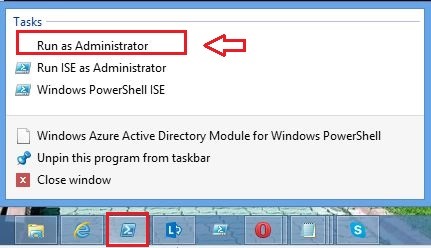
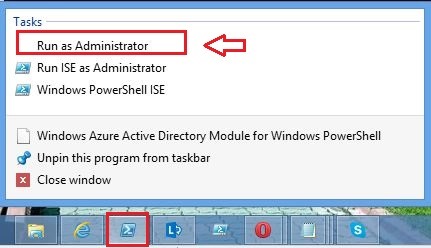
1.Open Windows Azure Active Directory PowerShell

2.Run Import-Module cmdlet to import this module file

Import-Module filepath\scriptname.psm1

Example:
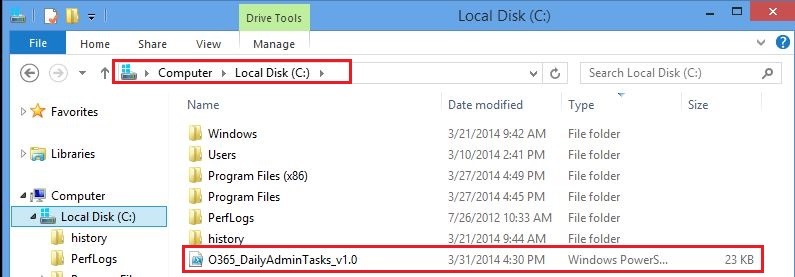
Import-Module C:\Export\ExportOSCEXOEmailMessage.psm1

To display help about this function, run this command.
Get-Help Export-OSCEXOEmailMessage -Full

To initiate a connection to Office 365 Exchange Online, please run this command.
You must run this example before any other step.
Connect-OSCEXOWebService -Credential (Get-Credential joannav@losgrecos.onmicrosoft.com)

Note
The Connect-OSCEXOWebService function creates a new variable called exService. This variable is in the global scope of the current Windows PowerShell session. This variable is used by other functions in the script.

To create a search folder that contains the email messages with specific subject, please run this command.
New-OSCEXOSearchFolder -DisplayName “Subject contains ‘Backup'” -Subject “Backup” -StartDate “07/20/2013 12:00:00 AM” -EndDate “09/25/2013 12:00:00 PM”

To export email messages in a search folder and keep this search folder after exporting, please run this command.
Get-OSCEXOSearchFolder -DisplayName “Subject contains ‘Backup'” | Export-OSCEXOEmailMessage -Path C:\Backup -KeepSearchFolder

To export email messages in a temporary search folder, please run this command.
New-OSCEXOSearchFolder -Subject “Test email” | Export-OSCEXOEmailMessage -Path C:\Backup

Additional Resources Technical Resources:

Office 365 Hybrid Deployment (Part IV) – Configuring a Microsoft Exchange Online Hybrid Deployment


In Part 4 we will enabling Exchange Federation and we will see, how to configure the on-premises Exchange organization for Federation trust and Organization Relationship.
In order to do that, we have to import a trusted certificate in to the local computer certificate store.  That is we will import and assign a third party certificate to IIS and SMTP on the Exchange 2010 hybrid server.
Let’s get going…

Import a trusted certificate in to the local computer certificate store
When configuring a hybrid deployment, one of the requirements is a SSL certificate from a trusted 3rd party certificate provider.
This certificate will be used to secure the communication between the on premise Exchange 2010 hybrid servers, Exchange clients and Exchange Online.


Note:
In my case scenario, I’m using TMG 2010 Server for my on premise environment

First I will switch to O365-EX1 Virtual Machine to Export the certificate

Start and click Exchange Management Console (EMC)

On EMC navigate to Server Configuration and in the right site you will see the Exchange Certificates

Select the server that contains the certificate, and then select the certificate you want to export (mine is ex1.onprem.local), right click in the certificate you want to export, and click Export Exchange Certificate
The services that are checked are currently assigned to the certificate

When you click Export, the Progress Page will confirm your selections and try to export the certificate

The Completion page will display the status of the request together with the syntax of the Shell cmdlet needed to export the certificate

Create a new firewall rule on O365-TMG1 and Import the certificate

Note:
If you do not use TMG to publish Exchange in your environment, you just need to update the autodiscover and EWS DNS records in external DNS to point to the public IP address

Importing the Certificate
Before we can publish OWA, we first need to import the SSL certificate for the site on the TMG firewall.
To accomplish this, click Start / Run and then type mmc.exe. From the drop down menu choose File / Add/Remove Snap-in. Select Certificates, then click Add >

Select the Computer Account option

Select the option to manage the Local computer.

In the console tree, expand the Certificates node. Expand the Personal folder, then right-click the Certificates folder and choose Import…

Enter the location of the certificate file you exported previously.
Enter the password and optionally mark the private key exportable.

Accept the default option to Place all certificates in the following store.

Create a new firewall rule on O365-TMG1

On TMG1, click Start, point to All Programs, click Microsoft Forefront TMG, and then click Forefront TMG Management.
In the console tree, click Firewall Policy (TMG has already been configured with an SMTP (port 25) rule)
In the actions pane, on the Tasks tab under Firewall Policy Tasks, click Publish Exchange Web Client Access

On the Welcome to the New Exchange Publishing Rule Wizard page, in the Exchange Publishing rule name, type name and then click Next

On the Select Services page, click the Exchange version menu and click Exchange Server 2010 and then select the option to publish Outlook Web Access

For demonstration purposes we are publishing a single CAS server, so we’ll choose the option to Publish a single web site or load balancer.

Select the option to Use SSL to connect to the published web server or server farm.

Enter the name of the internal web site.
Select the option to accept requests for a specific domain, and then enter the public name of the web site.
Create a web listener for the site by selecting New…, and then enter a descriptive name for the listener.
Select the option to Require SSL secure connection with clients.

Select the network to listen for incoming web requests.

Choose Select Certificate… and select the certificate you imported previously.

Select the option to use No Authentication

On the Authentication Delegation page, click the menu, click No delegation, but the client may authenticate directly, and then click Next

If you wish to grant access to OWA only to specific users and/or groups, add them here. Otherwise accept the default All Authenticated Users group.

To confirm operation, click the Test Rule button.

In the results pane, double-click the Exchange Web Access rule.
In the Exchange Web Access Properties window, on the Paths tab, click Add.
And check the Paths

Be in tune for Part 5…

Office 365 "W15" Hybrid Deployment (Part III ) – Installing and Configuring Active Directory Synchronization


    In part 2 we installed and configures Active Directory Federation Service (ADFS) 2.0 .

    After we configured the servers, we also verified they worked as expected.

    In this part 3, we will continue where we left off in part 2 that are we convert our Office 365 domain to a federated domain as well as install the Directory Synchronization (DirSync) tool.

    If you are already using Active Directory in your on premise environment, you probably have invested a lot of time creating user accounts, populating their attributes and adding them to the appropriate groups. 

    Directory Synchronization takes all that information, users, groups, contacts, email addresses, phone numbers, names, etc and synchronizes it from your Active Directory to Office 365. 

    The synchronization is ongoing which allows you to continue to manage users, groups and contacts from your local Active Directory.  The synchronization is 1 way (from Active Directory to Office 365) and at this time, once enabled, cannot be disabled.

    Directory Synchronization is required if you want to use Active Directory Federation Services (AD FS).  A couple other things to note, Directory Synchronization cannot be used if you are going to do a cutover migration and it’s recommended if you are going to use AD FS that you enable that before enabling Directory Sync.

    As an administrator, you need to do some preparation before you synchronize your local Active Directory to Windows Azure Active Directory (Windows Azure AD).

    If you are deploying single sign-on, then we recommend that you set up single sign-on before you set up directory synchronization.

    After you’ve set up single sign-on, verify that the following statements are true:

    • You have the required software.
    • You have set up the correct permissions.
    • You understand the performance considerations related to directory synchronization.

    Activating directory synchronization should be considered a long-term commitment. After you have activated directory synchronization, you can only edit synchronized objects by using your on-premises Active Directory management tools. For more information, see Directory synchronization and source of authority.

    What is Azure Active Directory Dirsync with Password Sync?

    Formerly known as Dirsync, this tool has been updated to allow for the synchronization of local Active Directory passwords to Azure Active Directory. In addition to the syncing of users, groups and contacts.  This new feature will allow for Same Sign In with Microsoft cloud services such as Office 365 Education powered by Azure Active Directory since the username and the password from local AD will by synced up to Azure AD. 

    See here on TechNet for more details.

    Where can I get the new Dirsync with Password sync bits?

    You can grab the latest version of Dirsync here or it is available in the Office 365 portal under ‘users’  and then Dirsync.

    Synchronize and Verify Synchronization of Active Directory Objects

    a. Switch to the O365-SRV1 Virtual Machine (in my case I named O365-SRV1 my machine which I will install DirSync Tool) and on then. click Start and then click Internet Explorer

    b. In Microsoft Internet Explorer, in the Address box, type https://portal.microsoftonline.com and then press Enter.

    c. On the Microsoft Online Services page, under sign in, click your online services ID.

    d. In the Password box, type your password and then click Sign in.

    clip_image001

    e. On the Admin page, click users and groups

    clip_image002

    f. On the Users page, next to Active Directory synchronization, click Set up

    clip_image003

    g. On the Set up and manage Active Directory synchronization page, under Step 3 Activate Active Directory synchronization, click Activate (in my case I Activate already the Synchronization)

    clip_image004

    h. In the Do you want to activate Active Directory synchronization dialog box, read the warning information and then click Yes.

    i. Close Internet Explorer.

    Install the Active Directory Synchronization (DirSync) tool

    a. Switch to the O365-SRV1 Virtual Machine and on then. click Start and then click Internet Explorer

    b. In Microsoft Internet Explorer, in the Address box, type https://portal.microsoftonline.com and then press Enter.

    c. On the Microsoft Online Services page, under sign in, click your online services ID

    d. In the Password box, type your password and then click Sign in

    clip_image005

    e. On the Admin page, click users and groups

    f. On the Users page, next to Active Directory synchronization, click Set up

    clip_image006

    g. On the Set up and manage Active Directory synchronization page, next to step 4 Install and configure the Directory Synchronization tool, click Download

    clip_image007

    f. In the File Download – Security Warning window, click Run.

    i. In the Internet Explorer –Security Warning dialog box, click Run.

    j. On the Welcome page, click Next

    k. On the Microsoft Software License Terms page, click the I accept the Microsoft Software License Terms radio button and then click Next

    l. On the Select Installation Folder page, accept the default location and then click Next (The installation will take several minutes to complete)

    m. When the installation is complete, click Next

    n. On the Finish page, clear the Start Configuration Wizard now check box and then click Finish.

    Synchronize Active Directory

    The first time you synchronize your directories, a copy of your local users and groups is written to your Office 365 directory.

    From then on, Active Directory synchronization checks for changes to your local Active Directory and updates your Office 365 directory with those changes.

    The Microsoft Online Services Directory Synchronization Configuration Wizard creates the MSOL_AD_SYNC account in your Active Directory forest, in the standard Users organizational unit in the Root Domain.

    Directory synchronization uses this service account to read and synchronize your local

    a. Switch to the O365-SRV1 Virtual Machine

    b. Click Start, point to All Programs, click Directory Sync Configuration

    c. On the Welcome page, click Next

    clip_image008

    d. On the Microsoft Online Services Credentials page, in the User name box, type your Microsoft Online Services user name

    e. In the Password box, type your password and then click Next.

    clip_image009

    f. On the Active Directory Credentials page, in the User name box, type Onprem\Administrator (domain credential’s)

    clip_image010

    g. On the Hybrid Deployment page, read the information regarding Hybrid Deployment

    Select the Enable Hybrid Deployment check box and then click Next

    clip_image011

    h. On the Password Synchronization page, read the information regarding Password Synchronization

    Select the Enable Password Synchronization check box and then click Next

    clip_image012

    i. On the Configuration page, wait until the Configuration finalize and click Next

    clip_image013

    j. On the Finished page, verify that the Synchronize directories now check box is selected, and then click Finish

    k. Review the information in the Microsoft Online Services Directory Synchronization Configuration Wizard dialog box and then click OK.

    clip_image014

    Verify directory synchronization

    clip_image015

Office 365 Hybrid Deployment (Part II ) – Installing and Configuring Active Directory Federation Services


In this Part 2, we will continue where we left off in Part 1. That is we will install and configure Active Directory Federation Service (ADFS) 2.0 on ADFS serve.
After we have configured the servers, we will verify they work as expected.

Create a new ADFS certificate

In my case scenario, I will create a Domain Certificate for ADFS.
In order to create a Domain Certificate follow the steps bellow:

a. On DC (Domain Controller), click Start, point to Administrative Tools, and then click Internet Information Services (IIS) Manager.

b. In the navigation pane, click Name of the DC (domain\Administrator).

c. In the results pane, under IIS, double-click Server Certificates.

d. In the actions pane, click Create Domain Certificate (The local domain certification authority will be used for this certificate)

e. In the Create Certificate window, on the Distinguished Name Properties page, in the Common name box, type sts.yourchilddomainname (for example: sts.onprem.contoso.com).

f. Type your information in the Organization, Organization Unit, City/locality State/province boxes, and then click Next.

g. On the Online Certification Authority page, under Specify Online Certification Authority, click Select.

h. In the Select Certification Authority window, click your Certification Authority (onprem-DC1-CA) and then click OK.

i. On the Online Certification Authority page, in the Friendly name box, type sts.yourchilddomainname.

j. Click Finish

Assign the certificate to the Default Website into IIS  

Since all client authentication against ADFS occurs via SSL, we need to import a server authentication certificate on each ADFS server.
Because all clients should trust this certificate, it’s recommended to import a certificate from a 3rd party certificate provider.
Although we use a wildcard certificate in this article series, a single name SSL certificate is sufficient.
If you use a single name certificate, the FQDN included should match the FQDN we configured in the previous article (in this example sts.losgrecos.cloudns.org).

To assign the certificate to the Default Website follow the steps bellow:

a. In the Internet Information Services (IIS) Manager, in the navigation pane, expand DC1 (ONPREM\Administrator), expand Sites, and then click Default Web Site

b. In the actions pane, click Bindings

c. In the Site Bindings window, click Add.

d. In the Add Site Binding window, click the Type drop-down menu and then click https.

e. Click the SSL certificate drop-down menu and then click sts.yourchilddomainname

f. In the Add Site Binding window, click OK.

g. In the Site Bindings window, click Close.

h. Close the IIS Manager.

Installing the Active Directory Federation Services

Download Active Directory Federation Services 2.0 RTW from Microsoft Download Center

After the download finish launch “AdfsSetup.exe” and then accept the license agreement

On the “Server Role” page, we need to specify which to configure. Since these are the two internal ADFS servers, we wish to configure a “Federation server” so select that and click “Next”

On the “Welcome to the AD FS 2.0 Setup Wizard” page, click “Next”

As you can see on the next page, the wizard will now install a couple of prerequisites on the server. Click “Next”

After a minute or so the wizard will complete successfully and we can now click “Finish”
Make sure to uncheck “Start AD FS 2.0 Management snap-in when this wizard closes” as we want to install Update 2 for AD FS 2.0 before we continue.

When the update has been applied, launch the AD FS 2.0 management console by going to “Start”–> “Administrative tools” and in here selecting “AD FS 2.0 Management”
In the AD FS 2.0 Management console, click “AD FS 2.0 Federation Server Configuration Wizard”

Configure Active Directory Federation Services

a. On DC, click Start, point to Administrative Tools, and then click AD FS 2.0 Management

b. In the AD FS 2.0 management console, in the results pane, click AD FS 2.0 Federation Server Configuration Wizard

c. On the Welcome page, verify that the Create a new Federation Service radio button is selected and then click Next

d. On the Select a Stand-Alone or Farm Deployment page, click the Stand-alone federation server radio button and then click Next

e. On the Specify the Federation Service Name page, verify that the SSL Certificate and Federation Service name are sts.yourchilddomainname and then click Next

If the certificate name is not correct, do not continue. You must cancel the wizard and create the correct certificate using the procedure in tasks 5 and 6.

f. On the Ready to Apply Settings page, review the configuration and then click Next

Wait for the configuration to complete.

g. On the Configuration Results page, review the results and click Close

h. Close the AD FS 2.0 management console and log off DC

Be in tune for Part 3….

Office 365 "W15" Hybrid Deployment Exchange Server 2010 SP3 (Part I ) – Prerequisites


Introduction

Office 365’s Exchange Online is a compelling product from Microsoft that can be integrated with your existing on-premises Exchange Server 2010 organization to extend your Exchange deployment to the cloud.

In this five-part series, we’ll be looking more into Microsoft’s Hybrid Configuration Wizard (HCW), new in Exchange 2010 Service Pack 3 , which automates the process of configuring both your existing Exchange organization and Exchange Online to interact smoothly with little impact on your end-users.

A Hybrid Exchange deployment allows Office 365 to act as an extension of your existing on-premises deployment. This means users don’t necessarily need to know where their mailbox is hosted, and can continue to connect to Exchange in the same way they’ve always done. Mail routing can flow through your existing Exchange on-premises deployment, the process to configure clients like Outlook and ActiveSync clients remains the same, and end-users use existing Outlook Web App web addresses to sign in with a browser. In addition, services like Exchange Online Archives can be deployed to allow a user’s primary mailbox to be hosted on premise, whilst the archive mailbox is located in the cloud. In part one, we’re going to look at the pre-requisites required for a hybrid configuration and perform necessary checks against your Exchange deployment to help ensure a successful configuration.

Before we begin

There are a few pre-requisites to consider before we run the Hybrid Configuration Wizard. First, we’ll need an Office 365 subscription, known as a tenant. If you’ve not got one yet, and want to try it out – I’d recommend signing up for trial of the service. Even if you’ve already signed up for your production tenant, you’ll find a trial useful to allow you set things up in your test lab.

Once we’ve got the tenant, you’ll need to work through the basics covered in the Office 365 deployment guide, including executing the Office 365 Deployment Readiness Tool to check for any organizational issues and registering the accepted domains in Office 365 and Exchange that you’re going to use for your hybrid deployment.

I’d also recommend setup of Active Directory Federation Services 2.0 to provide authentication of your Office 365 mailboxes against your local Active Directory, a must for any Hybrid Deployment. Finally, you’ll need to setup and configure the Microsoft Online Services Directory Synchronization Tool (DirSync) so that local Active Directory accounts will be synchronized to Office 365.

Ensuring you are running the right Exchange 2010 Service Pack

If you are running a Wave 15 tenant – that’s an Office 365 tenant that’s running the latest version of Office 365 available -you’ll need to make sure you are running Exchange 2010 Service Pack 3 on the servers you’ll use for your Hybrid Configuration. As a minimum this will mean an upgrade to Service Pack 3 across all Exchange Servers within your Internet-facing site. You can tell which version your tenant is by logging onto the Office 365 portal easily, as illustrated below:

Figure  1

Hybrid Deployment Prerequisites

Before you create and configure a hybrid deployment using Microsoft Exchange Server 2013 and the Hybrid Configuration wizard, your existing on-premises Exchange organization must meet certain requirements. If you don’t meet these requirements, you won’t be able to complete the steps within the Hybrid Configuration wizard and you won’t be able to configure a hybrid deployment between your on-premises Exchange organization and the Exchange Online organization in Microsoft Office 365.

Important:

This feature of Exchange   Server 2013 is currently not compatible with Office 365 operated by 21Vianet   in China. For more information, see Learn about Office 365 operated by   21Vianet.

Prerequisites for hybrid deployment

The following prerequisites are required for configuring a
hybrid deployment:

  • On-premises Exchange organization   Hybrid deployments can be configured for on-premises Exchange 2007-based organizations or later. For Exchange 2007 and Exchange 2010 organizations, at least one Exchange 2013 Client Access and one Exchange 2013 Mailbox server must be installed in the on-premises organization to run the Hybrid Configuration wizard and support Exchange 2013-based hybrid deployment functionality. We recommend combining the Exchange 2013 Client Access and Mailbox server roles on a single server when configuring hybrid deployments with Exchange 2007 and Exchange 2010 environments. All on-premises Exchange 2013 servers must have installed Cumulative Update 1 (CU1) or greater for Exchange 2013 to support hybrid functionality with Office 365. For more information, see Cumulative Updates for Exchange 2013.
    For a complete listing of Exchange Server and Office 365 for enterprises tenant hybrid deployment compatibility, see the requirements listed in the following table for Exchange 2013-based and Exchange 2010-based hybrid deployments.

Note: To verify your   Office 365 tenant version and status, see Verify Office 365   tenant version and status later in this topic.

Note:
1 Blocked in Exchange 2013   setup
2 Tenant upgrade   notification provided in Exchange Management Console
3 Requires at least one   on-premises Exchange 2010 SP2 server
4 Requires at least one   on-premises Exchange 2010 SP3 server
5 Requires at least one   on-premises Exchange 2013 CU1 or greater server

  • Office 365 for enterprises   An Office 365 for enterprises tenant and administrator account and user licenses available on the tenant service to configure a hybrid deployment. The Office 365 tenant version must be 15.0.620.28 or greater to configure a hybrid deployment with Exchange 2013. Additionally, your Office 365 tenant status must not be transitioning between service versions. For a complete summary, see the preceding table. To verify your Office 365 tenant version and status, see Verify Office 365 tenant version and status later in this topic.
    Learn more at Sign up for Office 365.
  • Custom domains   Register any custom domains you want to use in your hybrid deployment with Office 365. You can do this by using the Office 365 Administrative portal, or by optionally configuring Active Directory Federation Services (AD FS) in your on-premises organization.
    Learn more at Add your domain to Office 365.
  • Active Directory synchronization   Deploy Office 365 Active Directory synchronization in your on-premises organization.
    Learn more at Active Directory synchronization: Roadmap.
  • Autodiscover DNS records   Configure the Autodiscover public DNS records for your existing SMTP domains to point to an on-premises Exchange 2013 Client Access server.
  • Office 365 organization in the Exchange admin center (EAC)   The Office 365 organization node is included by default in the on-premises EAC, but you must connect the EAC to your Office 365 organization using your Office 365 tenant administrator credentials before you can use the Hybrid Configuration wizard. This also allows you to manage both the on-premises and Exchange Online organizations from a single management console.
    Learn more at Hybrid Management in Exchange 2013 Hybrid Deployments.
  • Certificates   Install and assign Exchange services to a valid digital certificate purchased from a trusted public certificate authority (CA). Although self-signed certificates should be used for the on-premises federation trust with the Microsoft Federation Gateway, self-signed certificates can’t be used for Exchange services in a hybrid deployment. The Internet Information Services (IIS) instance on the Client Access servers configured in the hybrid deployment must have a valid digital certificate purchased from a trusted CA. Additionally, the EWS external URL and the Autodiscover endpoint specified in your public DNS must be listed in Subject Alternative Name (SAN) of the certificate. The certificate installed on the Mailbox and Client Access (and Edge Transport if deployed) servers used for mail transport in the hybrid deployment must all use the same certificate (that is, they are issued by the same CA and have the same subject).
    Learn more at Certificate Requirements for Hybrid Deployments.
  • EdgeSync   If you’ve deployed Edge Transport servers in your on-premises organization and want to configure the Edge Transport servers for hybrid secure mail transport, you must configure EdgeSync prior to using the Hybrid Configuration wizard.

Important: Although EdgeSync is a   requirement in deployments with Edge Transport servers, additional manual   transport configuration settings will be required when you configure Edge   Transport servers for hybrid secure mail transport.
Learn more at Edge Transport Servers with Hybrid Deployments.

After you’ve made sure your Exchange organization meets these requirements, you’re ready to use the Hybrid Configuration wizard. For more detailed guidance, see Create a Hybrid Deployment with the Hybrid Configuration Wizard.

Recommended tools and services

In addition to the required prerequisites described earlier, other tools and services are beneficial when you’re configuring hybrid deployments with the Hybrid Configuration wizard:

  • Remote Connectivity Analyzer tool   The Microsoft Remote Connectivity Analyzer tool checks the external connectivity of your on-premises Exchange organization and makes sure that you’re ready to configure your hybrid deployment. We strongly recommend that you check your on-premises organization with the Remote Connectivity Analyzer tool prior to configuring your hybrid deployment with the Hybrid Configuration wizard.
    Learn more at Remote Connectivity Analyzer Tool.
  • Single sign-on   Although not a requirement for hybrid deployments, single sign-on enables users to access both the on-premises and Exchange Online organizations with a single user name and password. Single sign-on provides users with a familiar sign-on experience and allows administrators to easily control account policies for Exchange Online organization mailboxes by using on-premises Active Directory management tools.
    Single sign-on is also highly recommended for organizations that plan on deploying Exchange Online Archiving (EOA) in their Exchange organization.
    If you decide to deploy single sign-on with your hybrid deployment, we recommend that you deploy it with Active Directory synchronization and before using the Hybrid Configuration wizard.
    Learn more at Prepare for single sign-on.

Verify Office 365 tenant version and status

To verify the version and status of your Office 365 tenant, follow the steps below:

  • Connect to the Office 365 tenant using remote Windows PowerShell. For step-by-step connection instructions, see Connect Windows PowerShell to the Service.
  • After connecting to the Office 365 tenant, run the following command.
    Copy
    Get-OrganizationConfig | Format-List AdminDisplayVersion,IsUpgradingOrganization
    Verify that your Office 365 tenant and status meet the following requirements:
    • AdminDisplayVersion parameter value is equal to or greater than 15.0.620.28
    • IsUpgradingOrganization parameter is False
      For example, “0.20 (15.0.620.51)” and “False”.

Warning:

If your Office 365   tenant version and status don’t meet the hybrid deployment requirements, the   Hybrid Configuration wizard won’t complete successfully.

Pre-flight checks against your Exchange environment

With your Office 365 prerequisites in place, it’s time to check over your Exchange environment to verify that everything you need for the Hybrid Configuration Wizard to successfully execute is in place, and help ensure that features work after your hybrid configuration has been implemented.

Auto Discover and Exchange Web Services Checks

The first thing we need to check is connectivity to Auto Discover and Exchange Web Services from outside your organization. If you’ve already got external clients working correctly, there’s a fair chance this is already configured, but it doesn’t hurt to test.

To test Auto Discover and Exchange Web Services, we’ll use Microsoft’s Remote Connectivity Analyzer to simulate Exchange Web Services connectivity, using AutoDiscover as part of the process. First create a test Exchange mailbox, and then run the EWS General Test (as shown below) to verify connectivity, and remediate if necessary.


Figure 2

Reverse Proxy, ISA or TMG checks

If you’re using a reverse proxy that uses pre-authentication for your deployment, you’ll also need to examine it’s configuration. That’s because the federated components of Exchange use token-based authentication to connect from Office 365 to your Exchange On-Premises organization rather than traditional authentication against your Active Directory, and services such as the MRS Proxy don’t support SSL Offload for the EWS virtual directory.

Although there are more complicated ways of achieving it, the simplest way to ensure TMG doesn’t cause any problems is to move your rules for the EWS and AutoDiscover virtual directories into a dedicated rule, with the following key settings:

Allow All Users

Figure 3

Authentication Delegation set to “No delegation, but client may authenticate directly”
Figure 4

Publishing the paths /ews/* and /autodiscover/*
Figure 5

Hub Transport checks

Moving onto the Hub Transport components, we need to consider how Exchange will be able to route mail inbound and outbound to and from Office 365.

As part of the Hybrid Configuration Wizard, a new receive connector will be created, pre-populated with the correct IP address ranges to allow mail to be received from Office 365. We’ll also need to allow our Hybrid Server, or Exchange 2010 servers hosting the hub-transport role to send and receive mail to those IP address ranges at the network firewall level. The method to accomplish this varies based on your network design, but you will typically need to expose at least one Hub Transport server to the internet with a public IP address, with firewall restrictions to only allow Office 365 to communicate both to and from it on the SMTP port, TCP port 25.

Additionally, we’ll need to ensure the correct certificates are installed and in place for TLS-secured mail transport. When we tested EWS and AutoDiscover earlier, certificates were tested on the Client Access roles, but you’ll also need to ensure that a suitable certificate is available on the Hub Transport servers if they are on different Exchange Servers; and that the certificate name is suitable. This may mean you need to ensure the Fully Qualified Domain Name (FQDN) you use for your Hub Transport roles is present on the Subject Alternative Name (SAN) certificate. If you’re currently using a wildcard certificate, although it’s not a best practice, this should work fine.

Address Book Policy checks

If you’re in the process of upgrading to Exchange 2010, or have only installed the Exchange 2010 Hybrid server role into your existing environment, you will also need to give your Email Address Policies (or Recipient Policies in Exchange 2003 terminology) some consideration. During the Hybrid Configuration Wizard, your Default Email Address Policy will be upgraded and then one of your Office 365 tenant domains will be added to the policy, before applying it to your Exchange organization.

Therefore it’s important to make sure that the Email Address policies are in good order before you begin and you should be confident that when the Hybrid Configuration Wizard applies the Default Email Address policy it will complete successfully.

Outbound HTTP connection and proxy checks

Next, we need to consider any network infrastructure that might prevent our Exchange 2010 Hybrid servers from communicating with Office 365 via HTTPS. The number one issue I usually see is proxy server related, so it’s worth ensuring that you’ve tackled this up-front before you run into issues.

If at all possible, I’d recommend allowing the Exchange Servers to communicate with Office 365 directly via HTTPS and avoid proxy servers for this communication altogether, however if that’s not possible, ensure you do the following:

  • Ensure all Exchange servers participating in the Hybrid Configuration, and installations of the Exchange Management Console you’ll use to manage the environment can by-pass proxy servers for the Office 365 and Exchange Online IP addresses and URLs.
  • Configure the correct proxy settings using the netsh command. An easy way to do this is by configuring Internet Explorer on the server with the correct settings, testing the settings in IE and then using an elevated command prompt executing the following command:
    netsh winhttp import proxy source=ie
  • Configure the correct proxy server settings within the Exchange 2010 Hybrid servers, using the following Exchange Management Shell cmdlet:
    Set-ExchangeServer <servername> -InternetWebProxyURL:http://proxy:port

If you’re using a proxy server in your environment already, there’s a good chance you’ve already performed some of this configuration, but even if you think it’s right, it’s worth double checking settings before you continue.

Once making sure relevant proxy settings are configured correctly, you’ll need to make sure you can connect the Exchange Management Console to your Office 365 tenant. This will not only test proxy settings you’ve configured, but it’s also necessary later on when we use the Exchange Management Console to run the Hybrid Configuration Wizard.

To connect the Exchange Management Console to your Office 365 tenant:

  • Right click on the “Microsoft Exchange” root node, and choose “Add Exchange Forest”
  • Enter a friendly name, such as “Office 365”
  • From the drop-down, select “Exchange Online”

After entering your tenant credentials, you should see your tenant alongside your on-premises Exchange organization:


Figure 6

Summary
In part one, we’ve looked at the pre-flight checks we need to perform to help ensure a successful execution of the Hybrid Configuration Wizard. In the following parts of this series, we’ll take a quick look at what goes on under the hood of the Hybrid Configuration Wizard itself, walk through its execution and then finally test functionality.

To be continue Wink

How to Create Public Folder’s in Office 365 W15


The Public Folders pages is a new feature for Exchange Online introduced with Office 365 Preview. It provides an easy and effective way to collect, organize, and share information with other people in your workgroup or organization. It is not designed for Archiving Data or Document sharing and Collaboration.

In Office 365 Preview every public folder must live in a Public Folder mailbox. You will need to create at least one Public Folder mailbox before you can create Public Folders.

To create a Public Folder Mailbox
Navigate to the Exchange Admin Center (EAC)

Click Public Folders > Public Folder Mailboxes > Click (+) New

Enter a Name and click Save

Check the list to ensure the new Public Folder Mailbox is available

To create a Public Folder
Click Public Folders > Public Folders > Click (+) New

Enter a Name and click Save.

Verify that the folder has been created

In the Public Folder window, note that several new options will be available, e.g:

  • General: Public Folder name etc
  • Statistics: Count of Deleted Items etc
  • Limits: Warning Quotas etc
  • General mail properties: Edit Alias, Display Name, add custom attributes
  • Emails Addresses: Add/Edit additional SMTP Addresses for the public folder
  • Member Of: Add the public folder to distribution groups
  • Delivery Options: Configure Send As, Send on behalf, and Forwarding on the public folder
  • Mail Flow Settings: Enable/Edit delivery restrictions on for the public folder mailbox.

To view Public Folders on Outlook 2013, navigate near to Tasks and you’ll see "………" > click on "…….." and choose Folders

Now you can view your Public Folders on Outlook 20013

Note

  • Kiosk plan users are not licensed for public folders
  • You are limited to 50 public folder mailboxes with a maximum size of 1.25 TB.
  • See the Exchange Online Service Description for more

How To: Give Users Send As Permission


Send As permission, also known as SendAs permission, gives a user permission to use another recipient’s e-mail address in the From address. For example, when you give the user Chris Send As permission on the mailbox of a user named Michelle, Chris can send e-mail messages that appear to be sent by Michelle, with no indication to the recipient that anyone other than Michelle sent the message. Or, if your organization uses a Help Desk distribution group, you can give Help Desk staff Send As permission on the Help Desk distribution group. That way, replies to messages sent to the Help Desk group appear to come from the group instead of an individual Help Desk technician.

To give a user Send As permission, you use Windows PowerShell

Before you begin

  • To learn how to install and configure Windows PowerShell and connect to the service, see Use Windows PowerShell in Exchange Online.
  • The Send As permission is different than the Send on Behalf permission. If the user Chris has Send on Behalf permission on Michelle’s mailbox, when Chris sends an e-mail as Michelle, the From address shows Chris on behalf of Michelle. Microsoft Outlook users can configure Send on Behalf permissions on their own mailbox using delegates. Administrators can configure Send on Behalf permissions on any recipient type using the GrantSendOnBehalfTo parameter.
  • Want more information about parameters? See An explanation of parameters.

Give a user Send As permission
Launch Windows PowerShell and perform the following steps:

Import-Module msonline 
$cred = Get-Credential 
Connect-MsolService -cred $cred 
Get-Command –Module msonline

1) Import the module.
2) Create a credential-object stored in the variable $credimp
3) Create a new remote PowerShell connection against the PowerShell endpoint for Office 365
4) List the cmdlets available

A shortcut to the module is also available on the Start-menu (you can skip step 1 if launching this shortcut):

Run the following command:
Command:
Add-RecipientPermission <identity> -AccessRights SendAs -Trustee <user>

For example, to give the user named Joanna Vathis Send As permission for the Test mailbox , run the following command:
Example:
Add-RecipientPermission test@itprodev.onmicrosoft.com  -AccessRights SendAs -Trustee joannav@itprodev.onmicrosoft.com

       OR
Command:
Add-RecipientPermission "TEST" -AccessRights SendAs -Trustee "Joanna Vathis"
Joanna can now send messages that appear to come directly from the TEST mailbox.
Note  By default, you are asked to confirm the addition of the Send As permission. To skip the confirmation prompt, use -Confirm:$false.

View Send As permissions

Use the Get-RecipientPermission cmdlet to display all the Send As permissions configured in your organization. You can filter the list to show Send As permissions granted to a specific user and to see the Send As permission on a specific recipient.

View Send As permission for a specific user

Run the following command:
Command:
Get-RecipientPermission – Trustee <user>
For example, to list the recipients for whom the user named Kim Akers has Send As permission, run the following command:
Command:
Get-RecipientPermission -Trustee joannav@itprodev.onmicrosoft.com
Joanna can send messages that appear to come directly from the recipients

View Send As permission on a specific recipient

Run the following command:
Command:
Get-RecipientPermission <identity>

For example, to list the users who have Send As permission on the TEST mailbox, run the following command:
Command:
Get-RecipientPermission "TEST"
The users listed can send messages that appear to come directly from the TEST mailbox.


View all Send As permissions you’ve configured in your organization

Run the following command:
Command:
Get-RecipientPermission | where {($_.Trustee -ne ‘nt authority\self’) -and ($_.Trustee -ne ‘null sid’)}

Note The filter hides the automatic Send As permission that allows a user to send messages from their own mailbox, and also any results from system objects like mailbox plans.


Revoke Send As permission

Run the following command:
Command:
Remove-RecipientPermission <identity> -AccessRights SendAs -Trustee <user>

For example, to revoke Joanna’s Vathis Send As permission for the TEST mailbox, run the following command:
Command:
Remove-RecipientPermission "TEST" -AccessRights SendAs -Trustee joannav@itprodev.onmicrosoft.com

Now Joanna can’t send messages that appear to come directly from the TEST mailbox.
To skip the confirmation prompt, use -Confirm:$false.

How people use the Send As permission

Individual users or members of security groups with Send As permission can open their own mailboxes and send messages using the From address of the recipient.
Send As permission doesn’t give a user access to another user’s mailbox. To give an individual or members of a security group access to a mailbox, use the following command:
Command:
Add-MailboxPermission <mailbox> -User <user or security group> -AccessRights FullAccess

When you give someone access to a mailbox and Send As permission on the mailbox, that person can open the mailbox using their own credentials, compose new messages, and reply to messages in the mailbox.
An explanation of parameters
You use the Add-RecipientPermission, Remove-RecipientPermission, and Get-RecipientPermission cmdlets to add, remove and view Send As permissions. These cmdlets use the same basic parameters:

Identity This parameter specifies the target recipient. The user or group specified by the Trustee parameter can operate on this recipient.
You can specify any type of recipient. For example:

  • Mailboxes
  • Mail users
  • External contacts
  • Distribution groups
  • Dynamic distribution groups
    The Identity parameter is a positional parameter. The first argument on a cmdlet is assumed to be the Identity parameter when no parameter label is specified. This lets you specify the parameter’s value without specifying the parameter’s name.

Trustee This parameter specifies the user or group to whom you’re granting the permission. This allows the user or group to operate on the recipient specified by the Identity parameter.
You can specify the following types of users or groups:

  • Mailbox users
  • Mail users with a user account
  • Security groups

For the Identity and Trustee parameters, you can use any value that uniquely identifies the recipient.

For example:

  • Alias
  • Distinguished name (DN)
  • GUID
  • Name
  • Display name
  • LegacyExchangeDN
  • E-mail address

Additional Information’s:

Give Users Send As Permission
http://help.outlook.com/en-us/140/ff852815.aspx

How to get the list for SMTP address and Last connection time for all the users


Summary
This article describes how to use PowerShell Commandlet to get the list for SMTP address and Last connection time for all the users.

Steps to implement the request
Step 1: Run the following to authenticate yourself and import PowerShell commands to your local session:

$LiveCred = Get-Credential
$Session = New-PSSession -ConfigurationName Microsoft.Exchange-ConnectionUri
https://ps.outlook.com/powershell/ -Credential $LiveCred -Authentication Basic -AllowRedirection
Import-PSSession $Session

  
Image 1

Step 2: Run the Commandlet to get the SMTP address and Last connection time for all the users
Commandlet to get SMTP address:
Get-Mailbox | fl EmailAddresses, identity > C:\Emailaddress.csv


Image 2


Image 3


Image 4

Commandlet to get Last connection time:
Get-Mailbox -ResultSize unlimited | Get-MailboxStatistics | select-object identity,lastlogontime,lastlogofftime,DisplayName | sort-object DisplayName -descending | export-csv C:\Lastlogontime.csv

  
Image 5


Image 6


Image 7

Enjoy Wink

Mail Protection Reports for Office 365


This reporting workbook provides you with a detailed view into the email protection data that is available in the Office 365 Reporting dashboard.
This workbook is available to all Exchange Online and Exchange Online Protection customers. The workbook provides summary graphs for a number of different types of email message filtering.
This includes messages identified as spam, malware, or good mail (mail that cleanly passed all filtering). It also shows graphs for messages that were identified by either a transport rule or DLP policy (Exchange Online customers only).
The data for the summary graphs is pulled locally via a web service call. After loading the summary data into the workbook, you can perform deeper analysis through the use of data slicers.
These allow you to change the view of the data in order to identify trends or unusual activity. When such a condition is found, you can click through from the summary to the detail data.
Another web service call will be made to pull the detail data that you can use to identify the actual messages that caused the condition seen in the summary graph.


Bellow you can see the installation instruction’s

After completing the installation, open the workbook in Excel 2013 using the shortcut on your desktop and login with your Administrator Office 365 credential’s and click on Query

After the scanning finished, check the results

EnjoyWink

Microsoft Exchange 2013 Public Folders Migration Scripts


    Microsoft recently release the necessary support scripts to migrate Exchange 2007/2010 Public Folders to Office 365.

Microsoft Exchange 2013 Public Folders Migration Scripts

  • Use these scripts to migrate public folders from Exchange 2010 or 2007 to Exchange 2013.
  • In order to migrate Exchange 2010 or 2007 Public Folders to Exchange 2013 on O365, we need to analyze the existing
    Public Folder hierarchy for size to figure out the number of Public Folder mailboxes that are required on O365 and the distribution of folders across mailboxes.

Microsoft Exchange 2013 Public Folders Directory Sync Support Scripts

  • Use this scripts if you need to do one of the following 
  • Initial creation of mail enabled public folder objects in the destination Active Directory for public folder migration from Exchange 2007 or 2010 to Exchange 2013
  • Synchronization of mail enabled public folder objects from cloud to on premise Active Directory
  • Synchronization of mail enabled public folder objects from on premise to cloud Active Directory
  • Synchronization of public folder mailbox objects from cloud to on premise Active Directory