Introduction
Office 365’s Exchange Online is a compelling product from Microsoft that can be integrated with your existing on-premises Exchange Server 2010 organization to extend your Exchange deployment to the cloud.
In this five-part series, we’ll be looking more into Microsoft’s Hybrid Configuration Wizard (HCW), new in Exchange 2010 Service Pack 3 , which automates the process of configuring both your existing Exchange organization and Exchange Online to interact smoothly with little impact on your end-users.
A Hybrid Exchange deployment allows Office 365 to act as an extension of your existing on-premises deployment. This means users don’t necessarily need to know where their mailbox is hosted, and can continue to connect to Exchange in the same way they’ve always done. Mail routing can flow through your existing Exchange on-premises deployment, the process to configure clients like Outlook and ActiveSync clients remains the same, and end-users use existing Outlook Web App web addresses to sign in with a browser. In addition, services like Exchange Online Archives can be deployed to allow a user’s primary mailbox to be hosted on premise, whilst the archive mailbox is located in the cloud. In part one, we’re going to look at the pre-requisites required for a hybrid configuration and perform necessary checks against your Exchange deployment to help ensure a successful configuration.
Before we begin
There are a few pre-requisites to consider before we run the Hybrid Configuration Wizard. First, we’ll need an Office 365 subscription, known as a tenant. If you’ve not got one yet, and want to try it out – I’d recommend signing up for trial of the service. Even if you’ve already signed up for your production tenant, you’ll find a trial useful to allow you set things up in your test lab.
Once we’ve got the tenant, you’ll need to work through the basics covered in the Office 365 deployment guide, including executing the Office 365 Deployment Readiness Tool to check for any organizational issues and registering the accepted domains in Office 365 and Exchange that you’re going to use for your hybrid deployment.
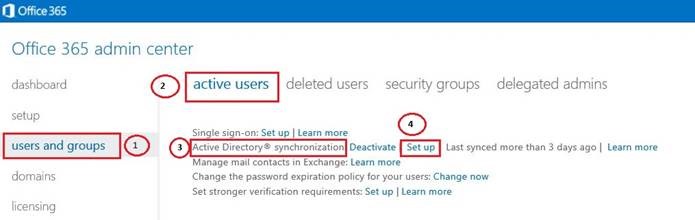
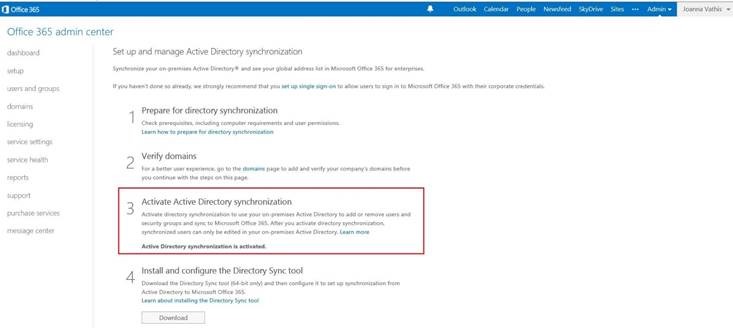
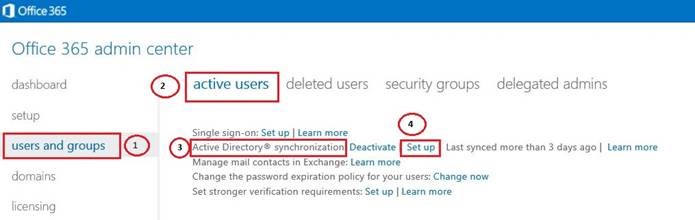
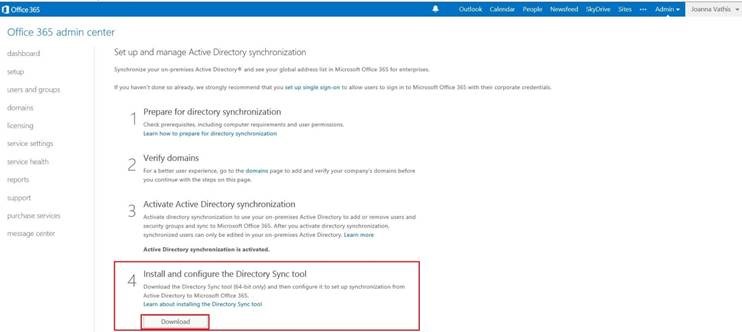
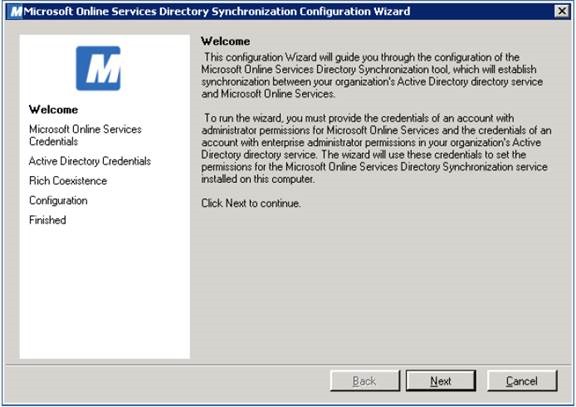
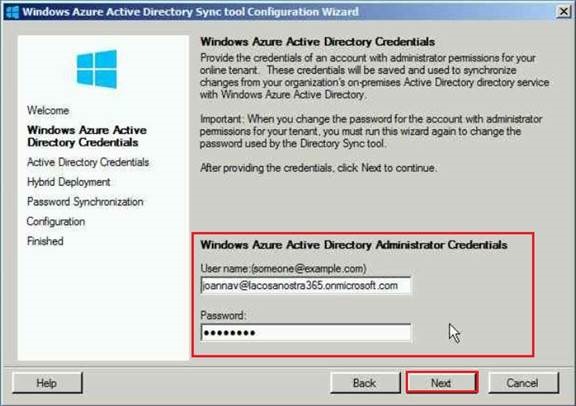
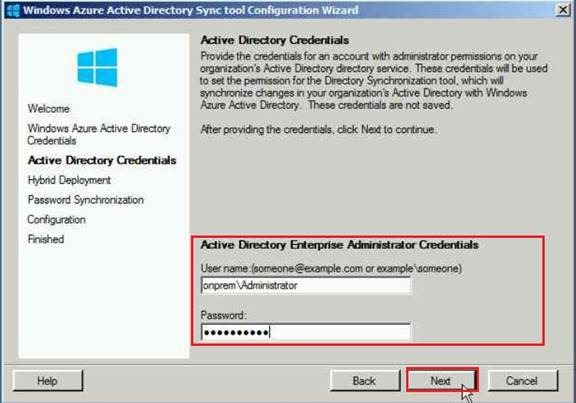
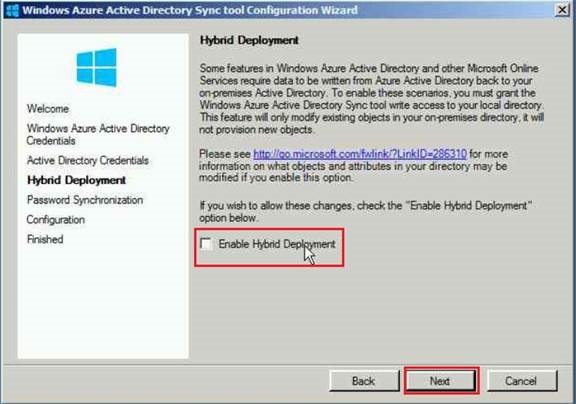
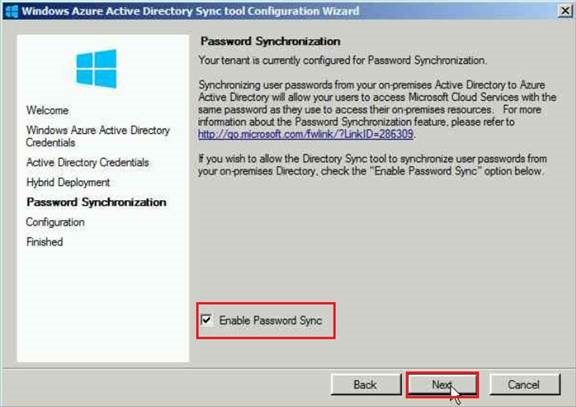
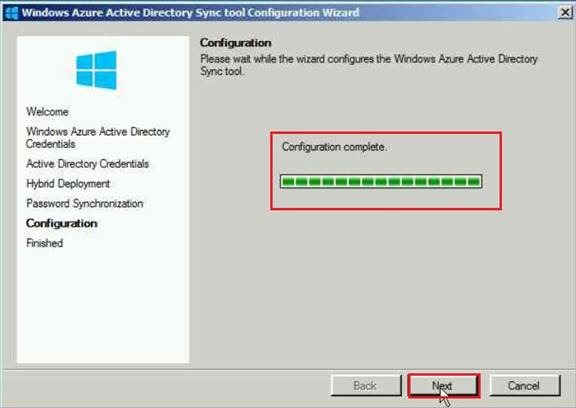
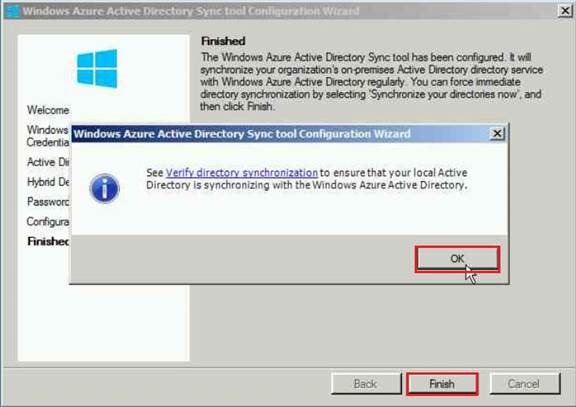
I’d also recommend setup of Active Directory Federation Services 2.0 to provide authentication of your Office 365 mailboxes against your local Active Directory, a must for any Hybrid Deployment. Finally, you’ll need to setup and configure the Microsoft Online Services Directory Synchronization Tool (DirSync) so that local Active Directory accounts will be synchronized to Office 365.
Ensuring you are running the right Exchange 2010 Service Pack
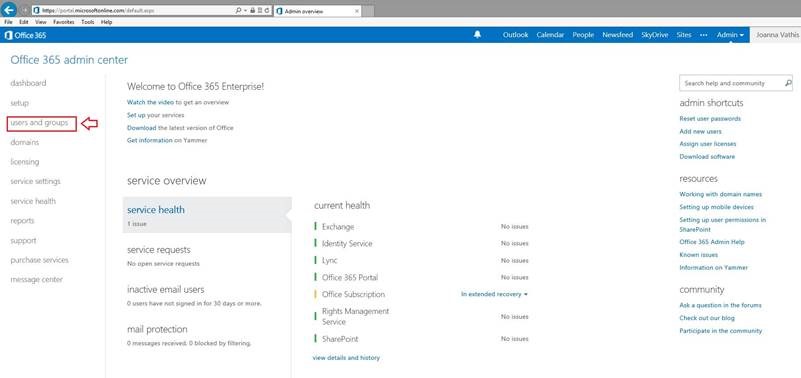
If you are running a Wave 15 tenant – that’s an Office 365 tenant that’s running the latest version of Office 365 available -you’ll need to make sure you are running Exchange 2010 Service Pack 3 on the servers you’ll use for your Hybrid Configuration. As a minimum this will mean an upgrade to Service Pack 3 across all Exchange Servers within your Internet-facing site. You can tell which version your tenant is by logging onto the Office 365 portal easily, as illustrated below:

Figure 1
Hybrid Deployment Prerequisites
Before you create and configure a hybrid deployment using Microsoft Exchange Server 2013 and the Hybrid Configuration wizard, your existing on-premises Exchange organization must meet certain requirements. If you don’t meet these requirements, you won’t be able to complete the steps within the Hybrid Configuration wizard and you won’t be able to configure a hybrid deployment between your on-premises Exchange organization and the Exchange Online organization in Microsoft Office 365.
Important:
This feature of Exchange Server 2013 is currently not compatible with Office 365 operated by 21Vianet in China. For more information, see Learn about Office 365 operated by 21Vianet.
Prerequisites for hybrid deployment
The following prerequisites are required for configuring a
hybrid deployment:
- On-premises Exchange organization Hybrid deployments can be configured for on-premises Exchange 2007-based organizations or later. For Exchange 2007 and Exchange 2010 organizations, at least one Exchange 2013 Client Access and one Exchange 2013 Mailbox server must be installed in the on-premises organization to run the Hybrid Configuration wizard and support Exchange 2013-based hybrid deployment functionality. We recommend combining the Exchange 2013 Client Access and Mailbox server roles on a single server when configuring hybrid deployments with Exchange 2007 and Exchange 2010 environments. All on-premises Exchange 2013 servers must have installed Cumulative Update 1 (CU1) or greater for Exchange 2013 to support hybrid functionality with Office 365. For more information, see Cumulative Updates for Exchange 2013.
For a complete listing of Exchange Server and Office 365 for enterprises tenant hybrid deployment compatibility, see the requirements listed in the following table for Exchange 2013-based and Exchange 2010-based hybrid deployments.
Note: To verify your Office 365 tenant version and status, see Verify Office 365 tenant version and status later in this topic.
Note:
1 Blocked in Exchange 2013 setup
2 Tenant upgrade notification provided in Exchange Management Console
3 Requires at least one on-premises Exchange 2010 SP2 server
4 Requires at least one on-premises Exchange 2010 SP3 server
5 Requires at least one on-premises Exchange 2013 CU1 or greater server
- Office 365 for enterprises An Office 365 for enterprises tenant and administrator account and user licenses available on the tenant service to configure a hybrid deployment. The Office 365 tenant version must be 15.0.620.28 or greater to configure a hybrid deployment with Exchange 2013. Additionally, your Office 365 tenant status must not be transitioning between service versions. For a complete summary, see the preceding table. To verify your Office 365 tenant version and status, see Verify Office 365 tenant version and status later in this topic.
Learn more at Sign up for Office 365.
- Custom domains Register any custom domains you want to use in your hybrid deployment with Office 365. You can do this by using the Office 365 Administrative portal, or by optionally configuring Active Directory Federation Services (AD FS) in your on-premises organization.
Learn more at Add your domain to Office 365.
- Active Directory synchronization Deploy Office 365 Active Directory synchronization in your on-premises organization.
Learn more at Active Directory synchronization: Roadmap.
- Autodiscover DNS records Configure the Autodiscover public DNS records for your existing SMTP domains to point to an on-premises Exchange 2013 Client Access server.
- Office 365 organization in the Exchange admin center (EAC) The Office 365 organization node is included by default in the on-premises EAC, but you must connect the EAC to your Office 365 organization using your Office 365 tenant administrator credentials before you can use the Hybrid Configuration wizard. This also allows you to manage both the on-premises and Exchange Online organizations from a single management console.
Learn more at Hybrid Management in Exchange 2013 Hybrid Deployments.
- Certificates Install and assign Exchange services to a valid digital certificate purchased from a trusted public certificate authority (CA). Although self-signed certificates should be used for the on-premises federation trust with the Microsoft Federation Gateway, self-signed certificates can’t be used for Exchange services in a hybrid deployment. The Internet Information Services (IIS) instance on the Client Access servers configured in the hybrid deployment must have a valid digital certificate purchased from a trusted CA. Additionally, the EWS external URL and the Autodiscover endpoint specified in your public DNS must be listed in Subject Alternative Name (SAN) of the certificate. The certificate installed on the Mailbox and Client Access (and Edge Transport if deployed) servers used for mail transport in the hybrid deployment must all use the same certificate (that is, they are issued by the same CA and have the same subject).
Learn more at Certificate Requirements for Hybrid Deployments.
- EdgeSync If you’ve deployed Edge Transport servers in your on-premises organization and want to configure the Edge Transport servers for hybrid secure mail transport, you must configure EdgeSync prior to using the Hybrid Configuration wizard.
Important: Although EdgeSync is a requirement in deployments with Edge Transport servers, additional manual transport configuration settings will be required when you configure Edge Transport servers for hybrid secure mail transport.
Learn more at Edge Transport Servers with Hybrid Deployments.
After you’ve made sure your Exchange organization meets these requirements, you’re ready to use the Hybrid Configuration wizard. For more detailed guidance, see Create a Hybrid Deployment with the Hybrid Configuration Wizard.
Recommended tools and services
In addition to the required prerequisites described earlier, other tools and services are beneficial when you’re configuring hybrid deployments with the Hybrid Configuration wizard:
- Remote Connectivity Analyzer tool The Microsoft Remote Connectivity Analyzer tool checks the external connectivity of your on-premises Exchange organization and makes sure that you’re ready to configure your hybrid deployment. We strongly recommend that you check your on-premises organization with the Remote Connectivity Analyzer tool prior to configuring your hybrid deployment with the Hybrid Configuration wizard.
Learn more at Remote Connectivity Analyzer Tool.
- Single sign-on Although not a requirement for hybrid deployments, single sign-on enables users to access both the on-premises and Exchange Online organizations with a single user name and password. Single sign-on provides users with a familiar sign-on experience and allows administrators to easily control account policies for Exchange Online organization mailboxes by using on-premises Active Directory management tools.
Single sign-on is also highly recommended for organizations that plan on deploying Exchange Online Archiving (EOA) in their Exchange organization.
If you decide to deploy single sign-on with your hybrid deployment, we recommend that you deploy it with Active Directory synchronization and before using the Hybrid Configuration wizard.
Learn more at Prepare for single sign-on.
Verify Office 365 tenant version and status
To verify the version and status of your Office 365 tenant, follow the steps below:
- Connect to the Office 365 tenant using remote Windows PowerShell. For step-by-step connection instructions, see Connect Windows PowerShell to the Service.
- After connecting to the Office 365 tenant, run the following command.
Copy
Get-OrganizationConfig | Format-List AdminDisplayVersion,IsUpgradingOrganization
Verify that your Office 365 tenant and status meet the following requirements:
- AdminDisplayVersion parameter value is equal to or greater than 15.0.620.28
- IsUpgradingOrganization parameter is False
For example, “0.20 (15.0.620.51)” and “False”.
Warning:
If your Office 365 tenant version and status don’t meet the hybrid deployment requirements, the Hybrid Configuration wizard won’t complete successfully.
Pre-flight checks against your Exchange environment
With your Office 365 prerequisites in place, it’s time to check over your Exchange environment to verify that everything you need for the Hybrid Configuration Wizard to successfully execute is in place, and help ensure that features work after your hybrid configuration has been implemented.
Auto Discover and Exchange Web Services Checks
The first thing we need to check is connectivity to Auto Discover and Exchange Web Services from outside your organization. If you’ve already got external clients working correctly, there’s a fair chance this is already configured, but it doesn’t hurt to test.
To test Auto Discover and Exchange Web Services, we’ll use Microsoft’s Remote Connectivity Analyzer to simulate Exchange Web Services connectivity, using AutoDiscover as part of the process. First create a test Exchange mailbox, and then run the EWS General Test (as shown below) to verify connectivity, and remediate if necessary.

Figure 2
Reverse Proxy, ISA or TMG checks
If you’re using a reverse proxy that uses pre-authentication for your deployment, you’ll also need to examine it’s configuration. That’s because the federated components of Exchange use token-based authentication to connect from Office 365 to your Exchange On-Premises organization rather than traditional authentication against your Active Directory, and services such as the MRS Proxy don’t support SSL Offload for the EWS virtual directory.
Although there are more complicated ways of achieving it, the simplest way to ensure TMG doesn’t cause any problems is to move your rules for the EWS and AutoDiscover virtual directories into a dedicated rule, with the following key settings:
Allow All Users

Figure 3
Authentication Delegation set to “No delegation, but client may authenticate directly”
Figure 4
Publishing the paths /ews/* and /autodiscover/*
Figure 5
Hub Transport checks
Moving onto the Hub Transport components, we need to consider how Exchange will be able to route mail inbound and outbound to and from Office 365.
As part of the Hybrid Configuration Wizard, a new receive connector will be created, pre-populated with the correct IP address ranges to allow mail to be received from Office 365. We’ll also need to allow our Hybrid Server, or Exchange 2010 servers hosting the hub-transport role to send and receive mail to those IP address ranges at the network firewall level. The method to accomplish this varies based on your network design, but you will typically need to expose at least one Hub Transport server to the internet with a public IP address, with firewall restrictions to only allow Office 365 to communicate both to and from it on the SMTP port, TCP port 25.
Additionally, we’ll need to ensure the correct certificates are installed and in place for TLS-secured mail transport. When we tested EWS and AutoDiscover earlier, certificates were tested on the Client Access roles, but you’ll also need to ensure that a suitable certificate is available on the Hub Transport servers if they are on different Exchange Servers; and that the certificate name is suitable. This may mean you need to ensure the Fully Qualified Domain Name (FQDN) you use for your Hub Transport roles is present on the Subject Alternative Name (SAN) certificate. If you’re currently using a wildcard certificate, although it’s not a best practice, this should work fine.
Address Book Policy checks
If you’re in the process of upgrading to Exchange 2010, or have only installed the Exchange 2010 Hybrid server role into your existing environment, you will also need to give your Email Address Policies (or Recipient Policies in Exchange 2003 terminology) some consideration. During the Hybrid Configuration Wizard, your Default Email Address Policy will be upgraded and then one of your Office 365 tenant domains will be added to the policy, before applying it to your Exchange organization.
Therefore it’s important to make sure that the Email Address policies are in good order before you begin and you should be confident that when the Hybrid Configuration Wizard applies the Default Email Address policy it will complete successfully.
Outbound HTTP connection and proxy checks
Next, we need to consider any network infrastructure that might prevent our Exchange 2010 Hybrid servers from communicating with Office 365 via HTTPS. The number one issue I usually see is proxy server related, so it’s worth ensuring that you’ve tackled this up-front before you run into issues.
If at all possible, I’d recommend allowing the Exchange Servers to communicate with Office 365 directly via HTTPS and avoid proxy servers for this communication altogether, however if that’s not possible, ensure you do the following:
- Ensure all Exchange servers participating in the Hybrid Configuration, and installations of the Exchange Management Console you’ll use to manage the environment can by-pass proxy servers for the Office 365 and Exchange Online IP addresses and URLs.
- Configure the correct proxy settings using the netsh command. An easy way to do this is by configuring Internet Explorer on the server with the correct settings, testing the settings in IE and then using an elevated command prompt executing the following command:
netsh winhttp import proxy source=ie
- Configure the correct proxy server settings within the Exchange 2010 Hybrid servers, using the following Exchange Management Shell cmdlet:
Set-ExchangeServer <servername> -InternetWebProxyURL:http://proxy:port
If you’re using a proxy server in your environment already, there’s a good chance you’ve already performed some of this configuration, but even if you think it’s right, it’s worth double checking settings before you continue.
Once making sure relevant proxy settings are configured correctly, you’ll need to make sure you can connect the Exchange Management Console to your Office 365 tenant. This will not only test proxy settings you’ve configured, but it’s also necessary later on when we use the Exchange Management Console to run the Hybrid Configuration Wizard.
To connect the Exchange Management Console to your Office 365 tenant:
- Right click on the “Microsoft Exchange” root node, and choose “Add Exchange Forest”
- Enter a friendly name, such as “Office 365”
- From the drop-down, select “Exchange Online”
After entering your tenant credentials, you should see your tenant alongside your on-premises Exchange organization:

Figure 6
Summary
In part one, we’ve looked at the pre-flight checks we need to perform to help ensure a successful execution of the Hybrid Configuration Wizard. In the following parts of this series, we’ll take a quick look at what goes on under the hood of the Hybrid Configuration Wizard itself, walk through its execution and then finally test functionality.
To be continue 




![clip_image001[1]](https://securitynebulaai.com/wp-content/uploads/2014/03/clip_image0011.jpg "clip_image001[1]")






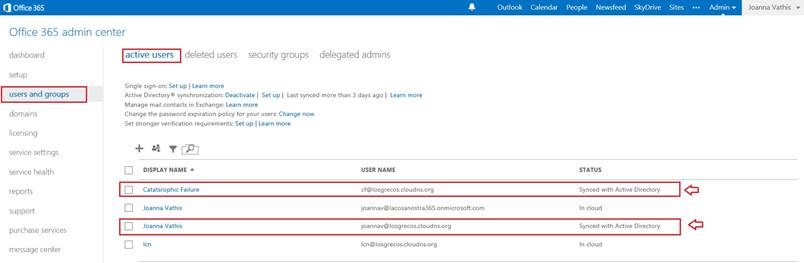


 Catastrophic Failure