TechEd Australia 2011 videos about various Exchange 2010 components


image18Below are the TechEd Australia 2011 videos about various Exchange 2010 components and I would definitely recommend watching them.

  • Upgrading to Exchange 2010: Notes from Field – In this session Sofiane and Colin will provide notes from the field as they take you on a journey to upgrading your legacy Exchange environment. They will highlight the best practices you should consider as you plan your upgrade from Exchange 2003, Exchange 2007, as well as touch on migrating from alternative messaging platforms. Sofiane and Colin will cover the gotchas and pitfalls you are likely to encounter, and follow through with tips and tricks that experienced ITPros leveraged on a regular basis. Additionally they will look at some of the recommended tools, such as the Exchange Deployment Assistant, that will ensure you have a smooth upgrade to the latest version of Exchange.
  • Converged Exchange: A Blueprint for 2010 deployment – With the myriad of new capabilities in Exchange 2010, organisations are looking to their solutions providers to help them not only deploy the new platform but help them manage it. In this presentation, Tim Jones investigates the challenges faced with moving to 2010, migration options, configuration of Disk Access Groups and archiving solutions. He also discusses how Microsoft and Hitachi Data Systems joint reference architecture delivers Exchange 2010 as a “converged solution in a rack”.
  • Exchange Virtualisation – Is it right for you? – Many production Exchange Server deployments are virtualized. This is to achieve better hardware utilisation, provide operational flexibility or align with data centre deployment standards. As a business critical server application, it’s important to understand the implications of virtualising Exchange Server and ensure that deployments are aligned to Microsoft’s best practices and meet the ever changing business demands of a modern messaging service. This breakout session will cover what has been learned about the best ways to deploy Exchange Server in a virtual environment, the various virtualisation technologies that can impact Exchange Server user experience, and scenarios where virtualisation may not be the best choice. Also the differences between Exchange Server native data protection and the high availability and failover features offered by virtualisation stacks will be examined to help you make informed design decisions.
  • Load Balancing with Microsoft Exchange Server 2010 – Understand the Exchange 2010 requirements for load balancing. Review the pros and cons of current hardware-based load balancing solutions. Discuss the nuances of high-end/high-scale load balancing and the impact to Microsoft Exchange Server 2010.
  • Exchange Server 2010: High Availability Deep Dive – Go beyond the basics of Exchange High Availability and learn what’s really going on under the hood in an Exchange 2010 database availability group (DAG). This session covers the inner workings of DAGs, including a deep dive discussion on how DAGs rely on quorum and how the DAG witness and witness server are used. You’ll also gain a solid understanding of the inner workings of Active Manager and its best copy selection process.
  • Exchange Server 2010: High Availability Concepts – This session covers the basics of the new technologies, concepts, terms and methods used to plan, design, manage and troubleshoot Exchange high availability. Learn how settings like AutoDatabaseMountDial and Activation Preference work. Get an understanding of the basic functions of Active Manager, learn the difference between the Witness Server and the Alternate Witness Server, and more! 
  • Microsoft Office 365: From Simple Migration to a Hybrid Environment – Whether you’re looking to migrate all of your mailboxes to the cloud or planning to run a hybrid environment then this is the session for you. This presentation will cover how and when to take advantage of Simple Exchange Migration which supports migrating existing Exchange on-premise customers who want to move all of their mailboxes to the cloud with full data fidelity. You will also learn how rolling out an Exchange 2010 server in your current Exchange environment prepares you for seamless integration with Exchange Online. Whether you are piloting a few users or moving a large part of your workforce to the cloud, we give you the technical details on Exchange-to-cloud integration that you need to be successful.

Microsoft Virtual Academy


Improve your IT skill set and help advance your career with a free, easy to access training portal. Learn at your own pace, focusing on Microsoft technologies, gain points and get recognition.

Click here to Get Started Today!!!

untitled

Speaking at ITPro |Dev Connection 2011


ITPro2011Banner

If you liked the IT Pro | Dev Connections 2010 … get ready to upgrade to version 2011! The technical community of Greek IT professionals, autoexec.gr, in cooperation with the relevant community of developers, dotNETZone.gr, is joining forces once again and will present an event with five parallel catting edge technical tracks!

The event is exclusively focused on professionals and developers who don’t want to lose time in presentations of products with information that can be found on the Internet.

I’m also going to participate in the event with a talk which is going to be titled

Migration to Office 365
Let’s make our Hybrid Connection with Exchange On-Premise and Exchange On-Line (Office 365)

image164

Looking forward to seeing you there at the 26th and 27th of November 2011 in the Educational Centre of the National Bank of Greece!

Released: Update Rollup 5 for Exchange Server 2007 SP3


number_5Earlier today the Exchange CXP team released Update Rollup 5 for Exchange Server 2007 SP3 to the Download Center.

This update contains a number of customer-reported and internally found issues since the release of RU4. See ‘KB 2602324: Description of Update Rollup 5 for Exchange Server 2007 Service Pack 3‘ for more details.

We would like to specifically call out the following fixes which are included in this release:

  • DST: New updates for August DST – Exchange 2007
  • 2536695 "Some items cannot be deleted" error message when you try to delete or modify an email message in a public folder in an Exchange Server 2007 environment
  • 2292150 A deleted hyperlink remains in the HTML source of an email message if you create the email message by using OWA in an Exchange Server 2007 environment (article not yet live)

General Notes:

  • For DST Changes: http://www.microsoft.com/time
  • Update Rollup 6 for Exchange Server 2007 Service Pack 3 is currently scheduled to release in April 2012. This will be in rhythm with next DST changes.

Note for Forefront users: For those of you running Forefront Security for Exchange, be sure you perform these important steps from the command line in the Forefront directory before and after this rollup’s installation process. Without these steps, Exchange services for Information Store and Transport will not start after you apply this update. Before installing the update, disable ForeFront by using this command: fscutility /disable. After installing the update, re-enable ForeFront by running fscutility /enable.


Source: MSExchange Team

Exchange Server 2010 Technical Video: Information Protection and Control


The Microsoft Exchange team is pleased to present the newest addition to the Exchange Server 2010 Technical Video Series – “Information Protection and Control” hosted by Greg Smiley and Ann Vu. In this video, Greg and Ann talk about the benefits of Security in Exchange 2010. The video includes demonstrations of three common scenarios related to Information Protection and Control: 1) Transport Rules 2) On-Premises Protection, and 3) Cloud Based Protection.

Video: Exchange Technical Video Series (Information Protection and Control)

exchange2010

For more information on the Exchange Server 2010 Technical Video Series, check out our previous post. You can also access the rest of the videos in the series directly using the following links:

Low bandwidth versions of each of the videos are now provided in the “Related Links” area for those on slower connections.

As always, please help us evangelize these videos to anyone who wants to learn more about Exchange Server 2010, and let us know your thoughts. Your feedback is extremely valuable to us. Many thanks in advance.

Source: MSExchange Team

Get in the Cloud Office 365 (Part I)


Καλησπέρα σε όλους και καλό χειμώνα..
Στο σημερινό μας post θα πούμε λίγα λόγια για Cloud Office 365 και τα προϊόντα του. Θα το χωρίσουμε σε 3 Parts για να μπορέσουμε να δούμε αναλυτικότερα. Με λίγα λόγια μπορούμε να πούμε ότι το Office 365 είναι η αναβάθμιση του BPOS (έκδοση 2) plus μερικά ακόμα καλούδια.

Όσοι γνωρίζετε το BPOS γνωρίζουν ότι περιέχει τα ακόλουθα προϊόντα:

  • Exchange Online (Exchange 2007)
  • SharePoint Online (SharePoint 2007)
  • Office Communications Online (Office Communications Server 2007)
  • Office Live Meeting (Live Meeting 2007)

Το Office 365 περιέχει τα ακόλουθα προϊόντα:

  • Exchange Online (Exchange 2010)
  • SharePoint Online (SharePoint 2010)
  • Lync Online (Lync 2010)
  • Office Professional Plus 2010
  • Office Web Apps

Το BPOS υπάρχει σε 2 εκδόσεις:

  • BPOS Standard
  • BPOS Dedicated

Το Office 365 είναι διαθέσιμο σε 3 εκδόσεις:

  • Small Business Office 365 P1 επαγγελματίες και μικρές επιχειρήσεις (περισσότερες πληροφορίες θα βρείτε εδώ)
  • Enterprise Office 365 Μεσαίες και μεγάλες επιχειρήσεις (Προγράμματα για μετακινούμενους εργαζόμενους) όπου και χωρίζετε σε 4 προγράμματα – E1, E2, E3 και E4 (περισσότερες πληροφορίες θα βρείτε εδώ)
  • Office 365 for Education για εκπαιδευτικά ιδρύματα γνωστό σαν πρόγραμμα K-12 (περισσότερες πληροφορίες θα βρείτε εδώ)

Συνδεθείτε σήμερα και δοκιμάστε την Beta του Office 365 P1

clip_image002

Πάμε να δούμε μαζί λίγα πράγματα για το Office 365 P1 και πώς λειτουργεί. Μετά από την εγγραφή σας στην δοκιμαστική έκδοση του Office 365 P1, θα λάβετε στο email, με πληροφορίες για την σύνδεση σας στο portal του Office 365 και το Online Services ID σας.

clip_image004

Επόμενο βήμα είναι να συνδεθούμε στο portal του Office 365

clip_image006

Πάμε να δούμε μερικές εικόνες για το πώς είναι το Office 365 P1 και τα προϊόντα του.


Admin Console
clip_image008

Admin: Κονσόλα διαχείρισης χρηστών, domains, subscriptions κλπ.

Όπως μπορούμε να δούμε και στη εικόνα μας, στην κορυφή της σελίδας έχουμε 4 επιλογές (admin user) οι απλοί χρήστες βλέπουν 3 επιλογές (Home, Outlook και Team Site)


Home: η κεντρική σελίδα των χρηστών με δυνατότητα λήψης του Lync Client και άλλες χρήσιμες πληροφορίες.

clip_image010

Outlook: Πρόσβαση στο Outlook Web App (OWA).

clip_image012

Team Site: SharePoint team site.

clip_image014

Lync Client

clip_image016

Στο επόμενο post θα δούμε αναλυτικά το κάθε ένα από τα προϊόντα του Office 365 P1…

Exchange Server 2010 SP2 and Support for Hosting Exchange


With the release of Exchange Server 2010 SP2 later this year, we will add a new feature known as Address Book Policies. Following this addition, hosters who wish to deploy the standard on-premises configuration of Exchange and use ABP will be supported.

As you may have read in a recent post over on the Exchange Partner Marketing blog, our view on whether to host Exchange using Hosting Mode or the standard on-premises configuration is changing in response to feedback we’ve had from both hosters and customers. We recognize that the Hosting Mode configuration of Exchange we released as part of SP1 provides a more robust multi-tenant solution, but lacks some of the features available in the standard on-premises configuration. Many of these are key features which customers are asking for, like Exchange Unified Messaging. We want to enable our hosting partners to offer the same rich feature set that our on-premises customers are used to. As such, with the release of SP2 for Exchange Server 2010, we intend to broaden our support stance to include hosting the on-premises configuration of Exchange in a multi-tenant environment.
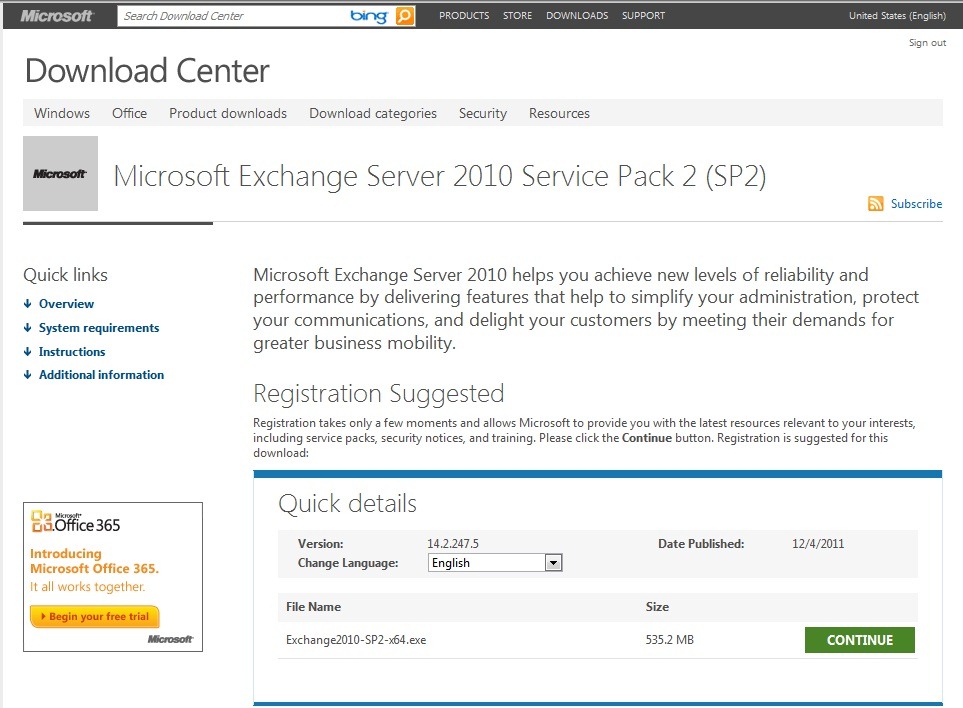
To be eligible for support, hosters will need to adhere to a few configuration guidelines; a framework we will publish in conjunction with SP2. The framework will outline the configuration challenges of hosting Exchange in a multi-tenant environment which need to be solved, and provide general direction for developing solutions in the most supportable way. Let’s consider a couple of examples:

  • As I mentioned earlier, the Address Book Policy feature is a key reason that we will be able to support hosters using the on-premises configuration if they are using SP2. The framework will specify that directory segmentation should be done using Address Book Policies, not by a series of Allow/Deny ACE’s on Address List objects.
  • For provisioning, the framework will specify that the creation of objects (such as a tenant organization or a mailbox) in Active Directory and Exchange should use our standard built-in tools, PowerShell cmdlets, and documented APIs. Code should not be written to create objects directly in Active Directory or Exchange, bypassing these standard tools.

An automation vendor or a hoster, should they choose to, will be able to build their own automation tools using this framework. The easiest and quickest route to support for most hosters, though, will likely be through engaging with a hosting automation vendor whose solution adheres to the guidelines. In order to help service providers quickly find the right automation software, in the SP2 timeframe we will publish a list of solutions which follow the framework (and thus are eligible for support). These solutions will be validated by Microsoft in much the same way that we currently validate load balancing solutions. I’ll hasten to add that this will not be a formal certification process, but instead will be an assurance to our customers that we have worked with the vendor and are satisfied that it conforms to the framework.

So, what does this mean for you today if you want to use the on-premises configuration of Exchange to host mailboxes for your customers in a multi-tenant environment?

  • If you need to deploy prior to SP2, we recommend that you work with an automation vendor and use their solution. Your vendor of choice will be your only source of support. Your vendor will hopefully have plans to update their solution for SP2 per the soon-to-be-published framework, at which time you will have a path to being supported by Microsoft once you’ve upgraded your infrastructure.
  • If you plan to deploy post SP2, and you intend to use an automation solution from an automation vendor, you should ensure your chosen vendor is working with us to validate their solution and deploy when that solution is ready.
  • If you plan on building your own solution using the standard on-premises configuration of Exchange, you should consider waiting for SP2 to ship and then develop your solution following the framework to ensure you receive the best level of support from Microsoft.

We hope this announcement is good news for those hosting Exchange, as it provides you with more options in your deployment and will help you obtain support when you need it.

We look forward to hearing your feedback and as you know, we do act on it.

Source: MSExchange Team

Exchange Server Deployment Assistant now includes a “Cloud Only” scenario


For many companies, the robust messaging and calendaring features offered by Office 365 for enterprises presents an opportunity to transition all messaging functionality from the on-premises organization into the cloud. Office 365 for enterprises includes a full suite of e-mail migration tools.

However, there are dependencies and restrictions on the migration tools that you may be able to use with Office 365. Variables such as your on-premises Exchange Server version, the number of mailboxes you want to move, and how you want to handle user identity will dictate the tools and processes you can use to migrate to the cloud.

Screenshot: Cloud-only scenario in Deployment Assistant
Figure 1 : A screen shot from the new "Cloud Only" scenario in the Deployment Assistant

To help you sort through the available options and plan your migration to the cloud, we’re happy to announce the “Cloud Only” option in the latest release of the Exchange Server Deployment Assistant. Like the other scenarios in the Deployment Assistant, the “Cloud Only” option allows you to step through a wizard that asks you questions about your current infrastructure and your migration goals. The Deployment Assistant will provide a migration solution that is based on your answers.

Your feedback is very important for the continued improvement of this tool. Give us your feedback on this new scenario and any other area of the Deployment Assistant. Feel free to post comments on this blog post, provide feedback in the Office 365 community migration and coexistence forum, or send an email to edafdbk@microsoft.com via the ‘Feedback’ link located in the header of every page of the Deployment Assistant.

Source: MSExchange Team

Prevent archiving of items in a default folder in Exchange 2010


In Exchange 2010, you can use Retention Policies to manage message retention. Retention Policies consist of delete tags, i.e. retention tags with either Delete and Allow Recovery or Permanently Delete actions, or archive tags, i.e. retention tags with the Move To Archive action, which move items to the user’s archive mailbox.

Depending on how they’re applied to mailbox items, retention tags are categorized as the following three types:

  1. Default Policy Tags (DPTs), which apply to untagged items in the mailbox – untagged items being items that don’t have a retention tag applied directly or by inheritance from parent folder. You can create three types of DPTs: an archive DPT, a delete DPT and a DPT for voicemail messages.
  2. Retention Policy Tags (RPTs), which are retention tags with a delete action, created for default folders such as Inbox and Deleted Items. Not all default folders are supported. You can find a table showing the default folders supported for RPTs in Understanding Retention Tags and Retention Policies. Notably, Calendar, Tasks and Contacts folders aren’t supported.
  3. Personal Tags, which are retention tags that users can apply to items and folders in Outlook 2010 and Outlook Web App. Personal tags can either be delete tags or archive tags. They’re surfaced in Outlook 2010 and OWA as Retention policies and Archive policies.

To deploy retention tags, you add them to a retention policy and apply the policy to mailbox users.

In Exchange 2010 SP1, we added support for the Notes folder. In Exchange 2010 RTM, items in the Notes folder aren’t processed. After you upgrade to SP1, if the user’s retention policy doesn’t have a RPT for the Notes folder, the DPT from the user’s policy will apply to items in that folder.

In existing deployments, your users may not be used to their notes being moved or deleted.

To prevent the DPT from being applied to a default folder, you can create a disabled RPT for that folder (or disable any existing RPT for that folder). The Managed Folder Assistant, a mailbox assistant that processes mailbox items and applies retention policies, does not apply the retention action of a disabled tag. Since the item/folder still has a tag, it’s not considered untagged and the DPT isn’t applied to it.

Screenshot: Creating a disabled retention policy tag for the Notes folder
Figure 1: Create a disabled Retention Policy Tag for the Notes default folder to prevent the Default Policy Tag from being applied to items in that folder

Note: You can create a disabled RPT for any supported default folder.

Why are items in the Notes folder still archived?

If you create a disabled RPT for the Notes folder, you’ll see items in that folder are not deleted, but they do continue to be moved to the archive! Why does this happen? How do you prevent it?

It’s important to understand that:

  • A retention policy can have a DPT to archive items and a DPT to delete items. Both apply to untagged items.
  • The move and delete actions are exclusive of each other. Mailbox folders and messages can have both types of tags applied – an archive tag and a delete tag. It’s not an either/or proposition.
  • If you create a disabled RPT for the Notes folder to not delete items, the archive DPT for the mailbox would still apply and move items.
  • When it comes to archiving, there’s only one archive policy that administrators can enforce – the DPT with ‘Move to archive’ action. You can’t create a RPT with the ‘Move to archive’ action. This rules out using the disabled RPT approach to prevent items from being moved.
  • Users can apply a personal tag to a folder or messages to move items sooner or later than the default archive policy for that mailbox.
How do you prevent items in a default folder from being archived?

There’s no admin-controlled way of doing this, short of removing the archive DPT from a retention policy. However, removing the archive DPT would result in messages not moving to archive automatically unless the user applies a personal tag to messages or folders.

The workaround is to have users apply the Personal never move to archive personal tag (displayed as Never under Archive Policy in Outlook/OWA) to a default folder. The tag is included in the Default Archive and Retention Policy created by Exchange Setup. You can also add this tag to any Retention Policies you create.

Screenshot: Applying Never archive policy to a folder in Outlook 2010
Figure 2: Users can apply the Never archive policy to a default folder to prevent items in that folder from being archived

Note: You can’t use Outlook 2010 to apply an archive policy to the Notes default folder or individual notes items. Users wanting to apply an archive policy to the folder must use OWA.

Source: MSExchange Team

OFFICE 365 SEMINAR


Office 365 builds on Microsoft’s strong foundation with their Business Productivity Online Suite (BPOS) and is much more than an upgrade. It’s a new approach to Cloud applications altogether. It brings Office desktop software and Office Web Apps to Microsoft’s business Cloud services for the first time, and it introduces a variety of new packages designed to meet the needs of organization’s of all sizes.

This seminar will give you an introduction to Microsoft’s Cloud solution with Office 365. It is designed to ensure customers have the information they need to make their transition to the Cloud and get the most from Office 365’s significant new capabilities.

OFFICE 365 SEMINAR