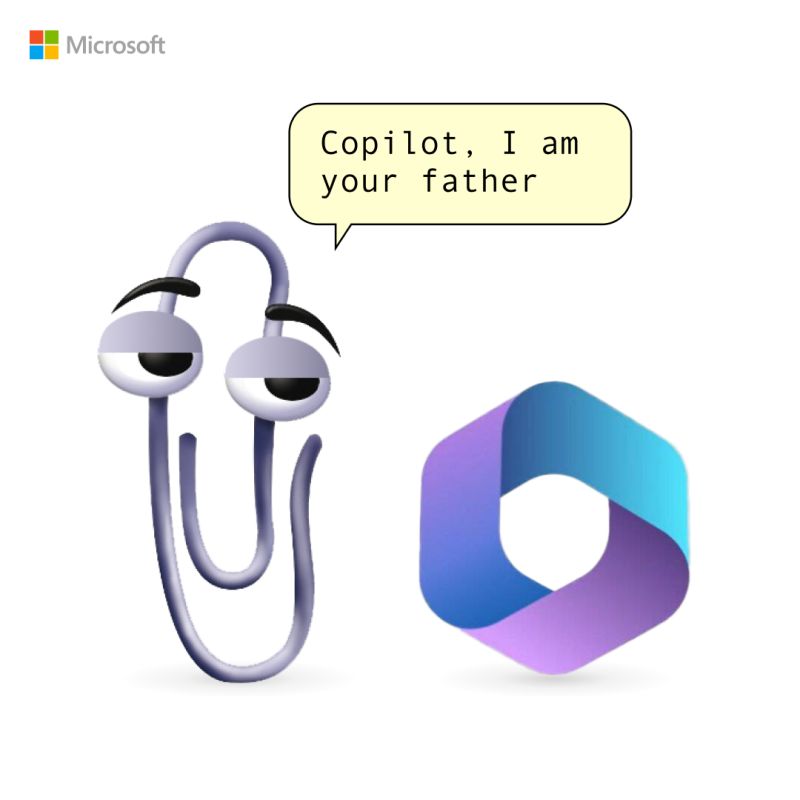
Clippy is back, in a new, unauthorized app that somehow has made it onto the Microsoft Store.
Clippy by Firecube uses Microsoft’s animated paper clip, Clippy (known as Clippit to purists), as a front end for ChatGPT 3.5, the AI chatbot developed by OpenAI. Although the app refers to Clippy by name, the full text description of the app immediately identifies it as “Not by Microsoft” to presumably fend off any lawyers that might be sniffing about the app. Firecube has a good reputation as a developer who looks deeply into new Windows code for unpublicized features.
Paperclip by FireCube (formerly known as Clippy by FireCube) brings back the infamous Clippit into your desktop powered by the OpenAI GPT 3.5 model (OpenAI key required as of this version).
Paperclip can be pinned to the screen for quick access to chat or just be left for nostalgia. This app is open source with improvements coming such as support for more characters like bob or classic clippy. Dragging and resizing and support for no OpenAI key required.
You can download it from Microsoft Store for free here!
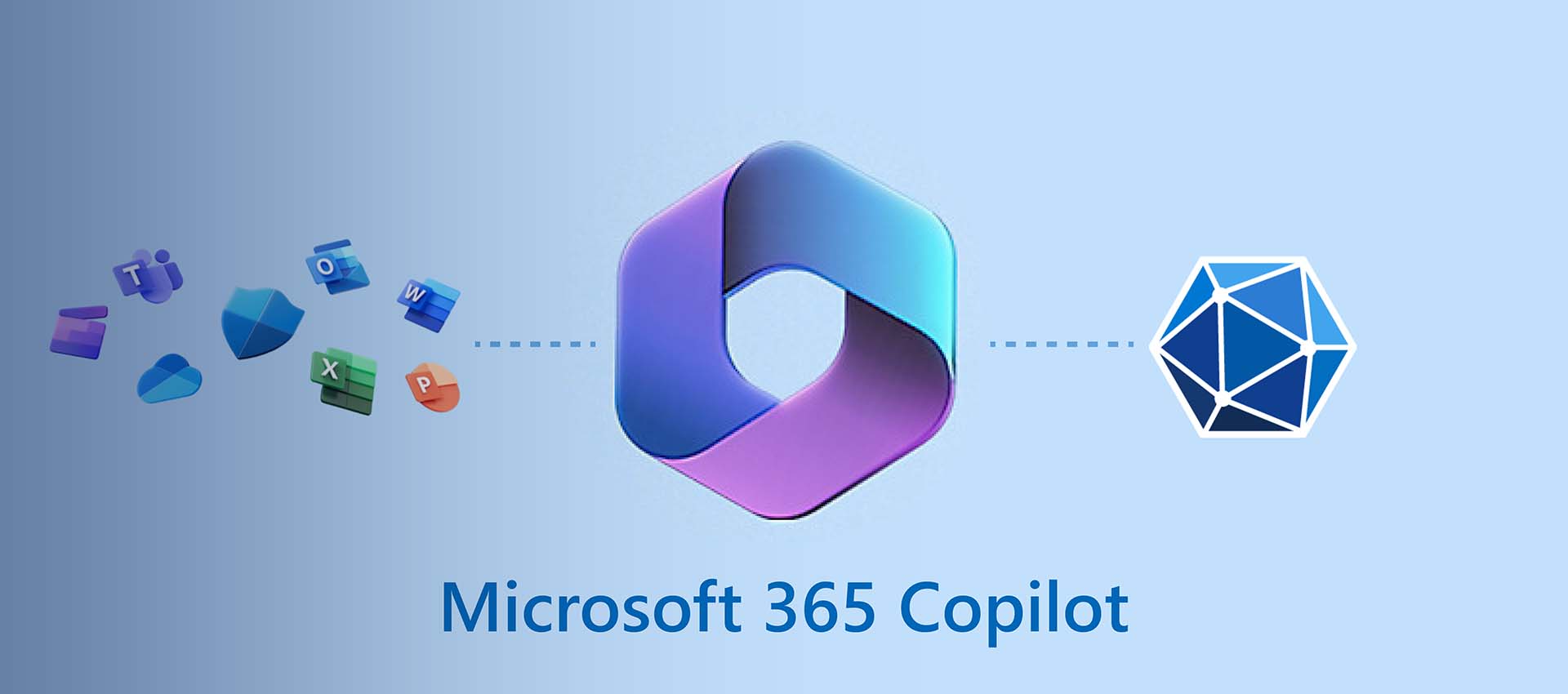
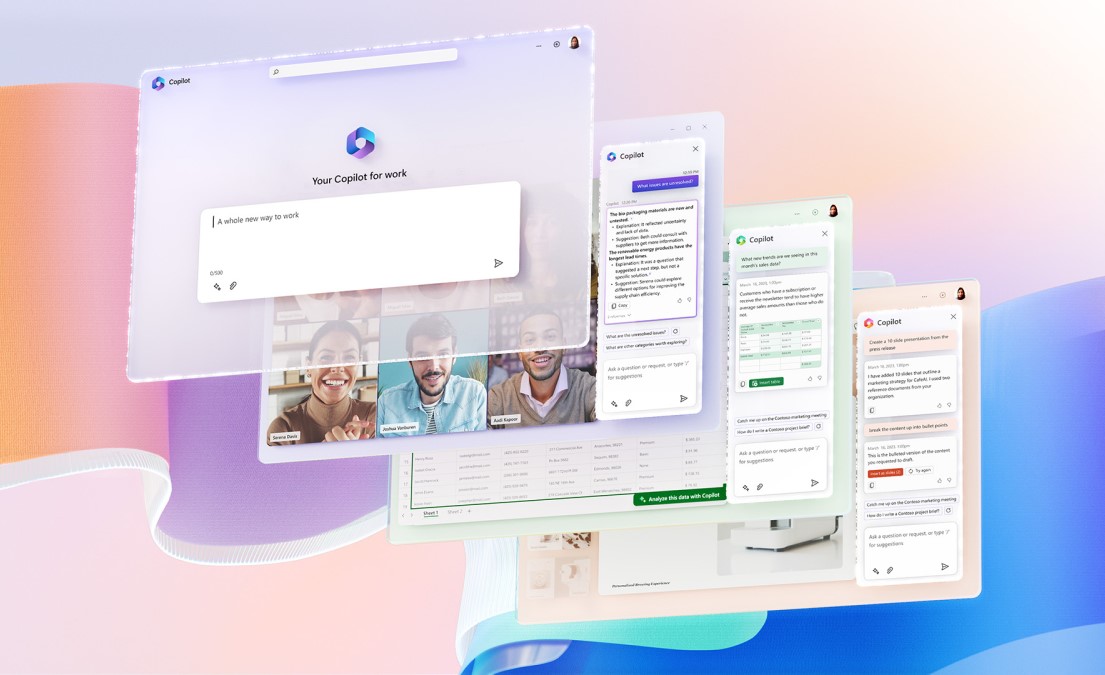
Copilot is integrated into Microsoft 365 in two ways. It works alongside you, embedded in the Microsoft 365 apps you use every day like Word, Excel, PowerPoint, Outlook, Teams, and more, to unleash creativity, unlock productivity, and uplevel skills. TMicrosoft also announcing an entirely new experience: Business Chat. Business Chat works across the LLM, the Microsoft 365 apps, and your data—your calendar, emails, chats, documents, meetings, and contacts—to do things you’ve never been able to do before. You can give it natural language prompts like “tell my team how we updated the product strategy” and it will generate a status update based on the morning’s meetings, emails, and chat threads.
Recent GitHub data shows that among developers who have used GitHub Copilot, 88 percent say they are more productive, 77 percent say the tool helps them spend less time searching for information, and 74 percent say they can focus their efforts on more satisfying work.
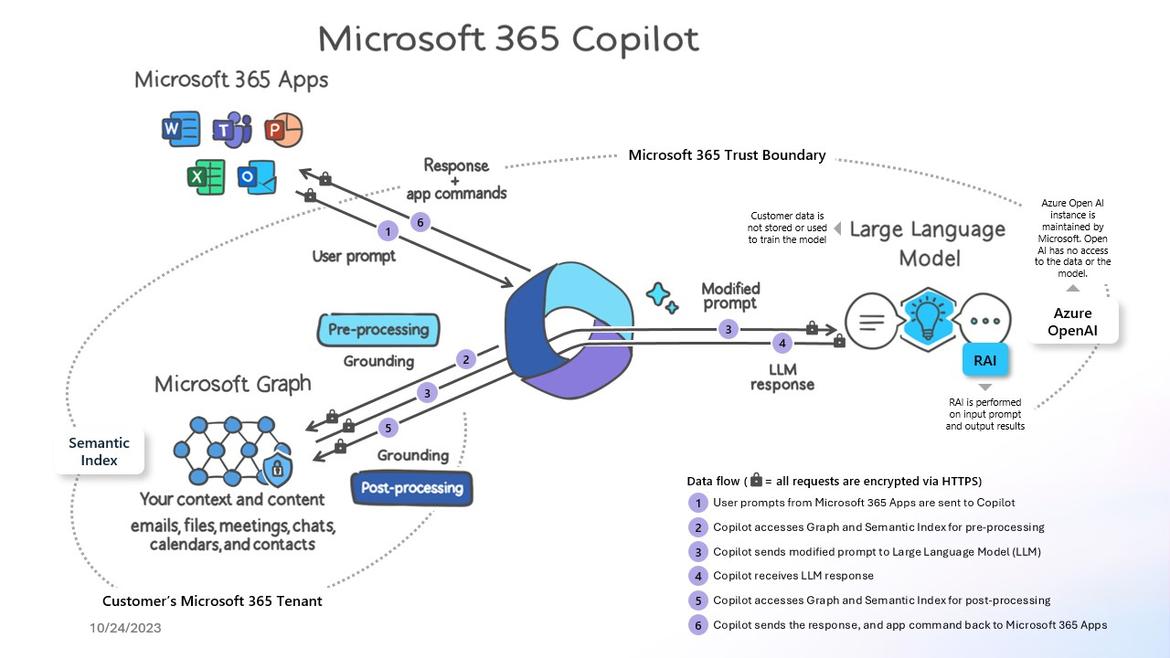
Copilot will only query accessible data based on the controls you set up in your organization. If your organization already has the right information, access controls, and policies set up, then you’re already a step ahead!
Permissions within your Microsoft 365 tenant prevent data leakage among users, groups, and tenants. Microsoft 365 Copilot uses your existing permissions and policies to deliver the most relevant data, so obtaining good content management practices at the beginning is important.
Be Copilot ready
Before you can access Copilot for Microsoft 365, you must meet the following requirements:
Microsoft 365 E3 or E5 are licensing prerequisites (For SMB Customers, Microsoft 365 Business Standard or Business Premium will be eligible base licenses).
a Microsoft Entra ID-based account is required
OneDrive Account You need to have a OneDrive account for several features within Copilot, such as saving and sharing your files. Deploy a OneDrive account.
New Outlook (for Windows and Mac) For seamless integration of Copilot with Outlook, you’re required to use the new Outlook (for Windows and Mac), currently in preview. You can switch to the new Outlook by selecting “Try the new Outlook” in your existing Outlook client. For more information, see Getting started with the new Outlook for Windows.
Microsoft Teams To use Copilot with Microsoft Teams, you must use the Teams desktop client or web client. Both current and new versions of Teams are supported. Mobile-only users have limited functionality.
Microsoft Loop To use Copilot in Microsoft Loop, you must have Loop enabled for your tenant. For more information on enabling Loop, see Get started with Microsoft Loop.
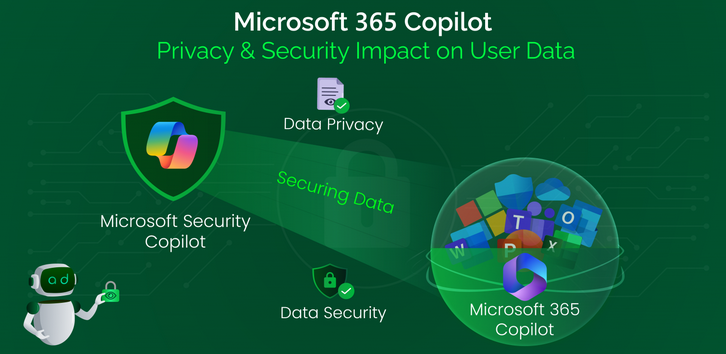
Protect your Copilot for Microsoft 365 data with Microsoft 365 security tools
Microsoft recommends the “just enough access” approach to addressing this situation. In this approach, each user can access only the specific information required for their job. This approach entails tightly controlling permissions so users can’t access documents, sites, or data they shouldn’t see.
Microsoft tools for securing data
Microsoft 365, Copilot for Microsoft 365, and connected services all use the policies and settings that administrators define to tighten permissions and implement “just enough access.” They do so through plugins and Microsoft Graph connectors to prevent data oversharing. The following list provides a brief summary of some of the tools that administrators can use to define these policies and settings:
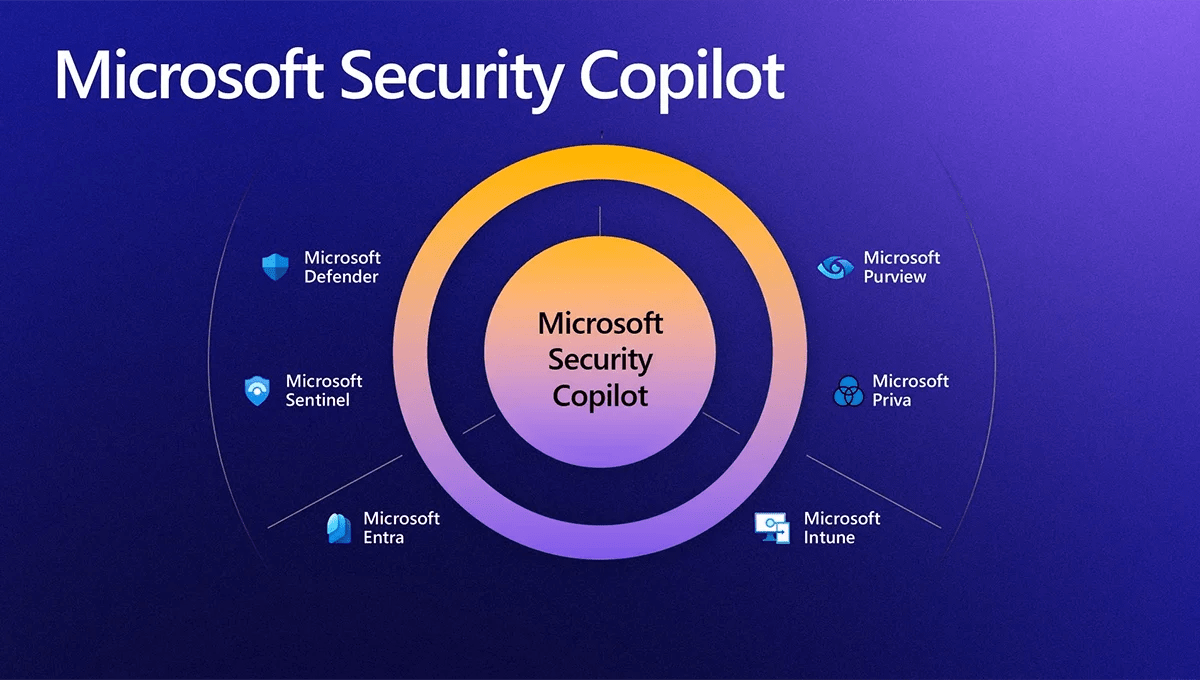
Microsoft Purview Information Protection. Classify and optionally encrypt documents and emails based on sensitivity. You can create policies to restrict access to only authorized users.
Microsoft Purview sensitivity labels. Classify and label SharePoint sites, documents, and emails with sensitivity tags like “Confidential” or “Internal use only.” You can create policies to limit access to assets with specific sensitivity tags.
Microsoft Entra conditional access policies. Grant or restrict access to Microsoft 365 information and services, including SharePoint, based on conditions like user location, device, or network. These policies are useful for limiting access when the system detects risks or user credentials become compromised.
Microsoft Entra Privileged Identity Management (PIM). Provide just-in-time admin access, enforce the principle of least privilege, and limit permanent standing privileges by only granting a user the permissions they need when needed.
SharePoint site access reviews. Require and automate access reviews of site owners, members, and access requests, to revoke permissions that users don’t need or no longer require. Access reviews ensure users only retain the access they need for their role.
Microsoft Graph connectors and plugins. Limit access to connected external data using Microsoft Graph connectors or plugins.
There 18 Microsoft 365 Copilot versions, we will go in deep later on on this series….To be continue, stay tune


 Catastrophic Failure