Microsoft Defender: Updates to Export Quarantine Message cmdlet


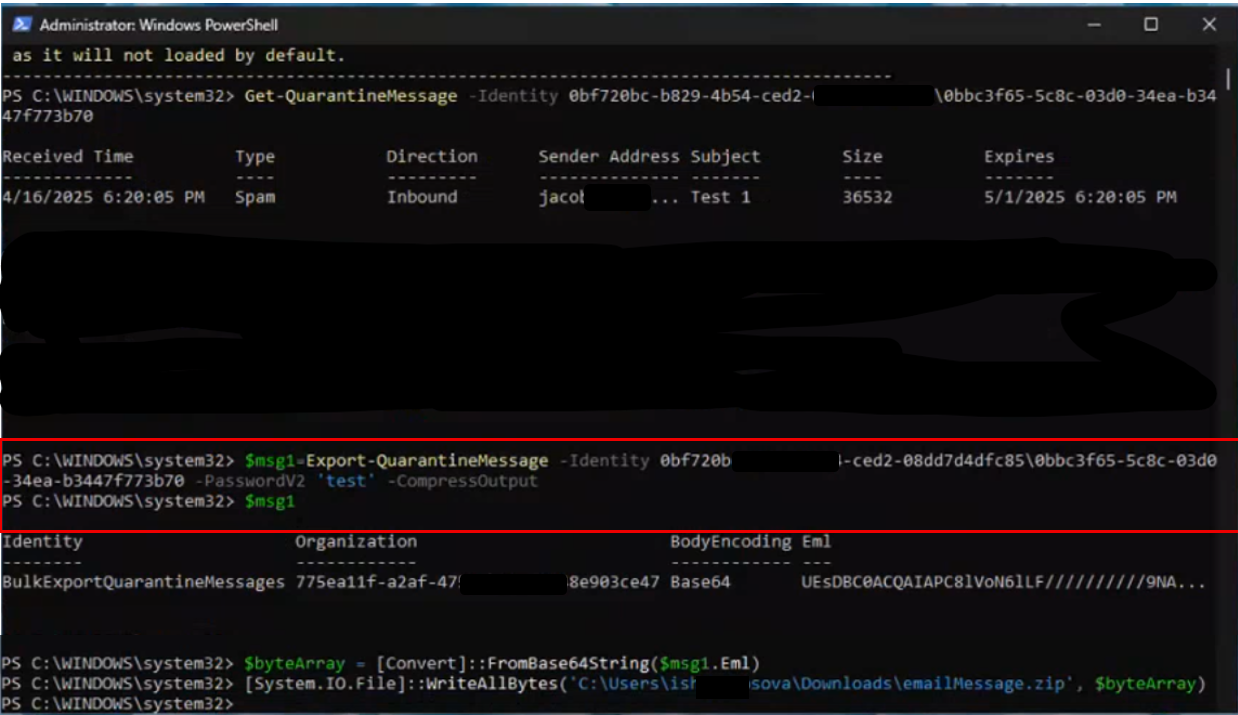
Microsoft Defender is updating the Export-QuarantineMessage cmdlet to include a new -PasswordV2 parameter for plain text passwords, replacing the old -Password parameter. Microsoft offer the -PasswordV2 parameter as a new experience that allows admins and users to pass plain text for their passwords when exporting Quarantine items in PowerShell cmdlet. Admins and users should use the -PasswordV2 parameter, because using the previous -Password parameter may cause errors and Password won’t be available in the longer term.

For files that were quarantined by Safe Attachments for SharePoint, OneDrive, and Microsoft Teams, the files are exported in Base64 format.

Use the Export-QuarantineMessage cmdlet to export quarantined messages and files from your cloud-based organization. Messages are exported to .eml message files so you can open them in Outlook.

PowerShell:

$f = Export-QuarantineMessage -Identity 9c6bb3e8-db9e-4823-9759-08d594179bd3\7fec89fe-41b0-ae67-4887-5bede017d111
$bytes = [Convert]::FromBase64String($f.eml)
[IO.File]::WriteAllBytes("C:\My Documents\Quarantined Message with Attachments.eml", $bytes)

This example exports the specified message with attachments that was quarantined as malware:

  • The first command exports the quarantined message and attachments to the variable $f. The message and attachments are stored in the Eml property (the $f.eml value) as Base64 (based on the $f.BodyEncoding value).
  • The second command converts the Eml property from Base64 to bytes and stores the result in the variable $bytes.
  • The third command writes the quarantined message and attachments to the specified .eml file.
MAJOR UPDATE: Upcoming Changes for M365 Copilot Chat with Link Safety


Microsoft announce some important updates to M365 Copilot Chat that will enhance security and user experience, following: 

  1. Integration with SafeLinks:
    • M365 Copilot Chat will integrate with SafeLinks in Defender for Office 365 to provide time-of-click URL protection for the hyperlinks included in its chat responses. 
    • This change applies to users with Microsoft Defender for Office 365 Plan 1 or Plan 2 service plans. No policy configuration is needed within the SafeLinks policy.
    • Within Microsoft Defender for Office 365 Security Center, URL protection report will show the relevant summary and trend views for threats detected and actions taken on URL clicks.
  2. Native Time-of-Click URL Reputation Check:
    • For users without SafeLinks protection (which is available as part of Microsoft Defender for Office 365), M365 Copilot Chat will natively enable time-of-click URL reputation check for the hyperlinks returned in its chat responses. 
  3. Hyperlink Redaction Changes:
    • M365 Copilot Chat will no longer redact hyperlinks in its chat responses if they are found in the grounding data used to generate the responses.

When this will happen:

General Availability (Worldwide): We will begin rolling out in late March 2025 and expect to complete by late May 2025.

Rollout will start on desktop and web and will complete with mobile versions. We plan to extend these updates to Copilot Chat experiences in Office apps in the future.

How this will affect your organization:

These updates are designed to enhance the security of the links included in M365 Copilot Chat response, ensuring that users are protected from malicious URLs.

What you need to do to prepare:

You may consider updating your training and documentation as appropriate to ensure users are aware of the change in behavior with hyperlinks in M365 Copilot Chat.