See what your teams can do with Copilot and have peace of mind knowing your data is protected. Get best practices inspired by companies leading the way to start your AI transformation.
Copilot is an AI assistant that helps you and your teams work smarter and faster. Whether you need to write reports, create presentations, analyze data, or automate tasks, Copilot can assist you with natural language processing and machine learning. You can also trust that your data is secure and compliant with Copilot’s built-in encryption and privacy features. Learn from the best practices of leading companies that have successfully implemented AI in their workflows and transform your work with Copilot.
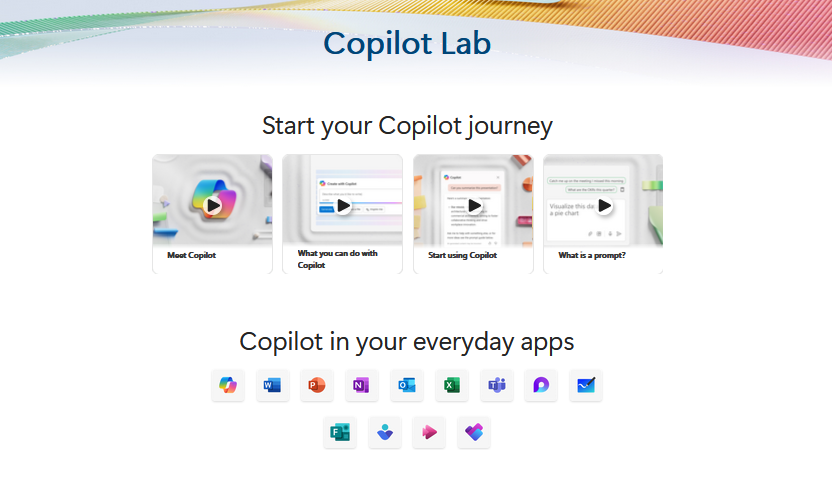
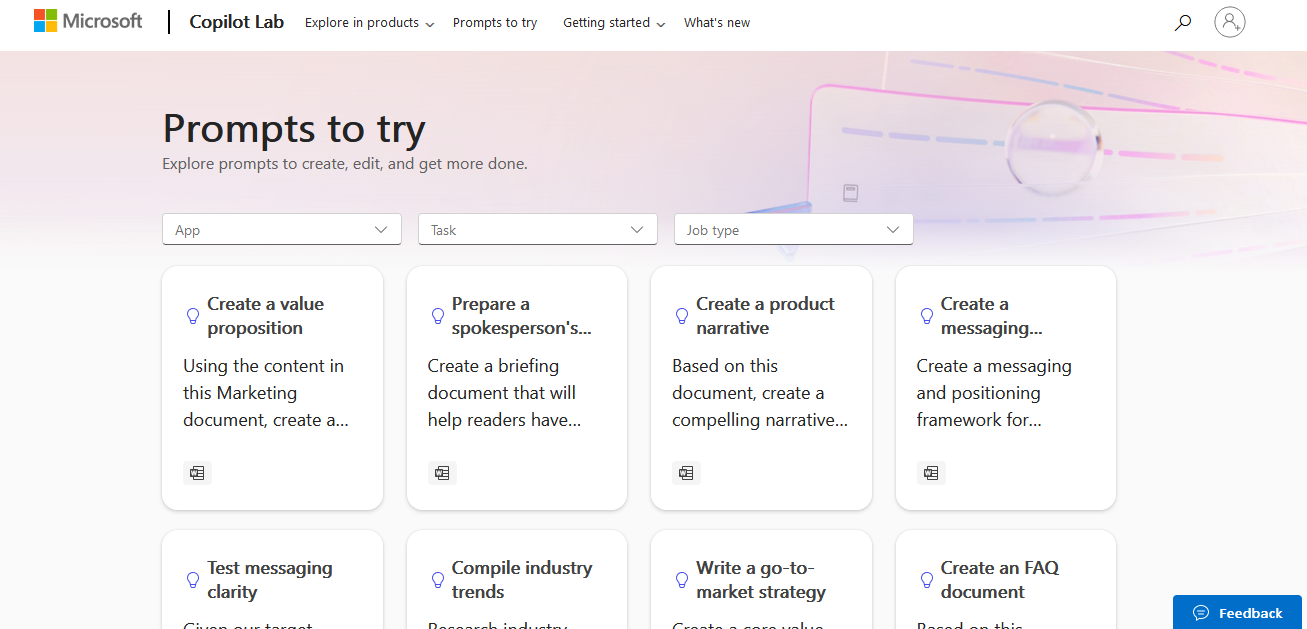
Microsoft’s Copilot Lab offers a wide range of prompts for various creative projects and content generation.
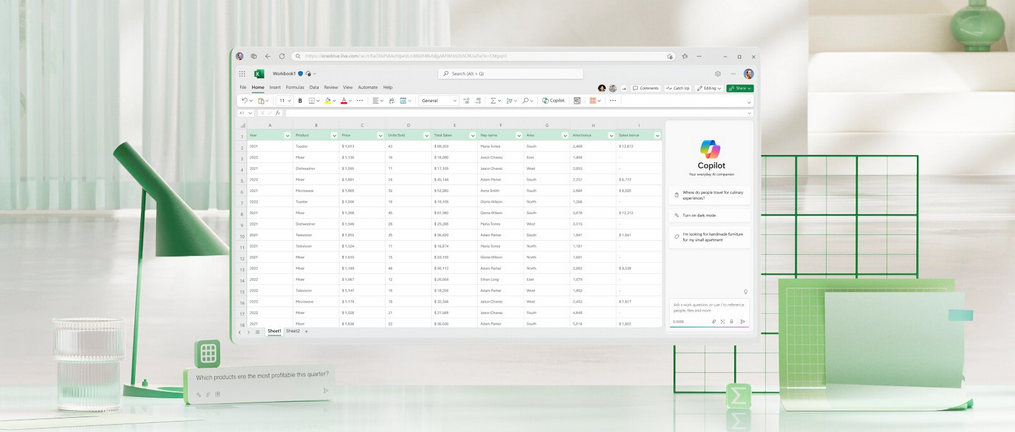
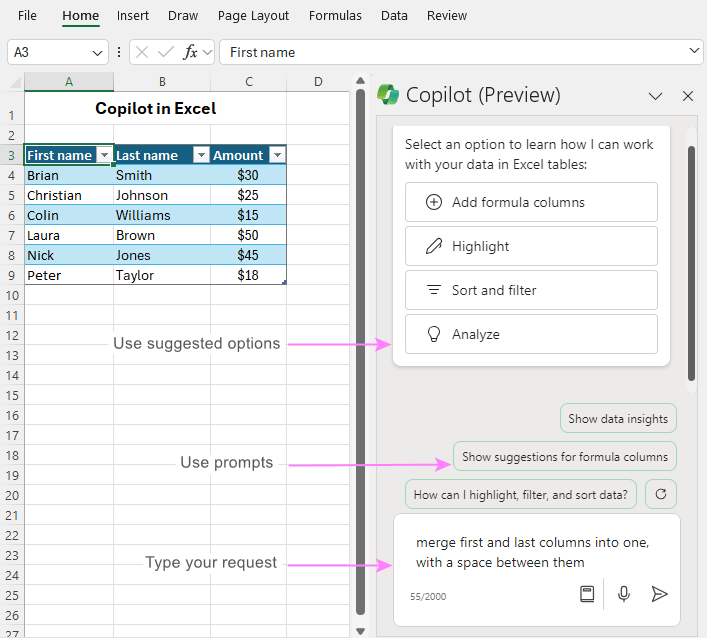
Microsoft Copilot in Excel helps you do more with your data in Excel tables by generating formula column suggestions, showing insights in charts and PivotTables, and highlighting interesting portions of data.
Open Excel in Microsoft 365.
2. Open a workbook stored on OneDrive or SharePoint. Important: Your data needs to be formatted in specific ways (see Format data for Copilot in Excel), and you’ll need to select a cell within your table or data range before using Copilot.
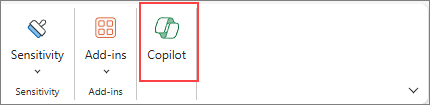
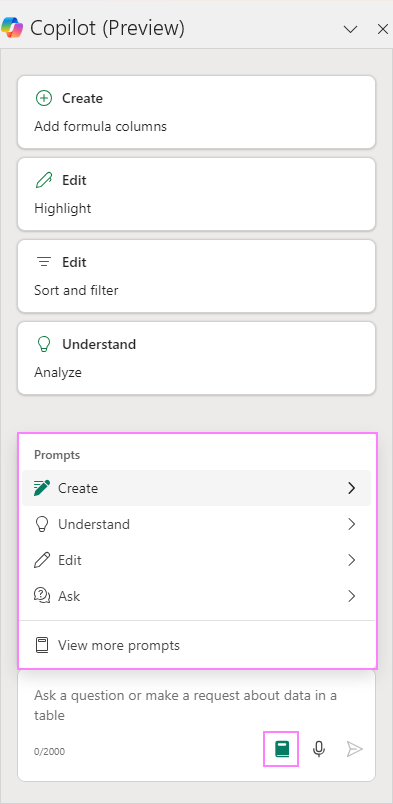
4. Select Copilot on the ribbon to open the chat pane. Tip: If you can’t select the Copilot button in the ribbon, try saving the file to the cloud first. 5. Enter your prompts and start working with Copilot.
Learn more about creating effective prompts at Copilot Lab.
Rewrite your messages with Copilot in Teams chat and channels
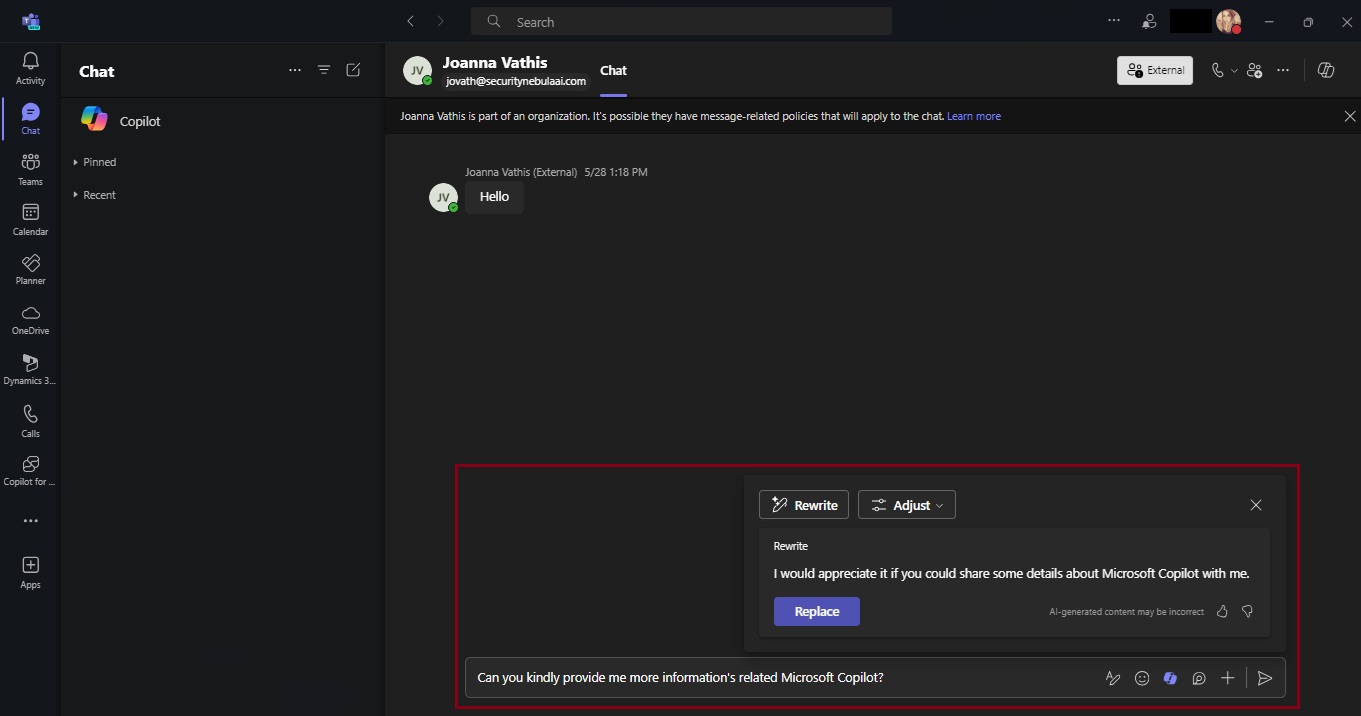
Copilot can assist you in crafting more polished and coherent messages, straight from the text compose box in chat and channels. It goes beyond spell-checking and grammar correction; Copilot also suggests improvements, rewrites, and adjustments to enhance the clarity, tone, and impact of your messages. Whether you’re quickly responding to your coworker or sharing a detailed project update with a VP, Copilot has your back. If you have a Copilot for Microsoft 365 license, you can navigate to the message compose box anywhere in Teams and start crafting your message. To start rewriting click on the Copilot icon in your chat box, press “Rewrite,” and watch your message instantly transform!
Not only is this an easy way to perfect your messages, but it does so without requiring you to type in any prompts. Just choose how you want to modify your message and Copilot does the work for you! If you need further editing, you can always refine your message by stacking different tones and lengths together. “Rewrite” is available for times when you don’t have any specific asks in mind for Copilot and want to use it more like a proofreader, and “Adjust” is there to give you specificity on what you want to change in your message. And remember, Copilot is the foundation of your message, but it is always important to proofread and confirm any generated content before you hit send.
Now available: Custom tone
While having Copilot do the work with those pre-set adjustment options is a great, no-prompt way to rewrite your messages quickly and efficiently, there is a new feature that allows you to tell Copilot exactly how you want to turn your writing into the best version of itself: Custom tone.
Custom tone takes everything touched upon with the “Adjust” feature and gives you the freedom to pick how Copilot can rewrite a message for you via an open prompt. With that comes the freedom to ask for multiple changes to be made, which Copilot will complete simultaneously in your rewrite. Do you want to add persuasive language to make your message more compelling? Or add additional context to your tone to give the right impression? Or turn a long sentence into a bulleted list before sharing it with your team? With custom tone, prompting how to change your message gives you the reins to make Copilot work exactly how you want it to.
Custom tone even allows you to bridge language barriers between global coworkers! Simply ask Copilot to translate your message to a specific language. For example, you can prompt that you want Copilot to make your message “longer and cheerful and in Spanish” and Copilot can apply those changes while translating instantly in the compose box – without you needing to leave your flow of work. Now, Copilot in Teams allows you to reach global audiences like never before, making it easier to write and receive messages adapted to you.
Teams messages – your next superpower
A lot of our workday is spent responding to messages in Teams. That may mean you are swamped with messages waiting to be responded to, some that are truly urgent and get buried by all your other unread chats and channels. With Copilot, you can respond faster and more effectively, driving collaboration forward. It helps reduce complexity for you as a writer, making it easier to land your message with each audience, faster. And you benefit as the message’s receiver, too – a message that is easier to understand allows you to act on it more deliberately. Thanks to Copilot, writing messages in Teams has never been easier, and it’s all thanks to an AI feature – powered by you.
Additional resources
For more examples of prompts that Copilot can help you with, check out Copilot Lab! Filter by specific Microsoft 365 apps to learn what prompts to use for meetings, in chats, and get tips for better optimized prompts with Copilot!
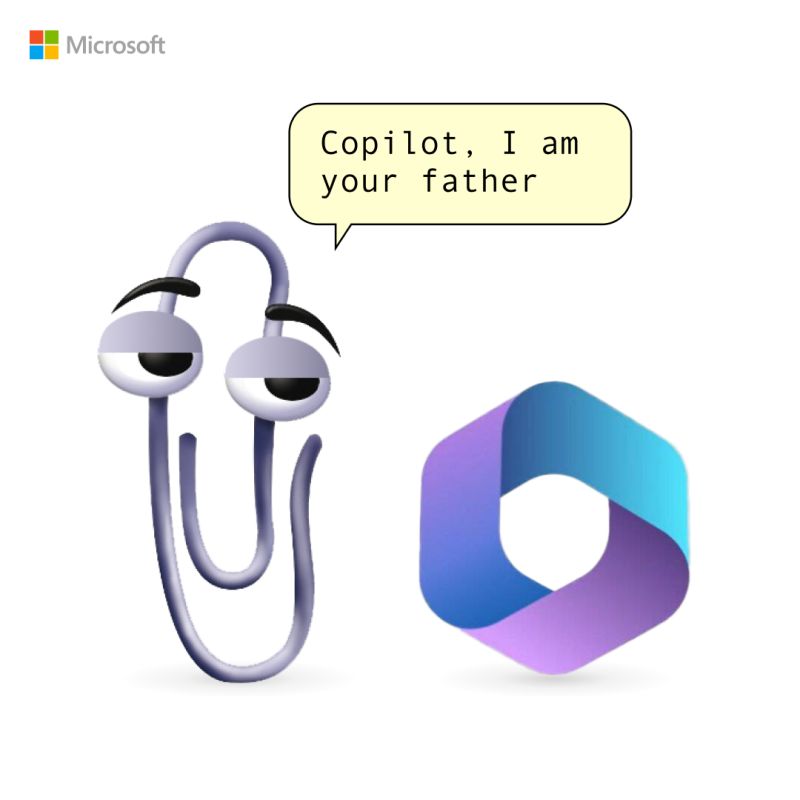
Clippy is back, in a new, unauthorized app that somehow has made it onto the Microsoft Store.
Clippy by Firecube uses Microsoft’s animated paper clip, Clippy (known as Clippit to purists), as a front end for ChatGPT 3.5, the AI chatbot developed by OpenAI. Although the app refers to Clippy by name, the full text description of the app immediately identifies it as “Not by Microsoft” to presumably fend off any lawyers that might be sniffing about the app. Firecube has a good reputation as a developer who looks deeply into new Windows code for unpublicized features.
Paperclip by FireCube (formerly known as Clippy by FireCube) brings back the infamous Clippit into your desktop powered by the OpenAI GPT 3.5 model (OpenAI key required as of this version).
Paperclip can be pinned to the screen for quick access to chat or just be left for nostalgia. This app is open source with improvements coming such as support for more characters like bob or classic clippy. Dragging and resizing and support for no OpenAI key required.
You can download it from Microsoft Store for free here!




 Catastrophic Failure