Microsoft introduce scareware blocker! Now available in preview in Microsoft Edge


The Scareware Blocker is a New feature in Microsoft Edge designed to protect users from tech support scams, often referred to as scareware. These scams use aggressive web pages to trick users into thinking their system is infected with malware, pressuring them to call fake tech support numbers. Scareware blockers use a machine learning model to recognize the tell-tale signs of scareware scams and put users back in control of their computer.

Here’s how it works:

  • Machine Learning: It uses a machine learning model to detect and block scareware sites.
  • User Control: When a suspicious site is detected, Edge blocks it and shows a warning message, giving users the option to close the page or proceed if they believe it’s safe

“Scareware” scams are a particularly convincing type of tech support scam. They use aggressive web pages to convince victims into thinking their system is infected with malware, pressure them to call a fake tech support number, and try to gain access to the computer. Last year, Hollywood even made a blockbuster action movie with scareware scammers as the villains.

To enable Scareware Blocker in Microsoft Edge:

  1. Open Edge and click on the three-dot menu in the toolbar.
  2. Select Settings.
  1. Navigate to Privacy, search, and services.
  2. Find the Scareware Blocker option and toggle it on

When scareware blocker suspects a page is a scam, Edge will put users back in control by exiting full screen mode, stopping aggressive audio playback, warning the user, and showing a thumbnail of the page they were just viewing:

Scareware blocker fights tech scams – Video Tutorial

Security for Microsoft 365 Copilot


Microsoft 365 Copilot is a sophisticated processing and orchestration engine that provides AI-powered productivity capabilities by coordinating the following components:

  • Large language models (LLMs)
  • Content in Microsoft Graph, such as emails, chats, and documents that you have permission to access.
  • The Microsoft 365 productivity apps that you use every day, such as Word and PowerPoint.

How does Microsoft 365 Copilot use your proprietary organizational data?

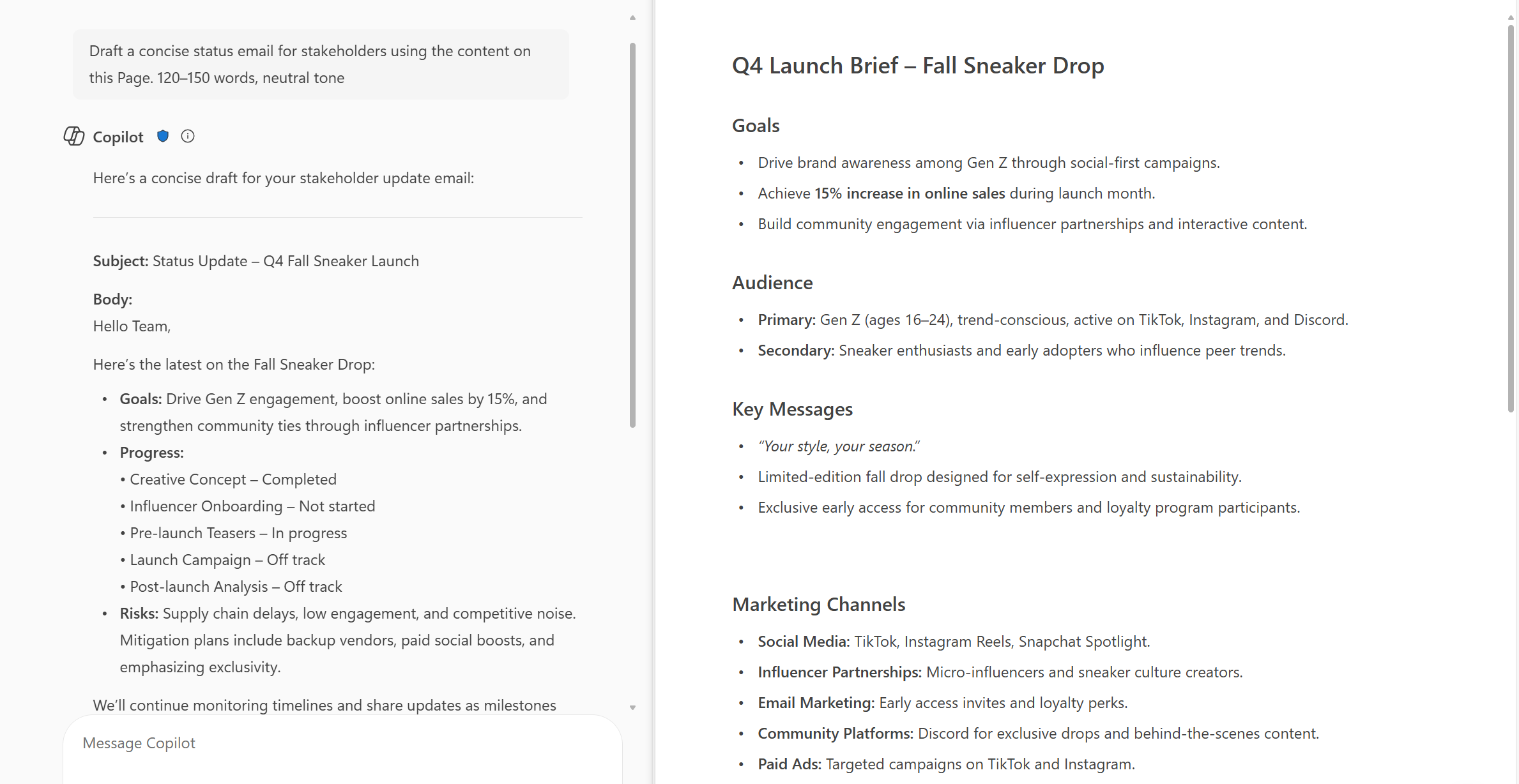
Microsoft 365 Copilot provides value by connecting LLMs to your organizational data. Microsoft 365 Copilot accesses content and context through Microsoft Graph. It can generate responses anchored in your organizational data, such as user documents, emails, calendar, chats, meetings, and contacts. Microsoft 365 Copilot combines this content with the user’s working context, such as the meeting a user is in now, the email exchanges the user had on a topic, or the chat conversations the user had last week. Microsoft 365 Copilot uses this combination of content and context to help provide accurate, relevant, and contextual responses.

Microsoft 365 Copilot only surfaces organizational data to which individual users have at least view permissions. It’s important that you’re using the permission models available in Microsoft 365 services, such as SharePoint, to help ensure the right users or groups have the right access to the right content within your organization. This includes permissions you give to users outside your organization through inter-tenant collaboration solutions, such as shared channels in Microsoft Teams.

When you enter prompts using Microsoft 365 Copilot, the information contained within your prompts, the data they retrieve, and the generated responses remain within the Microsoft 365 service boundary, in keeping with our current privacy, security, and compliance commitments. Microsoft 365 Copilot uses Azure OpenAI services for processing, not OpenAI’s publicly available services. Azure OpenAI doesn’t cache customer content and Copilot modified prompts for Microsoft 365 Copilot.

Data stored about user interactions with Microsoft 365 Copilot

When a user interacts with Microsoft 365 Copilot (using apps such as Word, PowerPoint, Excel, OneNote, Loop, or Whiteboard), we store data about these interactions. The stored data includes the user’s prompt and Copilot’s response, including citations to any information used to ground Copilot’s response. We refer to the user’s prompt and Copilot’s response to that prompt as the “content of interactions” and the record of those interactions is the user’s Copilot activity history. For example, this stored data provides users with Copilot activity history in Microsoft 365 Copilot Chat (previously named Business Chat) and meetings in Microsoft Teams. This data is processed and stored in alignment with contractual commitments with your organization’s other content in Microsoft 365. The data is encrypted while it’s stored and isn’t used to train foundation LLMs, including those used by Microsoft 365 Copilot.

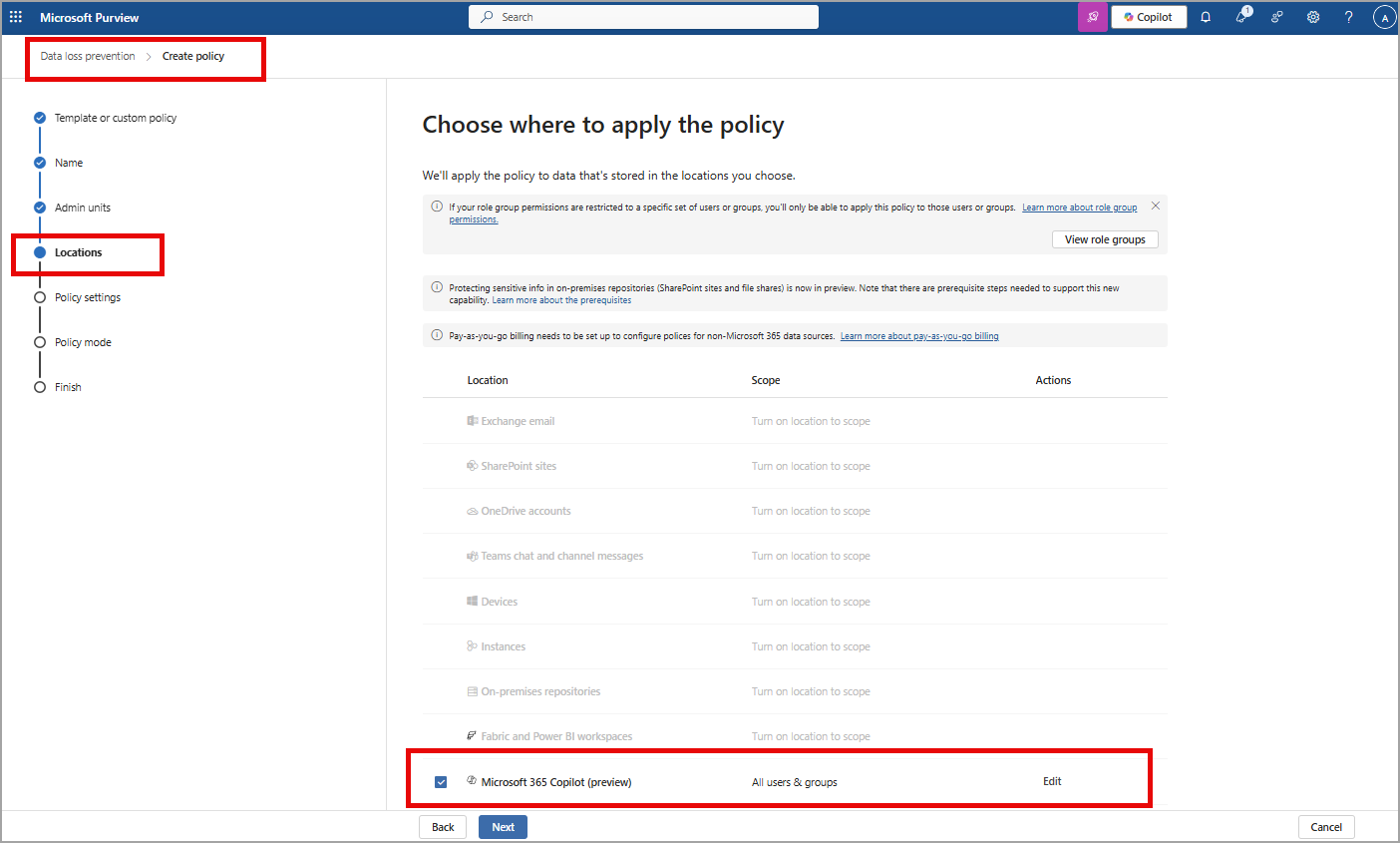
To view and manage this stored data, admins can use Content search or Microsoft Purview. Admins can also use Microsoft Purview to set retention policies for the data related to chat interactions with Copilot. For Microsoft Teams chats with Copilot, admins can also use Microsoft Teams Export APIs to view the stored data.

Deleting the history of user interactions with Microsoft 365 Copilot

Your users can delete their Copilot activity history, which includes their prompts and the responses Copilot returns, by going to the My Account portal. More information, see Delete your Microsoft 365 Copilot activity history.

Microsoft 365 Copilot and the EU Data Boundary

Microsoft 365 Copilot calls to the LLM are routed to the closest data centers in the region, but also can call into other regions where capacity is available during high utilization periods.

For European Union (EU) users, we have additional safeguards to comply with the EU Data Boundary. EU traffic stays within the EU Data Boundary while worldwide traffic can be sent to the EU and other countries or regions for LLM processing. The EU Data Boundary is a geographically defined boundary within which Microsoft has committed to store and process Customer Data and personal data for our Microsoft enterprise online services, including Azure, Dynamics 365, Power Platform, and Microsoft 365, subject to limited circumstances where Customer Data and personal data will continue to be transferred outside the EU Data Boundary.

How does Microsoft 365 Copilot protect organizational data?

The permissions model within your Microsoft 365 tenant can help ensure that data won’t unintentionally leak between users, groups, and tenants. Microsoft 365 Copilot presents only data that each individual can access using the same underlying controls for data access used in other Microsoft 365 services. Semantic Index honors the user identity-based access boundary so that the grounding process only accesses content that the current user is authorized to access.

Copilot works together with your Microsoft Purview sensitivity labels and encryption to provide an extra layer of protection. The following diagram provides a visual representation of how Copilot honors your information protection controls using sensitivity labels and encryption.

Copilot will only work with your M365 tenant data and won’t be able to access other companies’ data. Plus, your data doesn’t train the AI for other companies to leverage..

Event: Διημερίδα Ψηφιακής Εξέλιξης in Corfu, taking place on February 7-8! @silicon_corfu


🔝I am excited to announce that I will be speaking at the “Διημερίδα Ψηφιακής Εξέλιξης in Corfu, taking place on February 7-8! @silicon_corfu

📆Title: Get started with Microsoft 365 Copilot in Excel
📝Description: I’m excited to share some insights about the amazing features of Microsoft 365 Copilot in Excel. This innovative tool is designed to help you work more efficiently with your data by providing intelligent suggestions and insights.

With Copilot in Excel, you can do much more with your data. It generates formula column suggestions, shows insights in charts and PivotTables, and highlights interesting data, making it easier for you to uncover valuable information.

In our upcoming presentation, we will explore these features in detail and see how they can enhance our productivity:

📍Formulas: Writing, explaining, and asking questions
📍More formula use cases
📍Working with text
📍Visualize: Charts and Color
📍Ask questions about Excel
📍Demo

🚀 I look forward to seeing you there! Don’t miss the opportunity to participate in this important event and enrich your knowledge of the latest Microsoft technologies. Register now for free and join us for discussions and learning!

Registration 👉 https://lnkd.in/dQ25Jz4y!

Microsoft introducing Microsoft 365 Copilot Chat!


Microsoft introducing Microsoft 365 Copilot Chat, a new offering that adds pay-as-you-go agents to our existing free chat experience for Microsoft 365 commercial customers. Copilot Chat enables your entire workforce—from customer service representatives to marketing leads to front-line technicians—to start using Copilot and agents today. It includes:

  • Free, secure AI chat powered by GPT-4o.
  • Agents accessible right in the chat.
  • IT controls, including enterprise data protection and agent management.

Copilot Chat: The power of chat + agents

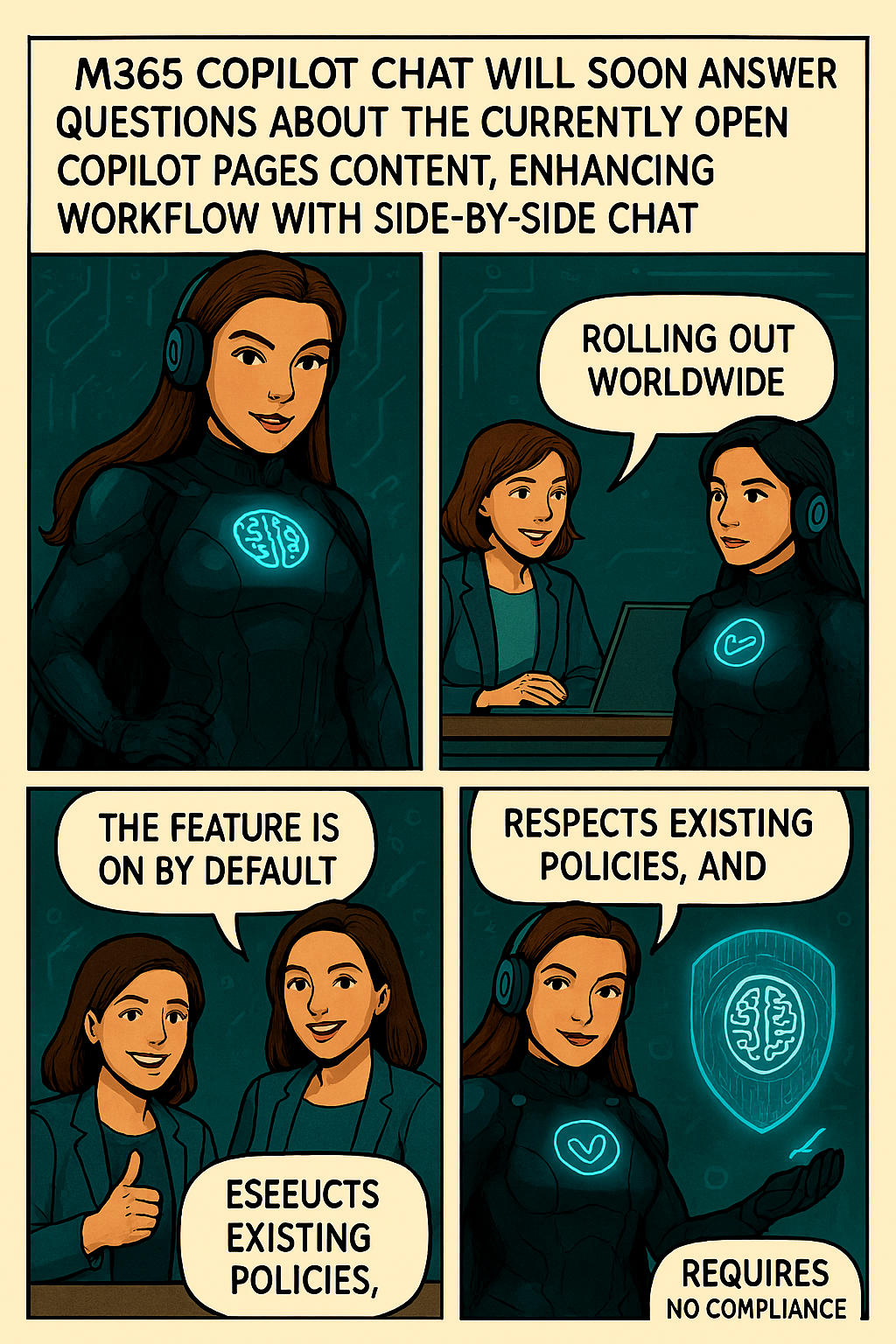
Copilot is the UI for AI, and it all starts with Copilot Chat. It’s the chat experience you’ll use every day—powered by broad knowledge from the web, built on GPT-4o, and designed to be safe and secure for business use. It represents a foundational shift in how we work, enabling everyone to work smarter, faster, and more collaboratively.

Copilot Chat includes:

  • Web-grounded chat with GPT-4o. You can use it to do market research, write a strategy document, or prepare for a meeting. File uploads allow you to add any document to the chat and ask Copilot to do things like summarize key points in a Word document, analyze data in an Excel spreadsheet, and suggest improvements to a PowerPoint presentation.1 With Copilot Pages, you can collaborate on content with people and AI in real time—adding content from Copilot, your files, and now from the web as well. And you can quickly create AI-generated images for campaigns, product launches, and social media posts.2
  • Agents. Using natural language, now anyone can easily create agents to automate repetitive tasks and business processes—directly in Copilot Chat. A customer service representative can ask a customer relationship management (CRM) agent for account details before a customer meeting, while field service agents can access step-by-step instructions and real-time product knowledge stored in SharePoint. Agents are priced on a metered basis, and IT stays in control. IT admins can also build organization-wide agents and manage agent deployment, all powered by Microsoft Copilot Studio.
  • Copilot Control System. Copilot Chat includes foundational capabilities of the Copilot Control System, including enterprise data protection (EDP) for data privacy and security and the ability to govern access and manage the usage and lifecycle of Copilot and agents, as well as measurement and reporting.

Download the Microsoft 365 Copilot mobile app from here..

Error: MailboxLocations: Cannot parse the following: SubstrateExtension during migration from GWS to Microsoft 365


I wanted to bring a peculiar issue to your attention that I encountered while performing a large mailbox migration from Google Workspace to Microsoft 365. As you know, meticulous planning is crucial for these migrations, and I ensured that everything was set up perfectly. I designed my plan carefully, created an XML file, and enabled the Set-Mailbox -ELCProcessingDisabled:$true for each user’s mailbox. Given that I was dealing with a particularly large mailbox of around 200 GB, I split the batches into separate XML and CSV files per mailbox to speed up the synchronization process.

However, I ran into a persistent error with a specific user’s Archive mailbox. The status would remain in provisioning and eventually fail, displaying the error:

This error indicates an issue with parsing the SubstrateExtension mailbox type during the migration, which can occur when moving data from Google Workspace to Microsoft 365 or during other mailbox provisioning tasks.

Despite following the recommended steps from various forums, I couldn’t resolve the issue. Then, an idea struck me, reminding me of my earlier days with Exchange starting from version 5.5. I decided to return to basics, decoding the error line by line and referring back to the Microsoft article on migrating large mailboxes from Google or other IMAP sources to Microsoft 365 Exchange.

I discovered that the Archive mailbox couldn’t locate the mailbox, leading to the provisioning failure. To address this, I ran the command Get-MailboxLocation -User joannav@contoso.com to find the MailboxGuid. Since the primary mailbox had synchronized correctly, I created a new XML file with only the Archive Mailbox, using the GUID-of-Existing-Mailbox instead of MainArchive. This adjustment allowed the syncing to start without any issues.

I wanted to share this experience with you in case you encounter a similar problem. Sometimes, going back to the basics and understanding the root of the error can provide the solution.

Hope this helps …

External sender callouts on email in Outlook


It is important to provide mechanisms for users to help them identify potential phishing emails. One way to do this is by giving users a way to distinguish emails from senders outside the organisation. Typically, this is accomplished by using a Exchange transport rules to prepend subject line or insert the message body to show the email is from external senders. This can cause several issues, including multiple tags in the subject, broken conversation threads, lack of localisation, and the handling of S/MIME-encrypted or ‑signed emails. Instead, Exchange Online can tag emails from external senders so that the Outlook client will display the [External] tag in the message list and a warning in the info bar when reading a message.

To set this up

  1. Exchange Online tenant admin will need to run the cmdlet Set-ExternalInOutlook to enable the new user interface for the whole tenant (this is available now); adding certain emails and domains to the allow list via the cmdlet is also possible.
  2. Outlook on the web already supports this. Outlook Mobile (iOS & Android) and Outlook for Mac are rolling out this feature. Specific versions:
    • Outlook on the web: available now
    • Outlook for Windows: Update 10/6/23: This feature is now available in Semi-Annual Enterprise Channel (Preview) too. External Tag view in Outlook for Windows (matching other clients) released to production for Current Channel and Monthly Enterprise Channel in Version 2211 for builds 15831.20190 and higher. We anticipate the External tag to reach Semi-Annual Preview Channel with Version 2308 on the September 12th 2023 public update and reach Semi-Annual Enterprise Channel with Version 2308 with the January 9th 2024 public update.  If any of the versions or dates change we will update this topic. See Update history for Microsoft 365 Apps (listed by date) to see release status of versions.
    • Outlook mobile (iOS & Android): version 4.2111.0 and higher
    • New Outlook for Mac: version 16.47 and higher

If you are using the prepend subject line transport rules currently to add an [EXTERNAL] tag in external email subject line: the new Outlook native callouts are adding a new MAPI property called IsExternalSender to the email item. Once all the (above listed) client versions you require have this functionality, to avoid emails being marked ‘External’ twice (once by new native functionality and once by the transport rule), please turn off the transport rule first before turning on Outlook native external sender callouts.

Microsoft tracked this feature in Microsoft 365 Roadmap ID 70595. This feature can be enabled on the tenant level now.

Enable tagging of emails from external senders by running the follow command:
# Connect to Exchange Online
Connect-ExchangeOnline

# Use the Set-ExternalInOutlook cmdlet to modify the configuration of external sender identification
Set-ExternalInOutlook -Enabled $true

# This example prevents the specified email addresses from receiving the External icon in the area of the subject line in supported versions of Outlook.
Set-ExternalInOutlook -AllowList admin@fabrikam.com,admin@fourthcoffee.com

# This example adds and removes the specified email addresses from the exception list without affecting other existing entries.

Set-ExternalInOutlook -AllowList @{Add=“admin@cohovineyard.com”;Remove=“admin@fourthcoffee.com”}

Outlook Desktop

Outlook Mobile

Once this feature is enabled via PowerShell, it might take 24-48 hours for your users to start seeing the External sender tag in email messages received from external sources (outside of your organization), providing their Outlook version supports it. If enabling this, you might want to notify your users about the new feature and update your training and documentation, as appropriate.

Meet Exchange Server 2016


Meet Exchange Server 2016

Get a first look at Exchange Server 2016, the on-premises release that we plan to ship in the second half of this year. Come learn about the innovation in Exchange Server 2016 that will help you keep up with evolving requirements for user productivity and information protection. This session will give you the starting point who want to know what’s coming from on-premises Exchange.

Meet Exchange Server 2016
http://channel9.msdn.com/Events/Ignite/2015/FND2204

How to create Transport Rules in Exchange Online and Outlook Rules and the difference


Using Transport rules, you can look for specific conditions in messages that pass through your organization and take action on them. Transport rules let you apply messaging policies to email messages, secure messages, protect messaging systems, and prevent information leakage.

Many organizations today are required by law, regulatory requirements, or company policies to apply messaging policies that limit the interaction between recipients and senders, both inside and outside the organization. In addition to limiting interactions among individuals, departmental groups inside the organization, and entities outside the organization, some organizations are also subject to the following messaging policy requirements:

  • Preventing inappropriate content from entering or leaving the organization

  • Filtering confidential organization information

  • Tracking or archiving copying messages that are sent to or received from specific individuals

  • Redirecting inbound and outbound messages for inspection before delivery

  • Applying disclaimers to messages as they pass through the organization

Overview of Transport rules
Transport rules are similar to the Inbox rules that are available in many email clients. The main difference between Transport rules and rules you would set up in a client application such as Outlook is that Transport rules take action on messages while they’re in transit as opposed to after the message is delivered. Transport rules also contain a richer set of conditions, exceptions, and actions, which provides you with the flexibility to create a customized rule. You can create up to 100 Transport rules in order to implement your business-rule compliance.

The following list summarizes the basic workflow for Transport rules:

  1. You create Transport rules to meet your business needs.

  2. As messages go through your organization, the Transport rules agent is invoked. The Transport rules agent is a special component that checks messages against the Transport rules you create.

  3. The Transport rules agent scans the message, and if the message fits the conditions you specify in a Transport rule, it takes the specified action on that message.

Transport rule components

Transport rules consist of the following components:

  • Conditions   Use Transport rule conditions to specify the characteristics of messages to which you want to apply a Transport rule action. Conditions consist of one or more predicates that specify the parts of a message that should be examined. Some predicates examine message fields or headers, such as the To, From, or Cc fields. Other predicates examine message characteristics such as message subject, body, attachments, message size, and message classification. Most predicates require that you specify a comparison operator, such as equals, doesn’t equal, or contains, and a value to match.

  • Exceptions Exceptions are based on the same predicates used to build Transport rule conditions. However, unlike conditions, exceptions identify messages to which Transport rule actions shouldn’t be applied. Exceptions override conditions and prevent actions from being applied to an email message, even if the message matches all configured conditions.

  • Actions Actions are applied to messages that match the conditions and don’t match any exceptions defined in the Transport rule. Transport rules have many actions available, such as rejecting, deleting, or redirecting messages, adding additional recipients, adding prefixes in the message subject, or inserting disclaimers in the message body.

For a complete list of Transport rule predicates, see Transport Rule Predicates. The list of predicates is also available in the Transport rule dialog in the EAC. If you use the Shell, you can retrieve the list of predicates by using the Get-TransportRulePredicate cmdlet.

For a complete list of Transport rule actions available, see Transport Rule Actions. The list of actions is also available in the Transport rule dialog box in the EAC. If you use the Shell, you can retrieve the list of actions by using the Get-TransportRuleAction cmdlet.

To create Transport Rules in Office 365, first must log into Office 365portal https://portal.microsoftonline.com/default.aspx and go to the following location:

  1. Go to Admin and choose Exchange

Image_1

2.  Navigate to Mail Flow (from the left site) and choose Rules

clip_image002

This is where any and all transport rules can be created and applied

Once you are in the rules area of the O365 portal, you perform the following:

1. Press the + sign and then select Create a new rule

Image_2

2. Choose a name for this rule and choose the rule for your condition (depends what you want to achieve)
3. Choose the option that apply for your condition and after you finished click on Save

Image_3

4. Now, this rule is ready to be applied to all emails coming through your Office 365 tenant.

For comprehensive information on Transport Rules as a whole, refer to the following link: http://technet.microsoft.com/en-us/library/dd351127(v=exchg.150).aspx

Outlook Rules
A rule is an action that Microsoft Outlook runs automatically on incoming or outgoing messages, based on conditions that you have specified.

Rules help reduce manually filing or taking the same action when a similar message arrives. Unlike Quick Steps, rules typically are always on and run automatically. For example, when a message is received from a specified person, it’s automatically moved to the folder that you designate.

The Rules Wizard helps you design rules to manage messages. Rules fall into one of two categories — organization and notification.

ZA104018600

The Rules Wizard includes templates for the most frequently used rules, which include the following:

Stay Organized    These rules help you file and follow up on messages. For example, you can create a rule for messages from a specific sender, such as Anne Weiler, with the word “sales” in the Subject line, to be flagged for follow-up, categorized as Sales, and moved to a folder named Anne’s Sales.

Stay Up to Date    These rules notify you in some way when you receive a particular message. For example, you can create a rule that automatically sends a message to a mobile device when you receive a message from a family member.

Start from a blank rule    These are rules that you create without the aid of a rule template and that you can completely customize.

Create a rule

Outlook includes rule templates for common scenarios. Use these rule templates, or create design your own custom rules.

1. Click the File tab, click Manage Rules & Alerts

Image_4

2. In the Rules and Alerts dialog box, on the E-mail Rules tab, click New Rule
3. Follow the wizard and at the end click Finish

Image_5

Additional Information:
Manage email messages by using rules
http://office.microsoft.com/en-us/outlook-help/manage-email-messages-by-using-rules-HA102749402.aspx

Office 365 User Creation and License assignment


Today, I manage to complete the bellow script, in order some basic Office 365 User Creation and License assignment to be automate with one click

This script automate execute steps for Office 365 Administrator Tasks.
By choosing only a number, you can manage your Office 365 Tasks.

What do you need to know before you begin?

  • Make sure you have already installed Windows Azure AD PowerShell
  • You must check and be sure your server or your computer has access to the internet

Let’s have a quick look how to execute the script O365Tool_v1.0 on Windows PowerShell and what this script do for us.

  1. Login to your computer with Administrator credentials
  2. Start Windows Azure AD PowerShell “As Administrator”

clip_image001[4]

  1. Next step, copy the script O365Tool_v1.0 on (C:\O365Tool_v1.0) folder or create the O365Tool_v1.0 folder in your preferred destination

clip_image002[4]

  1. Let’s start by running the script from Windows Azure AD PowerShell itself.
    In case you get weird error messages when you try to run a script, the reason is only one, security settings built into Windows PowerShell include something called the “execution policy” the execution policy determines how (or if) PowerShell runs scripts. By default, PowerShell’s execution policy is set to Restricted that means that scripts – including those you write yourself – won’t run.
    Navigate back to Windows PowerShell and set the Execution policy to unrestricted in order to be able to run the script, in that case, use this command to set your execution policy to RemoteSigned or Unrestricted

clip_image003[4]

Note: The Set-ExecutionPolicy cmdlet enables you to determine which Windows PowerShell scripts (if any) will be allowed to run on your computer.

Windows PowerShell has four different execution policies:

  • Restricted – No scripts can be run. Windows PowerShell can be used only in interactive mode.
  • AllSigned – Only scripts signed by a trusted publisher can be run.
  • RemoteSigned – Downloaded scripts must be signed by a trusted publisher before they can be run.
  • Unrestricted – No restrictions; all Windows PowerShell scripts can be run.
  1. The most common (default) way to run a script is by calling it:

PS C:\> & “C:\Admin\My first Script.ps1”

If the path does not contain any spaces, then you can omit the quotes and the ‘&’ operator

PS C:\> C:\Admin\Myscript.ps1

If the script is in the current directory, you must indicate this using .\ (or ./ will also work)

PS C:\> .\Myscript.ps1

Create the folders:

Main folder: O365Tool

Subfolder’s: Logs and Exports

clip_image004[4]

In our case scenario we run the script in the current directory “C:\O365Tool_v1.0” so, we must indicate this using .\ and we click Enter

clip_image005[5]

  1. Prepare the CSV file ” the file is included on the script zip”

clip_image006[5]

  1. Type your Global Admin credentials, Username and Password in order to login

clip_image007[5]

  1. Our script now it starts running, select an option from the menu. In my case scenario, I will select option 1, to start the creation of the new users and then to proceed with the rest of the options.

clip_image008[6]

Users are now created:

clip_image009[4]

Option 2, Set UsageLocation:

clip_image010[4]

Option 3, as I have only EnterprisePack:

clip_image011[5]

Option 5, Export Mailboxes from Office 365:

clip_image012[4]

Option 6: The script has a timer for how long the script is execute:

clip_image013[4]

Enjoy…

Download the Script here: https://gallery.technet.microsoft.com/Office-365-User-Creation-b8e48121

Office 365 Message Encryption


Deliver confidential business communications with enhanced security, allowing users to send and receive encrypted email as easily as regular email directly from their desktops. Customize the email viewing portal to enhance your organization’s brand. Email can be encrypted without complex hardware and software to purchase, configure, or maintain, which helps to minimize capital investment, free up IT resources, and mitigate messaging risks.