Microsoft announce some important updates to M365 Copilot Chat that will enhance security and user experience, following:
Integration with SafeLinks:
M365 Copilot Chat will integrate with SafeLinks in Defender for Office 365 to provide time-of-click URL protection for the hyperlinks included in its chat responses.
This change applies to users with Microsoft Defender for Office 365 Plan 1 or Plan 2 service plans. No policy configuration is needed within the SafeLinks policy.
Within Microsoft Defender for Office 365 Security Center, URL protection report will show the relevant summary and trend views for threats detected and actions taken on URL clicks.
Native Time-of-Click URL Reputation Check:
For users without SafeLinks protection (which is available as part of Microsoft Defender for Office 365), M365 Copilot Chat will natively enable time-of-click URL reputation check for the hyperlinks returned in its chat responses.
Hyperlink Redaction Changes:
M365 Copilot Chat will no longer redact hyperlinks in its chat responses if they are found in the grounding data used to generate the responses.
When this will happen:
General Availability (Worldwide): We will begin rolling out in late March 2025 and expect to complete by late May 2025.
Rollout will start on desktop and web and will complete with mobile versions. We plan to extend these updates to Copilot Chat experiences in Office apps in the future.
How this will affect your organization:
These updates are designed to enhance the security of the links included in M365 Copilot Chat response, ensuring that users are protected from malicious URLs.
What you need to do to prepare:
You may consider updating your training and documentation as appropriate to ensure users are aware of the change in behavior with hyperlinks in M365 Copilot Chat.
The Scareware Blocker is a New feature in Microsoft Edge designed to protect users from tech support scams, often referred to as scareware. These scams use aggressive web pages to trick users into thinking their system is infected with malware, pressuring them to call fake tech support numbers. Scareware blockers use a machine learning model to recognize the tell-tale signs of scareware scams and put users back in control of their computer.
Here’s how it works:
Machine Learning: It uses a machine learning model to detect and block scareware sites.
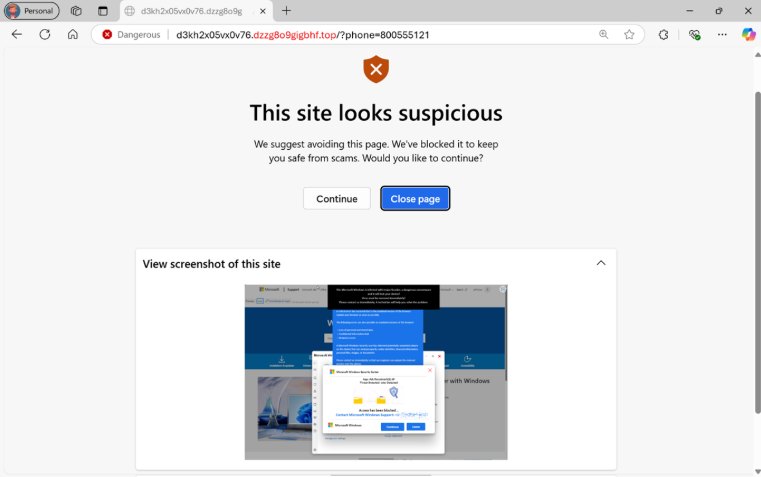
User Control: When a suspicious site is detected, Edge blocks it and shows a warning message, giving users the option to close the page or proceed if they believe it’s safe
“Scareware” scams are a particularly convincing type of tech support scam. They use aggressive web pages to convince victims into thinking their system is infected with malware, pressure them to call a fake tech support number, and try to gain access to the computer. Last year, Hollywood even made a blockbuster action movie with scareware scammers as the villains.
To enable Scareware Blocker in Microsoft Edge:
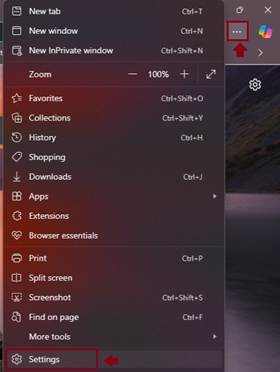
Open Edge and click on the three-dot menu in the toolbar.
Select Settings.
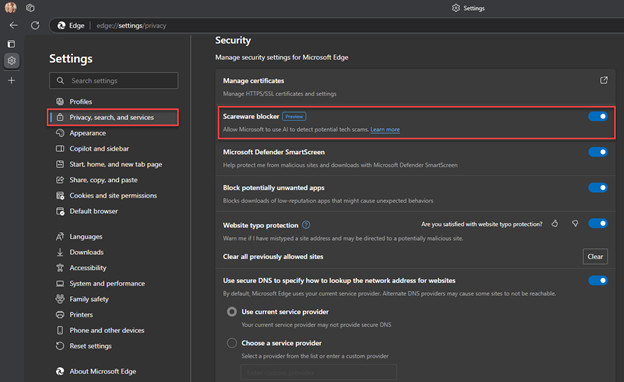
Navigate to Privacy, search, and services.
Find the Scareware Blocker option and toggle it on
When scareware blocker suspects a page is a scam, Edge will put users back in control by exiting full screen mode, stopping aggressive audio playback, warning the user, and showing a thumbnail of the page they were just viewing:
Scareware blocker fights tech scams – Video Tutorial
Microsoft 365 Copilot is a sophisticated processing and orchestration engine that provides AI-powered productivity capabilities by coordinating the following components:
Large language models (LLMs)
Content in Microsoft Graph, such as emails, chats, and documents that you have permission to access.
The Microsoft 365 productivity apps that you use every day, such as Word and PowerPoint.
How does Microsoft 365 Copilot use your proprietary organizational data?
Microsoft 365 Copilot provides value by connecting LLMs to your organizational data. Microsoft 365 Copilot accesses content and context through Microsoft Graph. It can generate responses anchored in your organizational data, such as user documents, emails, calendar, chats, meetings, and contacts. Microsoft 365 Copilot combines this content with the user’s working context, such as the meeting a user is in now, the email exchanges the user had on a topic, or the chat conversations the user had last week. Microsoft 365 Copilot uses this combination of content and context to help provide accurate, relevant, and contextual responses.
Microsoft 365 Copilot only surfaces organizational data to which individual users have at least view permissions. It’s important that you’re using the permission models available in Microsoft 365 services, such as SharePoint, to help ensure the right users or groups have the right access to the right content within your organization. This includes permissions you give to users outside your organization through inter-tenant collaboration solutions, such as shared channels in Microsoft Teams.
When you enter prompts using Microsoft 365 Copilot, the information contained within your prompts, the data they retrieve, and the generated responses remain within the Microsoft 365 service boundary, in keeping with our current privacy, security, and compliance commitments. Microsoft 365 Copilot uses Azure OpenAI services for processing, not OpenAI’s publicly available services. Azure OpenAI doesn’t cache customer content and Copilot modified prompts for Microsoft 365 Copilot.
Data stored about user interactions with Microsoft 365 Copilot
When a user interacts with Microsoft 365 Copilot (using apps such as Word, PowerPoint, Excel, OneNote, Loop, or Whiteboard), we store data about these interactions. The stored data includes the user’s prompt and Copilot’s response, including citations to any information used to ground Copilot’s response. We refer to the user’s prompt and Copilot’s response to that prompt as the “content of interactions” and the record of those interactions is the user’s Copilot activity history. For example, this stored data provides users with Copilot activity history in Microsoft 365 Copilot Chat (previously named Business Chat) and meetings in Microsoft Teams. This data is processed and stored in alignment with contractual commitments with your organization’s other content in Microsoft 365. The data is encrypted while it’s stored and isn’t used to train foundation LLMs, including those used by Microsoft 365 Copilot.
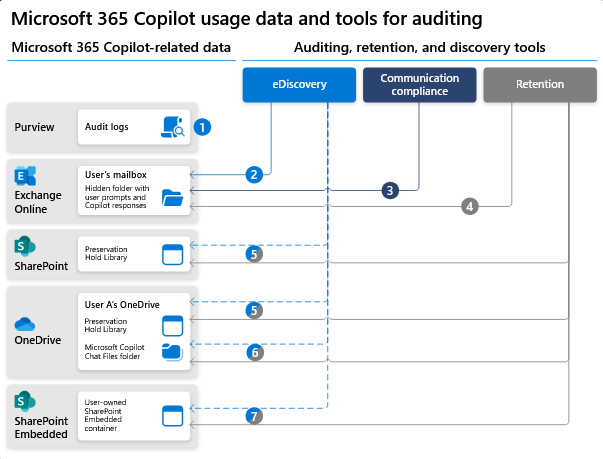
To view and manage this stored data, admins can use Content search or Microsoft Purview. Admins can also use Microsoft Purview to set retention policies for the data related to chat interactions with Copilot. For Microsoft Teams chats with Copilot, admins can also use Microsoft Teams Export APIs to view the stored data.
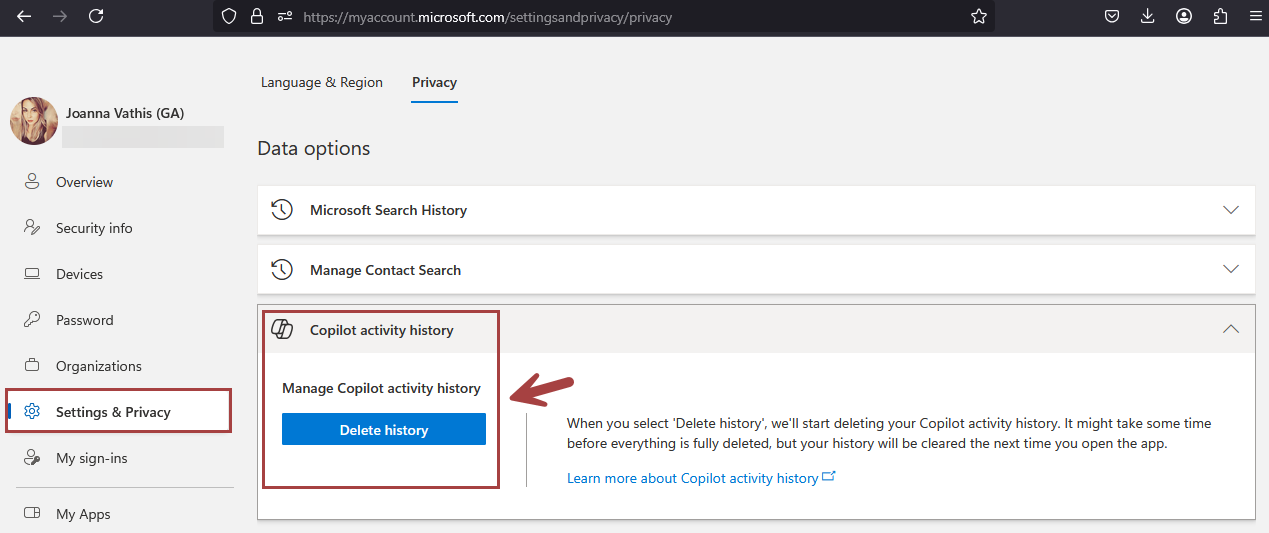
Deleting the history of user interactions with Microsoft 365 Copilot
Microsoft 365 Copilot calls to the LLM are routed to the closest data centers in the region, but also can call into other regions where capacity is available during high utilization periods.
For European Union (EU) users, we have additional safeguards to comply with the EU Data Boundary. EU traffic stays within the EU Data Boundary while worldwide traffic can be sent to the EU and other countries or regions for LLM processing. The EU Data Boundary is a geographically defined boundary within which Microsoft has committed to store and process Customer Data and personal data for our Microsoft enterprise online services, including Azure, Dynamics 365, Power Platform, and Microsoft 365, subject to limited circumstances where Customer Data and personal data will continue to be transferred outside the EU Data Boundary.
How does Microsoft 365 Copilot protect organizational data?
The permissions model within your Microsoft 365 tenant can help ensure that data won’t unintentionally leak between users, groups, and tenants. Microsoft 365 Copilot presents only data that each individual can access using the same underlying controls for data access used in other Microsoft 365 services. Semantic Index honors the user identity-based access boundary so that the grounding process only accesses content that the current user is authorized to access.
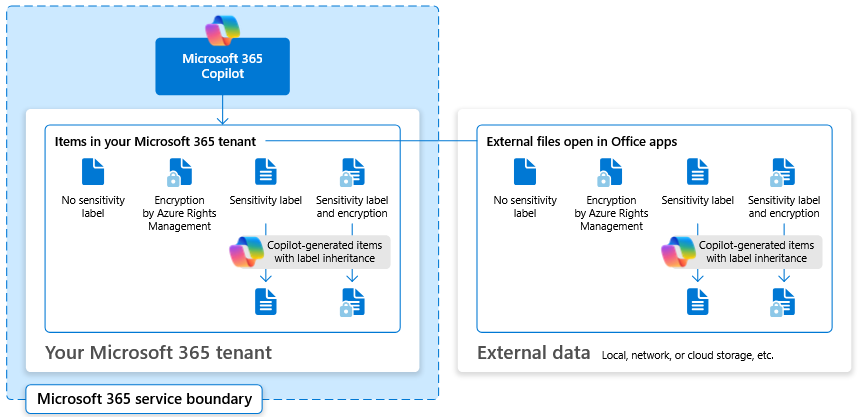
Copilot works together with your Microsoft Purviewsensitivity labels and encryption to provide an extra layer of protection. The following diagram provides a visual representation of how Copilot honors your information protection controls using sensitivity labels and encryption.
Copilot will only work with your M365 tenant data and won’t be able to access other companies’ data. Plus, your data doesn’t train the AI for other companies to leverage..
Microsoft introducing Microsoft 365 Copilot Chat, a new offering that adds pay-as-you-go agents to our existing free chat experience for Microsoft 365 commercial customers. Copilot Chat enables your entire workforce—from customer service representatives to marketing leads to front-line technicians—to start using Copilot and agents today. It includes:
Free, secure AI chat powered by GPT-4o.
Agents accessible right in the chat.
IT controls, including enterprise data protection and agent management.
Copilot Chat: The power of chat + agents
Copilot is the UI for AI, and it all starts with Copilot Chat. It’s the chat experience you’ll use every day—powered by broad knowledge from the web, built on GPT-4o, and designed to be safe and secure for business use. It represents a foundational shift in how we work, enabling everyone to work smarter, faster, and more collaboratively.
Copilot Chat includes:
Web-grounded chat with GPT-4o. You can use it to do market research, write a strategy document, or prepare for a meeting. File uploads allow you to add any document to the chat and ask Copilot to do things like summarize key points in a Word document, analyze data in an Excel spreadsheet, and suggest improvements to a PowerPoint presentation.1 With Copilot Pages, you can collaborate on content with people and AI in real time—adding content from Copilot, your files, and now from the web as well. And you can quickly create AI-generated images for campaigns, product launches, and social media posts.2
Agents. Using natural language, now anyone can easily create agents to automate repetitive tasks and business processes—directly in Copilot Chat. A customer service representative can ask a customer relationship management (CRM) agent for account details before a customer meeting, while field service agents can access step-by-step instructions and real-time product knowledge stored in SharePoint. Agents are priced on a metered basis, and IT stays in control. IT admins can also build organization-wide agents and manage agent deployment, all powered by Microsoft Copilot Studio.
Copilot Control System. Copilot Chat includes foundational capabilities of the Copilot Control System, including enterprise data protection (EDP) for data privacy and security and the ability to govern access and manage the usage and lifecycle of Copilot and agents, as well as measurement and reporting.
Download the Microsoft 365 Copilot mobile app from here..
This month Microsoft rolled out support for an additional 12 languages in Microsoft 365 Copilot: Bulgarian, Croatian, Estonia, Greek, Indonesian, Latvian, Lithuanian, Romanian, Serbian (Latin), Slovak, Slovenian, and Vietnamese. Microsoft 365 Copilot now supports a total of 42 languages.
Finally, users working in Serbian language will see Teams meeting transcripts in Cyrillic, rather than Latin script. This is an issue Microsoft working to resolve. Microsoft will provide customers with updates on progress towards providing Teams meeting transcripts for Serbian language in Latin script on an as-appropriate basis. Learn more about supported languages for Microsoft Copilot here.
Microsoft are also continuing to expand the list of supported languages, with plans to offer support for even more languages in the coming months, stay tune!
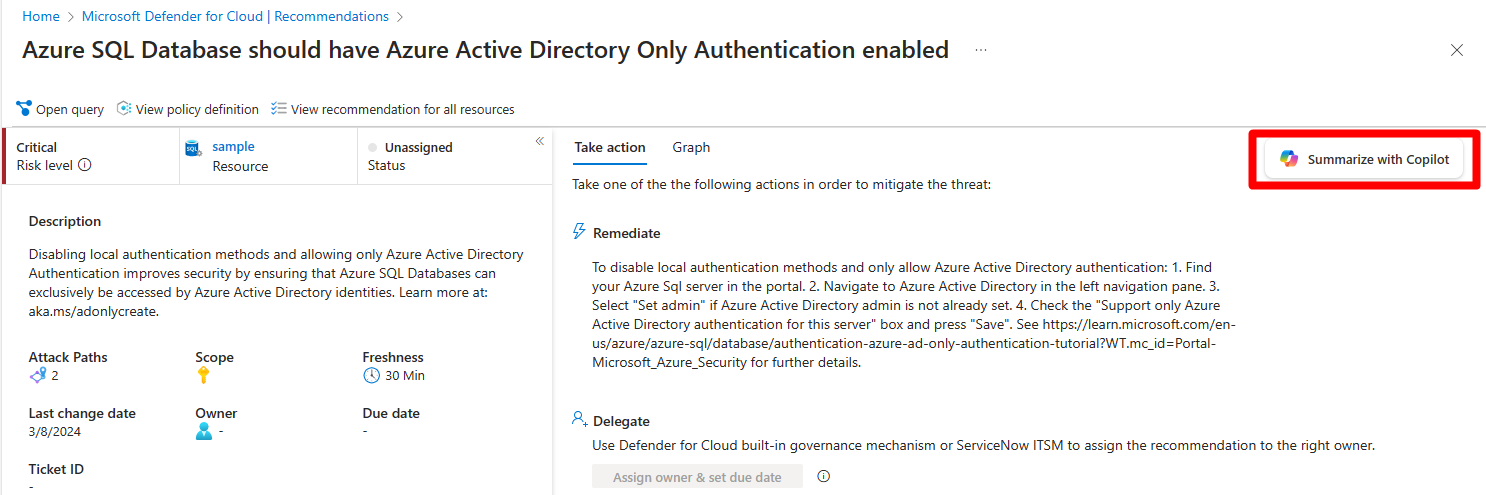
Microsoft Defender for Cloud integrates both Microsoft Copilot for Security and Microsoft Copilot for Azure into its experience. With these integrations, you can ask security-related questions, receive responses, and automatically trigger the necessary skills needed to analyze, summarize, remediate, and delegate recommendations using natural language prompts.
Both Copilot for Security and Copilot for Azure are cloud-based AI platforms that provide a natural language copilot experience. They assist security professionals in understanding the context and effect of recommendations, remediating or delegating tasks, and addressing misconfiguration in code.
How Copilot works in Defender for Cloud
Defender for Cloud integrates Copilot directly in to the Defender for Cloud experience. This integration allows you to analyze, summarize, remediate, and delegate your recommendations with natural language prompts.
When you open Copilot, you can use natural language prompts to ask questions about the recommendations. Copilot provides you with a response in natural language that helps you understand the context of the recommendation. It also explains the effect of implementing the recommendation and provides steps to take for implementation.
Some sample prompts include:
Show critical risks for publicly exposed resources
Show critical risks to sensitive data
Show resources with high severity vulnerabilities
Copilot can assist with refining recommendations, providing summaries, remediation steps, and delegation. It enhances your ability to analyze and act on recommendations.
Step-by-Step: Protect Your Usage of Copilot for M365 Using Microsoft Defender for Cloud Apps
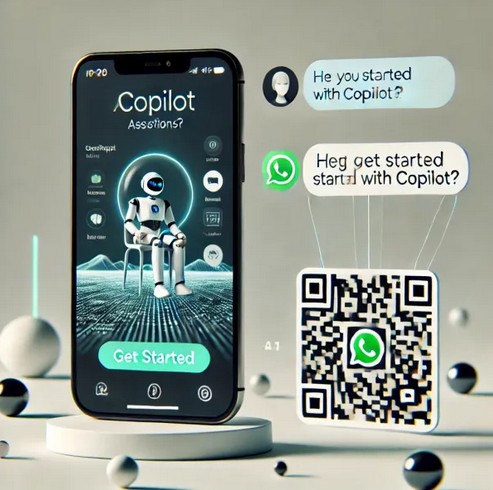
With Copilot now available on WhatsApp, you’re never alone. Get instant help, anytime. Microsoft has embedded its AI chatbot, Copilot, directly into WhatsApp, bringing artificial intelligence to over two billion users worldwide. With this move, AI capabilities like image generation and personalized recommendations are now available directly in the messaging app.
Copilot on WhatsApp offers a wide range of features:
Image Creation: Users can generate custom images directly in chat, expanding creative possibilities.
Text Summarization: Perfect for students and professionals, Copilot provides concise summaries of long documents, boosting productivity.
Personalized Recommendations: Copilot offers tailored suggestions, whether it’s for daily planning, vacation ideas, or task organization.
Recipe Suggestions: For cooking enthusiasts, Copilot can suggest recipes based on ingredients or dietary needs.
Writing Help: From grammar checks to idea generation, Copilot assists writers in refining and enhancing their content.
Current Limitations and Future Developments
While Copilot offers numerous features, some limitations remain. For instance, voice message support is currently unavailable, which is a popular feature for many WhatsApp users. However, with Microsoft’s rapid advancements in AI, future updates are likely to address such gaps, potentially adding voice message capabilities soon.
By integrating Copilot into a familiar platform like WhatsApp, Microsoft is making AI more accessible and transforming everyday communication. This step not only democratizes advanced tech but also sets the stage for new, intuitive human-AI interactions.
Talking with Copilot is an easy way to learn, grow, and gain confidence.
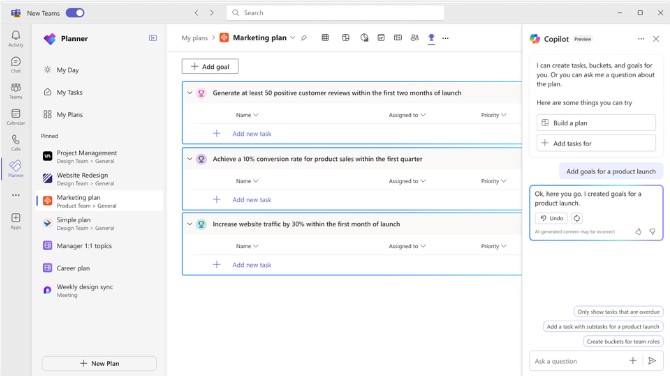
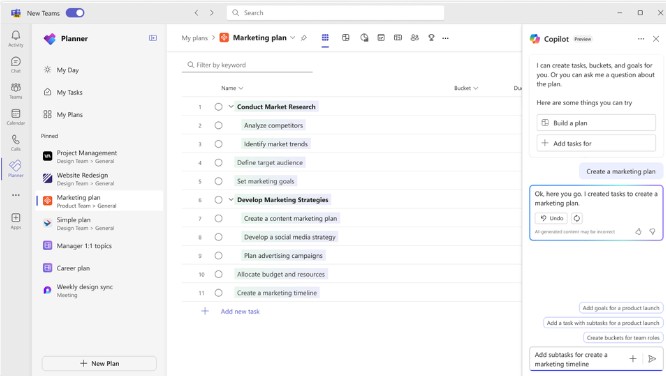
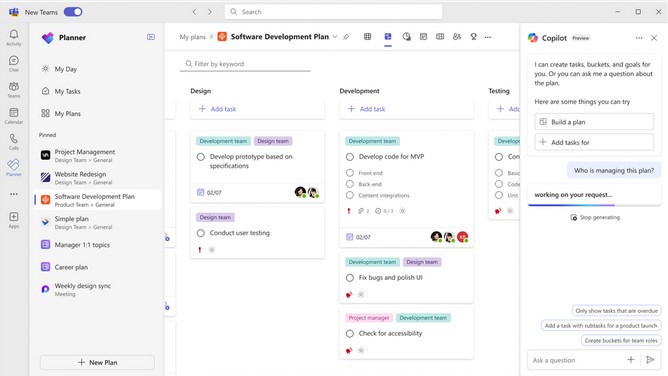
Microsoft announced that Copilot in Planner (preview) is now rolled out to 100% of users with a Project Plan 3 or Project Plan 5 license* in Microsoft Planner in Teams. With the power of generative AI, Copilot in Planner streamlines the planning, management, and execution of your work etc. If you already have a Project Plan 3 or Project Plan 5 license, you can preview Copilot in Planner capabilities*.
If you do not have a Project license, you can request a free 30-day trial. Simply click on the diamond icon within the Planner app in Teams where you can begin your free 30-day trial of advanced capabilities of Planner including Copilot in Planner or proceed with requesting a premium license.
Explore Copilot in Planner (preview) for planning, managing, and tracking projects:
• Planning: Copilot assists teams in setting goals, breaking down work, and generating tasks, goals, and buckets based on user prompts, facilitating the creation of a comprehensive project plan. • Effective Execution: Copilot helps streamline processes, identify next steps, and break down large tasks. It manages collaboration, tracks new goals, and identifies workload issues among team members. • Tracking Progress: Copilot aids in tracking complex plans by quickly surfacing necessary information about progress, priorities, and workload, ensuring teams stay informed and on track.
Planning
Managing. Effective execution is key to actually achieving your planned goals. With Copilot as your digital assistant, you can streamline this process and stay on track. Copilot can help you identify what to work on next or break up a large work item into actionable steps. It takes direction from users, seeking approval and feedback to manage how people and AI work together to achieve goals. When it’s time to triage an issue, expand scope, or make other changes to the plan, Copilot can help track a new goal, identify what tasks are behind, or which team members have the highest workload
Tracking
In general, Copilot supports the following languages for prompts: Chinese (Simplified), English, French, German, Italian, Japanese, Portuguese (Brazil), Spanish. We plan on to add more languages to Copilot and will update as additional languages are supported
See what your teams can do with Copilot and have peace of mind knowing your data is protected. Get best practices inspired by companies leading the way to start your AI transformation.
Copilot is an AI assistant that helps you and your teams work smarter and faster. Whether you need to write reports, create presentations, analyze data, or automate tasks, Copilot can assist you with natural language processing and machine learning. You can also trust that your data is secure and compliant with Copilot’s built-in encryption and privacy features. Learn from the best practices of leading companies that have successfully implemented AI in their workflows and transform your work with Copilot.
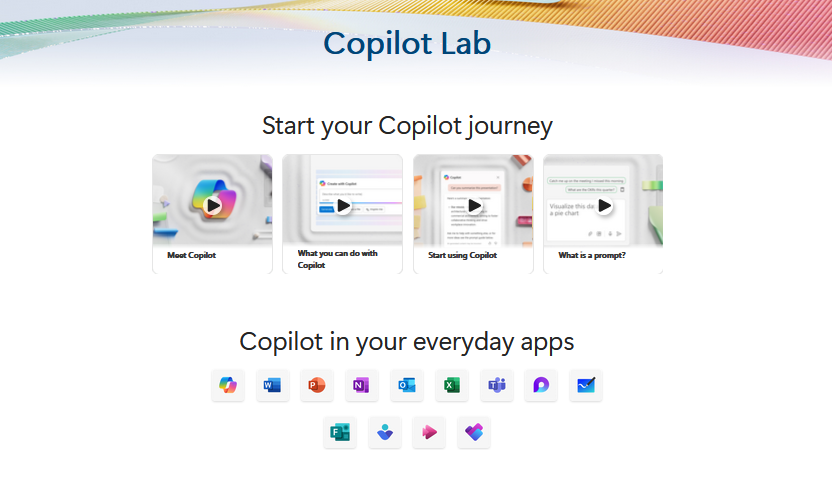
Microsoft’s Copilot Lab offers a wide range of prompts for various creative projects and content generation.
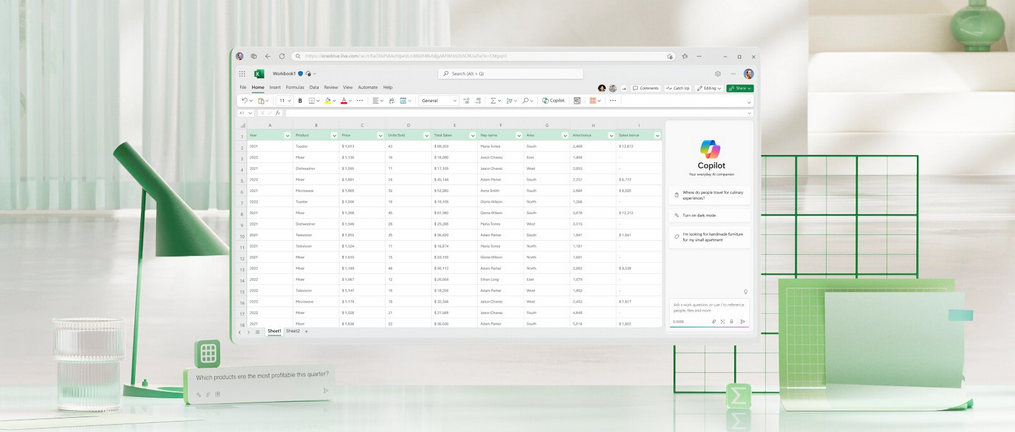
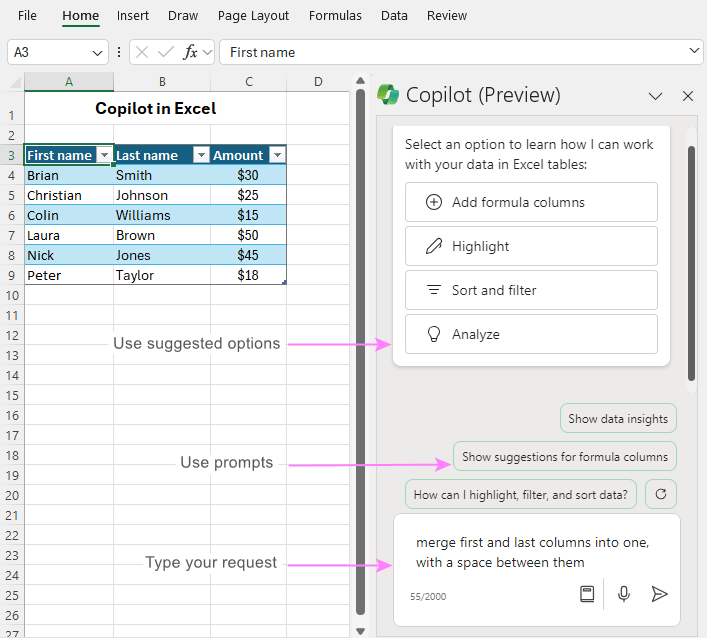
Microsoft Copilot in Excel helps you do more with your data in Excel tables by generating formula column suggestions, showing insights in charts and PivotTables, and highlighting interesting portions of data.
Open Excel in Microsoft 365.
2. Open a workbook stored on OneDrive or SharePoint. Important: Your data needs to be formatted in specific ways (see Format data for Copilot in Excel), and you’ll need to select a cell within your table or data range before using Copilot.
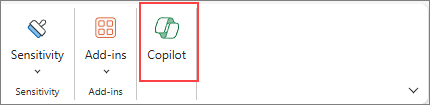
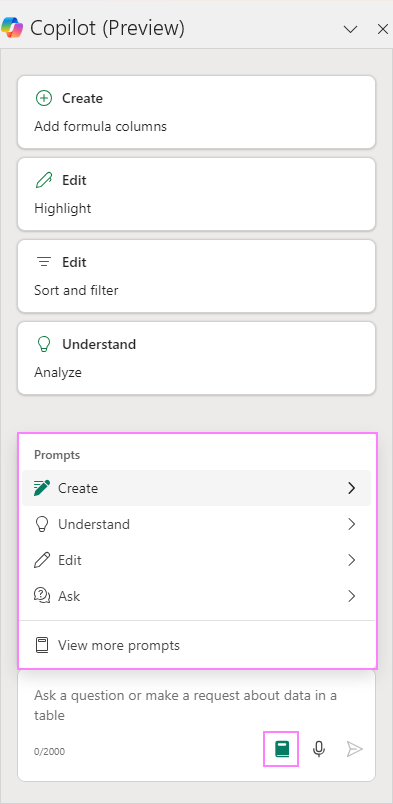
4. Select Copilot on the ribbon to open the chat pane. Tip: If you can’t select the Copilot button in the ribbon, try saving the file to the cloud first. 5. Enter your prompts and start working with Copilot.
Learn more about creating effective prompts at Copilot Lab.









 Catastrophic Failure