To improve self-service capabilities and reduce support dependency, Microsoft has made the Remove-DkimSigningConfig cmdlet available to tenant administrators. This cmdlet enables admins to remove obsolete DomainKeys Identified Mail (DKIM) signing configurations directly from Exchange Online PowerShell, helping clean up configurations when domains are removed from a tenant.
When this will happen This feature is already enabled worldwide, including in special clouds.
How this affects your organization
Who is affected:Tenant administrators managing DKIM configurations in Exchange Onlinewith either the Transport Hygiene management role or the Security Administrator role in Entra ID.
What will happen:
Admins can now run Remove-DkimSigningConfig directly using Exchange Online PowerShell (requires ExO v3.7 module).
No escalation to Microsoft support is needed for DKIM cleanup.
Obsolete DKIM configurations for removed domains can be self-managed.
The cmdlet is available by default for eligible roles.
This cmdlet does not replace any existing tools or processes; it introduces a new capability for tenant admins to manage DKIM cleanup independently.
What you can do to prepare
Ensure you have the required role (Transport Hygiene or Security Administrator).
Upgrade to Exchange Online PowerShell module v3.7.
Use Connect-ExchangeOnline and run Remove-DkimSigningConfig as needed.
Update internal documentation for DKIM management procedures.
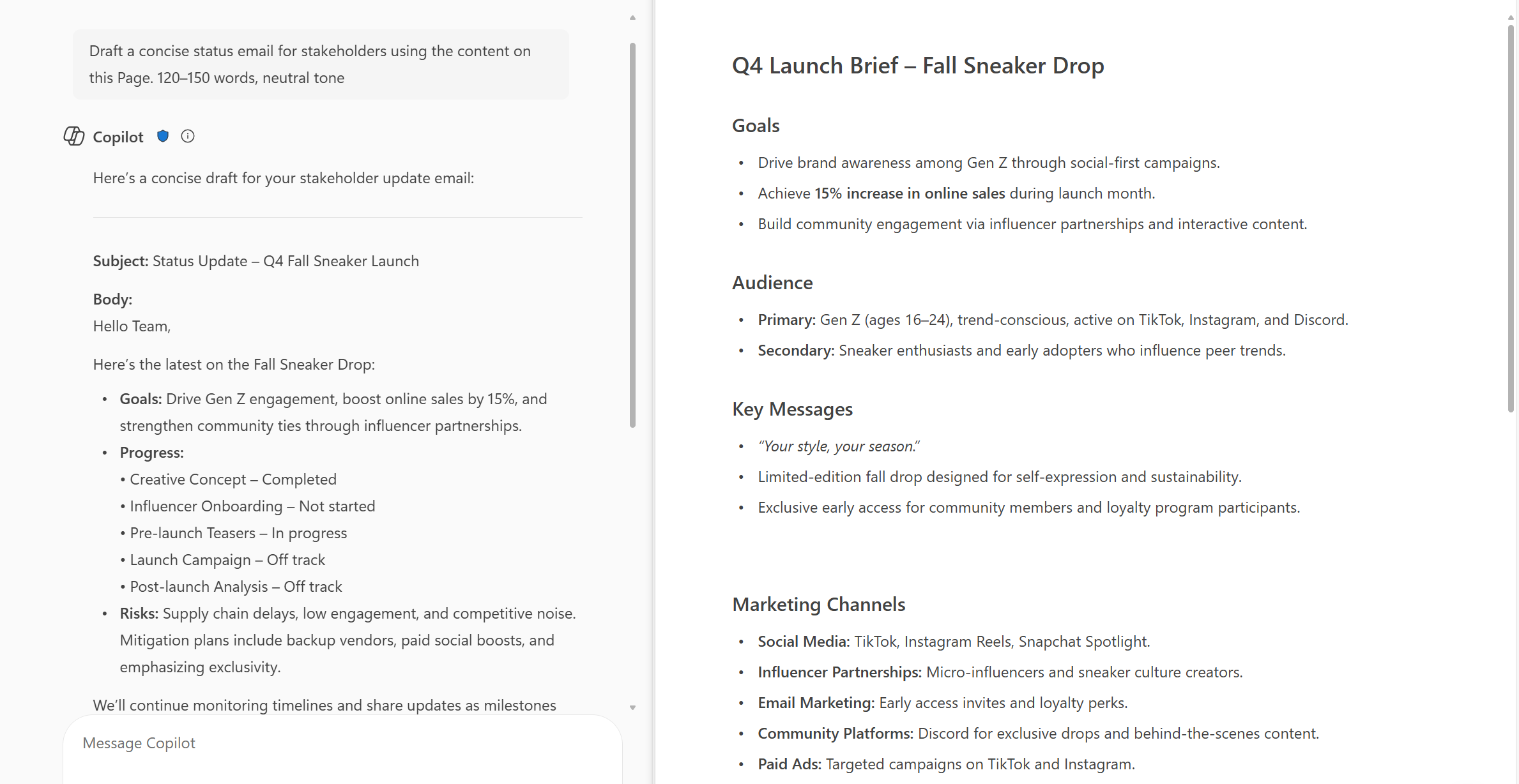
Microsoft introducing a new capability in Copilot Pages that allows Copilot Chat to answer questions based on the contents of the currently open page. This enhancement supports more efficient workflows by enabling users to get contextual answers directly within the side-by-side Chat experience, without needing to switch views or search manually.
When this will happen: General Availability (Worldwide): We will begin rolling out in early October 2025 and expect to complete by early November 2025.
How this affects your organization:
Who is affected: Users with access to Copilot in Microsoft 365 who use Copilot Pages and Copilot Chat in side-by-side mode.
What will happen:
Users will be able to ask questions in Copilot Chat about the currently open page in Copilot Pages.
Copilot will respond using the content of the open page to provide contextual answers.
The feature will be ON by default for eligible tenants to configure.
Existing admin policies are respected; no policy changes are required.
What you can do to prepare:
Communicate this change to helpdesk and support staff.
Update internal documentation or training materials that reference Copilot Pages or Chat functionality.
Review user guidance to ensure users understand how to use Copilot effectively in side-by-side mode.
Microsoft Copilot will be able to answer questions based on content shared onscreen during a Teams meeting.
Microsoft: “Copilot will be able to understand slides, documents, spreadsheets, and websites, or anything else shared onscreen. Users will be able to ask simple recall questions, such as “Show me the content that was shared on the screen” or more specific questions like “what was the Sales target number” if it was shared on a previous slide. Users will also be able to combine screen-share with transcript and chat data to ask, “Show me all the slides and the feedback on each slide,” or “Rewrite the paragraph based on the comments from the audience”.”
Microsoft Update at August 2025
After further review, we are not able to continue rolling this out at this time. We apologize for any inconvenience. Now, Copilot in Teams can analyze content shared on-screen during a meeting when recording is enabled. This, along with meeting transcript and meeting chat, enables users to ask Copilot to summarize or find specific information from screen-shared content (e.g., ‘Which products had the highest sales?’), consolidate insights across both the conversation and presentation (e.g., ‘What was the feedback per slide?’), and draft new content based on the entire meeting (e.g., ‘Rewrite the paragraph shared on the screen incorporating the feedback from the chat’). This works for any content shared while sharing your desktop screen (including but not limited to documents, slides, spreadsheets, and websites, irrespective of platform or app). Support for PowerPoint Live and Whiteboard in Teams will be available at a later date.
Microsoft announce some important updates to M365 Copilot Chat that will enhance security and user experience, following:
Integration with SafeLinks:
M365 Copilot Chat will integrate with SafeLinks in Defender for Office 365 to provide time-of-click URL protection for the hyperlinks included in its chat responses.
This change applies to users with Microsoft Defender for Office 365 Plan 1 or Plan 2 service plans. No policy configuration is needed within the SafeLinks policy.
Within Microsoft Defender for Office 365 Security Center, URL protection report will show the relevant summary and trend views for threats detected and actions taken on URL clicks.
Native Time-of-Click URL Reputation Check:
For users without SafeLinks protection (which is available as part of Microsoft Defender for Office 365), M365 Copilot Chat will natively enable time-of-click URL reputation check for the hyperlinks returned in its chat responses.
Hyperlink Redaction Changes:
M365 Copilot Chat will no longer redact hyperlinks in its chat responses if they are found in the grounding data used to generate the responses.
When this will happen:
General Availability (Worldwide): We will begin rolling out in late March 2025 and expect to complete by late May 2025.
Rollout will start on desktop and web and will complete with mobile versions. We plan to extend these updates to Copilot Chat experiences in Office apps in the future.
How this will affect your organization:
These updates are designed to enhance the security of the links included in M365 Copilot Chat response, ensuring that users are protected from malicious URLs.
What you need to do to prepare:
You may consider updating your training and documentation as appropriate to ensure users are aware of the change in behavior with hyperlinks in M365 Copilot Chat.
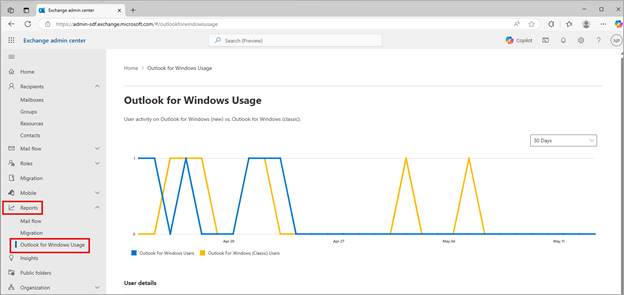
A new usage report for the new and classic Microsoft Outlook for Windows is being added to the Microsoft Exchange admin center.
This is the same data made available via the Microsoft 365 admin center usage report in March and is intended to make the data more easily accessible to Outlook admins who regularly use the Exchange admin center.
When this will happen:
General Availability (Worldwide): We began rolling out early May 2025 and expect to complete by late May 2025.
How this will affect your organization:
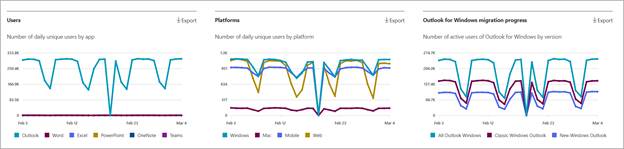
The new report Outlook for Windows Usage will be added to the Reports section in the EAC. This report will provide admins with detailed insights into user activity on the new Outlook for Windows versus the classic Outlook for Windows. The report includes a line chart showing the sum of users by endpoint over different time periods (days/weeks/months) and a data table with columns for email address, last activity date, and usage status for new and classic Outlook. You can export the data to csv and filter and search in the report.
The new report will be available by default in the Exchange admin center at Reports > Outlook for Windows Usage:
Examples of User details reports:
What you need to do to prepare:
This rollout is happening automatically by the specified dates with no admin action required before the rollout. Review your current configuration to assess the impact on your organization. You may want to update any relevant documentation.
Familiarize yourself with the new report and its features. Ensure that your organization’s admins have access to the EAC and are aware of the new reporting capabilities to support their new Outlook migration efforts.
In 2018, Microsoft announced that they’ll no longer making feature updates to Exchange Web Services (EWS) in Exchange Online, and advised developers to move to Microsoft Graph.
In 2023, Microsoft announced that on October 1, 2026, they will start blocking EWS requests to Exchange Online.
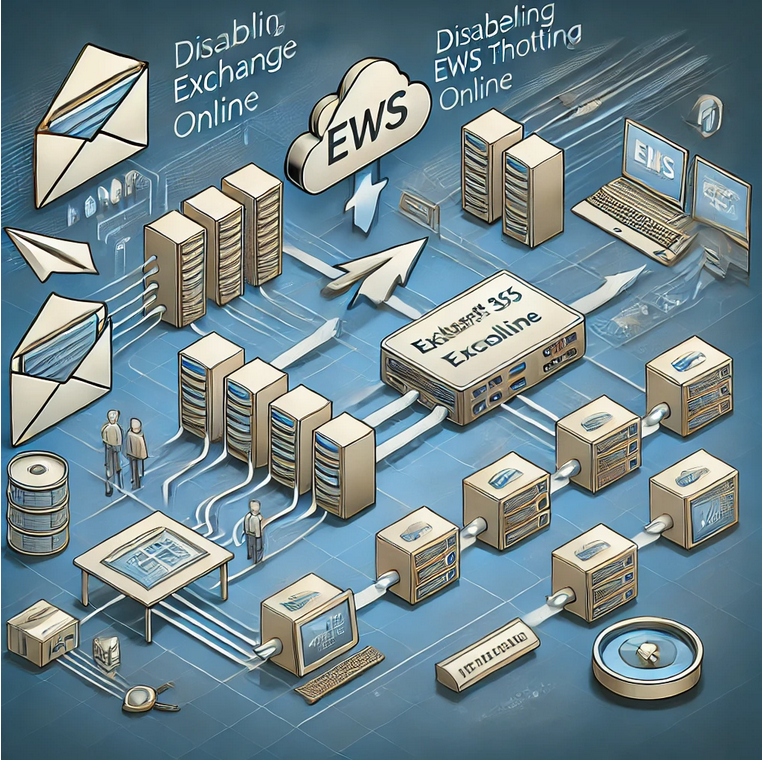
Today, in Microsoft ongoing commitment to enhance the security and control mechanisms of Exchange Web Services (EWS), Microsoft announcing a significant change in the behavior of the EWSEnabled tenant-wide switch in Exchange Online. This modification provides a more robust framework for managing EWS access within organizations, ensuring both flexibility and security, and is necessary as they continue to work in there plan to disable EWS starting October 2026.
Current Behavior
The EWSEnabled flag can be set at both the tenant (organization) level and the user (mailbox) level. Currently, when the flag is set to true at the user level, it takes precedence over the organization-level setting. If the setting is Null, it means the setting is not enforced at that level. If Org and user-level are both Null, the default behavior is to allow. This hierarchical structure means that if the organization-level flag is set to false, but the user-level flag is set to true, EWS requests from that user are still allowed. In other words:
Organization Level
User Level
EWS Requests
True or <null>
True or <null>
Allowed
True or <null>
False
Not Allowed
False
True
Allowed
False
False or <null>
Not Allowed
This approach has led to inconsistencies and security concerns. It can be challenging for administrators to ensure uniform policy enforcement across their organization, particularly in large and complex environments.
New Behavior
To address these issues, we are altering the behavior so that EWS will only be allowed if both the organization-level and user-level EWSEnabled flags are true. Here’s a simplified view of the new logic:
Organization Level
User Level
EWS Requests
True or <null>
True or <null>
Allowed
True or <null>
False
Not Allowed
False
True or <null>
Not Allowed
False
False
Not Allowed
In short, EWS will be permitted only if both the organization and user-level allow it. This change ensures that administrators have better control over EWS access and can enforce policies more consistently across their entire organization.
This change will rollout worldwide starting April 2025.
Tenant-level setting
The first thing to check is your tenant setting. To do this, simply run this command in Exchange Online PowerShell
If the EWSEnabled flag is empty (the default), or set to True – this change won’t affect you, but we still advise you read the per-user settings information below to make sure it matches your expected settings.
If your EWSEnabled flag is set to False, you might see some impact when we enforce this new logic change on your tenant unless you take action now. We encourage you to review the section below to ensure your per-user settings reflect your desired state for who can and cannot use EWS, and then proactively change the tenant wide switch to True to ensure uninterrupted access for users and apps.
User-level setting
As discussed earlier, even if your tenant-wide EWSEnabled switch has been set to False, it’s currently still possible to use EWS, if the per-user setting is set to True (default setting for every mailbox).
To check if EWS is Enabled or Disabled for a specific mailbox, you can run:
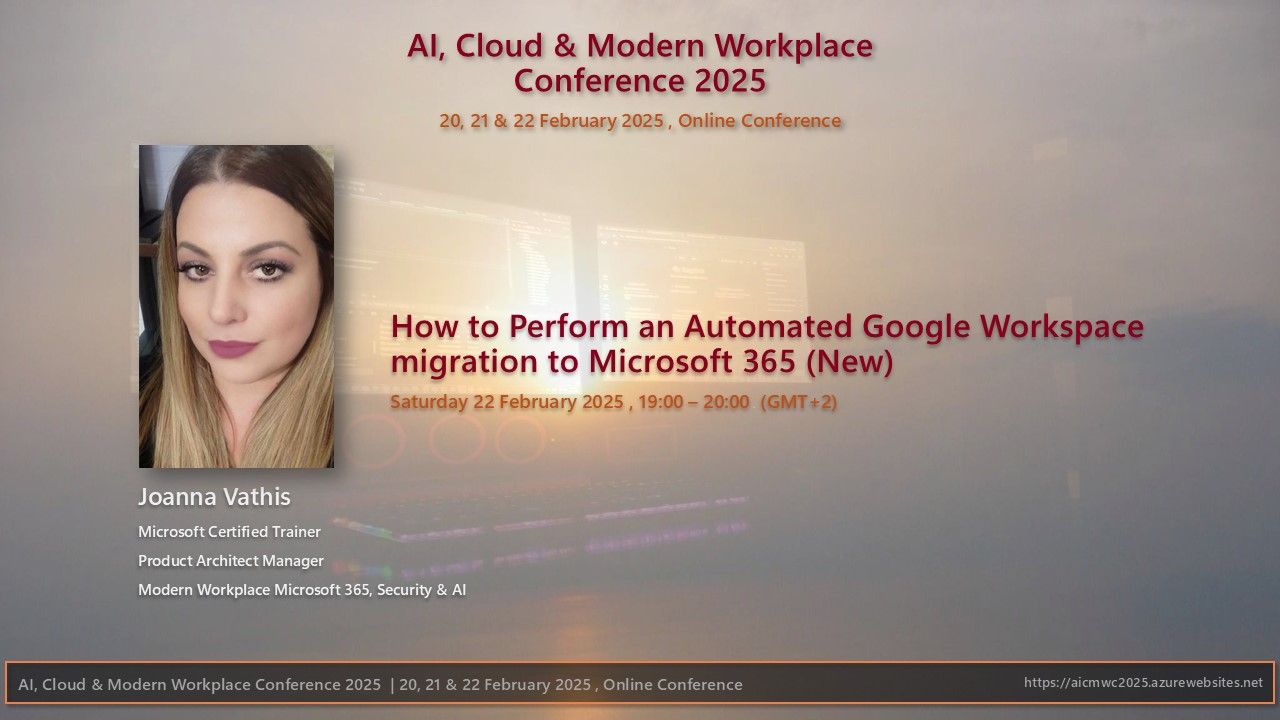
📌📖 Title of Presentation: How to Perform an Automated Google Workspace Migration to Microsoft 365 (New)
I’m excited to share some insights about the amazing features of How to Perform an Automated Google Workspace migration to Microsoft 365. Migrating from Google Workspace to Microsoft 365 can be quite a daunting task, particularly when dealing with mailboxes over 100 GB. But fear not! In our presentation, we will delve into the challenges and solutions for a successful migration, catering to both normal and large mailboxes. We will start by discussing the various challenges that come with such a migration. From there, we will move on to the importance of thorough planning to ensure a smooth transition. Next, we will introduce a new way of migrating from Google Workspace to Microsoft 365, detailing the methods to handle large mailboxes effectively. To make things even more engaging, we will have a live demo to showcase the process in action. And of course, we will wrap things up with a Q&A session to address any questions or concerns you may have.
Challenges
Planning
New way of migration from Google Workspace migration to Microsoft 365
Methods to migrate large mailboxes to Microsoft 365
Demo
Q & A
❤️ Join us on Saturday, 22 February 2025, from 19:00 to 20:00 (GMT+2) to gain invaluable insights from Joanna. We are honored to have her share her expertise at our conference! A big thank you to Joanna for her valuable help and selfless contribution to the community. We are truly grateful for her presence and look forward to learning from her expertise. Don’t miss this opportunity to learn from one of the best in the industry!
This month Microsoft rolled out support for an additional 12 languages in Microsoft 365 Copilot: Bulgarian, Croatian, Estonia, Greek, Indonesian, Latvian, Lithuanian, Romanian, Serbian (Latin), Slovak, Slovenian, and Vietnamese. Microsoft 365 Copilot now supports a total of 42 languages.
Finally, users working in Serbian language will see Teams meeting transcripts in Cyrillic, rather than Latin script. This is an issue Microsoft working to resolve. Microsoft will provide customers with updates on progress towards providing Teams meeting transcripts for Serbian language in Latin script on an as-appropriate basis. Learn more about supported languages for Microsoft Copilot here.
Microsoft are also continuing to expand the list of supported languages, with plans to offer support for even more languages in the coming months, stay tune!
With Copilot now available on WhatsApp, you’re never alone. Get instant help, anytime. Microsoft has embedded its AI chatbot, Copilot, directly into WhatsApp, bringing artificial intelligence to over two billion users worldwide. With this move, AI capabilities like image generation and personalized recommendations are now available directly in the messaging app.
Copilot on WhatsApp offers a wide range of features:
Image Creation: Users can generate custom images directly in chat, expanding creative possibilities.
Text Summarization: Perfect for students and professionals, Copilot provides concise summaries of long documents, boosting productivity.
Personalized Recommendations: Copilot offers tailored suggestions, whether it’s for daily planning, vacation ideas, or task organization.
Recipe Suggestions: For cooking enthusiasts, Copilot can suggest recipes based on ingredients or dietary needs.
Writing Help: From grammar checks to idea generation, Copilot assists writers in refining and enhancing their content.
Current Limitations and Future Developments
While Copilot offers numerous features, some limitations remain. For instance, voice message support is currently unavailable, which is a popular feature for many WhatsApp users. However, with Microsoft’s rapid advancements in AI, future updates are likely to address such gaps, potentially adding voice message capabilities soon.
By integrating Copilot into a familiar platform like WhatsApp, Microsoft is making AI more accessible and transforming everyday communication. This step not only democratizes advanced tech but also sets the stage for new, intuitive human-AI interactions.
Talking with Copilot is an easy way to learn, grow, and gain confidence.
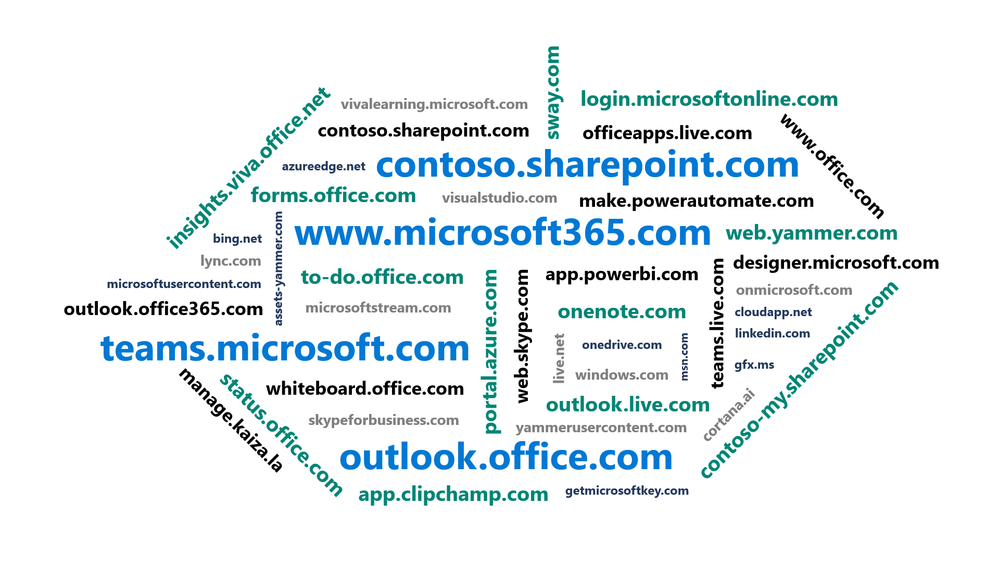
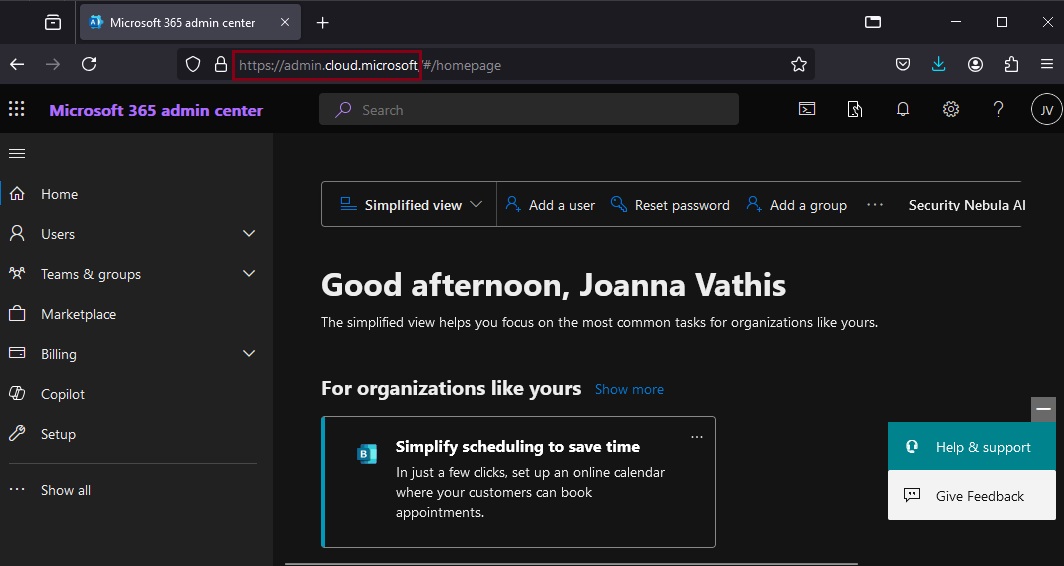
As Microsoft cloud services have grown over the years, the domain space they live on has grown as well – into the hundreds. Over time, this fragmentation has created increasing challenges for end user navigation, administrative simplicity, and the development of cross-app experiences. Microsoft’s announcement, “cloud.microsoft is the new unified domain for Microsoft 365 apps and services.” It promises greater security and unified experience.
Why cloud.microsoft?
‘Dot brand’ top-level domains like .microsoft are an established method for enhancing the security, trustworthiness, and integrity of an organization’s web offerings. Similar to how the US government has exclusive rights to the .gov top-level domain (TLD), Microsoft has exclusive rights to the .microsoft TLD. Exclusive ownership enables enhanced security protocols and governance controls, and the value of security investments done at the top-level domain seamlessly accrue to the apps. And all experiences hosted on the .microsoft domain can be assumed to be legitimate and authentic: anyone attempting domain spoofing would have to go through Microsoft itself, as we are both the registry operator and sole registrant for this exclusive, trusted namespace. A common term before the “dot” is also necessary in order to realize the full benefits of a unified domain. “Cloud” was selected as a durable, extensible, neutral term with a meaningful relationship to the wide range of services that will come under its umbrella, starting with Microsoft 365.





 Catastrophic Failure