Microsoft announced that Copilot in Planner (preview) is now rolled out to 100% of users with a Project Plan 3 or Project Plan 5 license* in Microsoft Planner in Teams. With the power of generative AI, Copilot in Planner streamlines the planning, management, and execution of your work etc. If you already have a Project Plan 3 or Project Plan 5 license, you can preview Copilot in Planner capabilities*.
If you do not have a Project license, you can request a free 30-day trial. Simply click on the diamond icon within the Planner app in Teams where you can begin your free 30-day trial of advanced capabilities of Planner including Copilot in Planner or proceed with requesting a premium license.
Explore Copilot in Planner (preview) for planning, managing, and tracking projects:
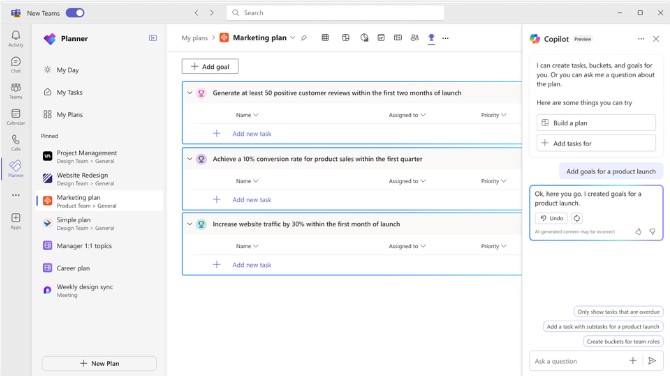
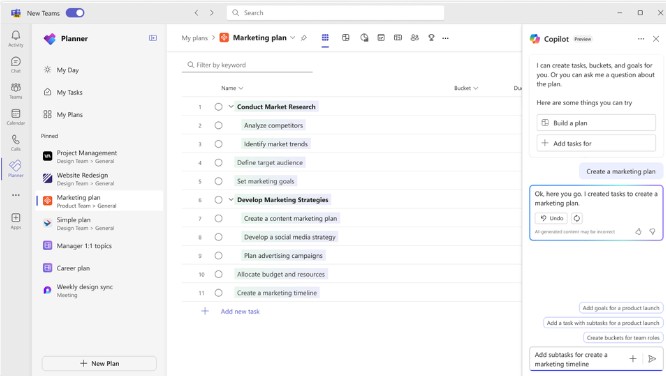
• Planning: Copilot assists teams in setting goals, breaking down work, and generating tasks, goals, and buckets based on user prompts, facilitating the creation of a comprehensive project plan. • Effective Execution: Copilot helps streamline processes, identify next steps, and break down large tasks. It manages collaboration, tracks new goals, and identifies workload issues among team members. • Tracking Progress: Copilot aids in tracking complex plans by quickly surfacing necessary information about progress, priorities, and workload, ensuring teams stay informed and on track.
Planning
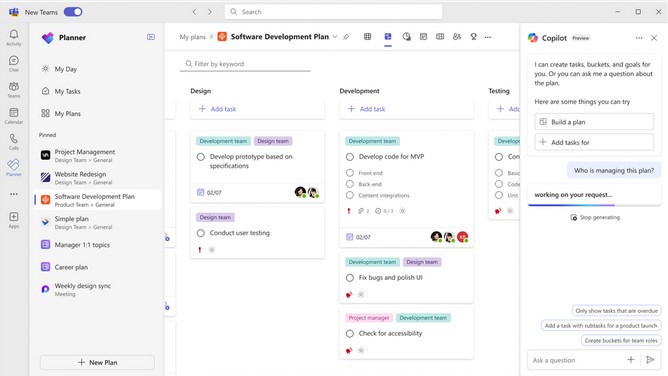
Managing. Effective execution is key to actually achieving your planned goals. With Copilot as your digital assistant, you can streamline this process and stay on track. Copilot can help you identify what to work on next or break up a large work item into actionable steps. It takes direction from users, seeking approval and feedback to manage how people and AI work together to achieve goals. When it’s time to triage an issue, expand scope, or make other changes to the plan, Copilot can help track a new goal, identify what tasks are behind, or which team members have the highest workload
Tracking
In general, Copilot supports the following languages for prompts: Chinese (Simplified), English, French, German, Italian, Japanese, Portuguese (Brazil), Spanish. We plan on to add more languages to Copilot and will update as additional languages are supported
Organizations using OneDrive for work or school are going to have to start paying more attention to their unlicensed accounts thanks to new policies starting January 27th next year. Any user account that stays unlicensed for longer than 90 days will be automatically archived by Microsoft, incurring a $0.05 per GB monthly storage fee. In this state, the data will be inaccessible to both admins and end users until the organization enables unlicensed account billing and pays a $0.60 per GB fee to reactivate it. If payments for the storage fees stop, the account will be deleted within a 93-day period.
Beginning January 27, 2025, any OneDrive user account that has been unlicensed for longer than 90 days becomes inaccessible to admins and end users. The unlicensed account is automatically archived, viewable via admin tools, but remains inaccessible until administrators take action on them.”
On the 25th of April, Microsoft announced a robust set of multi-tenant organization (MTO) capabilities within Microsoft 365, now generally available to enhance any organization’s collaboration, communication, and administration across multiple tenants. These capabilities span Microsoft 365 People Search, Microsoft Teams, Viva Engage and Microsoft Defender XDR, which can be enabled via the Microsoft 365 admin center or Microsoft Entra admin center.
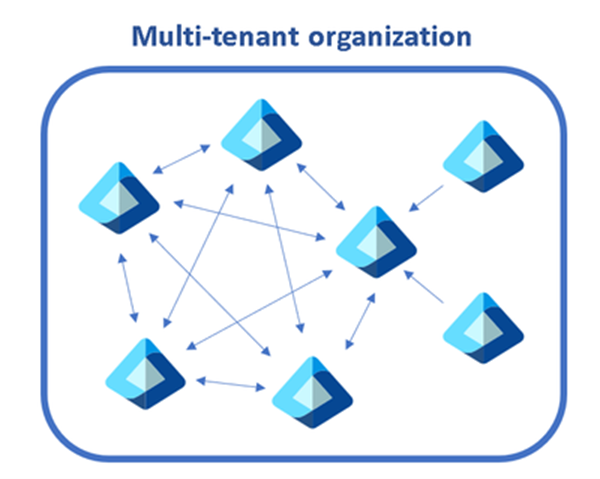
This segmentation can cause frustration when users need to communicate and collaborate across tenant boundaries, whilst IT admins need to perform the same set of administrative tasks per tenant to maintain their organization.
A diagram showing multiple tenants within a single organization.
The capabilities we discuss below help multi-tenant organizations address these complexities, while staying compliant and secure:
Find people across organizations easily: Search for and communicate with colleagues in a unified manner with improved people search. Every search now returns a single, accurate result, simplifying how you connect with the right colleague.
Streamlined workforce collaboration: Engage in calls, chats, and meetings across tenants without the barriers of meeting lobbies. Enjoy immediate access to meeting content and collaborative tools in real time.
Unlock new ways for employees and leaders to connect: We’ve broadened the capabilities in Viva Engage, facilitating cross-tenant announcements and enabling community interaction and campaign participation that extend beyond tenant boundaries.
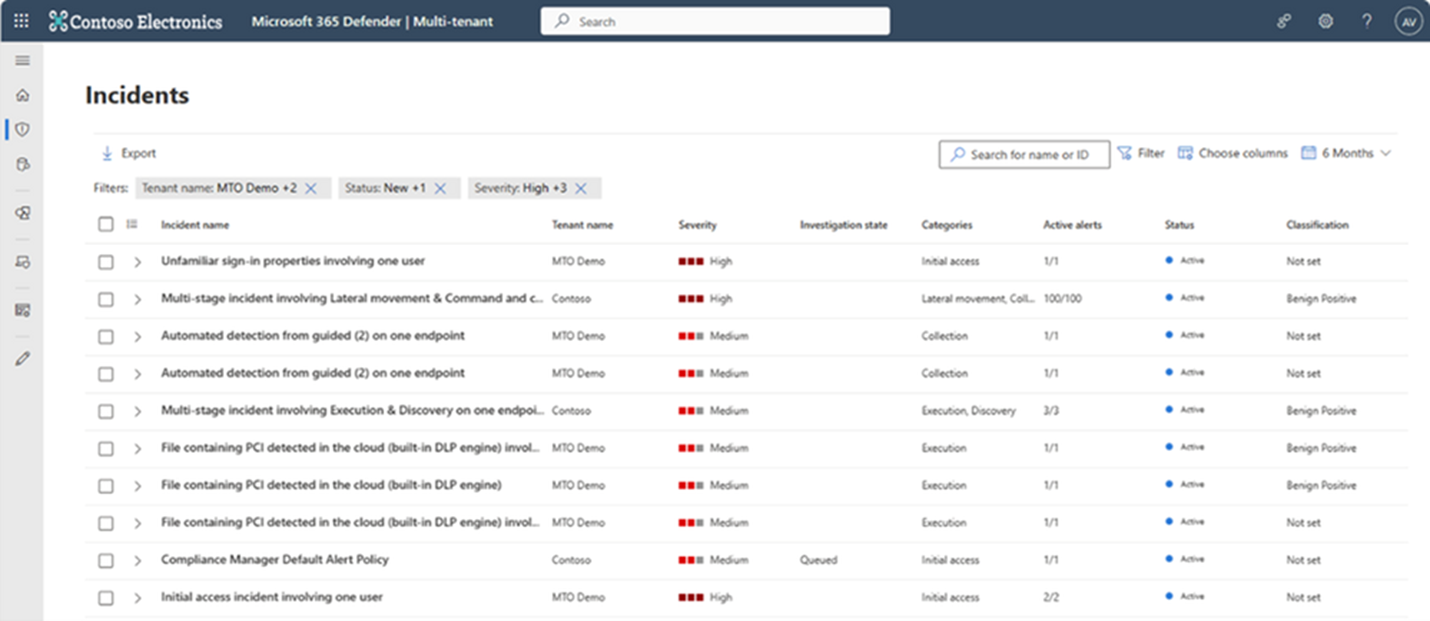
Manage incidents across tenants: Microsoft Defender XDR provides a single, unified view of all tenants your organization manages, allowing for swift incident investigation and advanced threat hunting without the need to switch between tenant views.
Simplify multi-tenant management: The newly defined multi-tenant organization boundary in Microsoft Entra ID P1 simplifies the enablement, configuration and management of the capabilities above. Whether through Microsoft Graph APIs or the Microsoft 365 Admin Center, setting up is intuitive and straightforward.
Find people across organizations easily with People Search
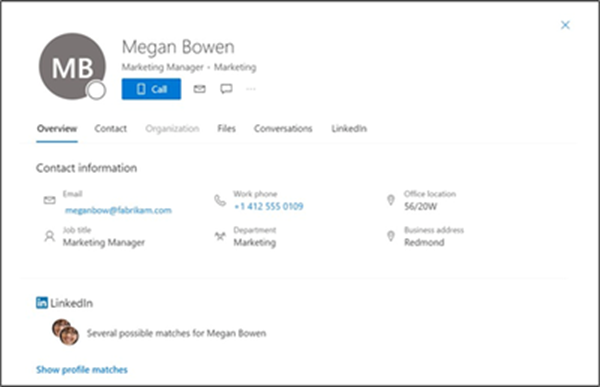
The multi-tenant organization (MTO) People Search is a collaboration feature that enables search and discovery of people across multiple tenants. A tenant admin can enable cross-tenant synchronization that allows users to be synced to another tenant and be discoverable in its global address list. Once enabled, users can search and discover synced user profiles from the other tenant and view their corresponding people cards.
An image showing a synchronized user profile from another tenant in Microsoft 365
Streamline workforce collaboration with Microsoft Teams
Once administrators form a multi-tenant organization in the Entra ID platform organizations with the new Teams desktop client will automatically receive the Teams MTO features with no additional configuration. Users can now join a meeting, chat, call, or collaborate in a channel hosted by another tenant, and simultaneously compose chat messages in their own tenant. Users can receive cross-tenant notifications for all accounts and tenants added to the Teams client, no matter which one is currently in focus. People’s search is also improved. Searches for coworkers in a multi-tenant organization could often return multiple results for the same person. With the new MTO capabilities in the new Teams client, searching for a coworker in an MTO will return a single result, helping you to identify the correct colleague and keep your conversations in one place.
The new Teams desktop client showing improved people search capability on the right hand side Users that join a meeting in another tenant can now bypass the meeting lobby, have access to all in-meeting content and resources and can collaborate in real time.
Manage incidents across tenants with Microsoft Defender XDR
Security operations teams that work with multiple tenants need a reliable and comprehensive security solution that can keep up with modern threats and provide unified and connected experience to enhance their security operations. Microsoft Defender XDR now delivers unified investigation and response experience for multi-tenant organizations alongside native protection across endpoints, identities, email, collaboration tools, cloud apps, and data.
With multi-tenant management in Microsoft Defender XDR, security operations teams can quickly investigate incidents and perform advanced hunting across data from multiple tenants, removing the need for administrators to log in and out of each individual tenant.
Enable Microsoft 365 multi-tenant capabilities with Microsoft Entra ID
Multi-tenant organization platform capabilities are now rolling out to standard production tenants in Microsoft 365. To deliver the above capabilities, administrators can enable multi-tenant capabilities in the Microsoft 365 admin center and configure which users in the organization can take advantage of multi-tenant capabilities using either Microsoft 365 admin center or Microsoft Entra admin center.
This approach allows you to define a boundary around the Entra ID tenants that your organization owns, facilitated by an invite-and-accept flow between tenant administrators. Learn more about the process in the Microsoft 365 admin center here and using Microsoft Graph API’s here. We recommend the use of the Microsoft 365 admin center to simplify the setup experience and to view your newly created MTO:
Snapshot of a multitenant organization collaboration with three tenants.
Following the formation of the multi-tenant organization, Microsoft offers two methods to provision employees into neighboring multi-tenant organization tenants at scale.
For a simplified experience, stay in the Microsoft 365 admin center to sync users into multiple tenants in your multi-tenant organization. Microsoft recommend this method for smaller multi-tenant organizations who plan on all employees receiving access to all multi-tenant organization tenants.
For a customizable sync experience, head over to Entra ID cross-tenant synchronization. Cross-tenant synchronization is highly configurable and allows the provisioning of any multi-hub multi-spoke identity landscape. We recommend this method for enterprise organizations of complex identity landscapes. Either method works. Choose the one that works best for your specific organization!




 Catastrophic Failure