When you apply your company brand to customize the look of your organization’s email messages, you can also specify an expiration for these email messages. With Microsoft Purview Advanced Message Encryption, you can create multiple templates for encrypted emails that originate from your organization. Using a template, you can control how long recipients have access to mail sent by your users.
When an end user receives mail that has an expiration date set, the user sees the expiration date in the wrapper email. If a user tries to open an expired mail, an error appears in the OME portal.
You can only set expiration dates for emails to external recipients.
With Microsoft Purview Advanced Message Encryption, anytime you apply custom branding, Microsoft 365 applies the wrapper to email that fits the mail flow rule to which you apply the template. You can only use expiration if you use custom branding.
Microsoft 365 E5 subscription
Compliance Administrator Permissions
How to create a custom branding template to force mail expiration by using PowerShell
Using a work or school account that has sufficient permissions in your organization, such as Compliance Administrator, start a Windows PowerShell session and connect to Exchange Online. For instructions, see Connect to Exchange Online PowerShell.
Run the New-OMEConfiguration cmdlet
Where:
Identity is the name of the custom template.
ExternalMailExpiryInDays identifies the number of days that recipients can keep mail before it expires. You can use any value between 1–730 days.
More information about Microsoft Purview Advanced Message Encryption
Microsoft Defender is updating the Export-QuarantineMessage cmdlet to include a new -PasswordV2parameter for plain text passwords, replacing the old -Password parameter. Microsoft offer the -PasswordV2 parameter as a new experience that allows admins and users to pass plain text for their passwords when exporting Quarantine items in PowerShell cmdlet. Admins and users should use the -PasswordV2parameter, because using the previous -Password parameter may cause errors and –Password won’t be available in the longer term.
For files that were quarantined by Safe Attachments for SharePoint, OneDrive, and Microsoft Teams, the files are exported in Base64 format.
Export-QuarantineMessage cmdlet functionality before this rollout:
Export-QuarantineMessage cmdlet functionality after this rollout:
Use the Export-QuarantineMessage cmdlet to export quarantined messages and files from your cloud-based organization. Messages are exported to .eml message files so you can open them in Outlook.
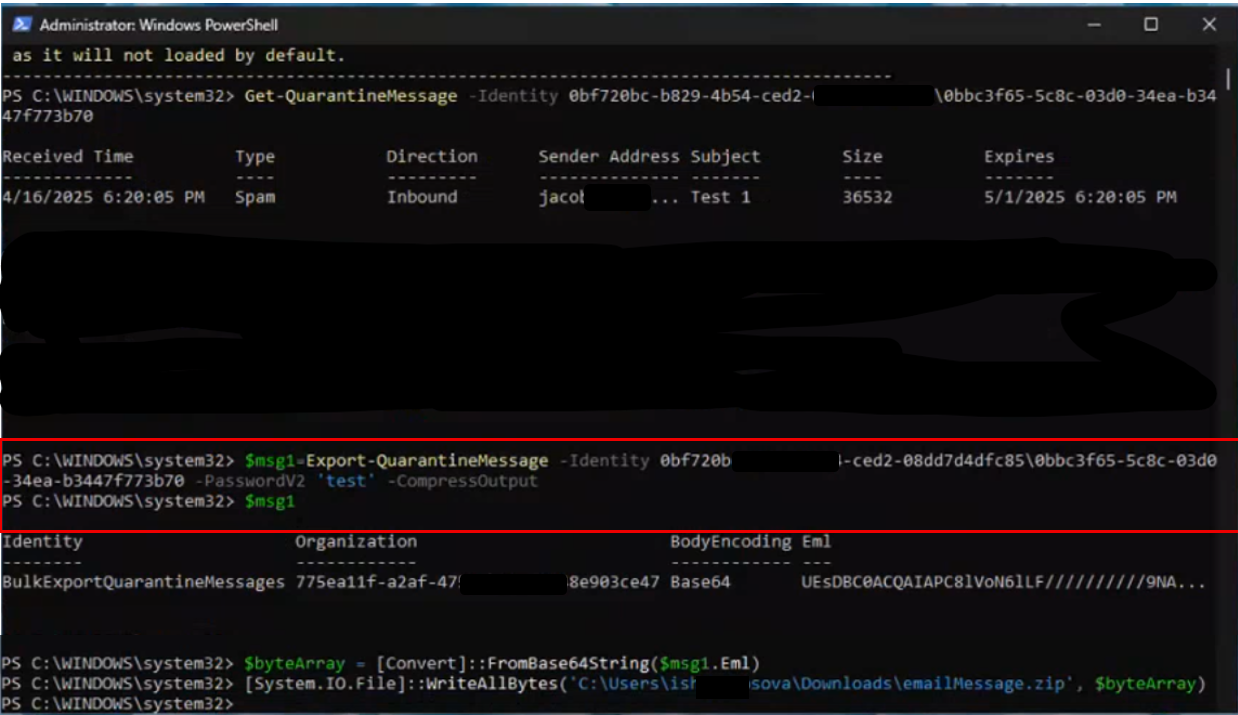
This example exports the specified message with attachments that was quarantined as malware:
The first command exports the quarantined message and attachments to the variable $f. The message and attachments are stored in the Eml property (the $f.eml value) as Base64 (based on the $f.BodyEncoding value).
The second command converts the Eml property from Base64 to bytes and stores the result in the variable $bytes.
The third command writes the quarantined message and attachments to the specified .eml file.
Microsoft 365 Copilot is a sophisticated processing and orchestration engine that provides AI-powered productivity capabilities by coordinating the following components:
Large language models (LLMs)
Content in Microsoft Graph, such as emails, chats, and documents that you have permission to access.
The Microsoft 365 productivity apps that you use every day, such as Word and PowerPoint.
How does Microsoft 365 Copilot use your proprietary organizational data?
Microsoft 365 Copilot provides value by connecting LLMs to your organizational data. Microsoft 365 Copilot accesses content and context through Microsoft Graph. It can generate responses anchored in your organizational data, such as user documents, emails, calendar, chats, meetings, and contacts. Microsoft 365 Copilot combines this content with the user’s working context, such as the meeting a user is in now, the email exchanges the user had on a topic, or the chat conversations the user had last week. Microsoft 365 Copilot uses this combination of content and context to help provide accurate, relevant, and contextual responses.
Microsoft 365 Copilot only surfaces organizational data to which individual users have at least view permissions. It’s important that you’re using the permission models available in Microsoft 365 services, such as SharePoint, to help ensure the right users or groups have the right access to the right content within your organization. This includes permissions you give to users outside your organization through inter-tenant collaboration solutions, such as shared channels in Microsoft Teams.
When you enter prompts using Microsoft 365 Copilot, the information contained within your prompts, the data they retrieve, and the generated responses remain within the Microsoft 365 service boundary, in keeping with our current privacy, security, and compliance commitments. Microsoft 365 Copilot uses Azure OpenAI services for processing, not OpenAI’s publicly available services. Azure OpenAI doesn’t cache customer content and Copilot modified prompts for Microsoft 365 Copilot.
Data stored about user interactions with Microsoft 365 Copilot
When a user interacts with Microsoft 365 Copilot (using apps such as Word, PowerPoint, Excel, OneNote, Loop, or Whiteboard), we store data about these interactions. The stored data includes the user’s prompt and Copilot’s response, including citations to any information used to ground Copilot’s response. We refer to the user’s prompt and Copilot’s response to that prompt as the “content of interactions” and the record of those interactions is the user’s Copilot activity history. For example, this stored data provides users with Copilot activity history in Microsoft 365 Copilot Chat (previously named Business Chat) and meetings in Microsoft Teams. This data is processed and stored in alignment with contractual commitments with your organization’s other content in Microsoft 365. The data is encrypted while it’s stored and isn’t used to train foundation LLMs, including those used by Microsoft 365 Copilot.
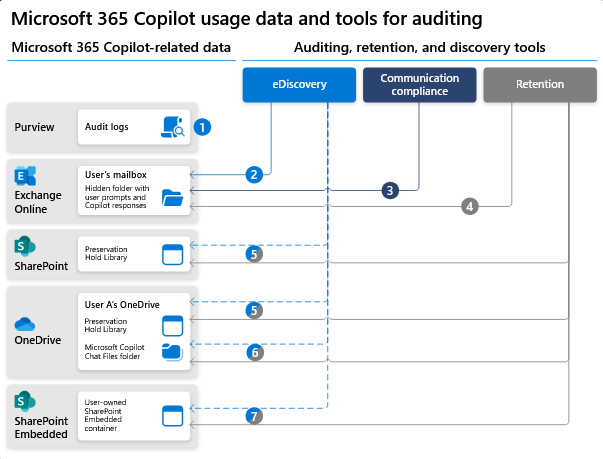
To view and manage this stored data, admins can use Content search or Microsoft Purview. Admins can also use Microsoft Purview to set retention policies for the data related to chat interactions with Copilot. For Microsoft Teams chats with Copilot, admins can also use Microsoft Teams Export APIs to view the stored data.
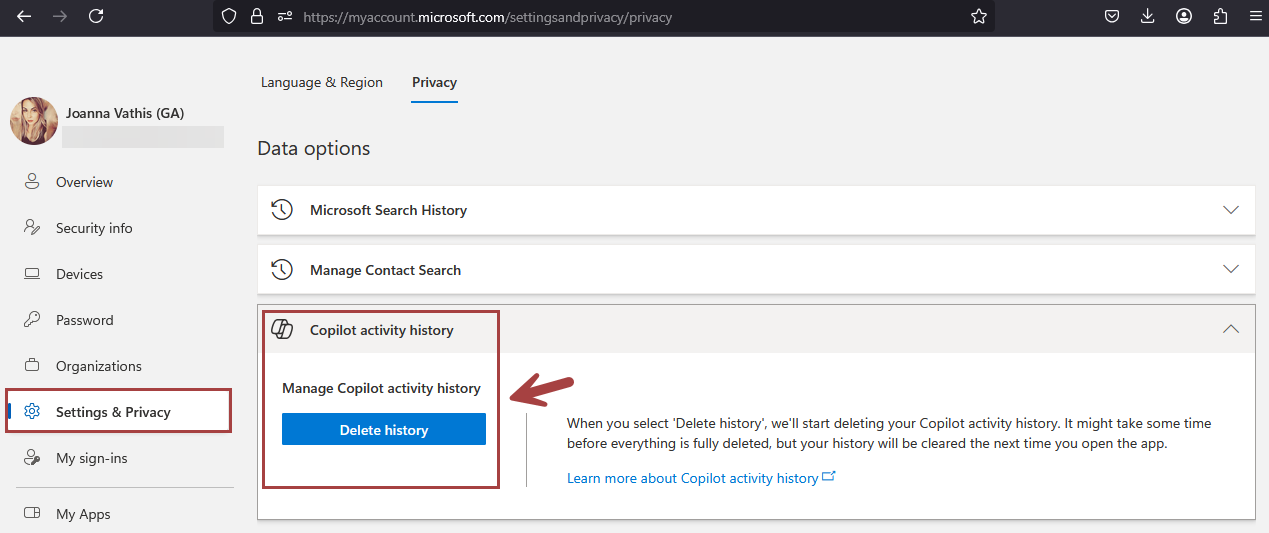
Deleting the history of user interactions with Microsoft 365 Copilot
Microsoft 365 Copilot calls to the LLM are routed to the closest data centers in the region, but also can call into other regions where capacity is available during high utilization periods.
For European Union (EU) users, we have additional safeguards to comply with the EU Data Boundary. EU traffic stays within the EU Data Boundary while worldwide traffic can be sent to the EU and other countries or regions for LLM processing. The EU Data Boundary is a geographically defined boundary within which Microsoft has committed to store and process Customer Data and personal data for our Microsoft enterprise online services, including Azure, Dynamics 365, Power Platform, and Microsoft 365, subject to limited circumstances where Customer Data and personal data will continue to be transferred outside the EU Data Boundary.
How does Microsoft 365 Copilot protect organizational data?
The permissions model within your Microsoft 365 tenant can help ensure that data won’t unintentionally leak between users, groups, and tenants. Microsoft 365 Copilot presents only data that each individual can access using the same underlying controls for data access used in other Microsoft 365 services. Semantic Index honors the user identity-based access boundary so that the grounding process only accesses content that the current user is authorized to access.
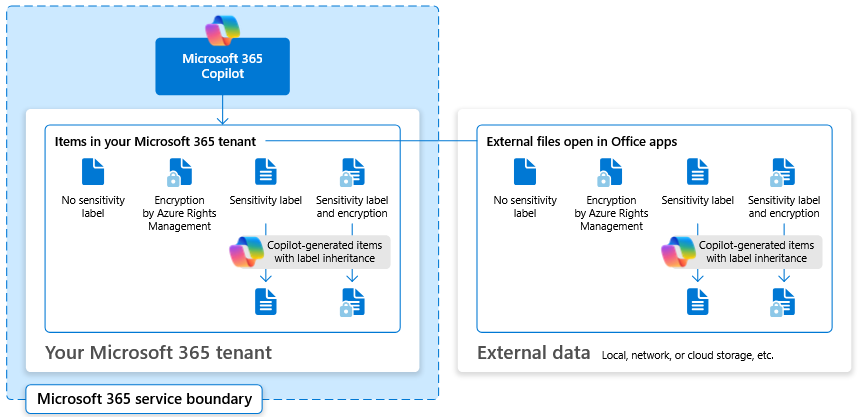
Copilot works together with your Microsoft Purviewsensitivity labels and encryption to provide an extra layer of protection. The following diagram provides a visual representation of how Copilot honors your information protection controls using sensitivity labels and encryption.
Copilot will only work with your M365 tenant data and won’t be able to access other companies’ data. Plus, your data doesn’t train the AI for other companies to leverage..
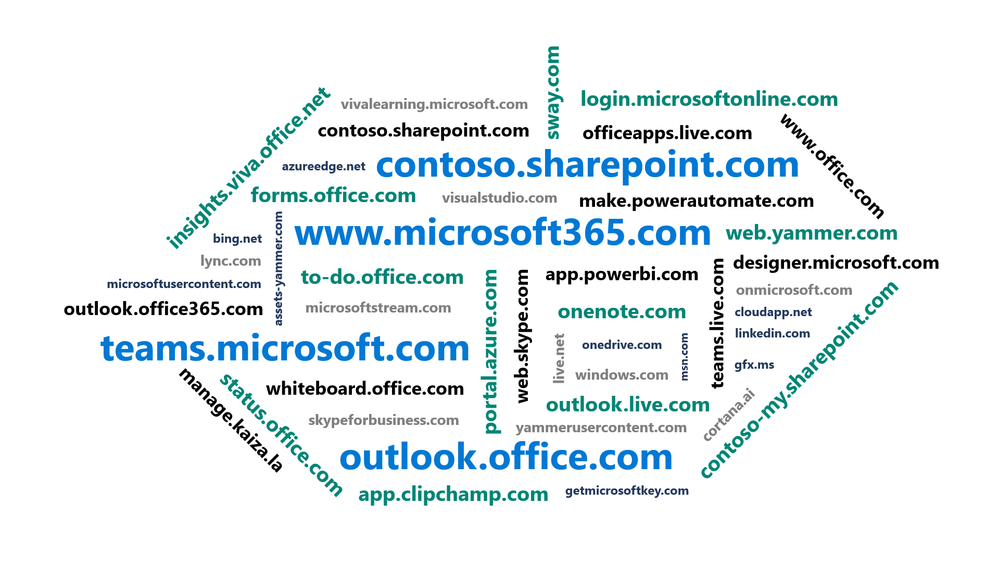
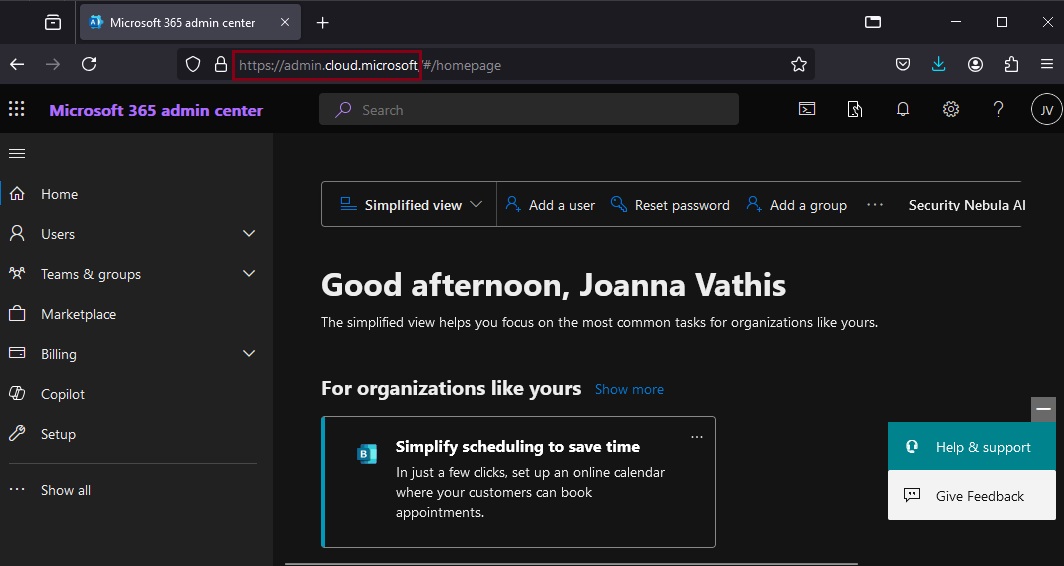
As Microsoft cloud services have grown over the years, the domain space they live on has grown as well – into the hundreds. Over time, this fragmentation has created increasing challenges for end user navigation, administrative simplicity, and the development of cross-app experiences. Microsoft’s announcement, “cloud.microsoft is the new unified domain for Microsoft 365 apps and services.” It promises greater security and unified experience.
Why cloud.microsoft?
‘Dot brand’ top-level domains like .microsoft are an established method for enhancing the security, trustworthiness, and integrity of an organization’s web offerings. Similar to how the US government has exclusive rights to the .gov top-level domain (TLD), Microsoft has exclusive rights to the .microsoft TLD. Exclusive ownership enables enhanced security protocols and governance controls, and the value of security investments done at the top-level domain seamlessly accrue to the apps. And all experiences hosted on the .microsoft domain can be assumed to be legitimate and authentic: anyone attempting domain spoofing would have to go through Microsoft itself, as we are both the registry operator and sole registrant for this exclusive, trusted namespace. A common term before the “dot” is also necessary in order to realize the full benefits of a unified domain. “Cloud” was selected as a durable, extensible, neutral term with a meaningful relationship to the wide range of services that will come under its umbrella, starting with Microsoft 365.
Organizations using OneDrive for work or school are going to have to start paying more attention to their unlicensed accounts thanks to new policies starting January 27th next year. Any user account that stays unlicensed for longer than 90 days will be automatically archived by Microsoft, incurring a $0.05 per GB monthly storage fee. In this state, the data will be inaccessible to both admins and end users until the organization enables unlicensed account billing and pays a $0.60 per GB fee to reactivate it. If payments for the storage fees stop, the account will be deleted within a 93-day period.
Beginning January 27, 2025, any OneDrive user account that has been unlicensed for longer than 90 days becomes inaccessible to admins and end users. The unlicensed account is automatically archived, viewable via admin tools, but remains inaccessible until administrators take action on them.”
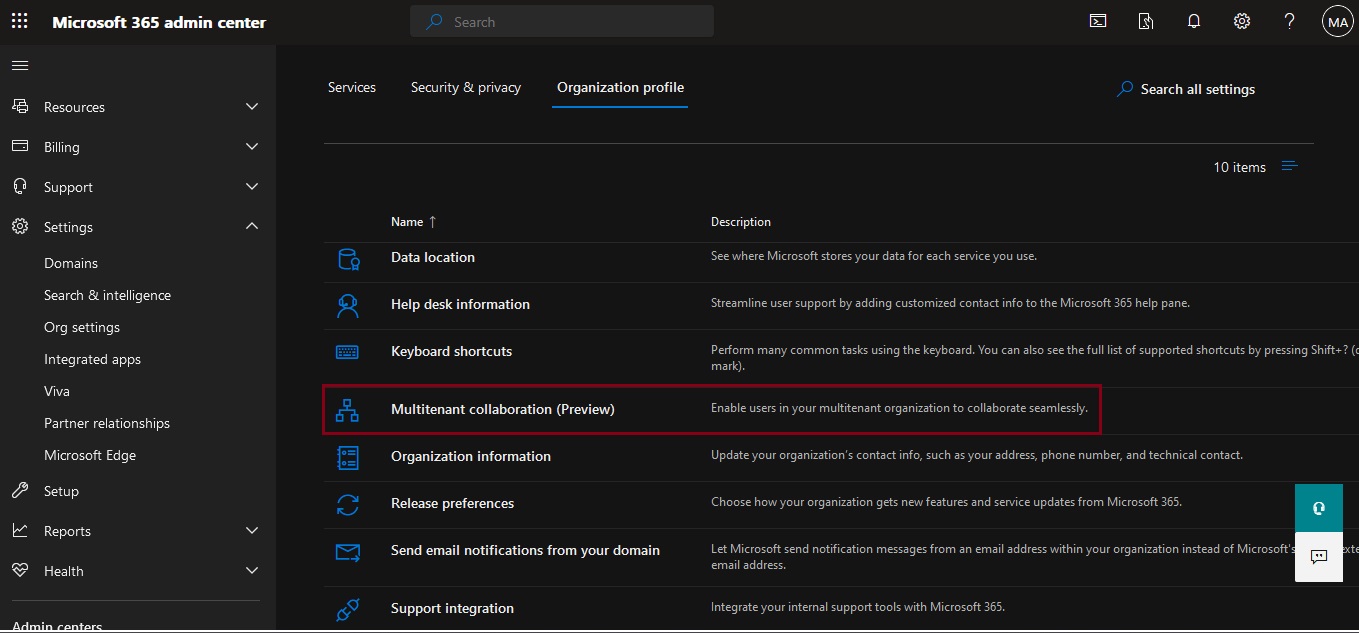
The multitenant organization capability is designed for organizations that own multiple Microsoft Entra tenants and want to streamline intra-organization cross-tenant collaboration in Microsoft 365. It’s built on the premise of reciprocal provisioning of B2B member users across multitenant organization tenants.
Collaboration in Microsoft 365 is built on the premise of reciprocal provisioning of B2B identities across multitenant organization tenants.
Members Not Guests
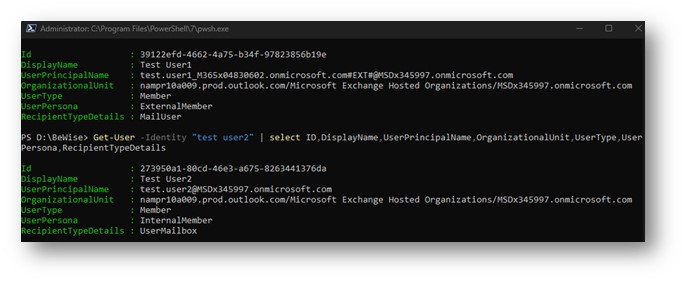
When Entra ID synchronizes accounts from a source tenant to a target tenant, it creates the entries in the target tenant as member accounts, not guest accounts. If you examine the properties of a synchronized account, you can see that the user principal name looks like a guest account but the user type is the same as a regular user account:
Side-by-side multitasking and cross-tenant notifications
With the new Teams client, users can now work across multiple tenants and accounts in side-by-side windows. They can join a meeting or collaborate in a channel hosted in another tenant, and simultaneously compose chat messages in their own tenant. Users can receive cross-tenant notifications for all accounts and tenants added to the Teams client, no matter which one is currently in focus.
Limitations for multitenant organizations in Microsoft 365 preview
The following are limitations of the multitenant organizations in Microsoft 365 preview:
A maximum of five tenants in the multitenant organization is supported.
A maximum of 100,000 users per tenant is supported.
Teams on the web, Microsoft Teams Rooms (MTR), and VDI/AVD aren’t supported.
The ability to grant or revoke permission to receive notifications from other tenants and to switch between tenants isn’t supported on mobile.
People in your organization links may not work for users from another tenant if their account had originally been a guest and they had previously accessed SharePoint resources.
It might take up to seven days for a user to appear in search once they’ve been synchronized. Contact Microsoft support if users aren’t searchable after seven days.
If you want to add more than five tenants or 100,000 users per tenant, contact Microsoft support.
Cross-tenant synchronization in Microsoft Teams:
Cross-tenant synchronization is a one-way process. This means that users from the source tenant are synchronized to the target tenant, but not the other way around.
Synchronized users have their own account in the target tenant. This means that they have their own profile, mailbox, and Teams chat history.
Synchronized users can access Teams in the target tenant. They can chat with other users, join teams, and participate in meetings.
Synchronized users cannot access other Microsoft 365 services in the target tenant. This is because they are not considered to be full members of the target tenant.
The basic issue here is that the original cross-tenant synchronization mechanismwasn’t tailored to support Microsoft 365 apps. The MTO (Multi-Tenant Organization) is explicitly engineered to support Microsoft 365, so it looks (from initial tests) that the use objects synchronized to another tenant a) appear in the GAL and b) are routable because their SMTP mail address is valid.
In the next post we will go deeper on how to configure MTO step by step. Stay tune for more goodies …










 Catastrophic Failure