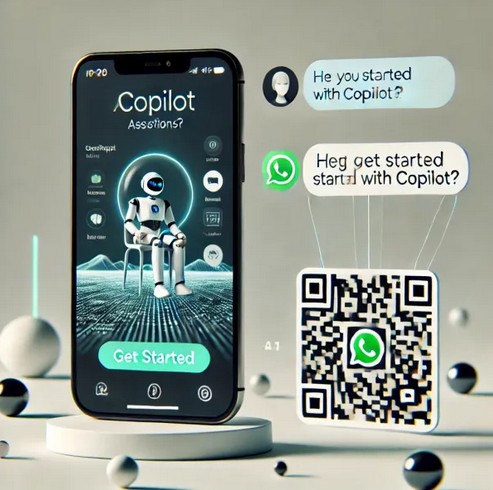
With Copilot now available on WhatsApp, you’re never alone. Get instant help, anytime. Microsoft has embedded its AI chatbot, Copilot, directly into WhatsApp, bringing artificial intelligence to over two billion users worldwide. With this move, AI capabilities like image generation and personalized recommendations are now available directly in the messaging app.
Copilot on WhatsApp offers a wide range of features:
Image Creation: Users can generate custom images directly in chat, expanding creative possibilities.
Text Summarization: Perfect for students and professionals, Copilot provides concise summaries of long documents, boosting productivity.
Personalized Recommendations: Copilot offers tailored suggestions, whether it’s for daily planning, vacation ideas, or task organization.
Recipe Suggestions: For cooking enthusiasts, Copilot can suggest recipes based on ingredients or dietary needs.
Writing Help: From grammar checks to idea generation, Copilot assists writers in refining and enhancing their content.
Current Limitations and Future Developments
While Copilot offers numerous features, some limitations remain. For instance, voice message support is currently unavailable, which is a popular feature for many WhatsApp users. However, with Microsoft’s rapid advancements in AI, future updates are likely to address such gaps, potentially adding voice message capabilities soon.
By integrating Copilot into a familiar platform like WhatsApp, Microsoft is making AI more accessible and transforming everyday communication. This step not only democratizes advanced tech but also sets the stage for new, intuitive human-AI interactions.
Talking with Copilot is an easy way to learn, grow, and gain confidence.
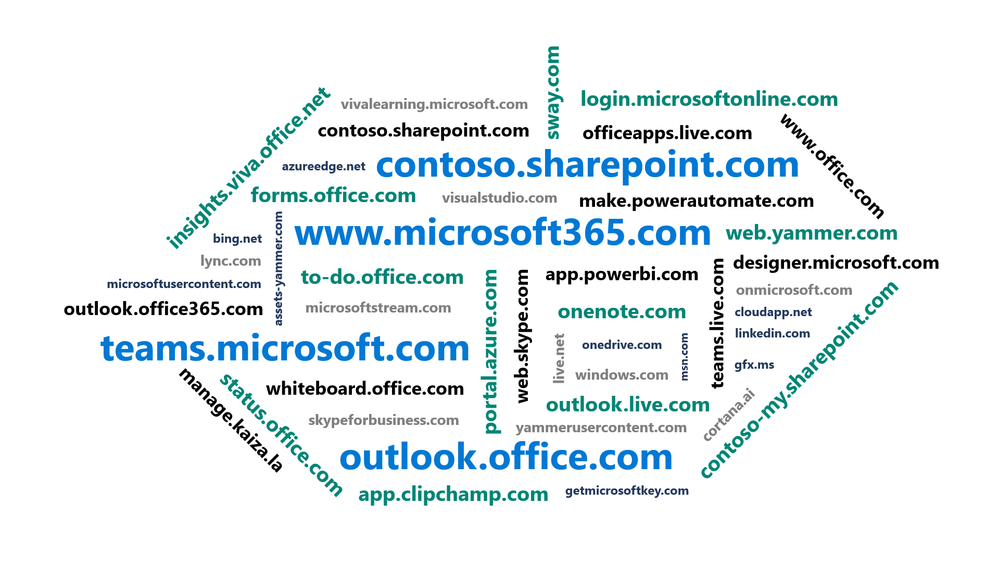
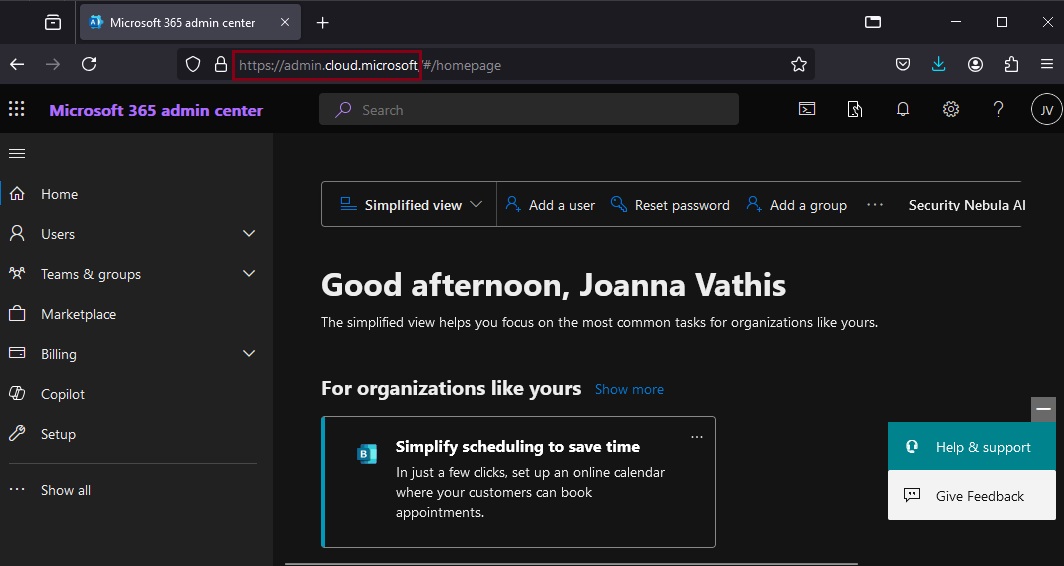
As Microsoft cloud services have grown over the years, the domain space they live on has grown as well – into the hundreds. Over time, this fragmentation has created increasing challenges for end user navigation, administrative simplicity, and the development of cross-app experiences. Microsoft’s announcement, “cloud.microsoft is the new unified domain for Microsoft 365 apps and services.” It promises greater security and unified experience.
Why cloud.microsoft?
‘Dot brand’ top-level domains like .microsoft are an established method for enhancing the security, trustworthiness, and integrity of an organization’s web offerings. Similar to how the US government has exclusive rights to the .gov top-level domain (TLD), Microsoft has exclusive rights to the .microsoft TLD. Exclusive ownership enables enhanced security protocols and governance controls, and the value of security investments done at the top-level domain seamlessly accrue to the apps. And all experiences hosted on the .microsoft domain can be assumed to be legitimate and authentic: anyone attempting domain spoofing would have to go through Microsoft itself, as we are both the registry operator and sole registrant for this exclusive, trusted namespace. A common term before the “dot” is also necessary in order to realize the full benefits of a unified domain. “Cloud” was selected as a durable, extensible, neutral term with a meaningful relationship to the wide range of services that will come under its umbrella, starting with Microsoft 365.
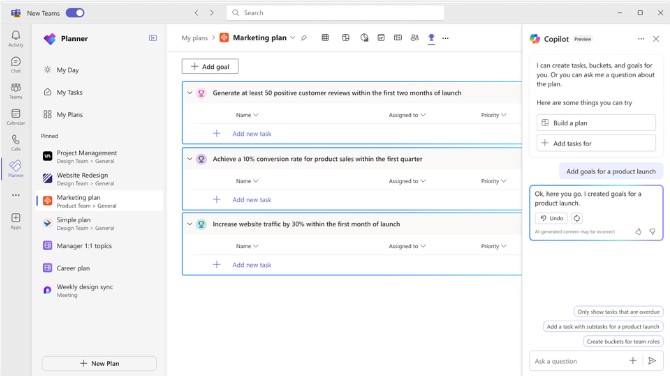
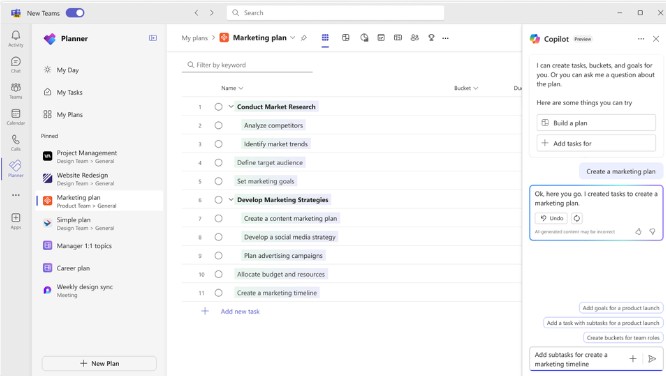
Microsoft announced that Copilot in Planner (preview) is now rolled out to 100% of users with a Project Plan 3 or Project Plan 5 license* in Microsoft Planner in Teams. With the power of generative AI, Copilot in Planner streamlines the planning, management, and execution of your work etc. If you already have a Project Plan 3 or Project Plan 5 license, you can preview Copilot in Planner capabilities*.
If you do not have a Project license, you can request a free 30-day trial. Simply click on the diamond icon within the Planner app in Teams where you can begin your free 30-day trial of advanced capabilities of Planner including Copilot in Planner or proceed with requesting a premium license.
Explore Copilot in Planner (preview) for planning, managing, and tracking projects:
• Planning: Copilot assists teams in setting goals, breaking down work, and generating tasks, goals, and buckets based on user prompts, facilitating the creation of a comprehensive project plan. • Effective Execution: Copilot helps streamline processes, identify next steps, and break down large tasks. It manages collaboration, tracks new goals, and identifies workload issues among team members. • Tracking Progress: Copilot aids in tracking complex plans by quickly surfacing necessary information about progress, priorities, and workload, ensuring teams stay informed and on track.
Planning
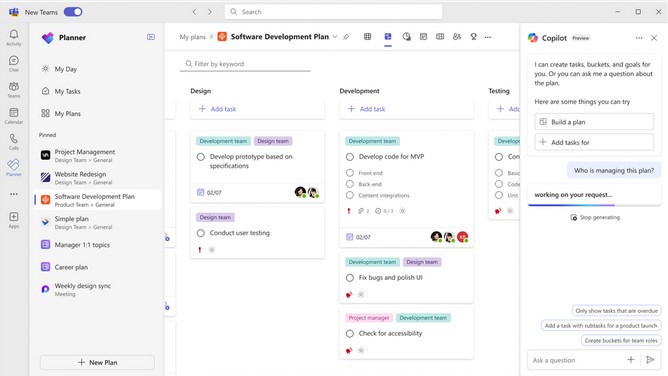
Managing. Effective execution is key to actually achieving your planned goals. With Copilot as your digital assistant, you can streamline this process and stay on track. Copilot can help you identify what to work on next or break up a large work item into actionable steps. It takes direction from users, seeking approval and feedback to manage how people and AI work together to achieve goals. When it’s time to triage an issue, expand scope, or make other changes to the plan, Copilot can help track a new goal, identify what tasks are behind, or which team members have the highest workload
Tracking
In general, Copilot supports the following languages for prompts: Chinese (Simplified), English, French, German, Italian, Japanese, Portuguese (Brazil), Spanish. We plan on to add more languages to Copilot and will update as additional languages are supported
Organizations using OneDrive for work or school are going to have to start paying more attention to their unlicensed accounts thanks to new policies starting January 27th next year. Any user account that stays unlicensed for longer than 90 days will be automatically archived by Microsoft, incurring a $0.05 per GB monthly storage fee. In this state, the data will be inaccessible to both admins and end users until the organization enables unlicensed account billing and pays a $0.60 per GB fee to reactivate it. If payments for the storage fees stop, the account will be deleted within a 93-day period.
Beginning January 27, 2025, any OneDrive user account that has been unlicensed for longer than 90 days becomes inaccessible to admins and end users. The unlicensed account is automatically archived, viewable via admin tools, but remains inaccessible until administrators take action on them.”
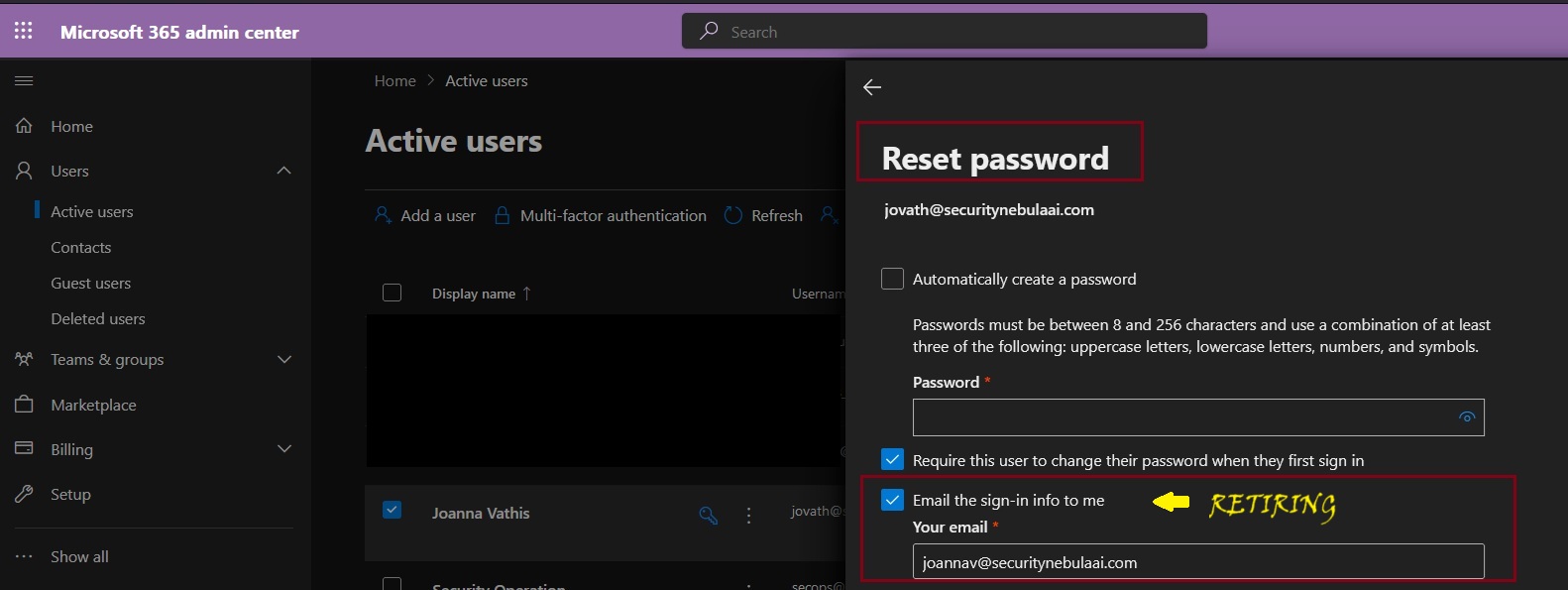
Microsoft will be retiring the Send password in email feature from Microsoft 365 admin center starting August 30, 2024. Instead, Microsoft recommend using the new Printoption in the Microsoft admin center to save the user account details and share them in a secure manner with your users.
Admins will no longer be able to receive usernames and passwords in email after this change is implemented. This change will happen automatically by the specified date. No admin action is required.
Copilot for Microsoft 365 has introduced a feature that allows users to select their preferred language during a Teams meeting, even if transcripts or captions are not activated. This option is available when the ‘Allow Copilot’ setting is configured to ‘Only during the meeting’. The rollout of this feature began in mid-June 2024, and it does not require any administrative action to be enabled.
This ensures that responses from Copilot for Microsoft 365 are in the language chosen by the user. When this feature is selected, a language selector screen will appear, and a language must be chosen for the meeting to start Copilot for Microsoft 365. It’s designed to enhance the user experience by providing support in the user’s preferred language during the meeting.
When this will happen General Availability: Microsoft will begin rolling out late July 2024 (previously mid-June) and expect to complete by early August 2024 (previously late June).
How this will affect your organization Users will receive a language selection dialog box in Teams when Allow Copilot is set to Only during the meeting, transcript is off, and Copilot is selected to ensure that Copilot for Microsoft 365 responses are in the appropriate language.
What you need to do to prepare: This rollout will happen automatically with no admin action required. You may want to notify your users about this change and update any relevant documentation as appropriate.
See what your teams can do with Copilot and have peace of mind knowing your data is protected. Get best practices inspired by companies leading the way to start your AI transformation.
Copilot is an AI assistant that helps you and your teams work smarter and faster. Whether you need to write reports, create presentations, analyze data, or automate tasks, Copilot can assist you with natural language processing and machine learning. You can also trust that your data is secure and compliant with Copilot’s built-in encryption and privacy features. Learn from the best practices of leading companies that have successfully implemented AI in their workflows and transform your work with Copilot.
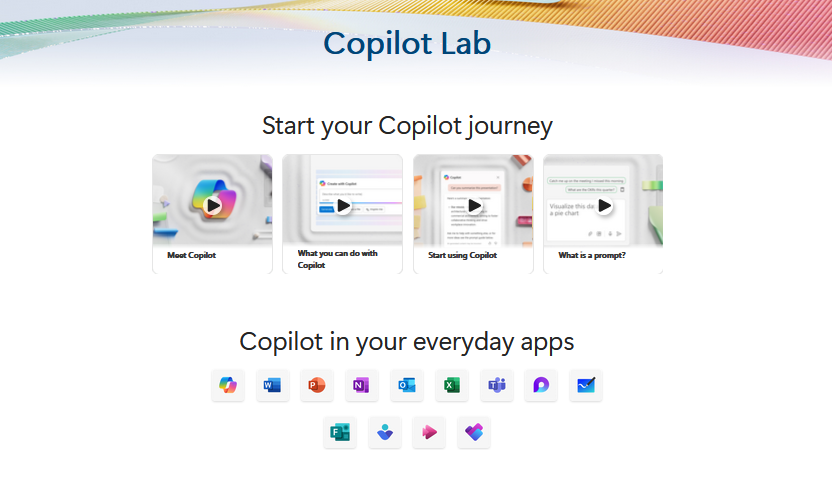
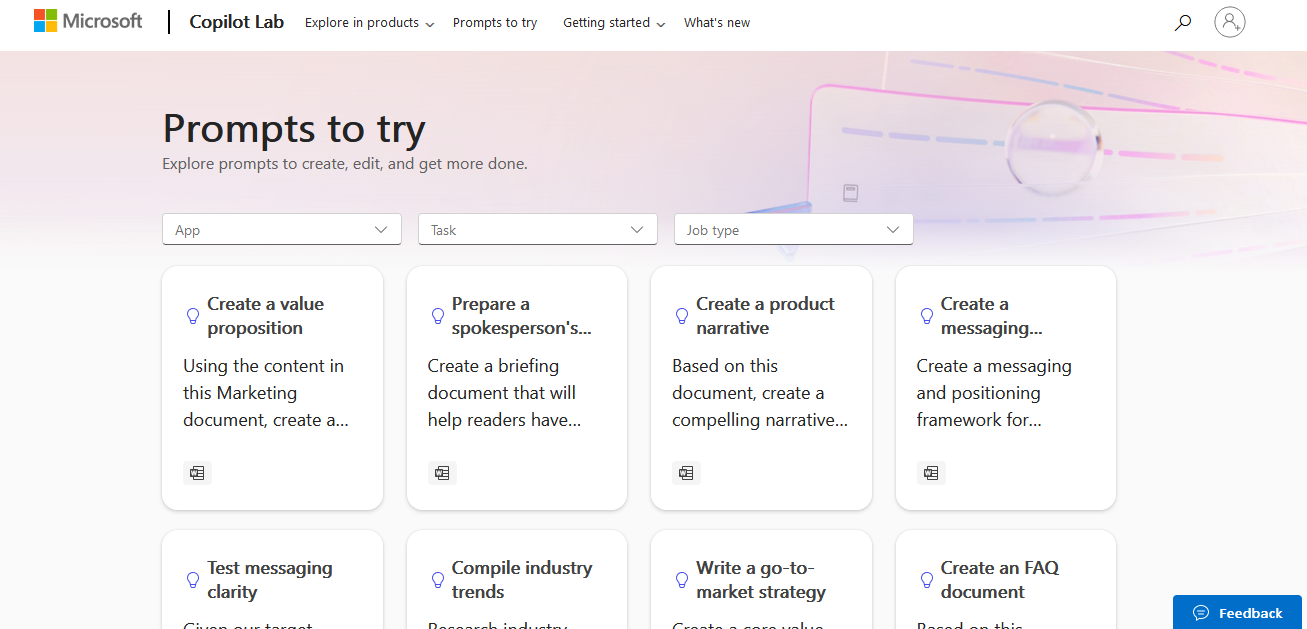
Microsoft’s Copilot Lab offers a wide range of prompts for various creative projects and content generation.
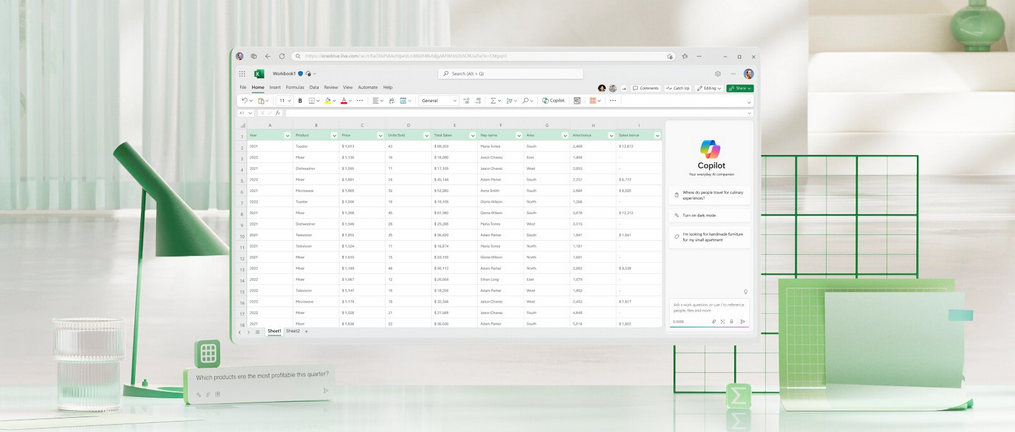
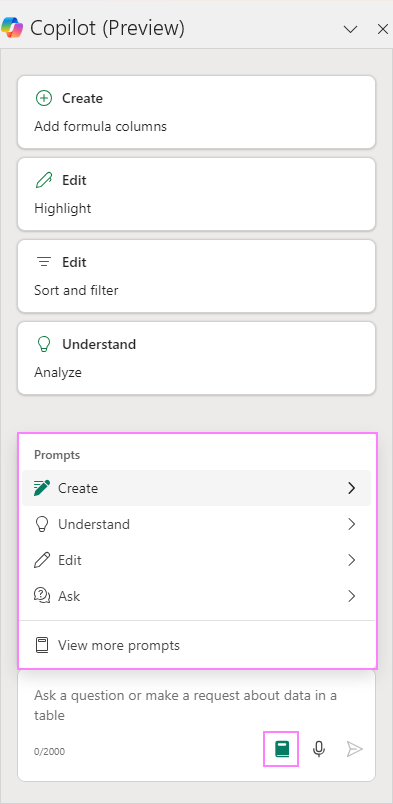
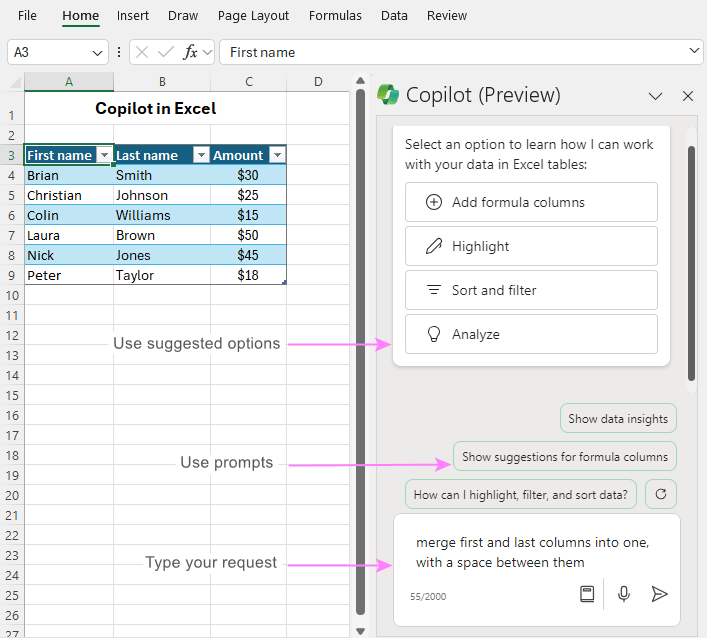
Microsoft Copilot in Excel helps you do more with your data in Excel tables by generating formula column suggestions, showing insights in charts and PivotTables, and highlighting interesting portions of data.
Open Excel in Microsoft 365.
2. Open a workbook stored on OneDrive or SharePoint. Important: Your data needs to be formatted in specific ways (see Format data for Copilot in Excel), and you’ll need to select a cell within your table or data range before using Copilot.
4. Select Copilot on the ribbon to open the chat pane. Tip: If you can’t select the Copilot button in the ribbon, try saving the file to the cloud first. 5. Enter your prompts and start working with Copilot.
Learn more about creating effective prompts at Copilot Lab.
Rewrite your messages with Copilot in Teams chat and channels
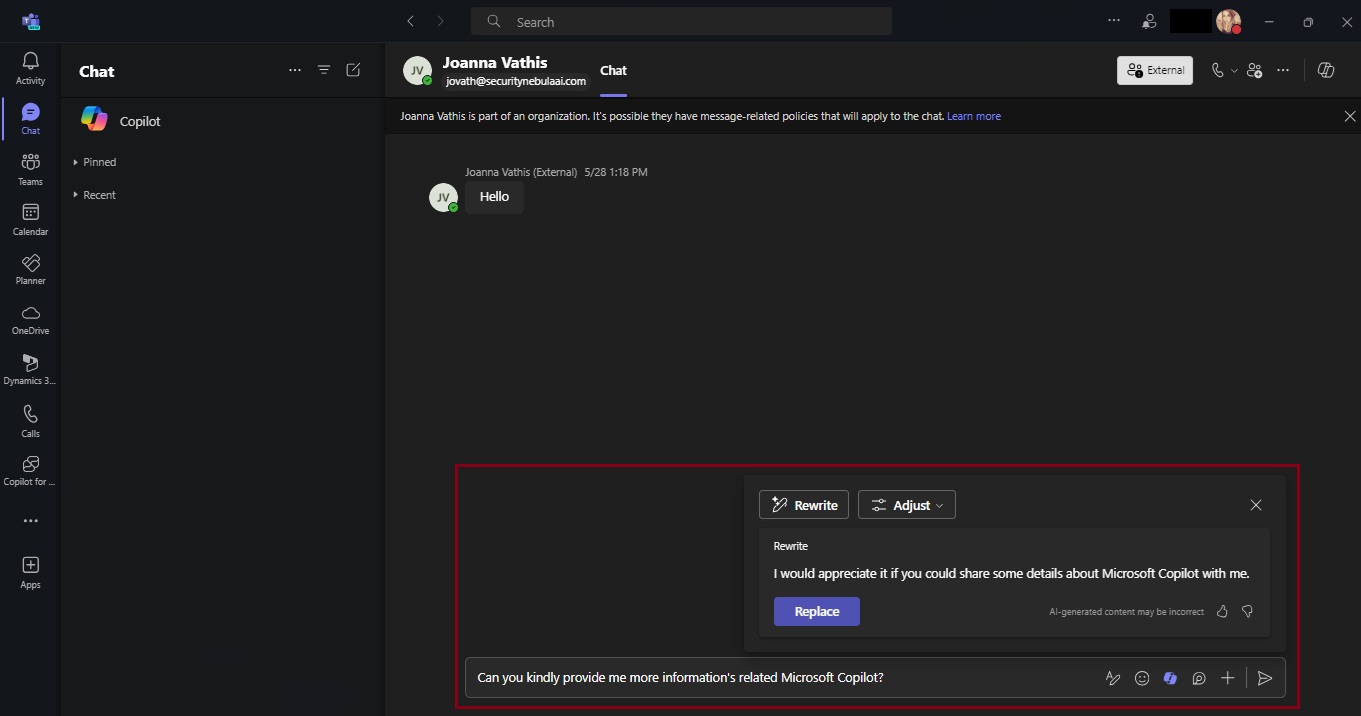
Copilot can assist you in crafting more polished and coherent messages, straight from the text compose box in chat and channels. It goes beyond spell-checking and grammar correction; Copilot also suggests improvements, rewrites, and adjustments to enhance the clarity, tone, and impact of your messages. Whether you’re quickly responding to your coworker or sharing a detailed project update with a VP, Copilot has your back. If you have a Copilot for Microsoft 365 license, you can navigate to the message compose box anywhere in Teams and start crafting your message. To start rewriting click on the Copilot icon in your chat box, press “Rewrite,” and watch your message instantly transform!
Not only is this an easy way to perfect your messages, but it does so without requiring you to type in any prompts. Just choose how you want to modify your message and Copilot does the work for you! If you need further editing, you can always refine your message by stacking different tones and lengths together. “Rewrite” is available for times when you don’t have any specific asks in mind for Copilot and want to use it more like a proofreader, and “Adjust” is there to give you specificity on what you want to change in your message. And remember, Copilot is the foundation of your message, but it is always important to proofread and confirm any generated content before you hit send.
Now available: Custom tone
While having Copilot do the work with those pre-set adjustment options is a great, no-prompt way to rewrite your messages quickly and efficiently, there is a new feature that allows you to tell Copilot exactly how you want to turn your writing into the best version of itself: Custom tone.
Custom tone takes everything touched upon with the “Adjust” feature and gives you the freedom to pick how Copilot can rewrite a message for you via an open prompt. With that comes the freedom to ask for multiple changes to be made, which Copilot will complete simultaneously in your rewrite. Do you want to add persuasive language to make your message more compelling? Or add additional context to your tone to give the right impression? Or turn a long sentence into a bulleted list before sharing it with your team? With custom tone, prompting how to change your message gives you the reins to make Copilot work exactly how you want it to.
Custom tone even allows you to bridge language barriers between global coworkers! Simply ask Copilot to translate your message to a specific language. For example, you can prompt that you want Copilot to make your message “longer and cheerful and in Spanish” and Copilot can apply those changes while translating instantly in the compose box – without you needing to leave your flow of work. Now, Copilot in Teams allows you to reach global audiences like never before, making it easier to write and receive messages adapted to you.
Teams messages – your next superpower
A lot of our workday is spent responding to messages in Teams. That may mean you are swamped with messages waiting to be responded to, some that are truly urgent and get buried by all your other unread chats and channels. With Copilot, you can respond faster and more effectively, driving collaboration forward. It helps reduce complexity for you as a writer, making it easier to land your message with each audience, faster. And you benefit as the message’s receiver, too – a message that is easier to understand allows you to act on it more deliberately. Thanks to Copilot, writing messages in Teams has never been easier, and it’s all thanks to an AI feature – powered by you.
Additional resources
For more examples of prompts that Copilot can help you with, check out Copilot Lab! Filter by specific Microsoft 365 apps to learn what prompts to use for meetings, in chats, and get tips for better optimized prompts with Copilot!
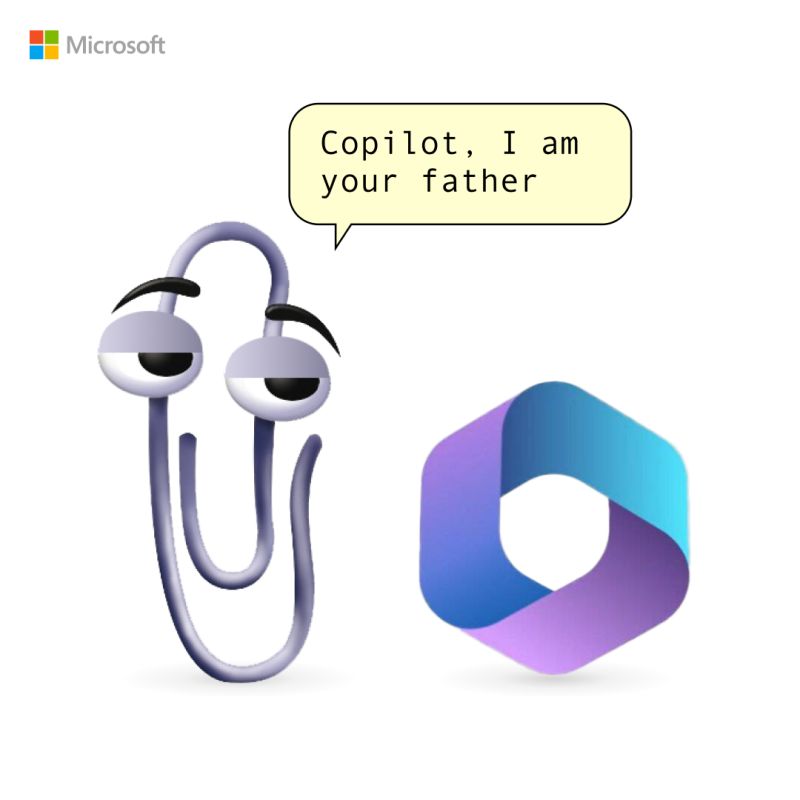
Clippy is back, in a new, unauthorized app that somehow has made it onto the Microsoft Store.
Clippy by Firecube uses Microsoft’s animated paper clip, Clippy (known as Clippit to purists), as a front end for ChatGPT 3.5, the AI chatbot developed by OpenAI. Although the app refers to Clippy by name, the full text description of the app immediately identifies it as “Not by Microsoft” to presumably fend off any lawyers that might be sniffing about the app. Firecube has a good reputation as a developer who looks deeply into new Windows code for unpublicized features.
Paperclip by FireCube (formerly known as Clippy by FireCube) brings back the infamous Clippit into your desktop powered by the OpenAI GPT 3.5 model (OpenAI key required as of this version).
Paperclip can be pinned to the screen for quick access to chat or just be left for nostalgia. This app is open source with improvements coming such as support for more characters like bob or classic clippy. Dragging and resizing and support for no OpenAI key required.
You can download it from Microsoft Store for free here!









 Catastrophic Failure