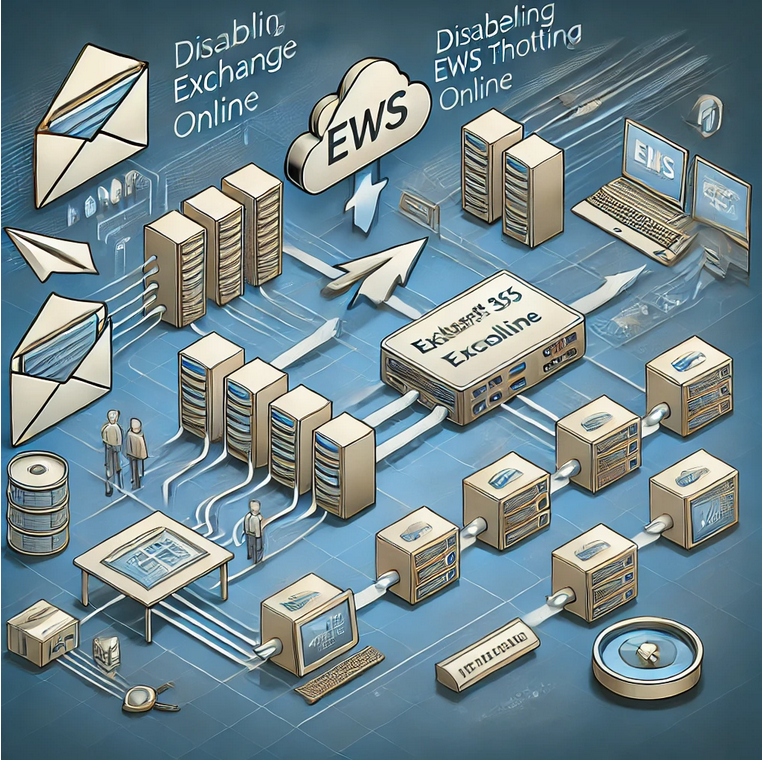
The way to control EWS usage in Exchange Online is changing


In 2018, Microsoft  announced that they’ll no longer making feature updates to Exchange Web Services (EWS) in Exchange Online, and advised developers to move to Microsoft Graph.

In 2023, Microsoft announced that on October 1, 2026, they will start blocking EWS requests to Exchange Online.

Today, in Microsoft ongoing commitment to enhance the security and control mechanisms of Exchange Web Services (EWS), Microsoft announcing a significant change in the behavior of the EWSEnabled tenant-wide switch in Exchange Online. This modification provides a more robust framework for managing EWS access within organizations, ensuring both flexibility and security, and is necessary as they continue to work in there plan to disable EWS starting October 2026.

Current Behavior

The EWSEnabled flag can be set at both the tenant (organization) level and the user (mailbox) level. Currently, when the flag is set to true at the user level, it takes precedence over the organization-level setting. If the setting is Null, it means the setting is not enforced at that level. If Org and user-level are both Null, the default behavior is to allow. This hierarchical structure means that if the organization-level flag is set to false, but the user-level flag is set to true, EWS requests from that user are still allowed. In other words:

Organization LevelUser LevelEWS Requests
True or <null>True or <null>Allowed
True or <null>FalseNot Allowed
FalseTrueAllowed
FalseFalse or <null>Not Allowed

This approach has led to inconsistencies and security concerns. It can be challenging for administrators to ensure uniform policy enforcement across their organization, particularly in large and complex environments.

New Behavior

To address these issues, we are altering the behavior so that EWS will only be allowed if both the organization-level and user-level EWSEnabled flags are true. Here’s a simplified view of the new logic:

Organization LevelUser LevelEWS Requests
True or <null>True or <null>Allowed
True or <null>FalseNot Allowed
FalseTrue or <null>Not Allowed
FalseFalseNot Allowed

In short, EWS will be permitted only if both the organization and user-level allow it. This change ensures that administrators have better control over EWS access and can enforce policies more consistently across their entire organization.

This change will rollout worldwide starting April 2025.

Tenant-level setting

The first thing to check is your tenant setting. To do this, simply run this command in Exchange Online PowerShell

Get-OrganizationConfig | fl EWSEnabled
EwsEnabled :

If the EWSEnabled flag is empty (the default), or set to True – this change won’t affect you, but we still advise you read the per-user settings information below to make sure it matches your expected settings.

If your EWSEnabled flag is set to False, you might see some impact when we enforce this new logic change on your tenant unless you take action now. We encourage you to review the section below to ensure your per-user settings reflect your desired state for who can and cannot use EWS, and then proactively change the tenant wide switch to True to ensure uninterrupted access for users and apps.

User-level setting

As discussed earlier, even if your tenant-wide EWSEnabled switch has been set to False, it’s currently still possible to use EWS, if the per-user setting is set to True (default setting for every mailbox).

To check if EWS is Enabled or Disabled for a specific mailbox, you can run:

Get-CASMailbox User1| fl EWSEnabled
EwsEnabled : True

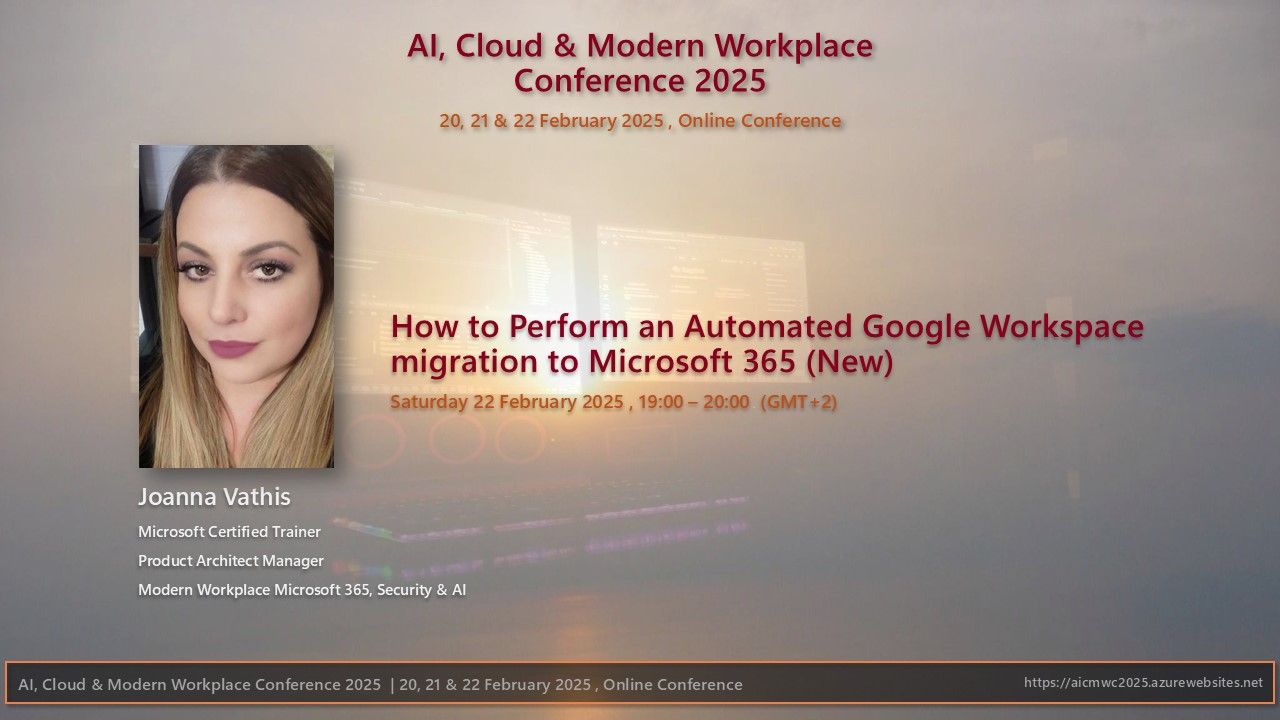
AI Cloud and Modern Workplace Conference 2025!


📌📖 Title of Presentation: How to Perform an Automated Google Workspace Migration to Microsoft 365 (New)

I’m excited to share some insights about the amazing features of How to Perform an Automated Google Workspace migration to Microsoft 365. Migrating from Google Workspace to Microsoft 365 can be quite a daunting task, particularly when dealing with mailboxes over 100 GB. But fear not! In our presentation, we will delve into the challenges and solutions for a successful migration, catering to both normal and large mailboxes.  We will start by discussing the various challenges that come with such a migration. From there, we will move on to the importance of thorough planning to ensure a smooth transition. Next, we will introduce a new way of migrating from Google Workspace to Microsoft 365, detailing the methods to handle large mailboxes effectively.  To make things even more engaging, we will have a live demo to showcase the process in action. And of course, we will wrap things up with a Q&A session to address any questions or concerns you may have.

  • Challenges
  • Planning
  • New way of migration from Google Workspace migration to Microsoft 365
  • Methods to migrate large mailboxes to Microsoft 365
  • Demo
  • Q & A

❤️ Join us on Saturday, 22 February 2025, from 19:00 to 20:00 (GMT+2) to gain invaluable insights from Joanna. We are honored to have her share her expertise at our conference! A big thank you to Joanna for her valuable help and selfless contribution to the community. We are truly grateful for her presence and look forward to learning from her expertise.
Don’t miss this opportunity to learn from one of the best in the industry!

🏢 Conference Official Page: https://lnkd.in/dtRftyt6
No registration required!!!

Organizers: Konstantinos Boutsioulis MVP, George – Chrysovalantis Grammatikos
Looking forward to seeing you all there! 🚀

#mvpbuzz #microsoft #aicmwc2025 #AICloud #ModernWorkplace #conference2025 #Microsoft365 #GoogleWorkspaceMigration #CloudSolutions

Microsoft introduce scareware blocker! Now available in preview in Microsoft Edge


The Scareware Blocker is a New feature in Microsoft Edge designed to protect users from tech support scams, often referred to as scareware. These scams use aggressive web pages to trick users into thinking their system is infected with malware, pressuring them to call fake tech support numbers. Scareware blockers use a machine learning model to recognize the tell-tale signs of scareware scams and put users back in control of their computer.

Here’s how it works:

  • Machine Learning: It uses a machine learning model to detect and block scareware sites.
  • User Control: When a suspicious site is detected, Edge blocks it and shows a warning message, giving users the option to close the page or proceed if they believe it’s safe

“Scareware” scams are a particularly convincing type of tech support scam. They use aggressive web pages to convince victims into thinking their system is infected with malware, pressure them to call a fake tech support number, and try to gain access to the computer. Last year, Hollywood even made a blockbuster action movie with scareware scammers as the villains.

To enable Scareware Blocker in Microsoft Edge:

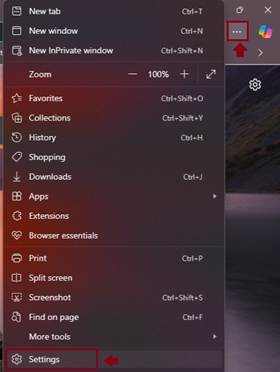
  1. Open Edge and click on the three-dot menu in the toolbar.
  2. Select Settings.
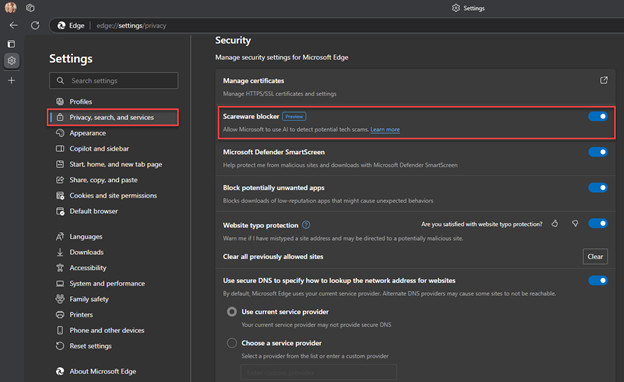
  1. Navigate to Privacy, search, and services.
  2. Find the Scareware Blocker option and toggle it on

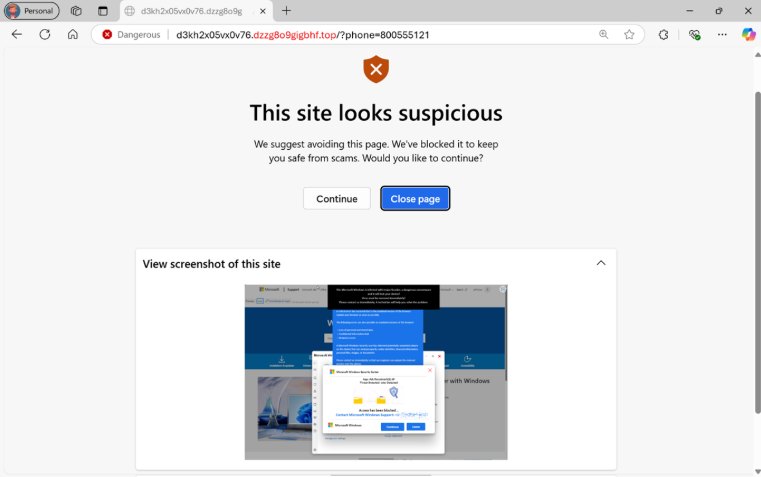
When scareware blocker suspects a page is a scam, Edge will put users back in control by exiting full screen mode, stopping aggressive audio playback, warning the user, and showing a thumbnail of the page they were just viewing:

Scareware blocker fights tech scams – Video Tutorial

Security for Microsoft 365 Copilot


Microsoft 365 Copilot is a sophisticated processing and orchestration engine that provides AI-powered productivity capabilities by coordinating the following components:

  • Large language models (LLMs)
  • Content in Microsoft Graph, such as emails, chats, and documents that you have permission to access.
  • The Microsoft 365 productivity apps that you use every day, such as Word and PowerPoint.

How does Microsoft 365 Copilot use your proprietary organizational data?

Microsoft 365 Copilot provides value by connecting LLMs to your organizational data. Microsoft 365 Copilot accesses content and context through Microsoft Graph. It can generate responses anchored in your organizational data, such as user documents, emails, calendar, chats, meetings, and contacts. Microsoft 365 Copilot combines this content with the user’s working context, such as the meeting a user is in now, the email exchanges the user had on a topic, or the chat conversations the user had last week. Microsoft 365 Copilot uses this combination of content and context to help provide accurate, relevant, and contextual responses.

Microsoft 365 Copilot only surfaces organizational data to which individual users have at least view permissions. It’s important that you’re using the permission models available in Microsoft 365 services, such as SharePoint, to help ensure the right users or groups have the right access to the right content within your organization. This includes permissions you give to users outside your organization through inter-tenant collaboration solutions, such as shared channels in Microsoft Teams.

When you enter prompts using Microsoft 365 Copilot, the information contained within your prompts, the data they retrieve, and the generated responses remain within the Microsoft 365 service boundary, in keeping with our current privacy, security, and compliance commitments. Microsoft 365 Copilot uses Azure OpenAI services for processing, not OpenAI’s publicly available services. Azure OpenAI doesn’t cache customer content and Copilot modified prompts for Microsoft 365 Copilot.

Data stored about user interactions with Microsoft 365 Copilot

When a user interacts with Microsoft 365 Copilot (using apps such as Word, PowerPoint, Excel, OneNote, Loop, or Whiteboard), we store data about these interactions. The stored data includes the user’s prompt and Copilot’s response, including citations to any information used to ground Copilot’s response. We refer to the user’s prompt and Copilot’s response to that prompt as the “content of interactions” and the record of those interactions is the user’s Copilot activity history. For example, this stored data provides users with Copilot activity history in Microsoft 365 Copilot Chat (previously named Business Chat) and meetings in Microsoft Teams. This data is processed and stored in alignment with contractual commitments with your organization’s other content in Microsoft 365. The data is encrypted while it’s stored and isn’t used to train foundation LLMs, including those used by Microsoft 365 Copilot.

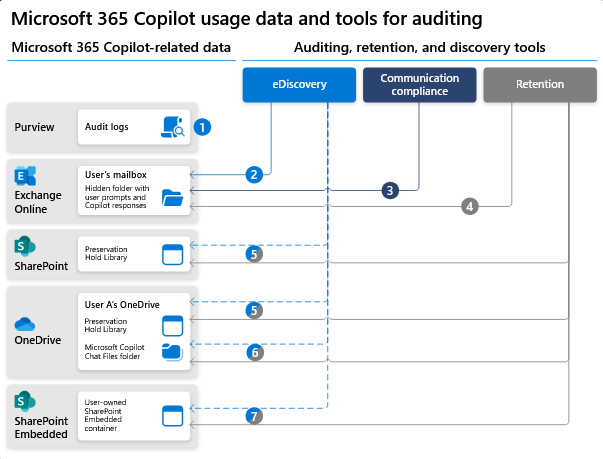
To view and manage this stored data, admins can use Content search or Microsoft Purview. Admins can also use Microsoft Purview to set retention policies for the data related to chat interactions with Copilot. For Microsoft Teams chats with Copilot, admins can also use Microsoft Teams Export APIs to view the stored data.

Deleting the history of user interactions with Microsoft 365 Copilot

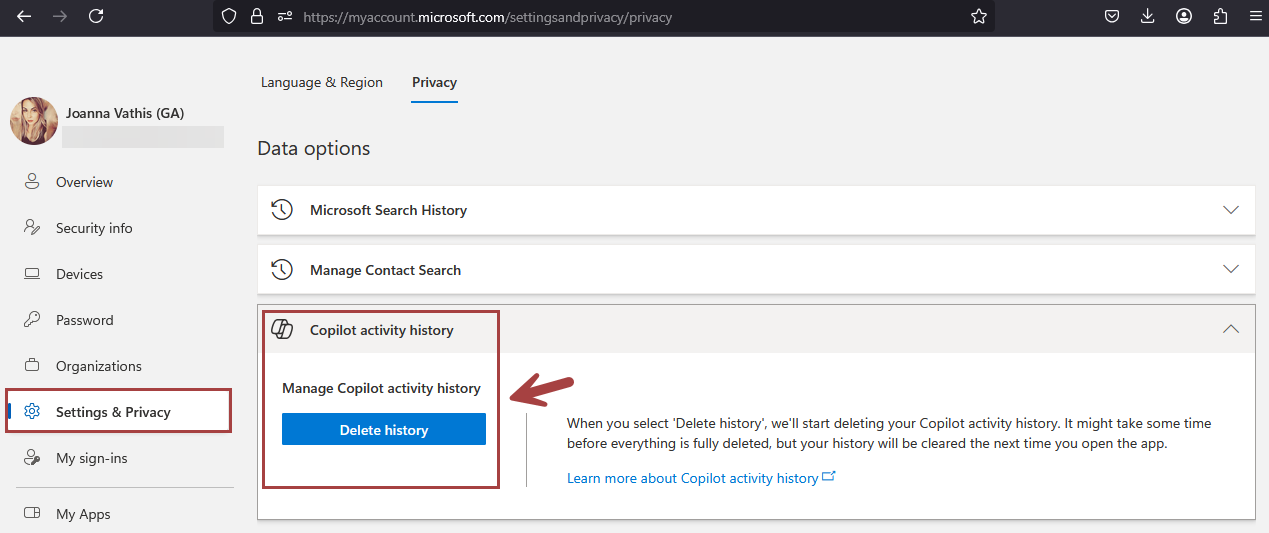
Your users can delete their Copilot activity history, which includes their prompts and the responses Copilot returns, by going to the My Account portal. More information, see Delete your Microsoft 365 Copilot activity history.

Microsoft 365 Copilot and the EU Data Boundary

Microsoft 365 Copilot calls to the LLM are routed to the closest data centers in the region, but also can call into other regions where capacity is available during high utilization periods.

For European Union (EU) users, we have additional safeguards to comply with the EU Data Boundary. EU traffic stays within the EU Data Boundary while worldwide traffic can be sent to the EU and other countries or regions for LLM processing. The EU Data Boundary is a geographically defined boundary within which Microsoft has committed to store and process Customer Data and personal data for our Microsoft enterprise online services, including Azure, Dynamics 365, Power Platform, and Microsoft 365, subject to limited circumstances where Customer Data and personal data will continue to be transferred outside the EU Data Boundary.

How does Microsoft 365 Copilot protect organizational data?

The permissions model within your Microsoft 365 tenant can help ensure that data won’t unintentionally leak between users, groups, and tenants. Microsoft 365 Copilot presents only data that each individual can access using the same underlying controls for data access used in other Microsoft 365 services. Semantic Index honors the user identity-based access boundary so that the grounding process only accesses content that the current user is authorized to access.

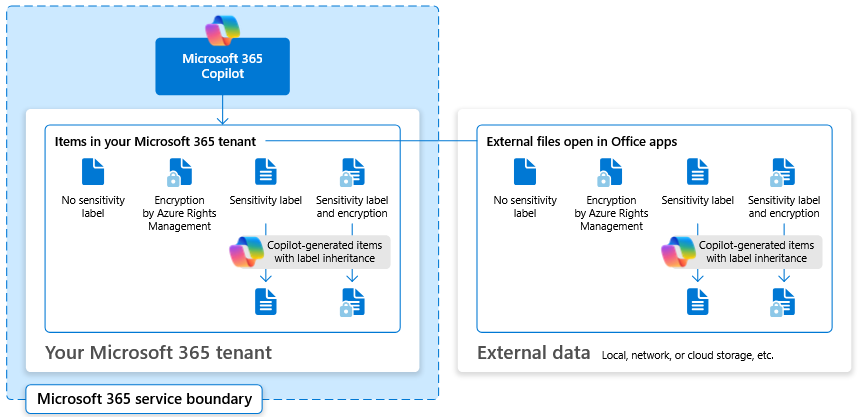
Copilot works together with your Microsoft Purview sensitivity labels and encryption to provide an extra layer of protection. The following diagram provides a visual representation of how Copilot honors your information protection controls using sensitivity labels and encryption.

Copilot will only work with your M365 tenant data and won’t be able to access other companies’ data. Plus, your data doesn’t train the AI for other companies to leverage..

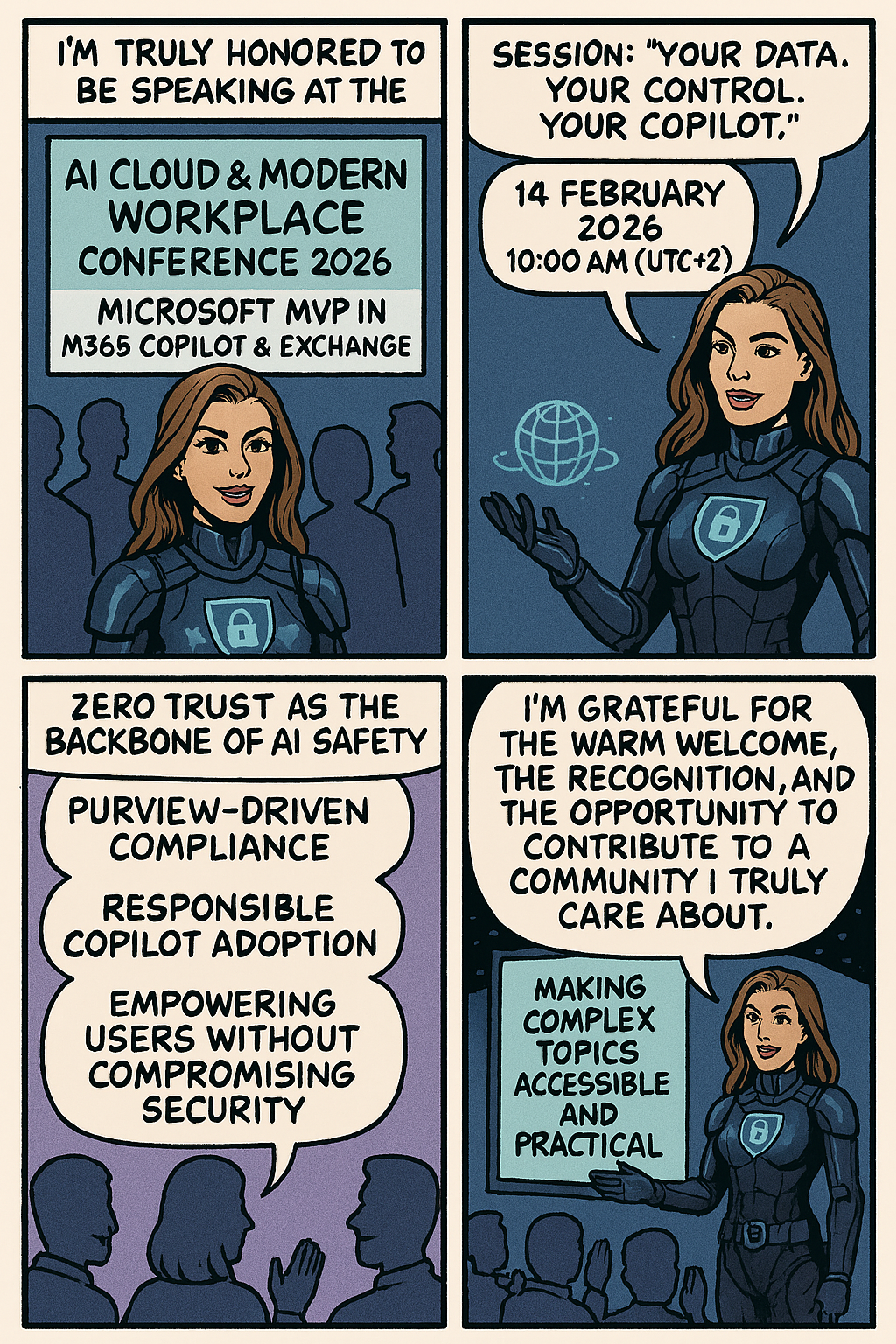
Event: Διημερίδα Ψηφιακής Εξέλιξης in Corfu, taking place on February 7-8! @silicon_corfu


🔝I am excited to announce that I will be speaking at the “Διημερίδα Ψηφιακής Εξέλιξης in Corfu, taking place on February 7-8! @silicon_corfu

📆Title: Get started with Microsoft 365 Copilot in Excel
📝Description: I’m excited to share some insights about the amazing features of Microsoft 365 Copilot in Excel. This innovative tool is designed to help you work more efficiently with your data by providing intelligent suggestions and insights.

With Copilot in Excel, you can do much more with your data. It generates formula column suggestions, shows insights in charts and PivotTables, and highlights interesting data, making it easier for you to uncover valuable information.

In our upcoming presentation, we will explore these features in detail and see how they can enhance our productivity:

📍Formulas: Writing, explaining, and asking questions
📍More formula use cases
📍Working with text
📍Visualize: Charts and Color
📍Ask questions about Excel
📍Demo

🚀 I look forward to seeing you there! Don’t miss the opportunity to participate in this important event and enrich your knowledge of the latest Microsoft technologies. Register now for free and join us for discussions and learning!

Registration 👉 https://lnkd.in/dQ25Jz4y!

Microsoft introducing Microsoft 365 Copilot Chat!


Microsoft introducing Microsoft 365 Copilot Chat, a new offering that adds pay-as-you-go agents to our existing free chat experience for Microsoft 365 commercial customers. Copilot Chat enables your entire workforce—from customer service representatives to marketing leads to front-line technicians—to start using Copilot and agents today. It includes:

  • Free, secure AI chat powered by GPT-4o.
  • Agents accessible right in the chat.
  • IT controls, including enterprise data protection and agent management.

Copilot Chat: The power of chat + agents

Copilot is the UI for AI, and it all starts with Copilot Chat. It’s the chat experience you’ll use every day—powered by broad knowledge from the web, built on GPT-4o, and designed to be safe and secure for business use. It represents a foundational shift in how we work, enabling everyone to work smarter, faster, and more collaboratively.

Copilot Chat includes:

  • Web-grounded chat with GPT-4o. You can use it to do market research, write a strategy document, or prepare for a meeting. File uploads allow you to add any document to the chat and ask Copilot to do things like summarize key points in a Word document, analyze data in an Excel spreadsheet, and suggest improvements to a PowerPoint presentation.1 With Copilot Pages, you can collaborate on content with people and AI in real time—adding content from Copilot, your files, and now from the web as well. And you can quickly create AI-generated images for campaigns, product launches, and social media posts.2
  • Agents. Using natural language, now anyone can easily create agents to automate repetitive tasks and business processes—directly in Copilot Chat. A customer service representative can ask a customer relationship management (CRM) agent for account details before a customer meeting, while field service agents can access step-by-step instructions and real-time product knowledge stored in SharePoint. Agents are priced on a metered basis, and IT stays in control. IT admins can also build organization-wide agents and manage agent deployment, all powered by Microsoft Copilot Studio.
  • Copilot Control System. Copilot Chat includes foundational capabilities of the Copilot Control System, including enterprise data protection (EDP) for data privacy and security and the ability to govern access and manage the usage and lifecycle of Copilot and agents, as well as measurement and reporting.

Download the Microsoft 365 Copilot mobile app from here..

Migrate large mailboxes from Google to Microsoft 365 Exchange – Part II


Migrating large mailboxes from Google Workspace to Microsoft 365 in Exchange Online involves several steps. In this article provides comprehensive guidance for tenant administrators on migrating emails from IMAP sources, including Gmail, to Microsoft 365 Primary and Archive mailboxes concurrently, known as Large Archive Onboarding (LAO), this solution empowers tenant admins to seamlessly migrate mailboxes exceeding 100 GB from any mail sources by harnessing the auto-expanding archives feature within Microsoft 365.

Challenges

  • Large mailboxes pose unique challenges, including prolonged migration times, increased risk of data corruption, and bandwidth constraints.
  • Currently, LAO is available only through PowerShell cmdlets.

Important

  • Microsoft 365 offers a resultant cumulative mailbox size of up to 1.6 TB. This includes 100 GB of Primary Mailbox, and 1.5 TB of Archives (including 100 GB Main Archive).
  • You require at least “Recipient Management” role to execute this. Read through the documentation, especially the linked documents to help kickstart migrations for large mailboxes.
  • Run the cmdlet to disable ELCProcessing before creating LAO migration batch. If it’s not disabled, the folders might be moved by ELC during LAO, and the LAO migration might be blocked. Set-Mailbox <m365 mailbox> -ELCProcessingDisabled:$true

Methods to migrate large mailboxes to Microsoft 365 Exchange

  • Exporting emails from Google Workspace using Google Takeout
  • Using Third-Party Tools
  • Using Google Workspace Sync for Microsoft Outlook (GWSMO)
  • PowerShell: For large mailboxes, you can use PowerShell cmdlets to create a Large Archive Onboarding (LAO) migration batch. This method allows you to migrate mailboxes exceeding 100 GB by utilizing auto-expanding archives. – This is the method that we will describe

What do we need to know before we begin the Large Archive Onboarding (LAO)?

Before creating the migration, we need to know:

  1. The list of users with large mailboxes (>100 GB) on the source side.
  2. If you have a large mailbox, the content (time, type) that you intend to migrate and to where (primary, main archive, auxiliary archives).

For each user, the content can be selected based on time range or folder.

Examples

Time-range-based mapping:

Time rangeTarget Mailbox
After 2023/01/01Primary
From 2022/01/01 to 2023/01/01Archive mailbox 1
From 2021/01/01 to 2022/01/01Archive mailbox 2
Before 2021/01/01Archive mailbox 3

Folder-based mapping:

Folder NameTarget Mailbox
InboxPrimary
SentItemsPrimary
DeletedItemsArchive mailbox 1

Important
Well-Known Folders: The folders that come under this categorization include but are not limited to Inbox, Deleted Items, Sent Items, and Drafts. Full list here. Except Deleted Items, all these well-known folders and customer created labels/folders can be migrated to either primary or any archive mailboxes (both Main Archive and Auxiliary Archives). However, Deleted Items of a user can be migrated only to the Primary or Main Archive, and not Auxiliary Archive.

Prepare XML file

To migrate large mailboxes automatically, you need to prepare an XML file that advises the system on the content-to-mailbox mapping. Download a sample XML file here Download a copy of the large mailbox migration XML mapping file and take a quick look before you proceed.

Time-range-based mapping

In the XML file, you need to specify the time range in ContentFilter. Unlike Filterable properties for the -ContentFilter parameter, only Received property is supported, which means that the filtering is based on the “Received” parameters and not the “Sent” parameters in the mail item metadata. For example, filtering is executed on the Received TimeStamp (time when the mail landed in the user’s mailbox) vs the Sent TimeStamp (time when the sender of the mail sent it to the user) of a mail, which the users received in their mailbox.

Four operators are supported:

The value of EmailAddress should be the SMTP address of EXO user (eg. user@domain.com).

The value of Target can be the following four types:

  • Primary
  • MainArchive
  • AuxArchive* (AuxArchive1, AuxArchive2, AuxArchive3)
  • GUID-of-Existing-Mailbox

I wanted to take a moment to explain the concept of Archive mailbox 1 (AuxArchive1), Archive mailbox 2 (AuxArchive2), Archive mailbox 3 (AuxArchive3), etc., and how they relate to our migration process. As you can see below in the XML I created, I have designated “MainArchive” as the Target and (AuxArchive1). By doing this, I am instructing the system on how and where I want the migration to be divided, as well as the specific time range for archiving. In our example, the system is creating folders within the Archiving mailbox Inbox based on the range provided in the XML file. This approach ensures that the migration is efficiently split and organized, enabling easier access and management of archived data.

Following is the XML file for time range based mapping for the example shown in table 1.

Important

  • If the time range in the XML file is changed during the migration process, there may be duplicated items. We recommend tenant admin have clear communication with end users before starting the migration.
  • When you create time ranges, ensure that you use continuous time ranges. If it’s not continuous, there will be missing items that the migration process can’t detect.

To create a large mailbox migration batch, you need to use New-MigrationBatch with -XMLData parameter.

Example:

New-MigrationBatch -SourceEndpoint “GWS Endpoint” -Name LAO\_User1 -CSVData $([System.IO.File]::ReadAllBytes(“.\user1.csv”)) -XMLData $([System.IO.File]::ReadAllBytes(“.\user1mapping.xml”)) -TargetDeliveryDomain “contoso.onmicrosoft.com” -AutoStart

Post-Migration

  • Verify Data: After migration, verify that all emails, contacts, and calendar data have been successfully migrated.
  • User Training: Provide training to users on how to access their new mailboxes and use Microsoft 365 features.

By following these steps, you can ensure a smooth transition from Google Workspace to Microsoft 365, even for large mailboxes.

Conclusion

Migrating from Google Workspace to Microsoft 365 involves careful planning and execution, especially when dealing with large mailboxes. By following the steps outlined in this guide, you can ensure a smooth and efficient transition. Remember to communicate with your users, use the right tools, and monitor the process closely to address any issues promptly. With proper planning and execution, the migration can be a seamless experience that enhances your organization’s productivity and collaboration. I wanted to share this article that I recently came across and found quite insightful. I believe it could be very useful for you as well. Please take a moment to read through it, and let me know what you think.

How to Perform an Automated Google Workspace migration to Microsoft 365 – Part I


Migrating from Google Workspace to Microsoft 365 can be a daunting task, especially when dealing with mailboxes over 100 GB. This guide provides an in-depth look at the challenges and solutions for a successful migration, catering to both normal and large mailboxes.

Assessment and Planning

Before initiating the migration, it’s crucial to carry out a thorough assessment of your current Google Workspace environment. Identify the number of users, mailbox sizes, and any potential issues that might arise. Planning should include:

  • Identifying key stakeholders
  • Defining the migration timeline
  • Determining the migration method
  • Allocating resources and roles

You can migrate the following functionalities from Google Workspace to Microsoft 365 or Office 365:

Mail & Rules
Calendar
Contacts

You can migrate batches of users from Google Workspace to Microsoft 365 or Office 365, allowing a migration project to be done in stages. This migration requires that you provision all of your users who will be migrated as mail-enabled users outside of the migration process. You must specify a list of users to migrate for each batch.

All procedures in this article assume that your Microsoft 365 or Office 365 domain is verified and that your TXT records have been set up. For more information, see Set up your domain (host-specific instructions).

Select your method of migration

You can migrate from Google Workspace using any of the following methods:

  • Automated – through the Exchange admin center
  • Manual – through the Exchange admin center
  • PowerShell

Migration limitations

Important
Microsoft’s data migration tool is currently unaware of tools enforcing messaging records management (MRM) or archival policies. Because of this, any messages that are deleted or moved to archive by these policies will result in the migration process flagging these items as “missing”. The result is perceived data loss rather than actual data loss, which makes it much harder to identify actual data loss during any content verification checks. Therefore, Microsoft strongly recommends disabling all MRM and archival policies before attempting any data migration to mailboxes.

Note
The largest single email message that can be migrated is based on the transport configuration for your configuration. The default limit is 35 MB. To increase this limit, see Office 365 now supports larger email messages.

Throughput limitations for contacts and calendars completely depend on the quota restrictions for your tenant’s service account on the Google Workspace side.

Other migration limitations are described in the following table:

Data typeLimitations
MailVacation settings, Automatic reply settings
Meeting roomsRoom bookings won’t be migrated
CalendarShared calendars and event colors won’t be migrated
ContactsA maximum of three email addresses per contact are migrated over
ContactsGmail tags, contact URLs, and custom tags won’t be migrated

Google Workspace migration prerequisites in Exchange Online

The following procedures must be performed (in the order mentioned) before you start the process of Google Workspace migration:

  • Create a subdomain for mail routing to Microsoft 365 or Office 365
  • Create a subdomain for mail routing to your Google Workspace domain
  • Provision users in Microsoft 365 or Office 365

Create a subdomain for mail routing to Microsoft 365

  1. Go to the Google Workspace Admin page and sign in as a Google Workspace administrator for your tenant.
  2. Select Add a domain.

Note
The option Add a domain won’t be available if using the legacy free edition of G Suite.

Enter the domain that you’ll use for routing mails to Microsoft 365 or Office 365, select User alias domain, and then select ADD DOMAIN & START VERIFICATION. A subdomain of your primary domain is recommended (for example, “m365mail.domain.com”, when “domain.com” is your primary domain) so that it will be automatically verified. If another domain (such as “domain.onmicrosoft.com”) is set, Google will send emails to each individual address with a link to verify the permission to route mail. Migration won’t complete until the verification is completed.

Keep track of the name of the domain you enter because you’ll need it for the subsequent steps, and for using it as the Target Delivery Domain in the process of Creating a migration batch in Microsoft 365 or Office 365.

Note
If you see an error GmailForwardingAddressRequiresVerificationException has occurred during the batch, skip this step of creating a subdomain for forwarding emails from the gmail side.

Follow any subsequent steps that are then required to verify your domain till the status is shown as Active. If you chose a subdomain of your primary domain (created in step 3), your new domain may have been verified automatically.

Sign in to your DNS provider and update your DNS records so that you have an MX record at the domain you created (in step 3), pointing to Microsoft 365 or Office 365. Ensure that this domain (created in step 3) is an accepted domain in Microsoft 365 or Office 365. Follow the instructions in Add a domain to Microsoft 365 to add the Microsoft 365 or Office 365 routing domain (“m365mail.domain.com”) to your organization and to configure DNS to route mail to Microsoft 365 or Office 365.

Note
The migration process won’t be able to complete if an unverified routing domain is used. Choosing the built-in “tenantname.onmicrosoft.com” domain for routing mail to Office 365 instead of a subdomain of the primary Google Workspace domain occasionally causes issues that Microsoft is not able to assist with, besides causing Microsoft to recommend that the user manually verify the forwarding address or contact Google support.

Create a subdomain for mail routing to your Google Workspace domain

  1. Go to the Google Workspace Admin page and sign in as a Google Workspace administrator for your tenant.
  2. Select Add a domain.
  3. Enter the domain that you’ll use for routing mails to Google Workspace, select User alias domain, and then select ADD DOMAIN & START VERIFICATION. A subdomain of your primary domain is recommended (for example, “gsuite.domain.com”, when “domain.com” is your primary domain) so that it will be automatically verified.

Follow any subsequent steps that are then required to verify your domain till your domain’s status is shown as Active. If you chose a subdomain of your primary domain (created in step 3), your new domain may have been verified automatically.

Follow Google’s instructions to Set up MX records for Google Workspace Gmail for this domain.

Note
It may take up to 24 hours for Google to propagate this setting to all the users in your organization.

Important
If you are using non-default Transport settings in your Microsoft 365 or Office 365 organization, you should check whether the mail flow will work from Office 365 to Google Workspace. Ensure that either your default Remote Domain (“*”) has Automatic Forwarding enabled, or that there is a new Remote Domain for your Google Workspace routing domain (for example, “gsuite.domain.com“) that has Automatic Forwarding enabled.

Check Google Cloud platform permissions

An automated scenario requires the Google Migration administrator to be able to perform the following steps in the Google admin console:

  1. Create a Google Workspace project.
  2. Create a Google Workspace service account in the project.
  3. Create a service key.
  4. Enable all APIs – Gmail, Calendar, and Contacts.

The Google Migration administrator needs the following permissions to complete these steps:

  • resourcemanager.projects.create
  • iam.ServiceAccounts.create

The most secure way to achieve completion of these four steps is to assign the following roles to the Google Migration administrator:

  • Projector Creator
  • Service Accounts Creator

Here’s how you do it:

Navigate to https://console.developers.google.com.
Expand the hamburger menu in the upper right-hand corner.

Select IAM & Admin.
Select Manage Resources.

Select the appropriate resource and in the right-hand pane under the Permissions tab, select Add Principal.

Enter your Google Migration administrator credentials, enter Project Creator in the filter, and select Project Creator.
Select Add Another Role, enter Create Service Accounts in the filter, and select Create Service Accounts.
Select Save.

Note
It might take up to 15 minutes to propagate role assignment changes across the globe.

Provision users in Microsoft 365. Once your Google Workspace environment has been properly configured, you can complete your migration in the Exchange admin center or through the Exchange Online PowerShell.
Before proceeding with either method, ensure that Mail Users have been provisioned for every user in the organization who will be migrated (either now or eventually). If any users aren’t provisioned, provision them using the instructions in Manage mail users.

Very Important Note
Microsoft recommend that the Default MRM Policy and Archive policies be disabled for these users until their migration has been completed. When such features remain enabled during migration, there is a chance that some messages will end up being considered “missing” during the content verification process.

Start an automated Google Workspace migration batch in EAC

In the Exchange Admin center, go to Migration, and then select Add migration batch.

The Add migration batch page appears.

Configure the following settings:

  • Give migration batch a unique name: Enter a unique name.
  • Select the mailbox migration path: Verify that Migration to Exchange Online is selected.
     

When you’re finished, click Next.

On the Select the migration type page, select Google Workspace (Gmail) migration as migration type, and click Next.
 

The Prerequisites for Google Workspace migration page appears.

Verify that the Automate the configuration of your Google Workspace for migration section is expanded, and then select Start in that section to automate the four required prerequisite steps.

In the Google sign-in page that appears, sign in to your Google account to validate your APIs.

Once the APIs are successfully validated, the following things happen:

  • A JSON file (projectid-*.json) is downloaded to your local system.
  • The link to add the ClientID and the Scope is provided. The ClientID and Scope are also listed for your reference.
  1. Select the API access link. You’ll be redirected to Google Admin API Controls page.
  2. Select Add new. Copy the ClientID and Scope from the EAC, paste it here, and then select Authorize.
  3. Once the four prerequisites-related steps are completed, select Next. The Set a migration endpoint page appears.
  4. Select one of the following options:
    • Select the migration endpoint: Select an existing migration endpoint from the drop-down list.
    • Create a new migration endpoint: Select this option if you’re a first-time user.
       

Note
To migrate Gmail mailboxes successfully, Microsoft 365 or Office 365 needs to connect and communicate with Gmail. To do this connection-communication, Microsoft 365 or Office 365 uses a migration endpoint. Migration endpoint is a technical term that describes the settings that are used to create the connection so you can migrate the mailboxes.

If you’ve selected Create a new migration endpoint, do the following steps:

  1. On the General Information page, configure the following settings:
    • Migration Endpoint Name: Enter a value.
    • Maximum concurrent migrations: Leave the default value 20 or change the value as required.
    • Maximum concurrent incremental syncs: Leave the default value 10 or change the value as required.
      When you’re finished, select Next.
  2. On the Gmail migration configuration page, configure the following settings:
    • Email address: Enter the email address that you use to sign in to the Google Workspace.
    • JSON key: Select Import JSON. In the dialog box that appears, find and select the downloaded JSON file, and then select Open.
      Once the endpoint is successfully created, it will be listed in the Select migration endpoint drop-down list.
    • Select the endpoint from the drop-down list, and select Next. The Add user mailboxes page appears.
       

Select Import CSV file and navigate to the folder where you’ve saved the CSV file.

If you haven’t already saved or created the CSV file, create a CSV file containing the set of names of the users you want to migrate. You’ll need its filename below. The allowed headers are:

  • EmailAddress (required): Contains the primary email address for an existing Microsoft 365 or Office 365 mailbox.
  • Username (optional). Contains the Gmail primary email address, if it differs from EmailAddress.

CSV Format

EmailAddress
will@domain.com
user123@domain.com

When you’re finished, click Next. The Move configuration page appears.

From the Target delivery domain drop-down list, select the target delivery domain (the subdomain) that was created as part of fulfilling the Google Workspace migration prerequisites in Exchange Online, and click Next.

Note
The target delivery domain (the subdomain) you select in this step can be either an existing one or the one that you’ve created in Google Workspace migration prerequisites in Exchange Online (eg. M365mail.domain.com).

If you don’t see the target delivery domain that you want to select in the Target delivery domain drop-down list, you can manually enter the name of the target delivery domain in the text box.

The text box in which you manually enter the name of the target delivery domain is Target delivery domain. That is, the text box is effectively the Target delivery domain drop-down list, which is taking the role of a text box when you manually enter text into it.

Filtering options have been introduced for the migration of Google Workspace to Microsoft 365 or Office 365. For more information on these filtering options.

On the Schedule batch migration page, verify all the details, click Save, and then click Done.

Once the batch status changes from Syncing to Synced, you need to complete the batch.

In Part II we will describe how to handle the large mailboxes (>100 GB) and the challenges we will face.
Stay tuned 😊

More new languages supported in Microsoft 365 Copilot


This month Microsoft rolled out support for an additional 12 languages in Microsoft 365 Copilot:  Bulgarian, Croatian, Estonia, Greek, Indonesian, Latvian, Lithuanian, Romanian, Serbian (Latin), Slovak, Slovenian, and Vietnamese. Microsoft 365 Copilot now supports a total of 42 languages. 

Finally, users working in Serbian language will see Teams meeting transcripts in Cyrillic, rather than Latin script. This is an issue Microsoft working to resolve.  Microsoft will provide customers with updates on progress towards providing Teams meeting transcripts for Serbian language in Latin script on an as-appropriate basis. Learn more about supported languages for Microsoft Copilot here.  

Microsoft are also continuing to expand the list of supported languages, with plans to offer support for even more languages in the coming months, stay tune!

Copilot for Security in Defender for Cloud (Preview)


Microsoft Defender for Cloud integrates both Microsoft Copilot for Security and Microsoft Copilot for Azure into its experience. With these integrations, you can ask security-related questions, receive responses, and automatically trigger the necessary skills needed to analyze, summarize, remediate, and delegate recommendations using natural language prompts.

Both Copilot for Security and Copilot for Azure are cloud-based AI platforms that provide a natural language copilot experience. They assist security professionals in understanding the context and effect of recommendations, remediating or delegating tasks, and addressing misconfiguration in code.

How Copilot works in Defender for Cloud

Defender for Cloud integrates Copilot directly in to the Defender for Cloud experience. This integration allows you to analyze, summarize, remediate, and delegate your recommendations with natural language prompts.

When you open Copilot, you can use natural language prompts to ask questions about the recommendations. Copilot provides you with a response in natural language that helps you understand the context of the recommendation. It also explains the effect of implementing the recommendation and provides steps to take for implementation.

Some sample prompts include:

  • Show critical risks for publicly exposed resources
  • Show critical risks to sensitive data
  • Show resources with high severity vulnerabilities

Copilot can assist with refining recommendations, providing summaries, remediation steps, and delegation. It enhances your ability to analyze and act on recommendations.

Step-by-Step: Protect Your Usage of Copilot for M365 Using Microsoft Defender for Cloud Apps