
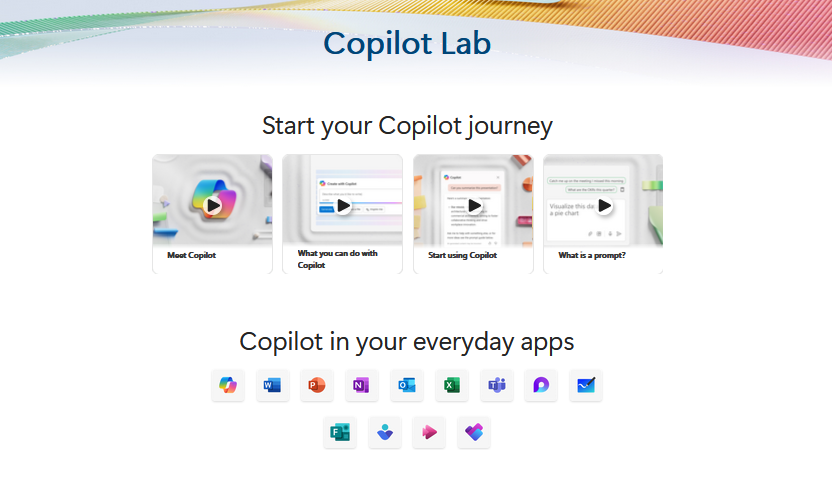
Meet Copilot, your AI assistant for work
See what your teams can do with Copilot and have peace of mind knowing your data is protected. Get best practices inspired by companies leading the way to start your AI transformation.
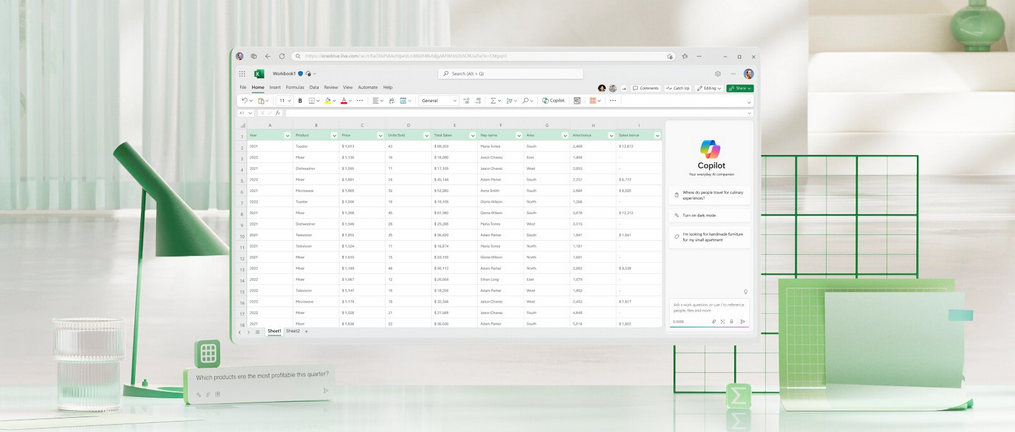
Copilot is an AI assistant that helps you and your teams work smarter and faster. Whether you need to write reports, create presentations, analyze data, or automate tasks, Copilot can assist you with natural language processing and machine learning. You can also trust that your data is secure and compliant with Copilot’s built-in encryption and privacy features. Learn from the best practices of leading companies that have successfully implemented AI in their workflows and transform your work with Copilot.
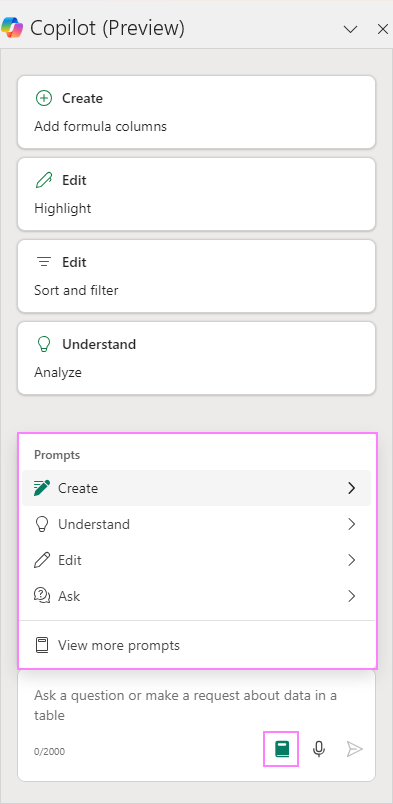
Microsoft’s Copilot Lab offers a wide range of prompts for various creative projects and content generation.

 Catastrophic Failure