

Migrating large mailboxes from Google Workspace to Microsoft 365 in Exchange Online involves several steps. In this article provides comprehensive guidance for tenant administrators on migrating emails from IMAP sources, including Gmail, to Microsoft 365 Primary and Archive mailboxes concurrently, known as Large Archive Onboarding (LAO), this solution empowers tenant admins to seamlessly migrate mailboxes exceeding 100 GB from any mail sources by harnessing the auto-expanding archives feature within Microsoft 365.
Challenges
- Large mailboxes pose unique challenges, including prolonged migration times, increased risk of data corruption, and bandwidth constraints.
- Currently, LAO is available only through PowerShell cmdlets.
Important
- Microsoft 365 offers a resultant cumulative mailbox size of up to 1.6 TB. This includes 100 GB of Primary Mailbox, and 1.5 TB of Archives (including 100 GB Main Archive).
- You require at least “Recipient Management” role to execute this. Read through the documentation, especially the linked documents to help kickstart migrations for large mailboxes.
- Run the cmdlet to disable ELCProcessing before creating LAO migration batch. If it’s not disabled, the folders might be moved by ELC during LAO, and the LAO migration might be blocked. Set-Mailbox <m365 mailbox> -ELCProcessingDisabled:$true

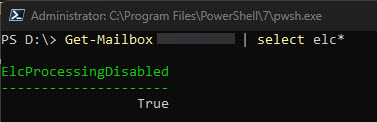
Methods to migrate large mailboxes to Microsoft 365 Exchange
- Exporting emails from Google Workspace using Google Takeout
- Using Third-Party Tools
- Using Google Workspace Sync for Microsoft Outlook (GWSMO)
- PowerShell: For large mailboxes, you can use PowerShell cmdlets to create a Large Archive Onboarding (LAO) migration batch. This method allows you to migrate mailboxes exceeding 100 GB by utilizing auto-expanding archives. – This is the method that we will describe
What do we need to know before we begin the Large Archive Onboarding (LAO)?
Before creating the migration, we need to know:
- The list of users with large mailboxes (>100 GB) on the source side.
- If you have a large mailbox, the content (time, type) that you intend to migrate and to where (primary, main archive, auxiliary archives).
For each user, the content can be selected based on time range or folder.
Examples
Time-range-based mapping:
| Time range | Target Mailbox |
| After 2023/01/01 | Primary |
| From 2022/01/01 to 2023/01/01 | Archive mailbox 1 |
| From 2021/01/01 to 2022/01/01 | Archive mailbox 2 |
| Before 2021/01/01 | Archive mailbox 3 |
Folder-based mapping:
| Folder Name | Target Mailbox |
| Inbox | Primary |
| SentItems | Primary |
| DeletedItems | Archive mailbox 1 |
Important
Well-Known Folders: The folders that come under this categorization include but are not limited to Inbox, Deleted Items, Sent Items, and Drafts. Full list here. Except Deleted Items, all these well-known folders and customer created labels/folders can be migrated to either primary or any archive mailboxes (both Main Archive and Auxiliary Archives). However, Deleted Items of a user can be migrated only to the Primary or Main Archive, and not Auxiliary Archive.
Prepare XML file
To migrate large mailboxes automatically, you need to prepare an XML file that advises the system on the content-to-mailbox mapping. Download a sample XML file here Download a copy of the large mailbox migration XML mapping file and take a quick look before you proceed.
Time-range-based mapping
In the XML file, you need to specify the time range in ContentFilter. Unlike Filterable properties for the -ContentFilter parameter, only Received property is supported, which means that the filtering is based on the “Received” parameters and not the “Sent” parameters in the mail item metadata. For example, filtering is executed on the Received TimeStamp (time when the mail landed in the user’s mailbox) vs the Sent TimeStamp (time when the sender of the mail sent it to the user) of a mail, which the users received in their mailbox.
Four operators are supported:
- gt: greater than
- ge: greater than or equal to
- lt: less than
- le: less than or equal to
The value of EmailAddress should be the SMTP address of EXO user (eg. user@domain.com).
The value of Target can be the following four types:
- Primary
- MainArchive
- AuxArchive* (AuxArchive1, AuxArchive2, AuxArchive3)
- GUID-of-Existing-Mailbox
I wanted to take a moment to explain the concept of Archive mailbox 1 (AuxArchive1), Archive mailbox 2 (AuxArchive2), Archive mailbox 3 (AuxArchive3), etc., and how they relate to our migration process. As you can see below in the XML I created, I have designated “MainArchive” as the Target and (AuxArchive1). By doing this, I am instructing the system on how and where I want the migration to be divided, as well as the specific time range for archiving. In our example, the system is creating folders within the Archiving mailbox Inbox based on the range provided in the XML file. This approach ensures that the migration is efficiently split and organized, enabling easier access and management of archived data.
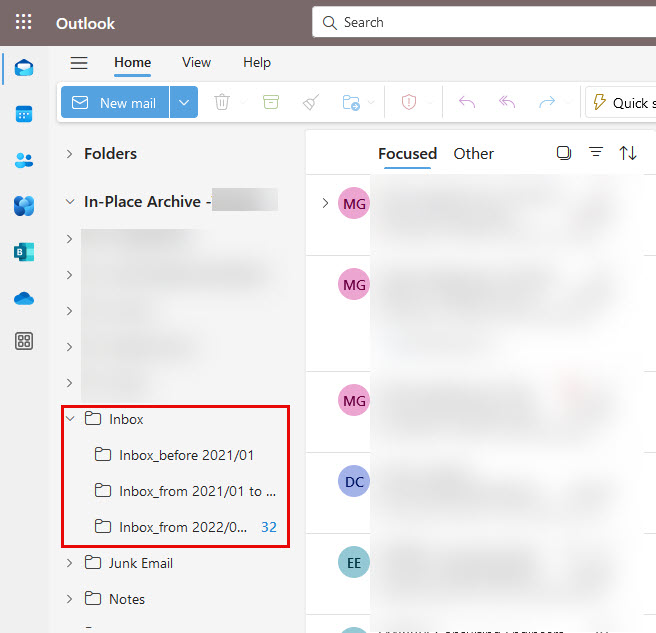
Following is the XML file for time range based mapping for the example shown in table 1.

Important
- If the time range in the XML file is changed during the migration process, there may be duplicated items. We recommend tenant admin have clear communication with end users before starting the migration.
- When you create time ranges, ensure that you use continuous time ranges. If it’s not continuous, there will be missing items that the migration process can’t detect.
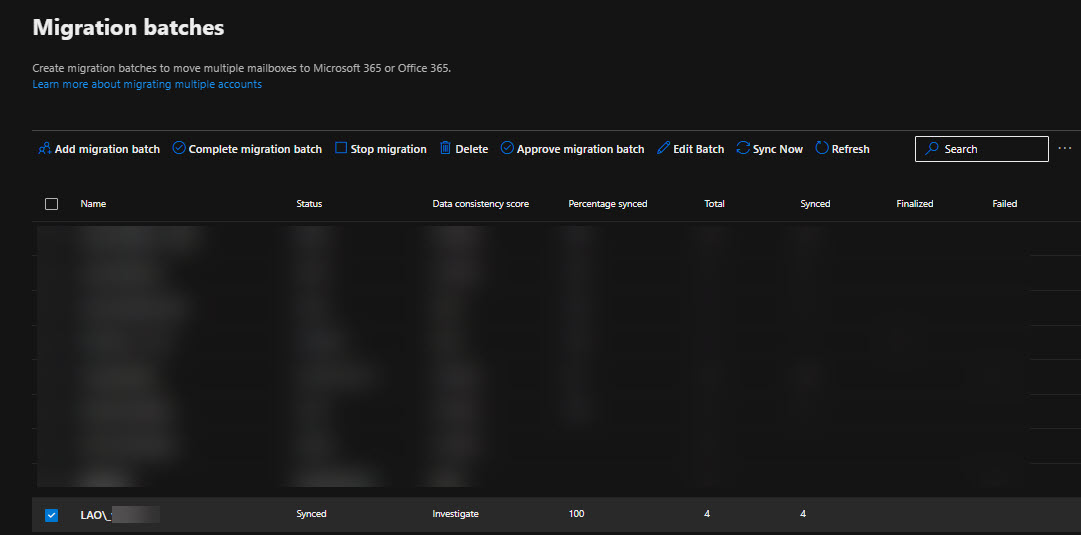
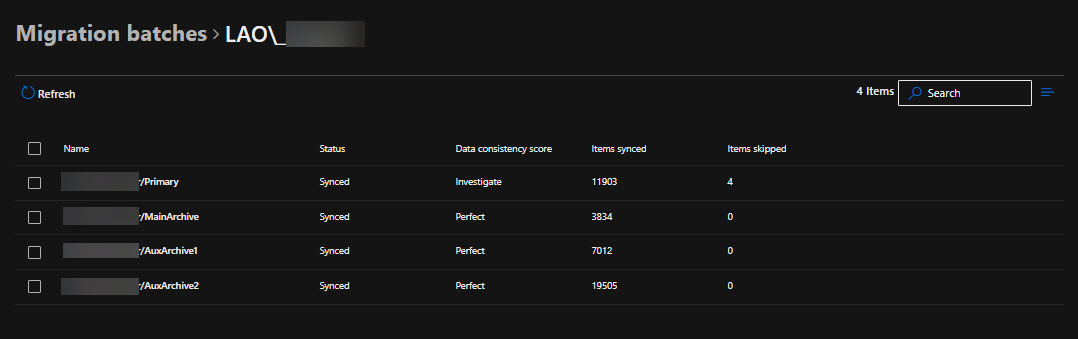
To create a large mailbox migration batch, you need to use New-MigrationBatch with -XMLData parameter.
Example:
New-MigrationBatch -SourceEndpoint “GWS Endpoint” -Name LAO\_User1 -CSVData $([System.IO.File]::ReadAllBytes(“.\user1.csv”)) -XMLData $([System.IO.File]::ReadAllBytes(“.\user1mapping.xml”)) -TargetDeliveryDomain “contoso.onmicrosoft.com” -AutoStart
Post-Migration
- Verify Data: After migration, verify that all emails, contacts, and calendar data have been successfully migrated.
- User Training: Provide training to users on how to access their new mailboxes and use Microsoft 365 features.
By following these steps, you can ensure a smooth transition from Google Workspace to Microsoft 365, even for large mailboxes.
Conclusion
Migrating from Google Workspace to Microsoft 365 involves careful planning and execution, especially when dealing with large mailboxes. By following the steps outlined in this guide, you can ensure a smooth and efficient transition. Remember to communicate with your users, use the right tools, and monitor the process closely to address any issues promptly. With proper planning and execution, the migration can be a seamless experience that enhances your organization’s productivity and collaboration. I wanted to share this article that I recently came across and found quite insightful. I believe it could be very useful for you as well. Please take a moment to read through it, and let me know what you think.


 Catastrophic Failure