Copilot for Microsoft 365 has introduced a feature that allows users to select their preferred language during a Teams meeting, even if transcripts or captions are not activated. This option is available when the ‘Allow Copilot’ setting is configured to ‘Only during the meeting’. The rollout of this feature began in mid-June 2024, and it does not require any administrative action to be enabled.
This ensures that responses from Copilot for Microsoft 365 are in the language chosen by the user. When this feature is selected, a language selector screen will appear, and a language must be chosen for the meeting to start Copilot for Microsoft 365. It’s designed to enhance the user experience by providing support in the user’s preferred language during the meeting.
When this will happen General Availability: Microsoft will begin rolling out late July 2024 (previously mid-June) and expect to complete by early August 2024 (previously late June).
How this will affect your organization Users will receive a language selection dialog box in Teams when Allow Copilot is set to Only during the meeting, transcript is off, and Copilot is selected to ensure that Copilot for Microsoft 365 responses are in the appropriate language.
What you need to do to prepare: This rollout will happen automatically with no admin action required. You may want to notify your users about this change and update any relevant documentation as appropriate.
See what your teams can do with Copilot and have peace of mind knowing your data is protected. Get best practices inspired by companies leading the way to start your AI transformation.
Copilot is an AI assistant that helps you and your teams work smarter and faster. Whether you need to write reports, create presentations, analyze data, or automate tasks, Copilot can assist you with natural language processing and machine learning. You can also trust that your data is secure and compliant with Copilot’s built-in encryption and privacy features. Learn from the best practices of leading companies that have successfully implemented AI in their workflows and transform your work with Copilot.
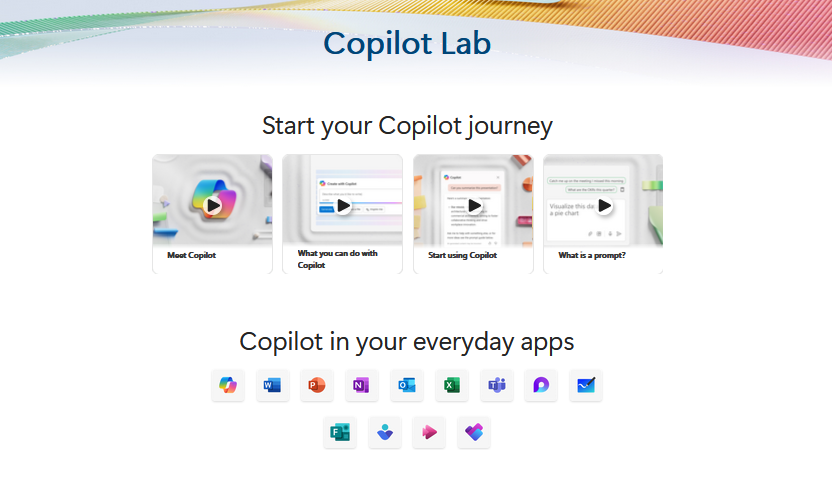
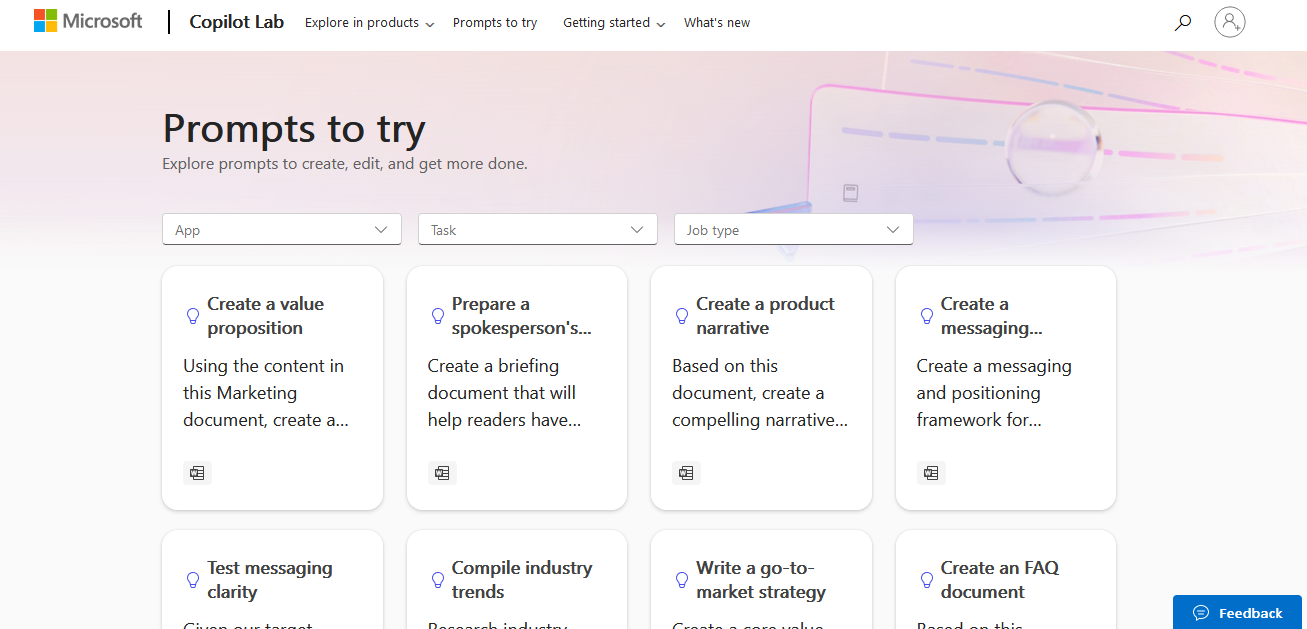
Microsoft’s Copilot Lab offers a wide range of prompts for various creative projects and content generation.
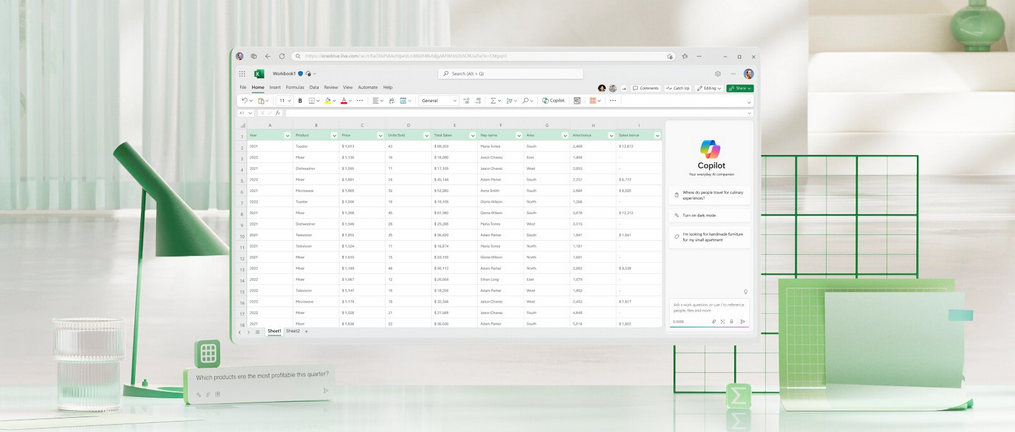
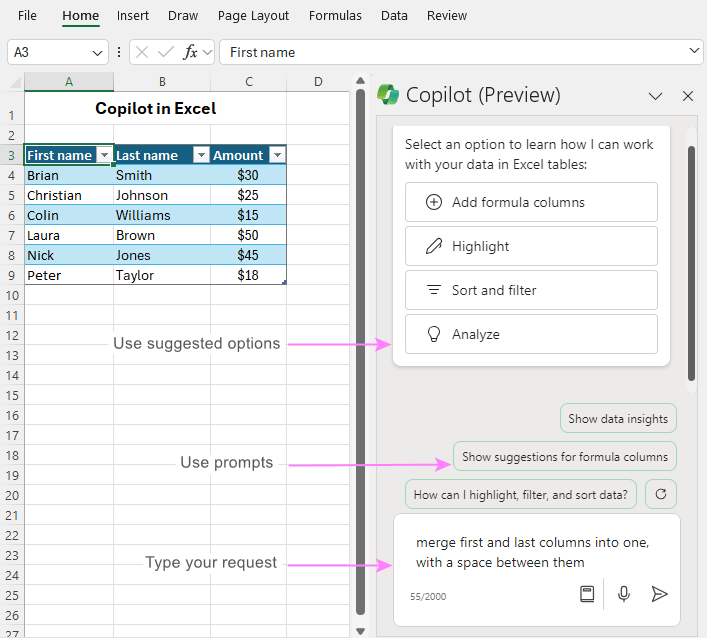
Microsoft Copilot in Excel helps you do more with your data in Excel tables by generating formula column suggestions, showing insights in charts and PivotTables, and highlighting interesting portions of data.
Open Excel in Microsoft 365.
2. Open a workbook stored on OneDrive or SharePoint. Important: Your data needs to be formatted in specific ways (see Format data for Copilot in Excel), and you’ll need to select a cell within your table or data range before using Copilot.
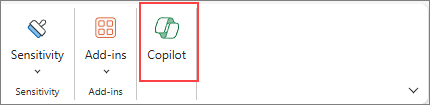
4. Select Copilot on the ribbon to open the chat pane. Tip: If you can’t select the Copilot button in the ribbon, try saving the file to the cloud first. 5. Enter your prompts and start working with Copilot.
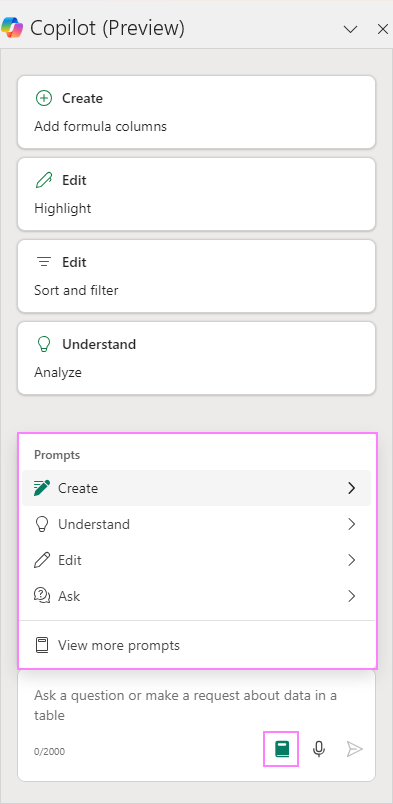
Learn more about creating effective prompts at Copilot Lab.
Rewrite your messages with Copilot in Teams chat and channels
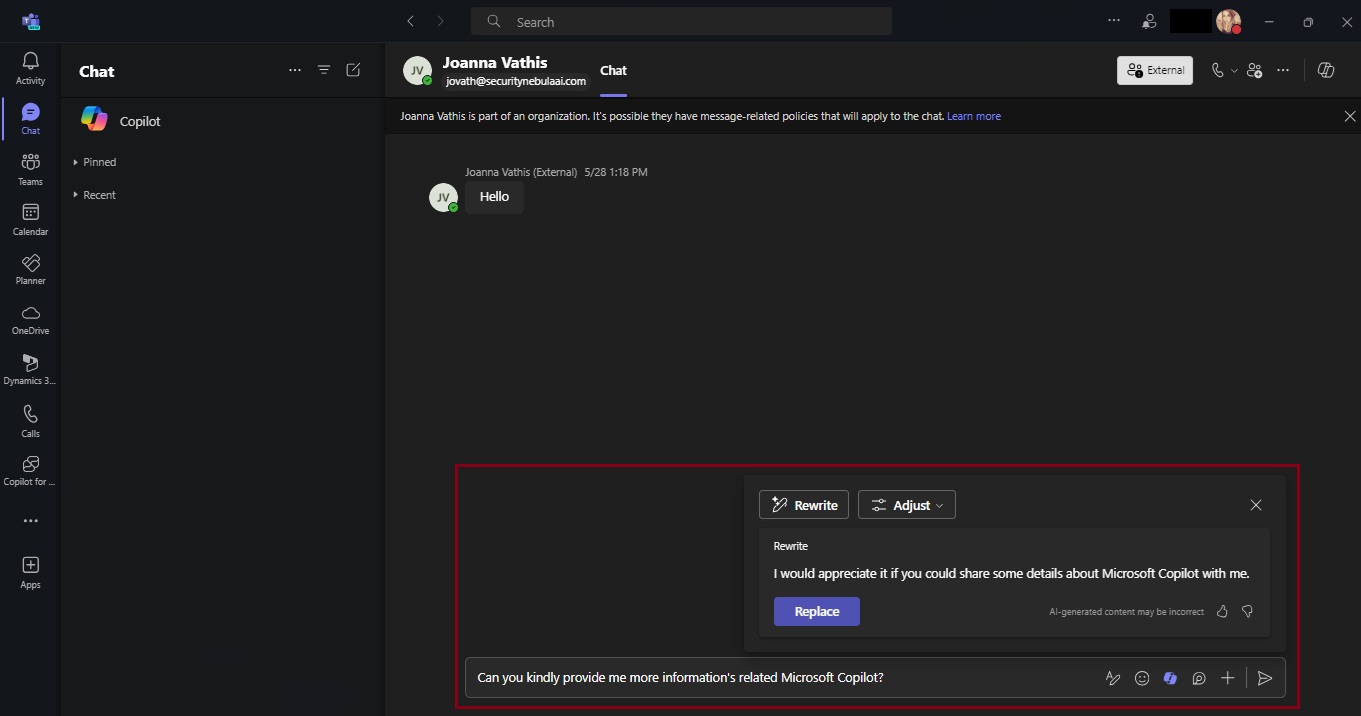
Copilot can assist you in crafting more polished and coherent messages, straight from the text compose box in chat and channels. It goes beyond spell-checking and grammar correction; Copilot also suggests improvements, rewrites, and adjustments to enhance the clarity, tone, and impact of your messages. Whether you’re quickly responding to your coworker or sharing a detailed project update with a VP, Copilot has your back. If you have a Copilot for Microsoft 365 license, you can navigate to the message compose box anywhere in Teams and start crafting your message. To start rewriting click on the Copilot icon in your chat box, press “Rewrite,” and watch your message instantly transform!
Not only is this an easy way to perfect your messages, but it does so without requiring you to type in any prompts. Just choose how you want to modify your message and Copilot does the work for you! If you need further editing, you can always refine your message by stacking different tones and lengths together. “Rewrite” is available for times when you don’t have any specific asks in mind for Copilot and want to use it more like a proofreader, and “Adjust” is there to give you specificity on what you want to change in your message. And remember, Copilot is the foundation of your message, but it is always important to proofread and confirm any generated content before you hit send.
Now available: Custom tone
While having Copilot do the work with those pre-set adjustment options is a great, no-prompt way to rewrite your messages quickly and efficiently, there is a new feature that allows you to tell Copilot exactly how you want to turn your writing into the best version of itself: Custom tone.
Custom tone takes everything touched upon with the “Adjust” feature and gives you the freedom to pick how Copilot can rewrite a message for you via an open prompt. With that comes the freedom to ask for multiple changes to be made, which Copilot will complete simultaneously in your rewrite. Do you want to add persuasive language to make your message more compelling? Or add additional context to your tone to give the right impression? Or turn a long sentence into a bulleted list before sharing it with your team? With custom tone, prompting how to change your message gives you the reins to make Copilot work exactly how you want it to.
Custom tone even allows you to bridge language barriers between global coworkers! Simply ask Copilot to translate your message to a specific language. For example, you can prompt that you want Copilot to make your message “longer and cheerful and in Spanish” and Copilot can apply those changes while translating instantly in the compose box – without you needing to leave your flow of work. Now, Copilot in Teams allows you to reach global audiences like never before, making it easier to write and receive messages adapted to you.
Teams messages – your next superpower
A lot of our workday is spent responding to messages in Teams. That may mean you are swamped with messages waiting to be responded to, some that are truly urgent and get buried by all your other unread chats and channels. With Copilot, you can respond faster and more effectively, driving collaboration forward. It helps reduce complexity for you as a writer, making it easier to land your message with each audience, faster. And you benefit as the message’s receiver, too – a message that is easier to understand allows you to act on it more deliberately. Thanks to Copilot, writing messages in Teams has never been easier, and it’s all thanks to an AI feature – powered by you.
Additional resources
For more examples of prompts that Copilot can help you with, check out Copilot Lab! Filter by specific Microsoft 365 apps to learn what prompts to use for meetings, in chats, and get tips for better optimized prompts with Copilot!
Clippy is back, in a new, unauthorized app that somehow has made it onto the Microsoft Store.
Clippy by Firecube uses Microsoft’s animated paper clip, Clippy (known as Clippit to purists), as a front end for ChatGPT 3.5, the AI chatbot developed by OpenAI. Although the app refers to Clippy by name, the full text description of the app immediately identifies it as “Not by Microsoft” to presumably fend off any lawyers that might be sniffing about the app. Firecube has a good reputation as a developer who looks deeply into new Windows code for unpublicized features.
Paperclip by FireCube (formerly known as Clippy by FireCube) brings back the infamous Clippit into your desktop powered by the OpenAI GPT 3.5 model (OpenAI key required as of this version).
Paperclip can be pinned to the screen for quick access to chat or just be left for nostalgia. This app is open source with improvements coming such as support for more characters like bob or classic clippy. Dragging and resizing and support for no OpenAI key required.
You can download it from Microsoft Store for free here!
On the 25th of April, Microsoft announced a robust set of multi-tenant organization (MTO) capabilities within Microsoft 365, now generally available to enhance any organization’s collaboration, communication, and administration across multiple tenants. These capabilities span Microsoft 365 People Search, Microsoft Teams, Viva Engage and Microsoft Defender XDR, which can be enabled via the Microsoft 365 admin center or Microsoft Entra admin center.
This segmentation can cause frustration when users need to communicate and collaborate across tenant boundaries, whilst IT admins need to perform the same set of administrative tasks per tenant to maintain their organization.
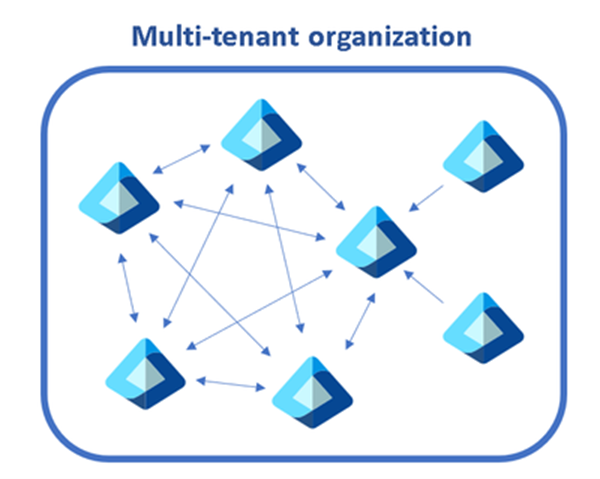
A diagram showing multiple tenants within a single organization.
The capabilities we discuss below help multi-tenant organizations address these complexities, while staying compliant and secure:
Find people across organizations easily: Search for and communicate with colleagues in a unified manner with improved people search. Every search now returns a single, accurate result, simplifying how you connect with the right colleague.
Streamlined workforce collaboration: Engage in calls, chats, and meetings across tenants without the barriers of meeting lobbies. Enjoy immediate access to meeting content and collaborative tools in real time.
Unlock new ways for employees and leaders to connect: We’ve broadened the capabilities in Viva Engage, facilitating cross-tenant announcements and enabling community interaction and campaign participation that extend beyond tenant boundaries.
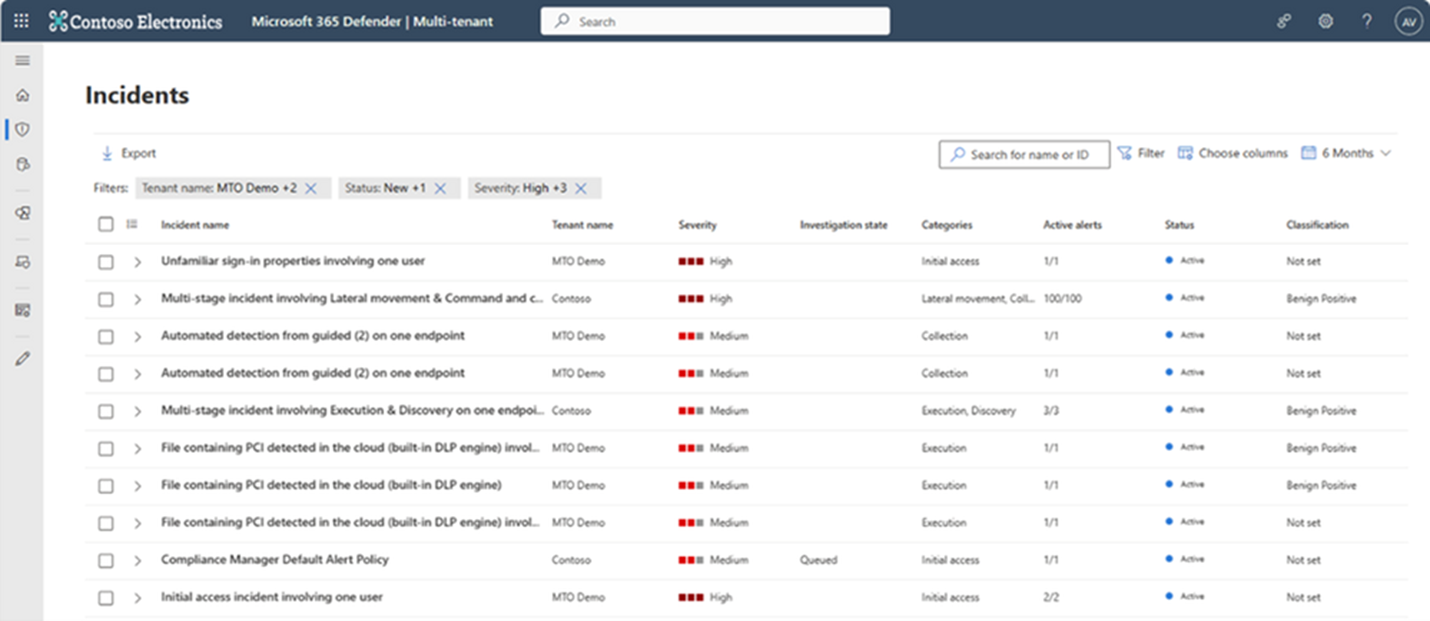
Manage incidents across tenants: Microsoft Defender XDR provides a single, unified view of all tenants your organization manages, allowing for swift incident investigation and advanced threat hunting without the need to switch between tenant views.
Simplify multi-tenant management: The newly defined multi-tenant organization boundary in Microsoft Entra ID P1 simplifies the enablement, configuration and management of the capabilities above. Whether through Microsoft Graph APIs or the Microsoft 365 Admin Center, setting up is intuitive and straightforward.
Find people across organizations easily with People Search
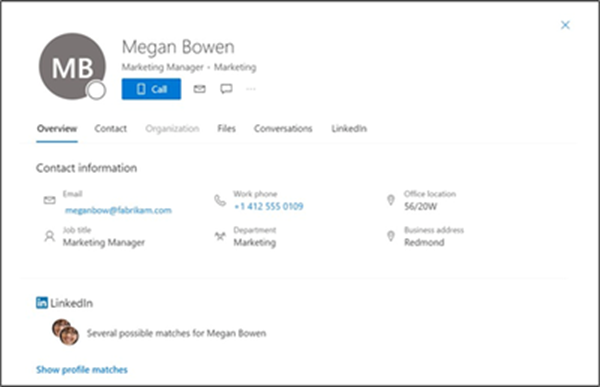
The multi-tenant organization (MTO) People Search is a collaboration feature that enables search and discovery of people across multiple tenants. A tenant admin can enable cross-tenant synchronization that allows users to be synced to another tenant and be discoverable in its global address list. Once enabled, users can search and discover synced user profiles from the other tenant and view their corresponding people cards.
An image showing a synchronized user profile from another tenant in Microsoft 365
Streamline workforce collaboration with Microsoft Teams
Once administrators form a multi-tenant organization in the Entra ID platform organizations with the new Teams desktop client will automatically receive the Teams MTO features with no additional configuration. Users can now join a meeting, chat, call, or collaborate in a channel hosted by another tenant, and simultaneously compose chat messages in their own tenant. Users can receive cross-tenant notifications for all accounts and tenants added to the Teams client, no matter which one is currently in focus. People’s search is also improved. Searches for coworkers in a multi-tenant organization could often return multiple results for the same person. With the new MTO capabilities in the new Teams client, searching for a coworker in an MTO will return a single result, helping you to identify the correct colleague and keep your conversations in one place.
The new Teams desktop client showing improved people search capability on the right hand side Users that join a meeting in another tenant can now bypass the meeting lobby, have access to all in-meeting content and resources and can collaborate in real time.
Manage incidents across tenants with Microsoft Defender XDR
Security operations teams that work with multiple tenants need a reliable and comprehensive security solution that can keep up with modern threats and provide unified and connected experience to enhance their security operations. Microsoft Defender XDR now delivers unified investigation and response experience for multi-tenant organizations alongside native protection across endpoints, identities, email, collaboration tools, cloud apps, and data.
With multi-tenant management in Microsoft Defender XDR, security operations teams can quickly investigate incidents and perform advanced hunting across data from multiple tenants, removing the need for administrators to log in and out of each individual tenant.
Enable Microsoft 365 multi-tenant capabilities with Microsoft Entra ID
Multi-tenant organization platform capabilities are now rolling out to standard production tenants in Microsoft 365. To deliver the above capabilities, administrators can enable multi-tenant capabilities in the Microsoft 365 admin center and configure which users in the organization can take advantage of multi-tenant capabilities using either Microsoft 365 admin center or Microsoft Entra admin center.
This approach allows you to define a boundary around the Entra ID tenants that your organization owns, facilitated by an invite-and-accept flow between tenant administrators. Learn more about the process in the Microsoft 365 admin center here and using Microsoft Graph API’s here. We recommend the use of the Microsoft 365 admin center to simplify the setup experience and to view your newly created MTO:
Snapshot of a multitenant organization collaboration with three tenants.
Following the formation of the multi-tenant organization, Microsoft offers two methods to provision employees into neighboring multi-tenant organization tenants at scale.
For a simplified experience, stay in the Microsoft 365 admin center to sync users into multiple tenants in your multi-tenant organization. Microsoft recommend this method for smaller multi-tenant organizations who plan on all employees receiving access to all multi-tenant organization tenants.
For a customizable sync experience, head over to Entra ID cross-tenant synchronization. Cross-tenant synchronization is highly configurable and allows the provisioning of any multi-hub multi-spoke identity landscape. We recommend this method for enterprise organizations of complex identity landscapes. Either method works. Choose the one that works best for your specific organization!
Today, Microsoft announce that Microsoft Copilot for Security will be generally available worldwide on April 1, 2024. The industry’s first generative AI solution will help security and IT professionals catch what others miss, move faster, and strengthen team expertise. Copilot is informed by large-scale data and threat intelligence, including more than 78 trillion security signals processed by Microsoft each day, and coupled with large language models to deliver tailored insights and guide next steps. With Copilot, you can protect at the speed and scale of AI and transform your security operations.
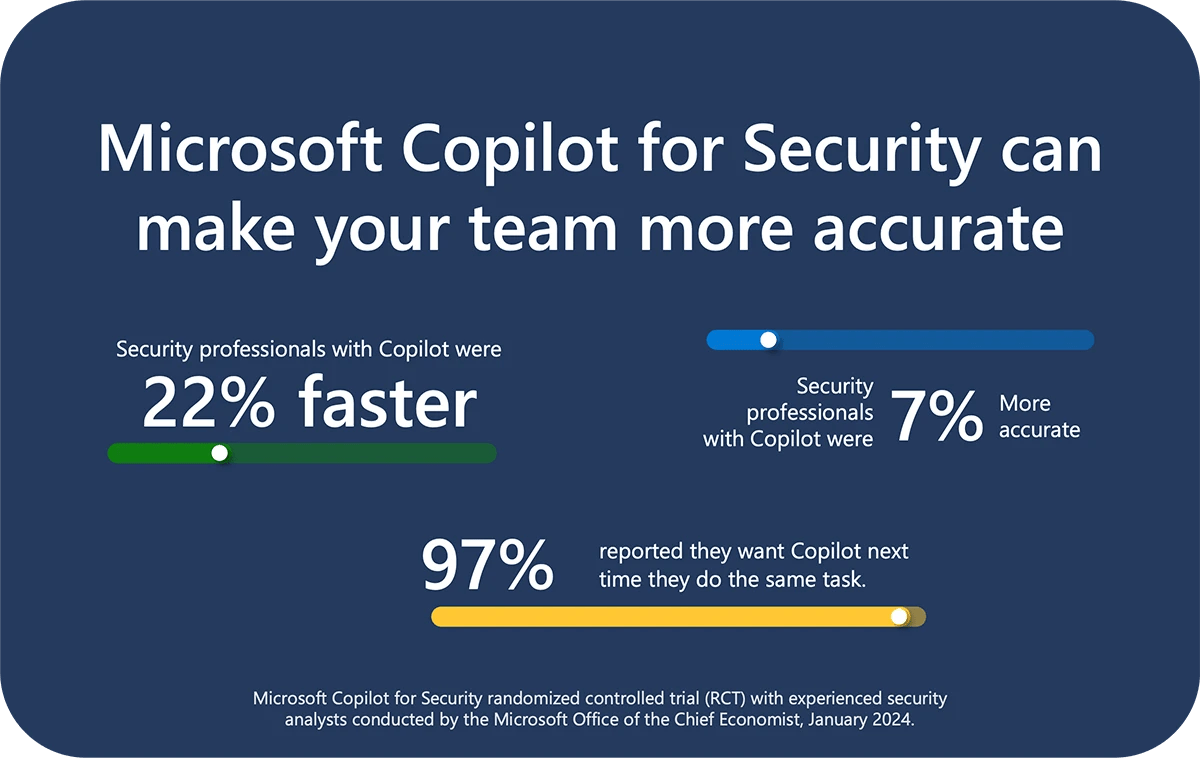
Copilot for Security economic study, which shows that experienced security professionals are faster and more accurate when using Copilot, and they overwhelmingly want to continue using Copilot. The gains are truly amazing:
* Experienced security analysts were 22% faster with Copilot. * They were 7% more accurate across all tasks when using Copilot. * And, most notably, 97% said they want to use Copilot the next time they do the same task.
This new study focuses on experienced security professionals and expands the randomized controlled trial we published last November, which focused on new-in-career security professionals. Both studies measured the effects on productivity when analysts performed security tasks using Copilot for Security compared to a control group that did not. The combined results of both studies demonstrate that everyone—across all levels of experience and types of expertise—can make gains in security with Copilot. When we put Copilot in the hands of security teams, we can break down barriers to entry and advancement, and improve the work experience for everyone. Copilot enables security for all.
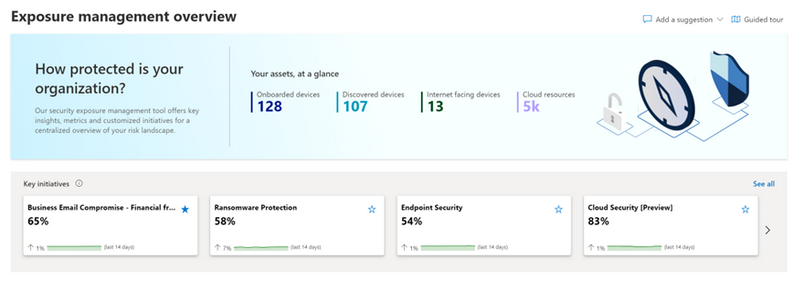
Today, March 13, Microsoft announce the public preview release of Microsoft Security Exposure Management. This transformative solution unifies disparate data silos, extending end-to-end visibility to security teams across all assets. By enabling a thorough assessment of security posture and exposure, this solution equips teams to not only grasp their current security landscape but also elevate it to new heights. Microsoft Security Exposure Management serves as a cornerstone for proactive risk management, empowering organizations to adeptly navigate and mitigate threat exposure across their entire attack surface.
Microsoft Security Exposure Management empowers customers to:
Build an effective exposure management program with a continuous threat exposure management (CTEM) process.
Reduce risk with a clear view of every asset and real-time assessment of potential exposures both inside-out and outside-in.
Identify and classify critical assets, ensuring they are protected against a wide variety of threats.
Discover and visualize potential adversary intrusion paths, including lateral movement, to proactively identify and stop attacker activity.
Communicate exposure risk to business leaders and stakeholders with clear KPIs and actionable insights.
Enhance exposure analysis and remediation by integrating with third-party data sources and tools
At launch, we are introducing new capabilities that are foundational to exposure management programs:
Attack Surface Management: Provides a comprehensive view of the entire attack surface, allowing the exploration of assets and their relationships.
Attack Path Analysis: Assists security teams in visualizing and prioritizing attack paths and risks across environments, enabling focused remediation efforts to reduce exposure and breach likelihood.
Unified Exposure Insights: Provides decision-makers with a consolidated, clear view of an organization’s threat exposure, facilitating security teams in addressing critical questions about security posture.
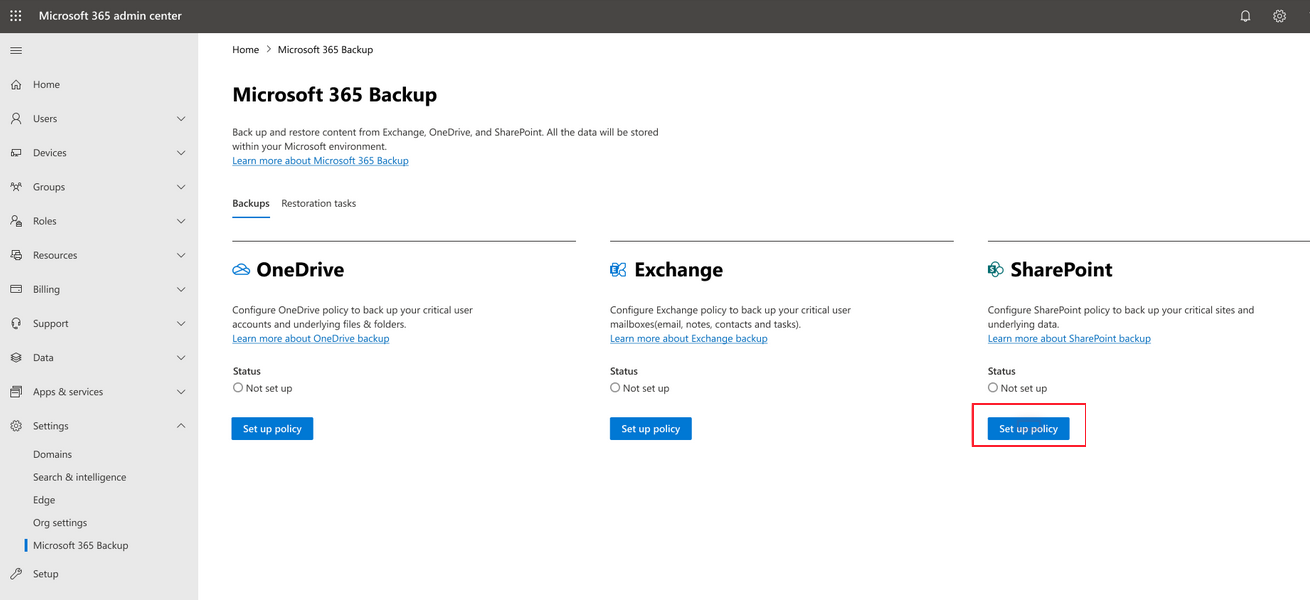
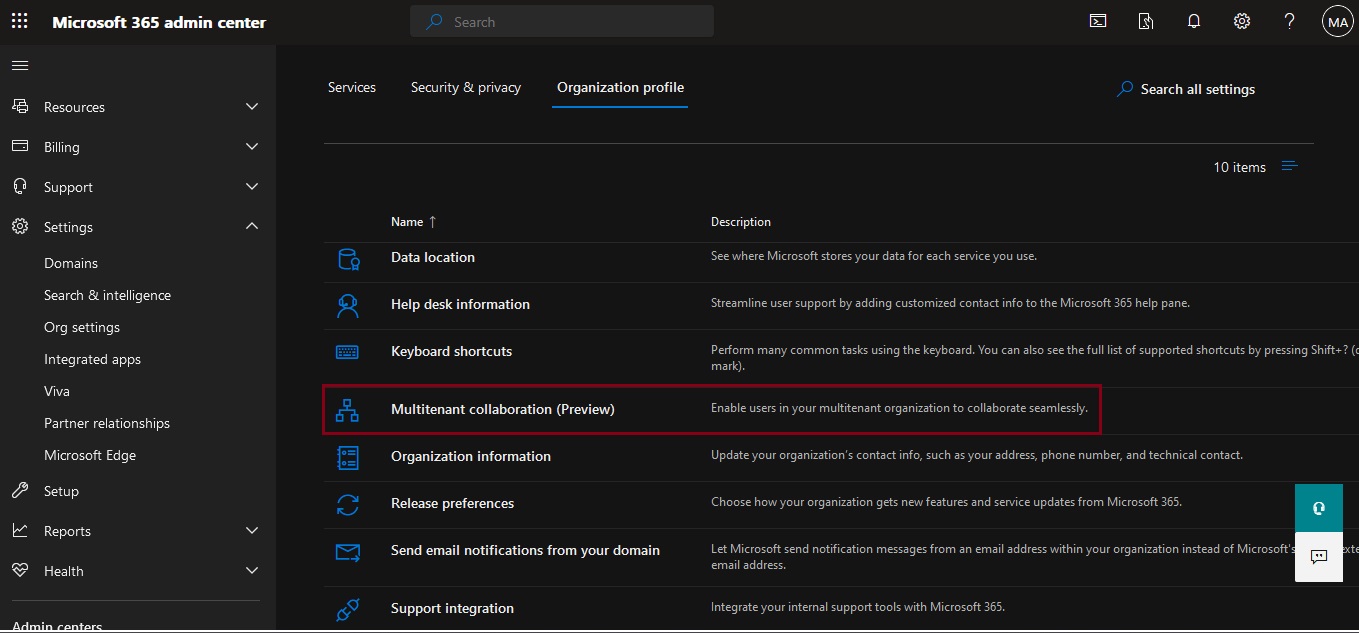
Microsoft 365 Backup is currently in preview and will begin rolling out to organizations in early 2024. You can set up billing for the product as described in Set up Microsoft 365 Backup. Once Microsoft 365 Backup has been deployed and is available for use in your tenant, you’ll see it in the Microsoft 365 admin center page under Settings.
During the preview period, performance and speed of web interfaces, initial configuration, and restores might be slower than expected as we scale up our infrastructure to remove undesirable latency from our system.
Business continuity assurance is a top-of-mind concern for many companies. Microsoft 365 Backup delivers business continuity peace of mind by providing performance and reliable restore confidence. When evaluating a backup and restore offering, what really matters isn’t solely the backup, but the ability to restore your data to a healthy state quickly when you need to do so. Recovering large volumes of content is difficult when copying data at a scale from a remote, air-gapped location requiring weeks or even months to get your business back up and running.
In cases of a ransomware attack that encrypts large swaths of your data, or instances of an internal accidental or malicious data deletion or overwrite event, you need to be able to get your business back to a healthy state as soon as possible. This is what the Microsoft 365 Backup product offers, both through the Microsoft 365 admin center, as well as via third-party applications built on the Microsoft 365 Backup Storage platform.
To summarize, applications built on top of the Microsoft 365 Backup Storage platform deliver the following benefits regardless of the size or scale of the protected tenant:
Full SharePoint site and OneDrive account restore fidelity, meaning the site and OneDrive are restored to their exact state at specific prior points in time via a rollback operation
In the future, roll forward granular file-level restores in OneDrive and SharePoint
Full Exchange mailbox item restores or granular item restores using search
Consolidated security and compliance domain management
Walkthrough an overview of Microsoft 365 Backup here…
Architecture
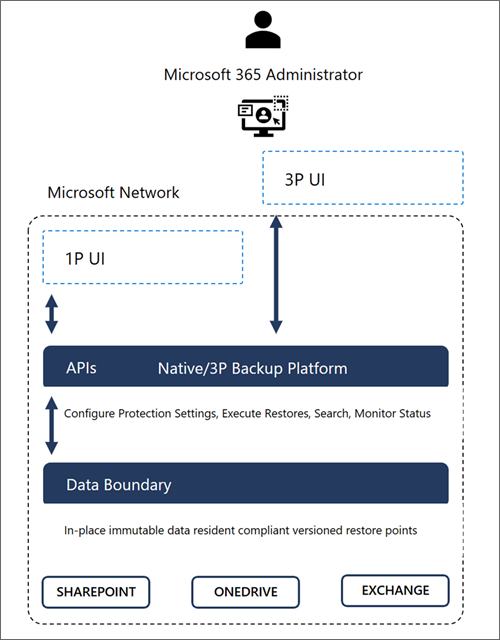
Microsoft 365 Backup provides ultra-fast backup and restore capabilities by creating backups within the protected services’ data boundaries.
Microsoft 365 Backup not only provides uniquely fast recovery from common business continuity and disaster recovery (BCDR) scenarios like ransomware or accidental/malicious employee content overwrite/deletion. Additional BCDR scenario protections are also built directly into the service. For example, OneDrive, SharePoint, and Exchange Online provide replicated copies of your data across geographically disparate datacenters to automatically protect against physical disasters and automatically failover to live active copies seamlessly without the need for end customer intervention.
Our backups are protected from malicious overwrites because OneDrive, SharePoint, and Exchange use Append-Only storage. This means that SharePoint can only add new content blobs and can never change old ones until they’re permanently deleted. The Exchange items are backed up in an immutable manner and can’t be accessed by a client process (such as Outlook, OWA, or MFCMAPI). This process ensures that items can’t be changed or corrupted after an initial save, protecting against attackers that try to corrupt old versions. For More information about the built-in service and data resiliency, see SharePoint and OneDrive data resiliency in Microsoft 365 and Exchange Online data resiliency in Microsoft 365.
Key architectural takeaways:
Data never leaves the Microsoft 365 data trust boundary or the geographic locations of your current data residency.
The backups are immutable unless expressly deleted by the Backup tool admin via product offboarding.
OneDrive, SharePoint, and Exchange have multiple physically redundant copies of your data to protect against physical disasters.
The multitenant organization capability is designed for organizations that own multiple Microsoft Entra tenants and want to streamline intra-organization cross-tenant collaboration in Microsoft 365. It’s built on the premise of reciprocal provisioning of B2B member users across multitenant organization tenants.
Collaboration in Microsoft 365 is built on the premise of reciprocal provisioning of B2B identities across multitenant organization tenants.
Members Not Guests
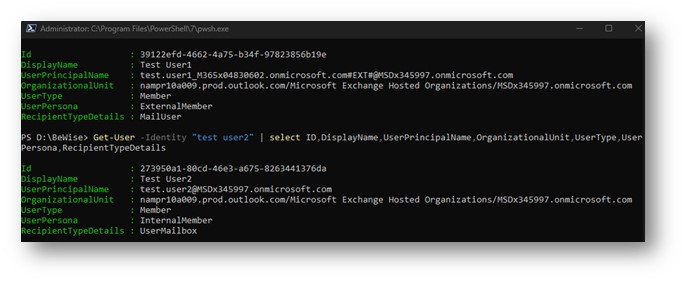
When Entra ID synchronizes accounts from a source tenant to a target tenant, it creates the entries in the target tenant as member accounts, not guest accounts. If you examine the properties of a synchronized account, you can see that the user principal name looks like a guest account but the user type is the same as a regular user account:
Side-by-side multitasking and cross-tenant notifications
With the new Teams client, users can now work across multiple tenants and accounts in side-by-side windows. They can join a meeting or collaborate in a channel hosted in another tenant, and simultaneously compose chat messages in their own tenant. Users can receive cross-tenant notifications for all accounts and tenants added to the Teams client, no matter which one is currently in focus.
Limitations for multitenant organizations in Microsoft 365 preview
The following are limitations of the multitenant organizations in Microsoft 365 preview:
A maximum of five tenants in the multitenant organization is supported.
A maximum of 100,000 users per tenant is supported.
Teams on the web, Microsoft Teams Rooms (MTR), and VDI/AVD aren’t supported.
The ability to grant or revoke permission to receive notifications from other tenants and to switch between tenants isn’t supported on mobile.
People in your organization links may not work for users from another tenant if their account had originally been a guest and they had previously accessed SharePoint resources.
It might take up to seven days for a user to appear in search once they’ve been synchronized. Contact Microsoft support if users aren’t searchable after seven days.
If you want to add more than five tenants or 100,000 users per tenant, contact Microsoft support.
Cross-tenant synchronization in Microsoft Teams:
Cross-tenant synchronization is a one-way process. This means that users from the source tenant are synchronized to the target tenant, but not the other way around.
Synchronized users have their own account in the target tenant. This means that they have their own profile, mailbox, and Teams chat history.
Synchronized users can access Teams in the target tenant. They can chat with other users, join teams, and participate in meetings.
Synchronized users cannot access other Microsoft 365 services in the target tenant. This is because they are not considered to be full members of the target tenant.
The basic issue here is that the original cross-tenant synchronization mechanismwasn’t tailored to support Microsoft 365 apps. The MTO (Multi-Tenant Organization) is explicitly engineered to support Microsoft 365, so it looks (from initial tests) that the use objects synchronized to another tenant a) appear in the GAL and b) are routable because their SMTP mail address is valid.
In the next post we will go deeper on how to configure MTO step by step. Stay tune for more goodies …







 Catastrophic Failure