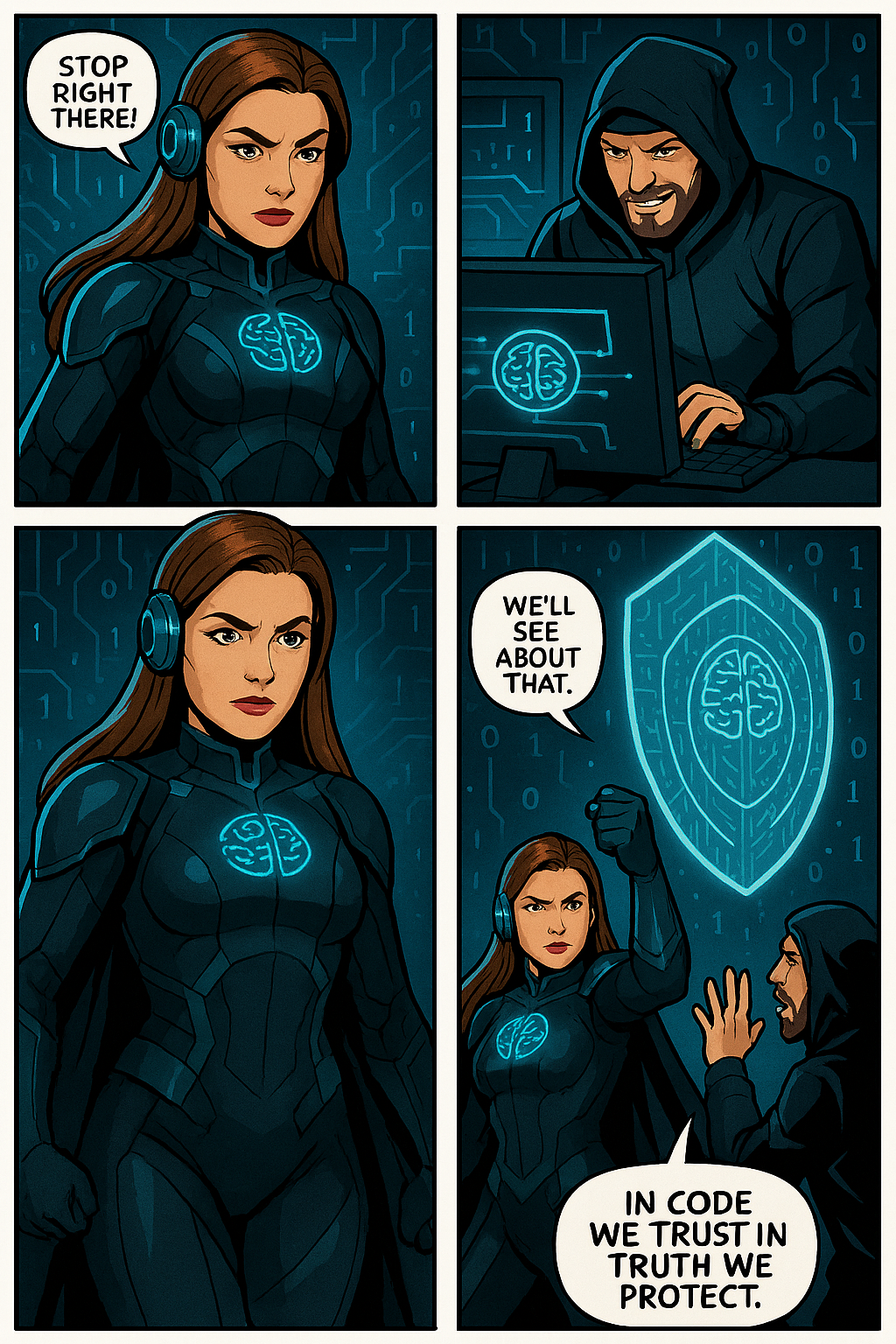
Hello Friday 🎉 ! It’s time to unwind with a great story. Who doesn’t love comics? I certainly do! So, let’s dive into my comic story and introduce you my character… My new Tech Comic: Meet Jo Valiant the Guardian of Digital Realms & AI Ethics
🆕 Character 🦸 Name: Jo Valiant ✍ Alias: The Ciphermind 🚨 Role: Guardian of Digital Realms & AI Ethics 🗒️ Catchphrase: “Decode The Chaos.”
In a futuristic digital landscape where data flows like storms and privacy is constantly under threat, emerges Jo The Ciphermind—a guardian clad in encrypted armor and equipped with a mind shielded by advanced privacy protocols. Jo is not just a character but a symbol of resilience and vigilance in the realm of Microsoft 365 Copilot. With glowing blue accents and a brain symbol illuminated on the chest, Jo represents the fusion of human cognition and artificial intelligence. The headphones signify constant connectivity, while the surrounding icons—a padlock, AI chip, shield with a brain, and fingerprint—highlight Jo’s mission to protect data, ensure privacy, and uphold security. This slide introduces Jo as the protagonist of our comic-style journey, setting the stage for an engaging exploration of how Microsoft 365 Copilot integrates these critical elements into its ecosystem.
Balance of Innovation and Integrity Jo’s journey highlights the balance between advancing AI innovation and upholding responsible data stewardship.
Jo’s Mission Jo The Ciphermind’s mission transcends individual battles—it’s about empowering users with transparency, control, and trust in Microsoft 365 Copilot.
When you apply your company brand to customize the look of your organization’s email messages, you can also specify an expiration for these email messages. With Microsoft Purview Advanced Message Encryption, you can create multiple templates for encrypted emails that originate from your organization. Using a template, you can control how long recipients have access to mail sent by your users.
When an end user receives mail that has an expiration date set, the user sees the expiration date in the wrapper email. If a user tries to open an expired mail, an error appears in the OME portal.
You can only set expiration dates for emails to external recipients.
With Microsoft Purview Advanced Message Encryption, anytime you apply custom branding, Microsoft 365 applies the wrapper to email that fits the mail flow rule to which you apply the template. You can only use expiration if you use custom branding.
Microsoft 365 E5 subscription
Compliance Administrator Permissions
How to create a custom branding template to force mail expiration by using PowerShell
Using a work or school account that has sufficient permissions in your organization, such as Compliance Administrator, start a Windows PowerShell session and connect to Exchange Online. For instructions, see Connect to Exchange Online PowerShell.
Run the New-OMEConfiguration cmdlet
Where:
Identity is the name of the custom template.
ExternalMailExpiryInDays identifies the number of days that recipients can keep mail before it expires. You can use any value between 1–730 days.
More information about Microsoft Purview Advanced Message Encryption
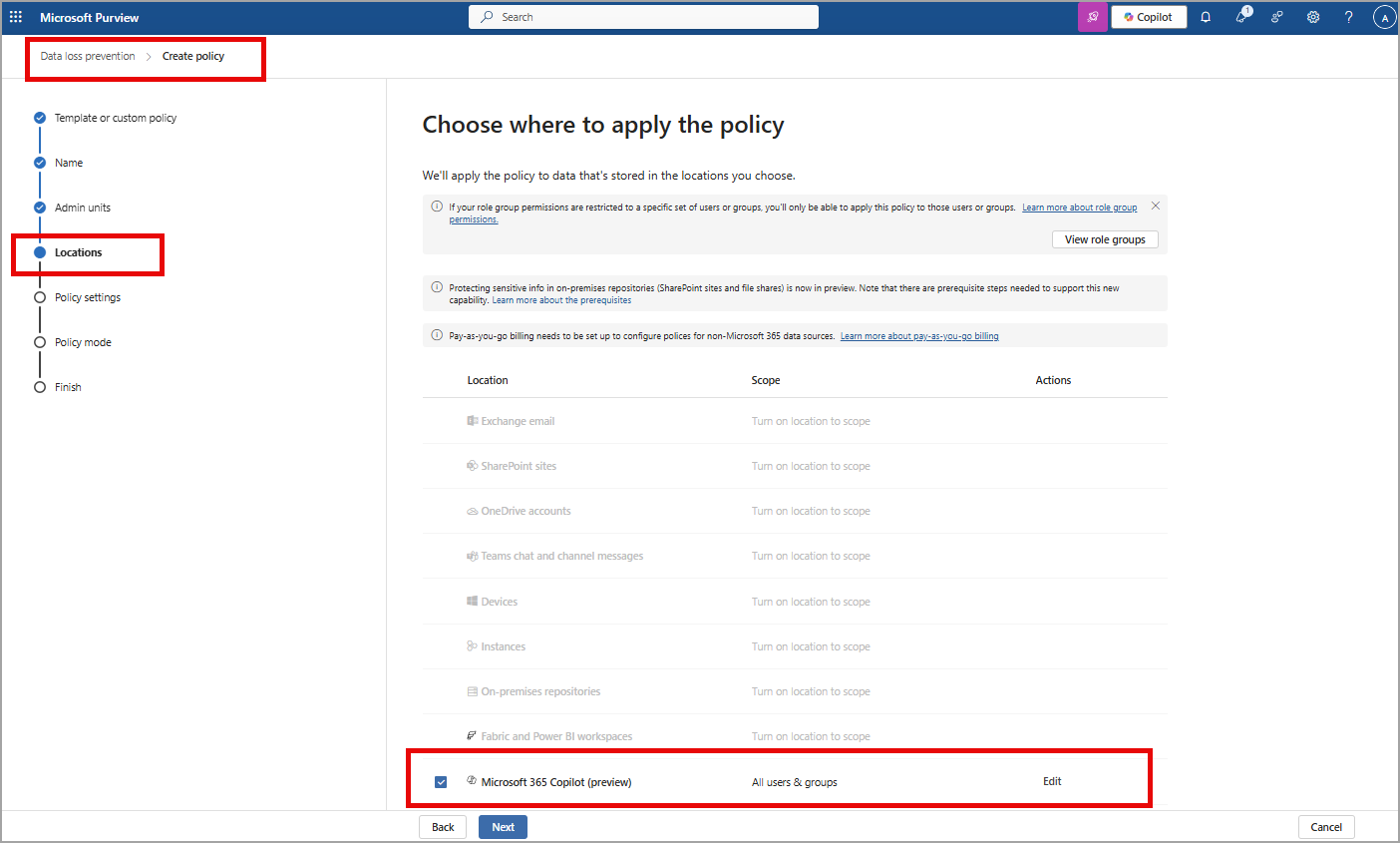
Microsoft Purview’s Data Loss Prevention (DLP) now allows you to prevent Microsoft 365 Copilot from processing emails and other content marked with specific sensitivity labels by configuring DLP policies in the Microsoft Purview portal.
By creating a DLP policy with the “Content contains > Sensitivity labels” condition for the Microsoft 365 Copilot policy location, you can restrict Copilot from using this sensitive content in its responses and summarizations, thereby enhancing data protection.
This feature will allow DLP policies to provide detection of sensitivity labels in emails as enterprise grounding data and restrict access of the labeled emails in Microsoft 365 Copilot chat experiences. This feature only works for emails on or after 1/1/2025.
How this will affect your organization:
Organizations with no existing DLP for Microsoft 365 Copilot policies are not impacted. Customers with the required licenses will be able to go to the Microsoft Purview portal to create policies in the Data Loss Prevention solution. Admins can also go to Data Security Posture Management for AI (DSPM for AI) to see recommendations for creating Microsoft 365 Copilot policies.
Admins should create a new DLP policy using the Copilot location to use this feature:
On the 25th of April, Microsoft announced a robust set of multi-tenant organization (MTO) capabilities within Microsoft 365, now generally available to enhance any organization’s collaboration, communication, and administration across multiple tenants. These capabilities span Microsoft 365 People Search, Microsoft Teams, Viva Engage and Microsoft Defender XDR, which can be enabled via the Microsoft 365 admin center or Microsoft Entra admin center.
This segmentation can cause frustration when users need to communicate and collaborate across tenant boundaries, whilst IT admins need to perform the same set of administrative tasks per tenant to maintain their organization.
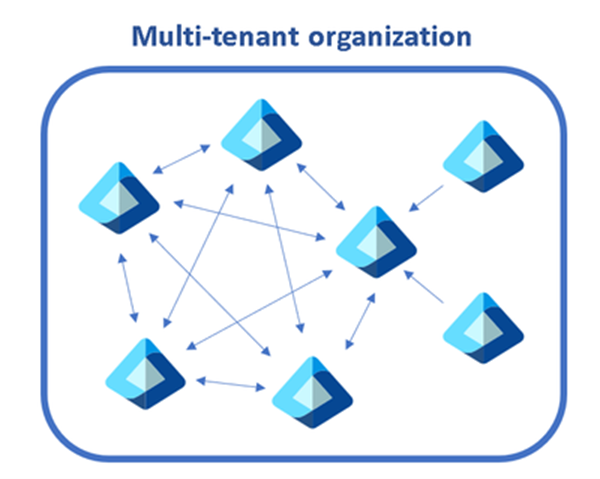
A diagram showing multiple tenants within a single organization.
The capabilities we discuss below help multi-tenant organizations address these complexities, while staying compliant and secure:
Find people across organizations easily: Search for and communicate with colleagues in a unified manner with improved people search. Every search now returns a single, accurate result, simplifying how you connect with the right colleague.
Streamlined workforce collaboration: Engage in calls, chats, and meetings across tenants without the barriers of meeting lobbies. Enjoy immediate access to meeting content and collaborative tools in real time.
Unlock new ways for employees and leaders to connect: We’ve broadened the capabilities in Viva Engage, facilitating cross-tenant announcements and enabling community interaction and campaign participation that extend beyond tenant boundaries.
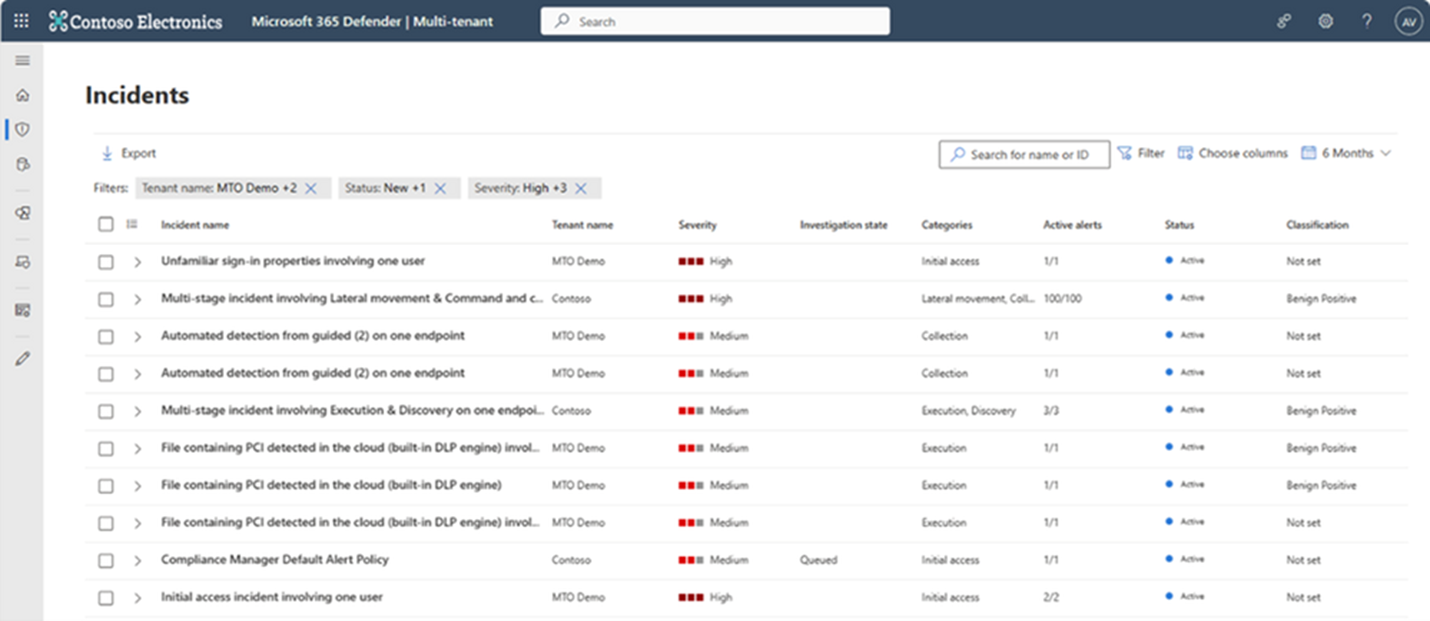
Manage incidents across tenants: Microsoft Defender XDR provides a single, unified view of all tenants your organization manages, allowing for swift incident investigation and advanced threat hunting without the need to switch between tenant views.
Simplify multi-tenant management: The newly defined multi-tenant organization boundary in Microsoft Entra ID P1 simplifies the enablement, configuration and management of the capabilities above. Whether through Microsoft Graph APIs or the Microsoft 365 Admin Center, setting up is intuitive and straightforward.
Find people across organizations easily with People Search
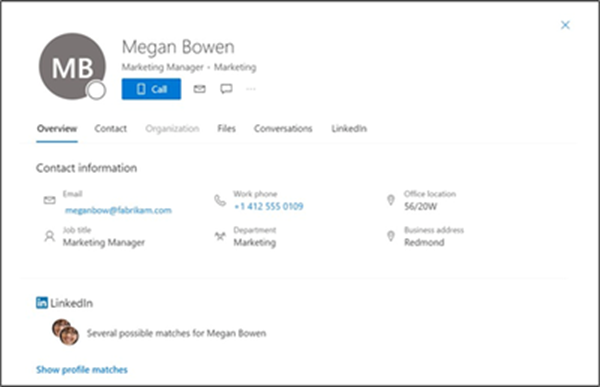
The multi-tenant organization (MTO) People Search is a collaboration feature that enables search and discovery of people across multiple tenants. A tenant admin can enable cross-tenant synchronization that allows users to be synced to another tenant and be discoverable in its global address list. Once enabled, users can search and discover synced user profiles from the other tenant and view their corresponding people cards.
An image showing a synchronized user profile from another tenant in Microsoft 365
Streamline workforce collaboration with Microsoft Teams
Once administrators form a multi-tenant organization in the Entra ID platform organizations with the new Teams desktop client will automatically receive the Teams MTO features with no additional configuration. Users can now join a meeting, chat, call, or collaborate in a channel hosted by another tenant, and simultaneously compose chat messages in their own tenant. Users can receive cross-tenant notifications for all accounts and tenants added to the Teams client, no matter which one is currently in focus. People’s search is also improved. Searches for coworkers in a multi-tenant organization could often return multiple results for the same person. With the new MTO capabilities in the new Teams client, searching for a coworker in an MTO will return a single result, helping you to identify the correct colleague and keep your conversations in one place.
The new Teams desktop client showing improved people search capability on the right hand side Users that join a meeting in another tenant can now bypass the meeting lobby, have access to all in-meeting content and resources and can collaborate in real time.
Manage incidents across tenants with Microsoft Defender XDR
Security operations teams that work with multiple tenants need a reliable and comprehensive security solution that can keep up with modern threats and provide unified and connected experience to enhance their security operations. Microsoft Defender XDR now delivers unified investigation and response experience for multi-tenant organizations alongside native protection across endpoints, identities, email, collaboration tools, cloud apps, and data.
With multi-tenant management in Microsoft Defender XDR, security operations teams can quickly investigate incidents and perform advanced hunting across data from multiple tenants, removing the need for administrators to log in and out of each individual tenant.
Enable Microsoft 365 multi-tenant capabilities with Microsoft Entra ID
Multi-tenant organization platform capabilities are now rolling out to standard production tenants in Microsoft 365. To deliver the above capabilities, administrators can enable multi-tenant capabilities in the Microsoft 365 admin center and configure which users in the organization can take advantage of multi-tenant capabilities using either Microsoft 365 admin center or Microsoft Entra admin center.
This approach allows you to define a boundary around the Entra ID tenants that your organization owns, facilitated by an invite-and-accept flow between tenant administrators. Learn more about the process in the Microsoft 365 admin center here and using Microsoft Graph API’s here. We recommend the use of the Microsoft 365 admin center to simplify the setup experience and to view your newly created MTO:
Snapshot of a multitenant organization collaboration with three tenants.
Following the formation of the multi-tenant organization, Microsoft offers two methods to provision employees into neighboring multi-tenant organization tenants at scale.
For a simplified experience, stay in the Microsoft 365 admin center to sync users into multiple tenants in your multi-tenant organization. Microsoft recommend this method for smaller multi-tenant organizations who plan on all employees receiving access to all multi-tenant organization tenants.
For a customizable sync experience, head over to Entra ID cross-tenant synchronization. Cross-tenant synchronization is highly configurable and allows the provisioning of any multi-hub multi-spoke identity landscape. We recommend this method for enterprise organizations of complex identity landscapes. Either method works. Choose the one that works best for your specific organization!
It is important to provide mechanisms for users to help them identify potential phishing emails. One way to do this is by giving users a way to distinguish emails from senders outside the organisation. Typically, this is accomplished by using a Exchange transport rules to prepend subject line or insert the message body to show the email is from external senders. This can cause several issues, including multiple tags in the subject, broken conversation threads, lack of localisation, and the handling of S/MIME-encrypted or ‑signed emails. Instead, Exchange Online can tag emails from external senders so that the Outlook client will display the [External] tag in the message list and a warning in the info bar when reading a message.
To set this up
Exchange Online tenant admin will need to run the cmdlet Set-ExternalInOutlook to enable the new user interface for the whole tenant (this is available now); adding certain emails and domains to the allow list via the cmdlet is also possible.
Outlook on the web already supports this. Outlook Mobile (iOS & Android) and Outlook for Mac are rolling out this feature. Specific versions:
Outlook on the web: available now
Outlook for Windows: Update 10/6/23: This feature is now available in Semi-Annual Enterprise Channel (Preview) too. External Tag view in Outlook for Windows (matching other clients) released to production for Current Channel and Monthly Enterprise Channel in Version 2211 for builds 15831.20190 and higher. We anticipate the External tag to reach Semi-Annual Preview Channel with Version 2308 on the September 12th 2023 public update and reach Semi-Annual Enterprise Channel with Version 2308 with the January 9th 2024 public update. If any of the versions or dates change we will update this topic. See Update history for Microsoft 365 Apps (listed by date) to see release status of versions.
Outlook mobile (iOS & Android): version 4.2111.0 and higher
New Outlook for Mac: version 16.47 and higher
If you are using the prepend subject line transport rules currently to add an [EXTERNAL] tag in external email subject line: the new Outlook native callouts are adding a new MAPI property called IsExternalSender to the email item. Once all the (above listed) client versions you require have this functionality, to avoid emails being marked ‘External’ twice (once by new native functionality and once by the transport rule), please turn off the transport rule first before turning on Outlook native external sender callouts.
Microsoft tracked this feature in Microsoft 365 Roadmap ID 70595. This feature can be enabled on the tenant level now.
Enable tagging of emails from external senders by running the follow command:
# Connect to Exchange Online Connect-ExchangeOnline
# Use the Set-ExternalInOutlook cmdlet to modify the configuration of external sender identification Set-ExternalInOutlook -Enabled $true
# This example prevents the specified email addresses from receiving the External icon in the area of the subject line in supported versions of Outlook. Set-ExternalInOutlook -AllowList admin@fabrikam.com,admin@fourthcoffee.com
# This example adds and removes the specified email addresses from the exception list without affecting other existing entries. Set-ExternalInOutlook -AllowList @{Add=“admin@cohovineyard.com”;Remove=“admin@fourthcoffee.com”}
Outlook Desktop
Outlook Mobile
Once this feature is enabled via PowerShell, it might take 24-48 hours for your users to start seeing the External sender tag in email messages received from external sources (outside of your organization), providing their Outlook version supports it. If enabling this, you might want to notify your users about the new feature and update your training and documentation, as appropriate.








 Catastrophic Failure