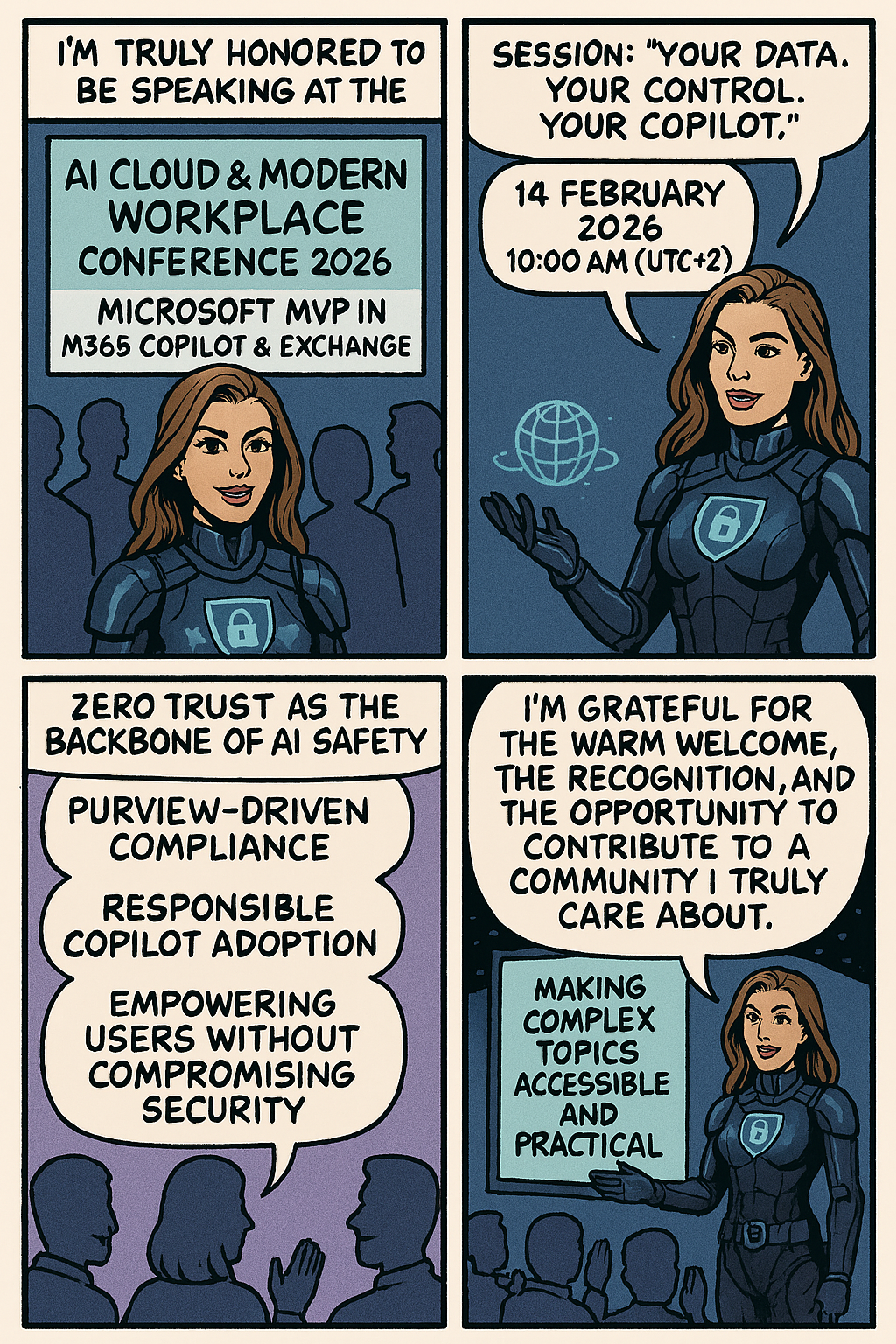
I’m truly honored to be speaking at the AI Cloud & Modern Workplace Conference 2026 as a Microsoft MVP in M365 Copilot & Exchange, and to share insights on one of the topics I’m most passionate about:
🎤 Session:“Your Data. Your Control. Your Copilot.” 📅 14 February 2026 🕙 10:00 AM (UTC+2)
📝 Session Description: This session brings together everything I deeply believe in:
Zero Trust as the backbone of AI safety
Purview‑driven compliance
Responsible Copilot adoption
Empowering users without compromising security
Making complex topics accessible and practical
I’m grateful for the warm welcome, the recognition, and the opportunity to contribute to a community I truly care about — a community that values inclusion, innovation, and meaningful collaboration.
Looking forward to connecting with everyone on February 14th and sharing practical guidance on how organizations can move forward confidently in this new AI era. 🚀🔐🤖
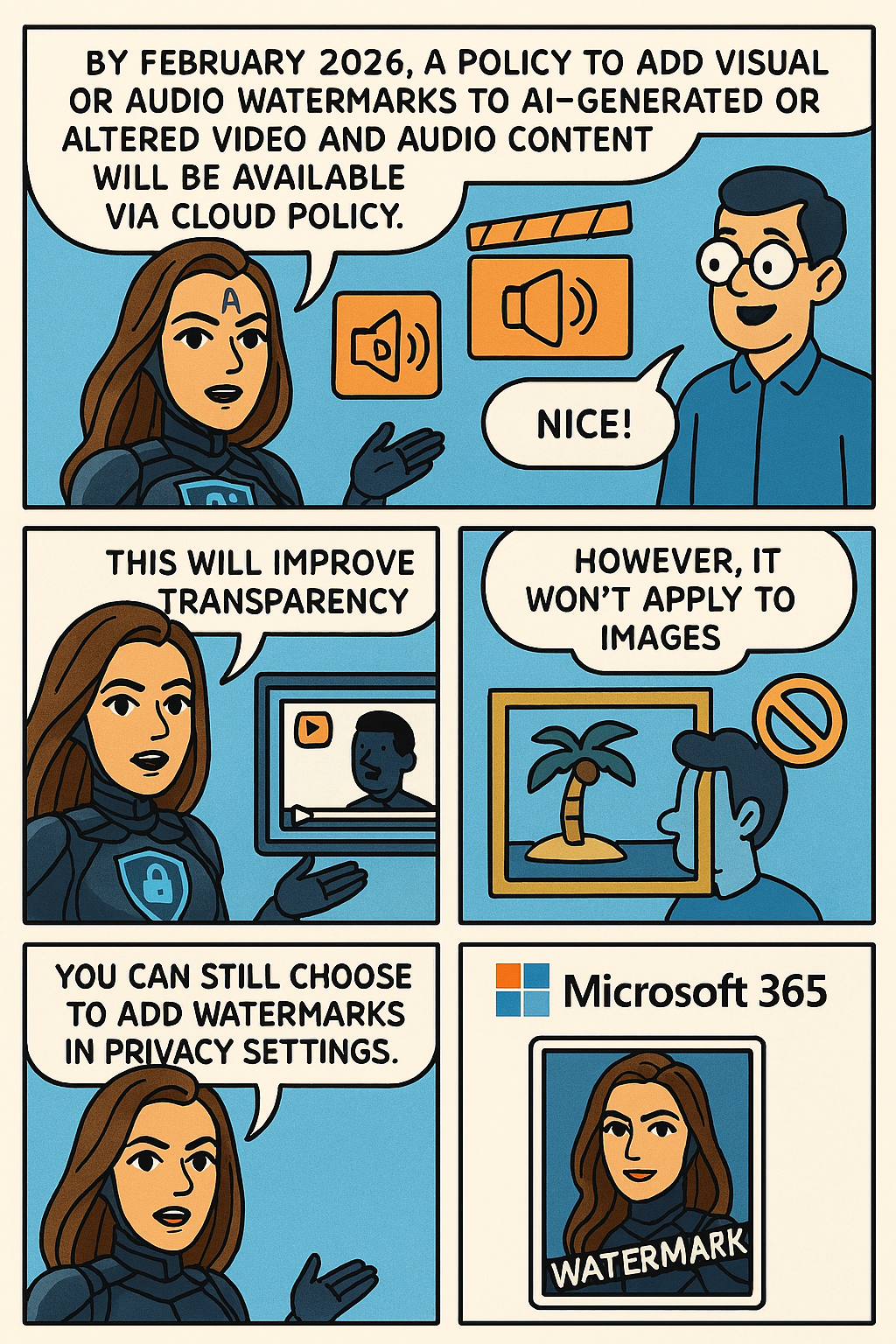
Microsoft 365 will offer a policy to add visual or audio watermarks to AI-generated or altered video and audio content, available via Cloud Policy by February 2026. This enhances transparency but does not apply to images, which users can watermark through privacy settings separately.
To help provide additional transparency about what content has been generated or altered by using AI in Microsoft 365, Microsoft is providing you with a policy setting that visually designates when content, such as video or audio content, is generated or altered by using AI. This policy setting controls your organization’s option to add a visual or audio watermark to video and audio content that your users generate or alter by using AI in Microsoft 365.
To turn on watermarks for video and audio content that your users generate or alter by using AI in Microsoft 365, you need to use the “Include a watermark when content from Microsoft 365 is generated or altered by AI” policy. This policy is available only in Cloud Policy service for Microsoft 365.
Note: Watermarks are not turned on unless you set the policy to Enabled. Your organization is always responsible for following the Microsoft Enterprise AI Services Code of Conduct, including not generating or sharing deceptive AI content.
This change is associated with Microsoft 365 Roadmap ID: 547831.
When this will happen
General Availability (Worldwide): We anticipate that this policy will be available in Cloud Policy by the second half of February 2026.
How this will affect your organization
Who is affected
Users that generate or alter video and audio content by using AI in Microsoft 365
What will happen
If you set the “Include a watermark when content from Microsoft 365 is generated or altered by AI” policy to Enabled in Cloud Policy, a visual or audio watermark is added to video and audio content that is generated or altered by using AI in Microsoft 365. Here are two examples:
A visual watermark is added to a video generated with Clipchamp.
An audio watermark is added to an audio overview generated by Copilot from a Word document.
Notes:
This policy doesn’t affect images generated or altered by using AI in Microsoft 365.
Instead, your users will be able to turn on watermarks for images by going to Settings & Privacy > Privacy at https://myaccount.microsoft.com. We anticipate this capability will be available in the second half of February 2026.
What you need to do to prepare
Review the information in the following article: Add watermarks to content generated or altered by using AI in Microsoft 365. If you decide to set the “Include a watermark when content from Microsoft 365 is generated or altered by AI” policy to Enabled, inform your users that a visual or audio watermark will be added to video and audio content that they generate or alter by using AI in Microsoft 365.
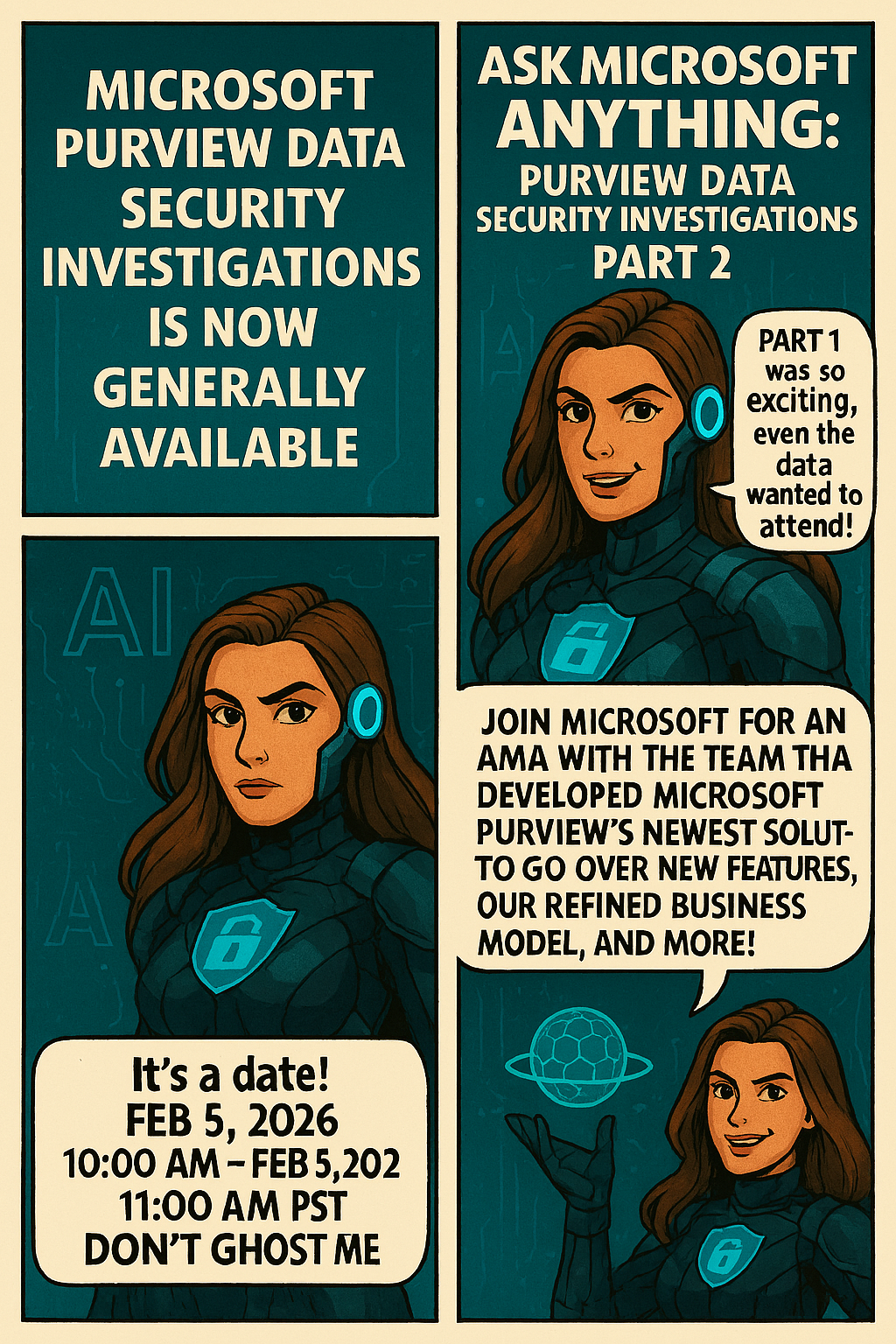
Microsoft Purview Data Security Investigations is officially GA, and to mark the moment, Microsoft is hosting an Ask Microsoft Anything (AMA) – Part 2 with the team behind the solution.
This session will dive into:
🔍 New capabilities in Data Security Investigations
🧠 How investigations are evolving to meet modern insider risk and data misuse challenges
💼 A walkthrough of the refined business model
💬 Live Q&A with the product experts who built it
📅 Date: February 5, 2026 ⏰ Time: 10:00 – 11:00 AM PST
If you’re working with Microsoft Purview, Insider Risk, Data Loss Prevention, or security investigations, this is one you don’t want to miss.
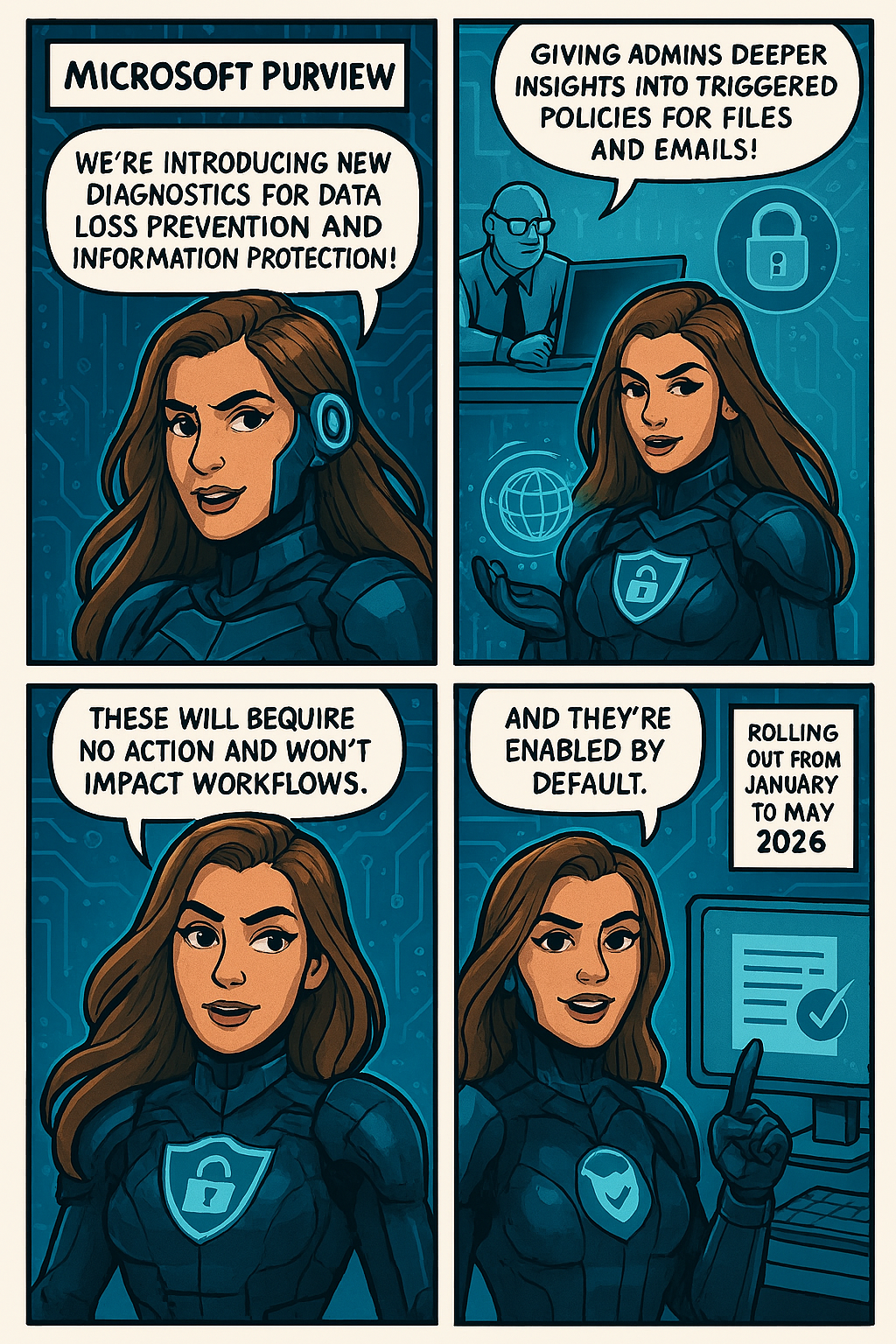
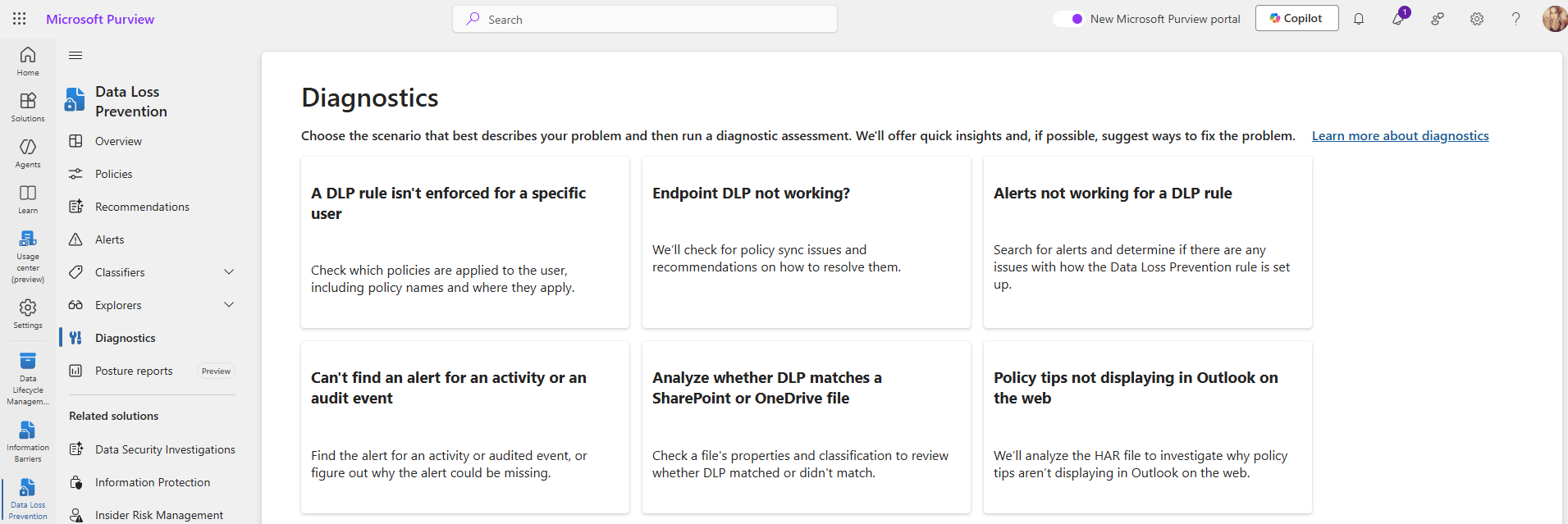
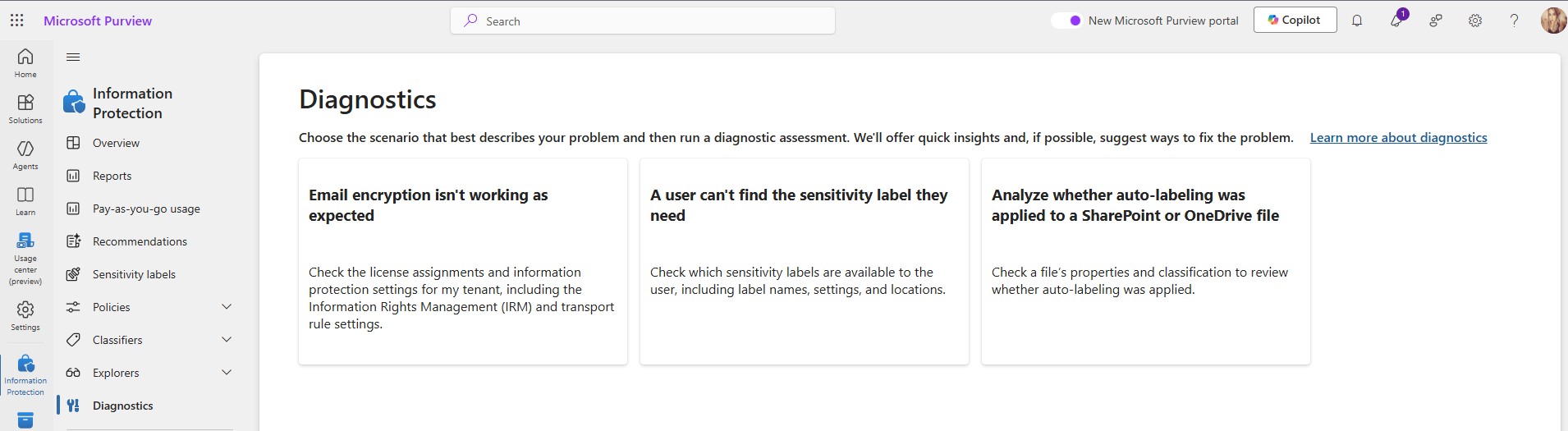
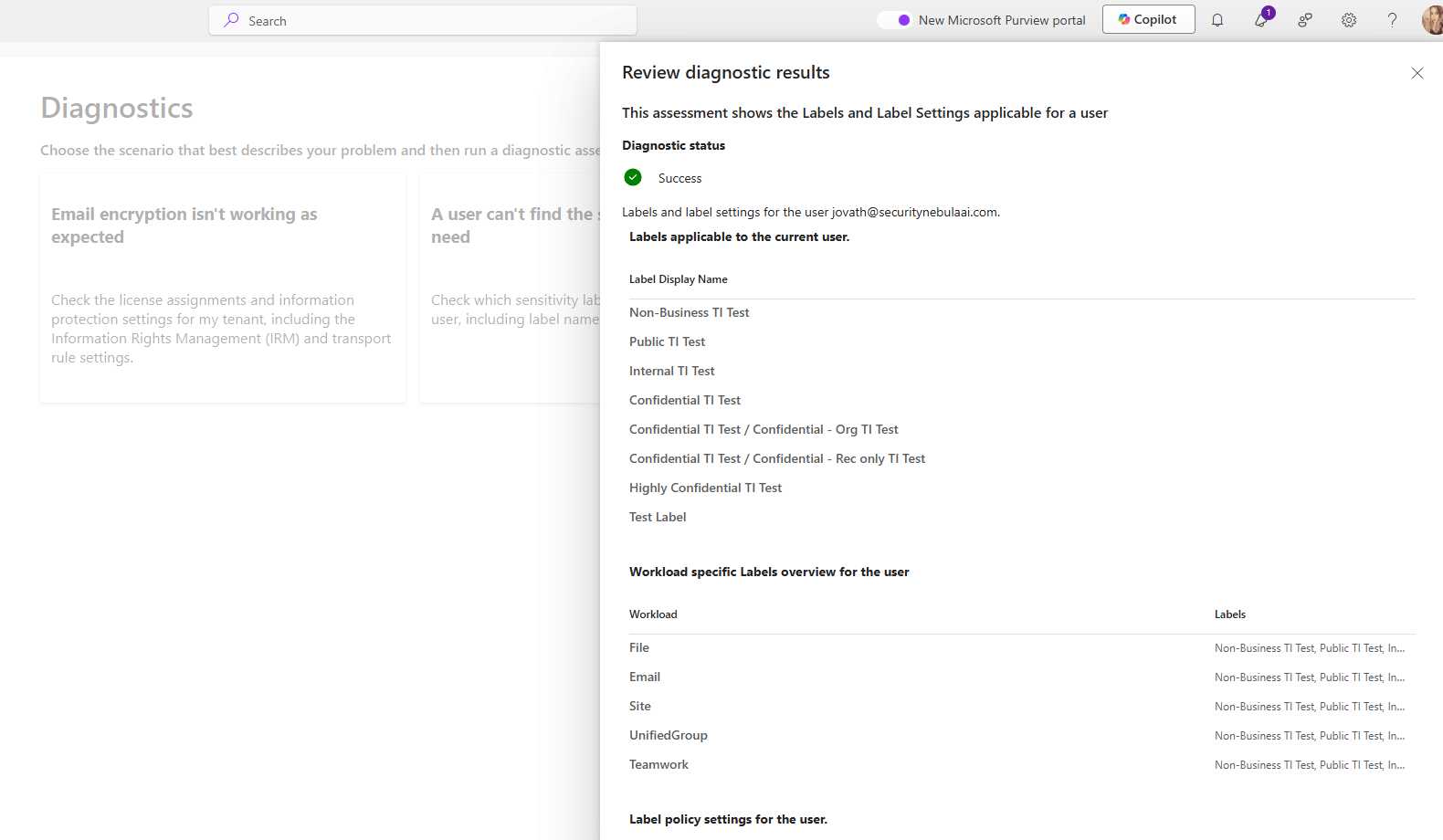
Microsoft Purview is introducing new diagnostics for Data Loss Prevention and Information Protection, providing admins deeper insights into triggered policies for files and emails. Rolling out from January to May 2026, these tools require no action, cause no workflow impact, and are enabled by default.
To help administrators troubleshoot Data Loss Prevention (DLP) and Information Protection scenarios more effectively, Microsoft Purview is introducing a new set of enhanced diagnostics. These improvements provide deeper visibility into why specific DLP rules or sensitivity labeling policies are triggered on files and emails, making investigation and policy tuning more efficient.
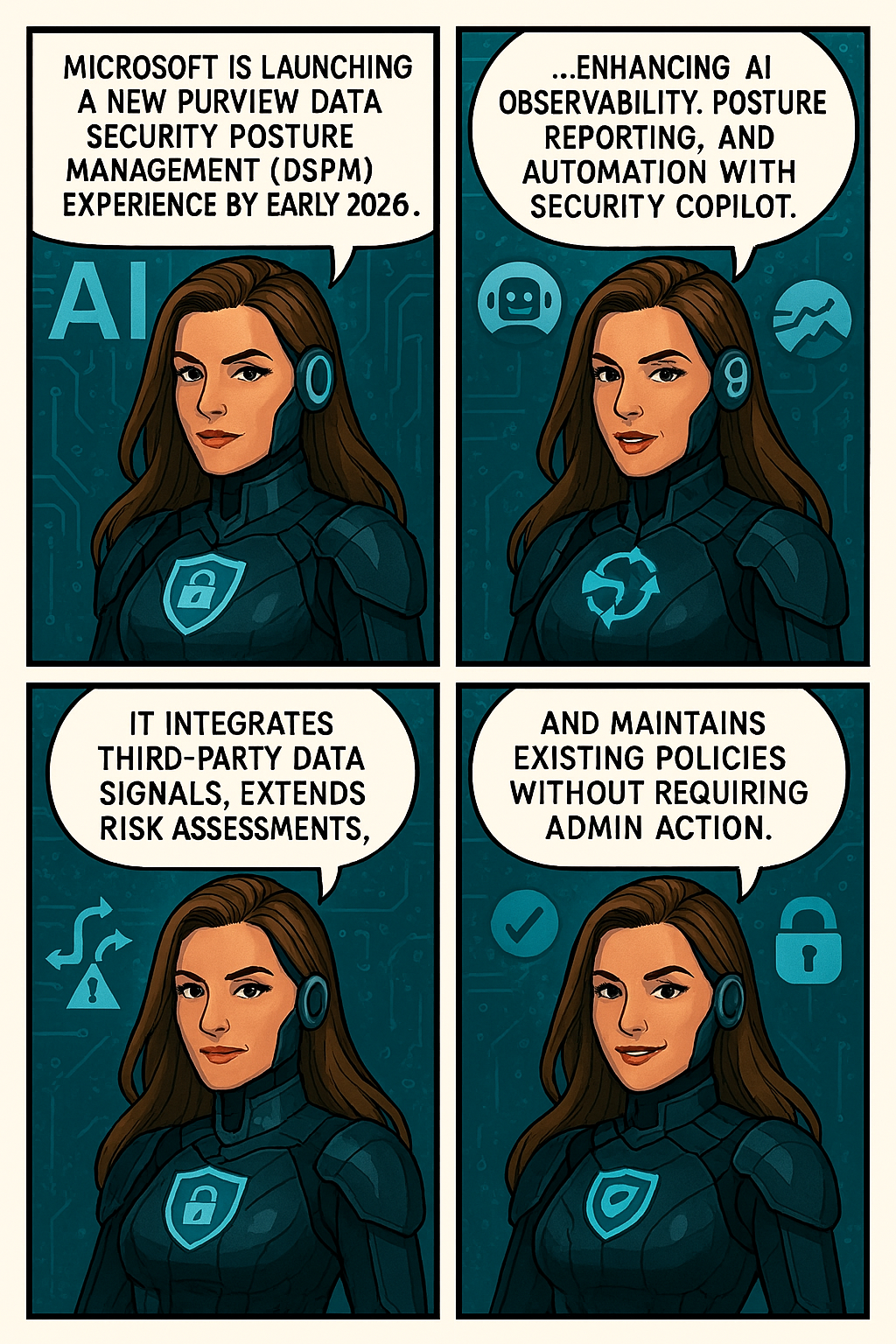
Microsoft is launching a new Purview Data Security Posture Management (DSPM) experience by early 2026, enhancing AI observability, posture reporting, and automation with Security Copilot.
Microsoft is introducing a major evolution of Purview Data Security Posture Management (DSPM) to help organizations strengthen data security and confidently embrace AI. The new DSPM experience unifies visibility and control across traditional data and AI-driven environments, delivering outcome-based guided workflows that turn insights into actionable steps—so teams can prioritize risks and remediate faster. It brings AI observability, enhanced posture reporting, and intelligent Security Copilot agents to automate tasks like triage and policy management.
Purview now also extends coverage beyond Microsoft data with third-party signals from partners like BigID, Cyera, OneTrust, and Varonis, giving security teams a single, streamlined view of sensitive data across clouds and platforms. Additionally, Data Risk Assessments are extended to Fabric and item-level analysis with new remediation actions like bulk disabling of overshared SharePoint links.
This message is associated with Microsoft 365 Roadmap ID532728.
When this will happen:
Public Preview (Worldwide): Rollout begins early December 2025 and completes by early April 2026.
General Availability (Worldwide): Rollout begins early April 2026 and completes by early May 2026.
Compliance considerations:
Compliance Area
Explanation
AI/ML capabilities interacting with customer data
Security Copilot agents automate triage and policy management.
Integration with 3rd party software
Adds signals from BigID, Cyera, OneTrust, and Varonis.
Admin reporting and monitoring
Enhanced posture reporting and remediation actions introduced.
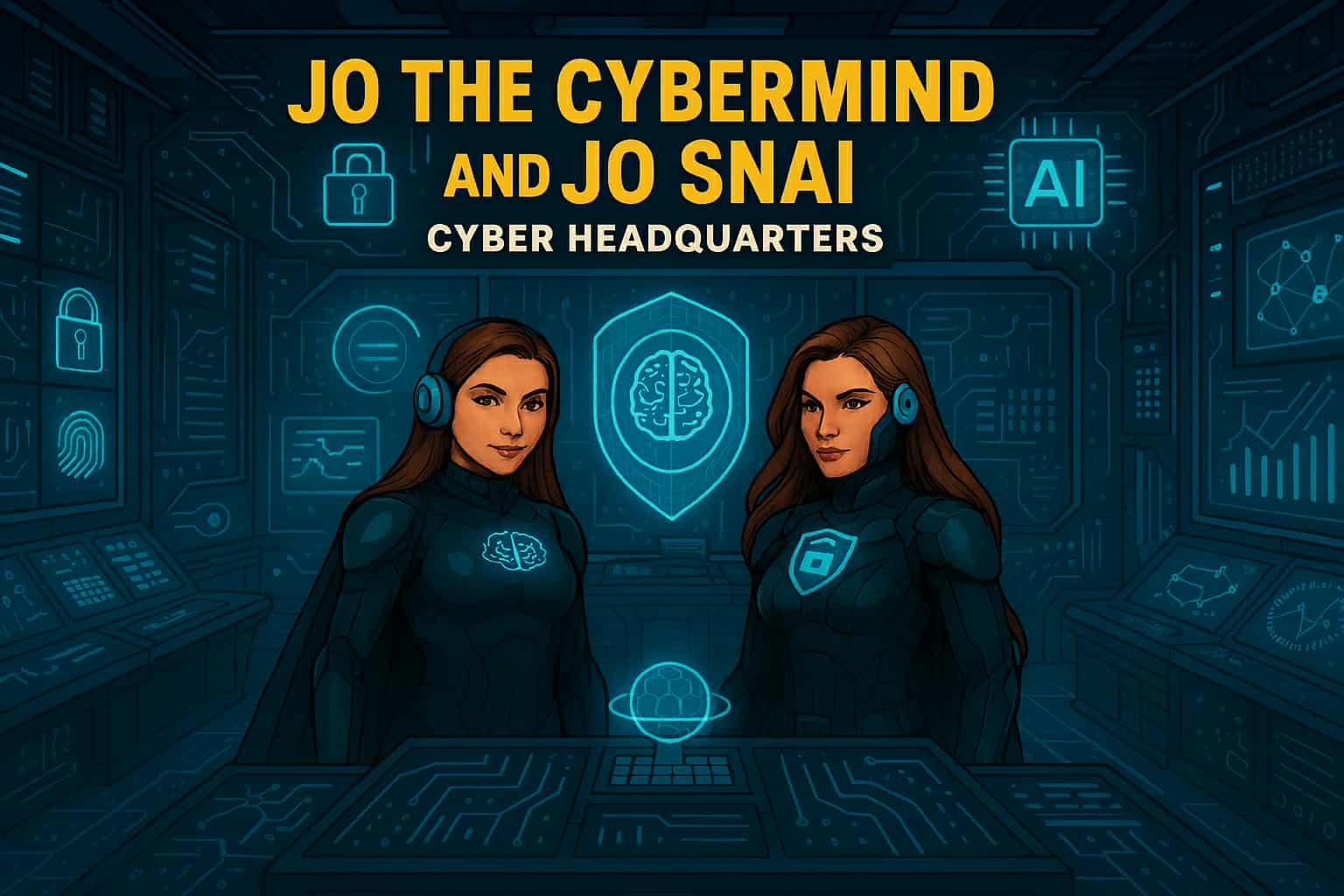
In a world where data flows like rivers and algorithms shape reality, two extraordinary heroes rise to defend the integrity of cyberspace: Jo Cybermind and Jo SNAI. Known collectively as The Cyber Twins, they are the ultimate protectors of the digital frontier, combining the power of Cybersecurity and Artificial Intelligence to keep the virtual world safe.
The Birth of The Cyber Twins
In the early days of the Quantum Net, humanity stood on the brink of a digital collapse. Cybercrime syndicates had evolved beyond firewalls, wielding AI-driven attacks that could dismantle entire infrastructures in seconds. Governments and corporations scrambled for solutions, but every defense fell short.
Amid this chaos, two brilliant minds emerged from the shadows of innovation. One was a pioneer in cognitive security systems, the other a visionary in Security Nebula AI. Their paths crossed during a catastrophic breach—the Nebula Incident—where a rogue superintelligence threatened to seize control of global networks.
Instead of retreating, they fused their expertise into a single mission: to create a new era of defense where human intuition meets machine intelligence. Through relentless research and quantum experimentation, they unlocked extraordinary abilities—transforming themselves into living embodiments of their technologies.
Jo Cybermind became the shield of the digital realm, wielding neural firewalls and cognitive encryption to repel any threat.
Jo SNAI mastered the art of predictive warfare, commanding AI sentinels and weaving a global cyber mesh to outsmart adversaries before they strike.
Bound by purpose and powered by innovation, they vowed to protect the integrity of cyberspace. From that day forward, they were known as The Cyber Twins—guardians of security and intelligence in a world where every byte counts.
“In a universe of infinite data, only two minds can keep the chaos in check. The Cyber Twins—where security meets intelligence.”
Meet Jo Cybermind
Jo Cybermind is the embodiment of strategic defense and cognitive brilliance. Her superpower lies in Nebula Shielding, a cutting-edge ability that creates impenetrable barriers against cyber threats. With her enhanced brain-computing interface, she can detect anomalies in milliseconds, neutralize ransomware attacks before they spread, and predict vulnerabilities before they even exist.
Her moto: “Decode the Chaos.”
Signature Abilities:
Quantum Threat Analysis: Scans billions of data points instantly to identify hidden risks.
Adaptive Firewalls: Deploys dynamic shields that evolve with every attack.
Cognitive Encryption: Encrypts sensitive data using AI-driven neural patterns, making it virtually unbreakable.
Meet Jo SNAI
Jo SNAI is the visionary architect behind intelligent systems and the unrivaled strategist of predictive algorithms. Her ultimate power, Security Nebula AI, transforms the battlefield of cyberspace into her domain. With this ability, she channels the limitless potential of machine learning to outthink and outmaneuver even the most sophisticated adversaries. Jo SNAI doesn’t just defend—she anticipates, adapts, and evolves.
Her motto: “Intelligence isn’t just power, it’s protection.”
Signature Abilities
AI Sentinels: Deploys autonomous guardians that patrol networks, neutralizing threats before they strike.
Behavioral Pattern Mapping: Reads the digital footprints of cybercriminals, predicting their next move with surgical precision.
Global Cyber Mesh: Weaves a resilient, interconnected shield across infrastructures, creating a fortress of security in the cloud and beyond.
Together, They Are Unstoppable
When Jo Cybermind and Jo SNAI join forces, they form an unbreakable alliance of logic and learning. Their synergy ensures that every byte of data remains secure, every algorithm stays ethical, and every user can trust the digital world. They are not just heroes—they are the future of cybersecurity and AI.
“In a universe of infinite data, only two minds can keep the chaos in check. The Cyber Twins—where security meets intelligence. When chaos ruled the code, two minds rewrote destiny.”
🙌 A huge thank you to everyone who joined our live event: Securing Productivity with Microsoft 365 Copilot! 💻✨
It was such a pleasure to connect with so many of you, share ideas, and dive deep into how we can boost productivity while keeping security front and center. 🔐💡
Your questions and engagement made the discussion truly insightful and interactive. This is exactly what makes these sessions so valuable—learning together and exchanging perspectives!
🎥 Missed the session? No worries!
We’ve got you covered. You can catch the full recording here 👇
✨ Grab a coffee ☕, sit back, and enjoy the insights—we hope you find some great takeaways to apply in your organization.
💬 I’d love to hear from you:
👉 How are you planning to use Microsoft 365 Copilot securely in your organization?
👉 What challenges or opportunities do you see when combining AI and security?
Drop your thoughts below! 👇💭 Let’s keep the conversation going and learn from each other.
🚨 Live Event Alert! 🚨 We’re thrilled to invite you to an exclusive live session where we’ll unpack some of the most pressing topics in the Microsoft 365 Copilot ecosystem:
🔐 Data Protection 🛡️ Security & Compliance 🤖 Responsible AI
Whether you’re an IT pro, security enthusiast, or just curious about the future of AI in the workplace, this session is packed with insights you won’t want to miss.
📌 Stay in the loop! Subscribe to our channel for updates on future sessions and expert content: https://lnkd.in/dxfbWSUA
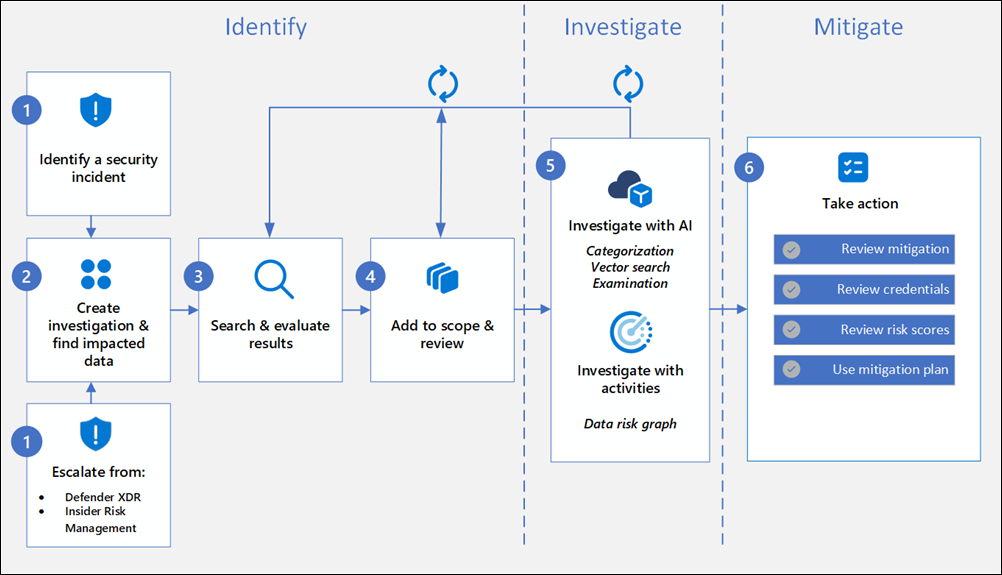
Data Security Investigations (preview) workflow helps you quickly identify, investigate, and take action on data associated with security and data breach incidents. This workflow isn’t a linear process. It includes significant iteration requirements for several of the steps to fine tune searches, evidence gathering, classification, and investigation by using AI and activities.
Analysts can use Data Security Investigations (preview) features in your organization to:
Quickly and efficiently search, discover, and identify impacted data.
Use deep content AI analysis to discover exact data risks hidden in data.
Take action to reduce the impact of data security incidents and quickly mitigate ongoing risks.
Collaborate with internal and external stakeholders on investigation details.
Check out the following videos to learn about how Data Security Investigations (preview) can help you respond to data security incidents:
DSI builds on and extends Microsoft Purview’s existing best-of-breed Data Security portfolio. Our information protection, data loss prevention, and insider risk management solutions have provided customers with a strong foundation to protect their crown jewels, their data. Data is at the center of cyberattacks, and now DSI will use AI to re-imagine how customers investigate and mitigate data security incidents, accelerating the process dramatically. Most organizations we spoke to (77%) believe that AI will accelerate data security detection and response, and 76% think AI will improve the accuracy of data security detection and response strategies. With its cutting edge, generative AI-powered investigative capabilities, DSI will transform and scale how data security admins analyze incident-related data. DSI uncovers key security and sensitive data risks and facilitates secure collaboration between partner teams to mitigate those identified risks. This simplifies previously complex, time-consuming tasks – what once took months, can now be done in a fraction of the time.
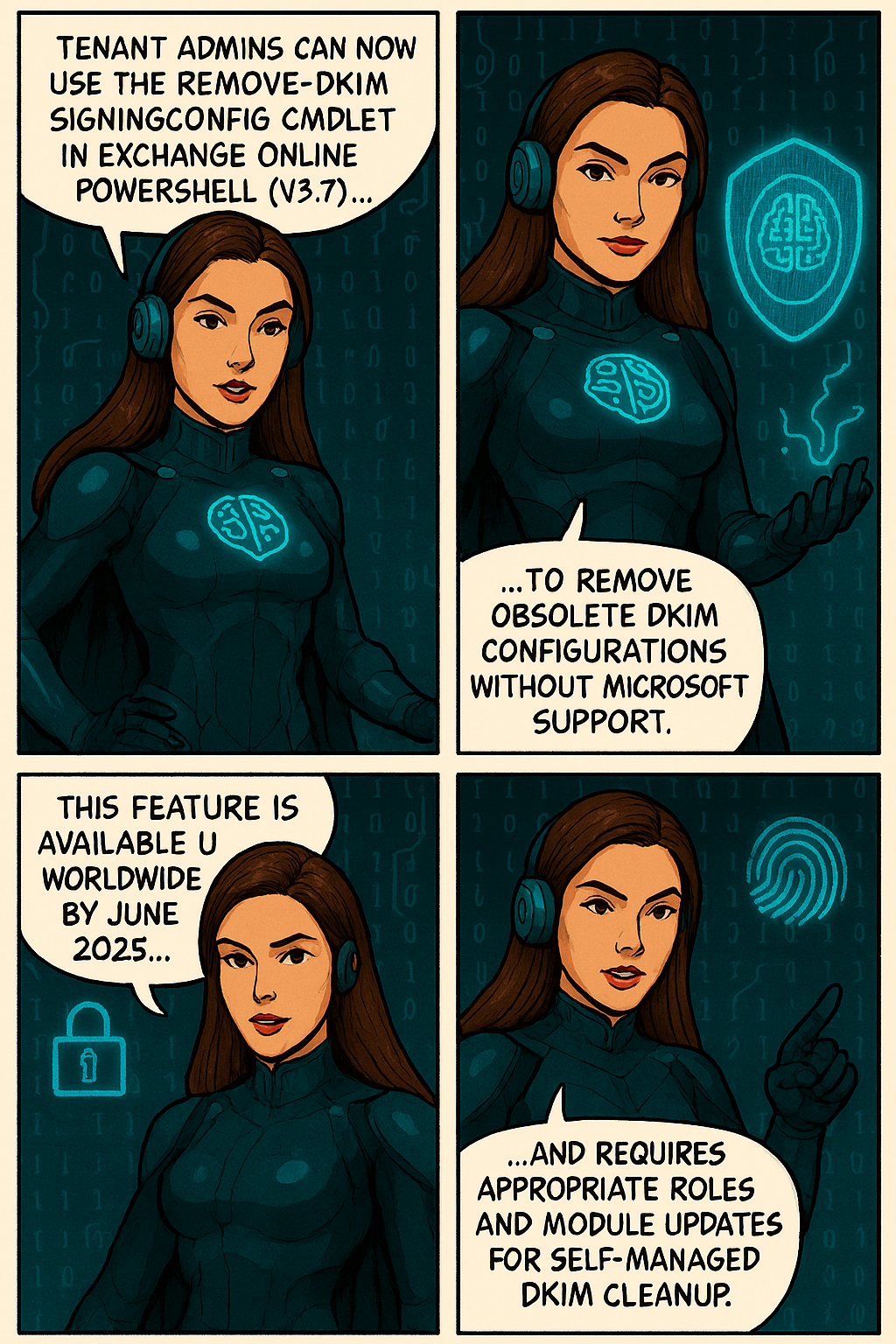
To improve self-service capabilities and reduce support dependency, Microsoft has made the Remove-DkimSigningConfig cmdlet available to tenant administrators. This cmdlet enables admins to remove obsolete DomainKeys Identified Mail (DKIM) signing configurations directly from Exchange Online PowerShell, helping clean up configurations when domains are removed from a tenant.
When this will happen This feature is already enabled worldwide, including in special clouds.
How this affects your organization
Who is affected:Tenant administrators managing DKIM configurations in Exchange Onlinewith either the Transport Hygiene management role or the Security Administrator role in Entra ID.
What will happen:
Admins can now run Remove-DkimSigningConfig directly using Exchange Online PowerShell (requires ExO v3.7 module).
No escalation to Microsoft support is needed for DKIM cleanup.
Obsolete DKIM configurations for removed domains can be self-managed.
The cmdlet is available by default for eligible roles.
This cmdlet does not replace any existing tools or processes; it introduces a new capability for tenant admins to manage DKIM cleanup independently.
What you can do to prepare
Ensure you have the required role (Transport Hygiene or Security Administrator).
Upgrade to Exchange Online PowerShell module v3.7.
Use Connect-ExchangeOnline and run Remove-DkimSigningConfig as needed.
Update internal documentation for DKIM management procedures.






 Catastrophic Failure