
Data Security Investigations introduces new soft purge mitigation action

Microsoft is introducing a new soft purge action in Data Security Investigations (DSI), giving admins a quick and safe way to remove sensitive or overshared files during an investigation. With soft purge, items can be deleted immediately but still recovered later as long as they’re within their deleted‑item retention period, so admins get speed without risking permanent data loss.

This builds on DSI’s growing set of AI‑powered tools like intelligent categorization, AI search, and automated risk insights making it easier than ever for organizations to spot issues and take action fast.

New update coming to Microsoft 365 Roadmap ID 558109. A soft purge action will soon be available in Data Security Investigations (DSI), giving admins a safer and more flexible way to remove sensitive or overshared content during an investigation.

When it’s rolling out
  • General Availability (Worldwide): Begins early April 2026
  • Expected completion: late May 2026

What this means for your organization

Who is affected?

Admins who use Data Security Investigations (DSI) in the Microsoft Purview compliance portal.

What’s changing

A new soft purge option will appear in DSI. With this action, admins can:

  • Remove items that match an investigation query
  • Keep those items recoverable until the retention period expires
  • Act quickly without risking accidental permanent deletion

And the best part:

  • The feature is on by default
  • No configuration needed
  • No changes to existing DLP, labeling, or retention policies
  • End users will not see any changes in their workflows

Once the rollout finishes, the feature simply appears for eligible tenants.

How to prepare

There is nothing you need to do in advance.
If you want to get ahead, you may consider:

  • Reviewing how soft purge works in DSI
  • Updating any internal guidance on investigation processes
  • Informing your security or compliance teams about the new action

Overall, this update gives organizations a safer and more controlled way to remove sensitive content during investigations—without adding extra steps or complexity.
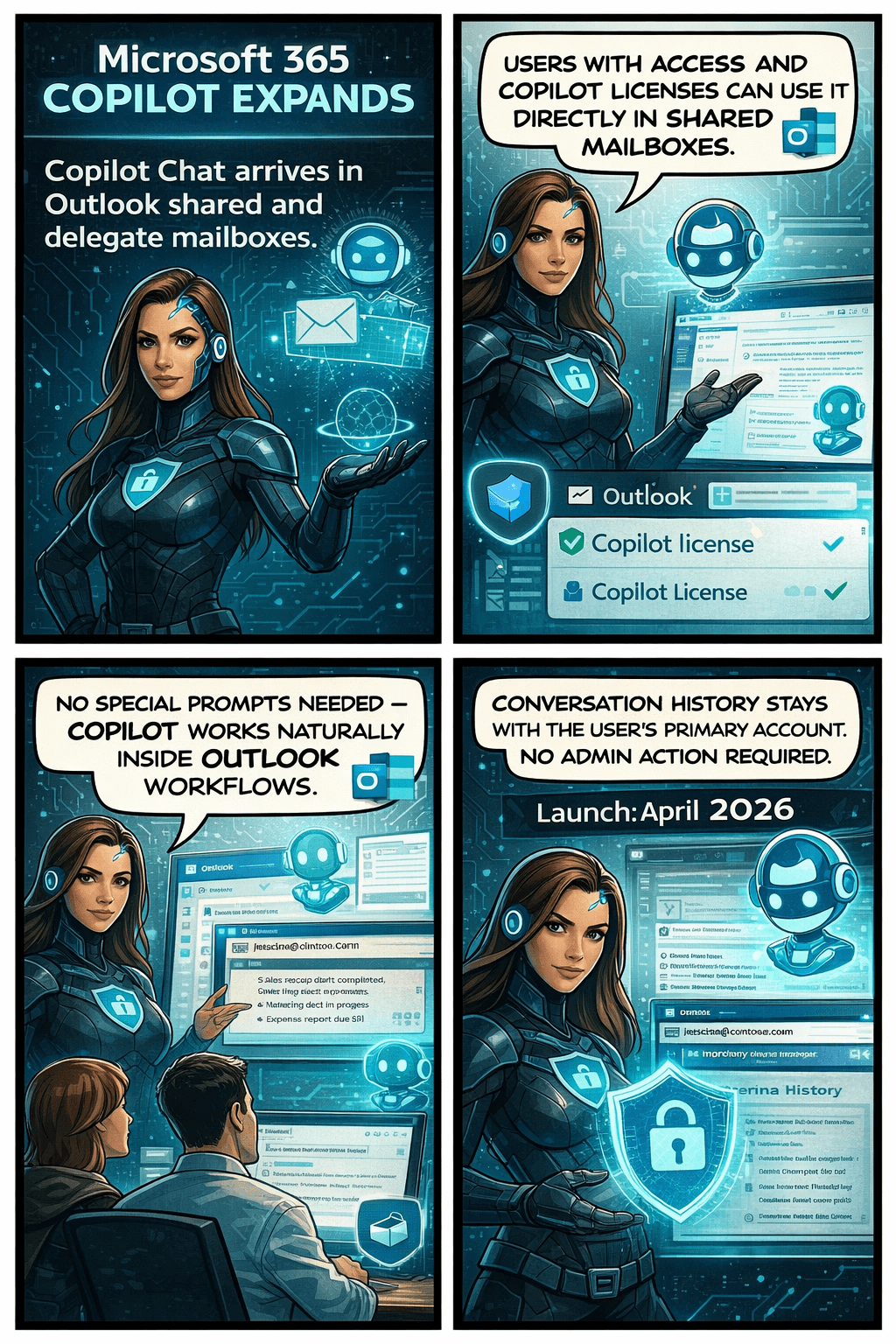
Copilot in Outlook Becomes Even Smarter: Shared & Delegate Mailboxes Now Supported

Microsoft is rolling out an exciting update that will make life noticeably easier for anyone who works with shared or delegated inboxes in Outlook. Whether you’re an executive assistant managing a busy calendar, part of an HR or finance team working from a shared mailbox, or supporting customers from a service desk account—Copilot is about to become your new best friend.

Until now, Copilot features like summarizing threads or drafting replies were only available when you were in your own mailbox. But that’s changing. With this update, Copilot will work natively inside the shared or delegated mailboxes you already use every day, bringing AI assistance directly to the place where your work actually happens.

This enhancement is tracked under Microsoft 365 Roadmap ID 554936, and it’s one of the most practical Copilot improvements so far for collaborative teams.

When is this coming?

  • Targeted Release: Rolling out from early April 2026 through early May 2026
  • General Availability: Rolling out from early May 2026 through early June 2026

In other words—it’s coming soon, and it will reach everyone within the next couple of months.

What’s changing and who benefits?

This update applies to:

  • People who work in shared or delegated Outlook mailboxes
  • Organizations where users are licensed for Microsoft 365 Copilot

Once enabled, users will be able to:

✔ Use Copilot Chat directly inside shared or delegated mailboxes

You no longer need to switch back to your primary inbox to engage Copilot.

✔ Access features like Summarize, Draft, and other Copilot prompts

These capabilities will now operate on the content of the shared mailbox itself.

✔ Skip awkward prompt wording

No more typing things like “in @domain.com…”.
You can simply ask Copilot naturally, and it understands the context of the mailbox you’re currently in.

✔ Benefit from full support for:

  • Full-access shared mailboxes
  • Shared folder permissions
  • Folder-level access models commonly used by support desks and admin teams

✔ Keep your Copilot history private

Even though multiple people may work in the same shared mailbox, the Copilot conversation history stays tied to your personal account, not the shared mailbox.
No cross-user visibility. No confusion.

What does this mean for your organization?

The good news:
There’s nothing you need to turn on.
This feature will light up automatically for licensed users once rollout reaches your tenant.

Still, it’s worth doing a quick review of:

  • Your shared mailbox permission structure
  • Folder-level roles (especially for teams with tiered access)
  • Training materials or internal FAQs that mention Copilot in Outlook

You may want to update your documentation so users understand they can now use Copilot directly within shared inboxes.

Compliance considerations