Microsoft Purview Tightens Rules for Custom Sensitive Information Types

Organizations using Microsoft Purview custom Sensitive Information Types (SITs) should be aware of an upcoming change that may require updates to existing regex patterns.

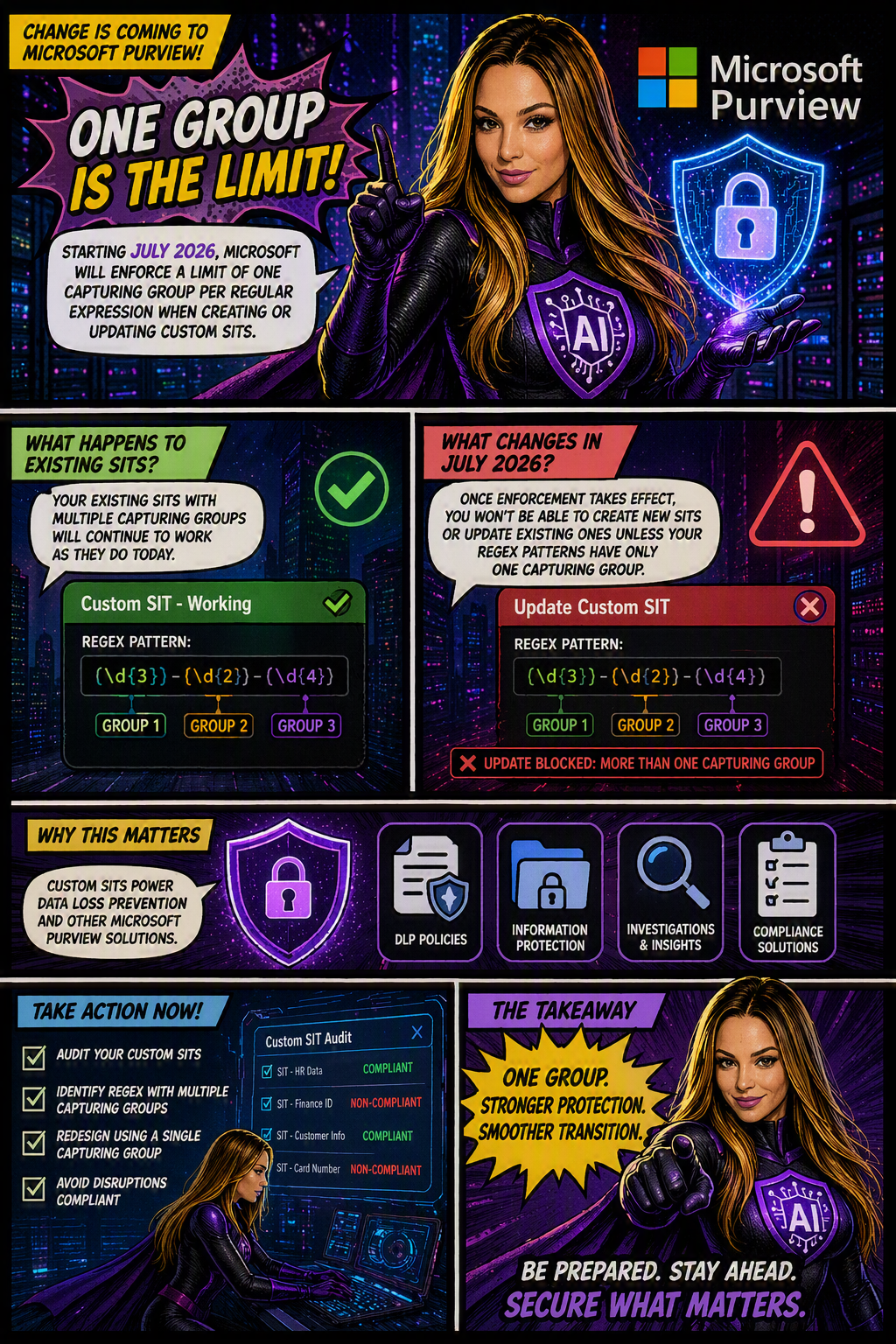
Microsoft is moving forward with enforcing a long-documented rule that allows only one capturing group per regular expression in custom SIT definitions. The goal is to improve the consistency, reliability, and predictability of how sensitive data is identified and classified across Microsoft Purview and Data Loss Prevention (DLP) workloads.

When is this happening?

The rollout is expected to be completed by early July 2026 across all Microsoft cloud environments, including:

  • Worldwide
  • GCC
  • GCC High
  • DoD
Who is affected?

This change primarily impacts:

  • Microsoft Purview administrators
  • Compliance teams managing custom Sensitive Information Types
  • Organizations using custom SITs in DLP, data classification, and compliance solutions

The enforcement applies whether SITs are managed through:

  • The Microsoft Purview portal
  • PowerShell, including:
    • New-DlpSensitiveInformationTypeRulePackage
    • Set-DlpSensitiveInformationTypeRulePackage
What changes?

Once enforcement is in place:

✅ New custom SITs must contain only one capturing group in each regular expression.

❌ Creating a new SIT with multiple capturing groups will be blocked.

❌ Updating an existing SIT that contains multiple capturing groups will fail validation.

❌ Administrators will not be able to save changes to existing SITs until non-compliant regex patterns are updated.

What about existing SITs?

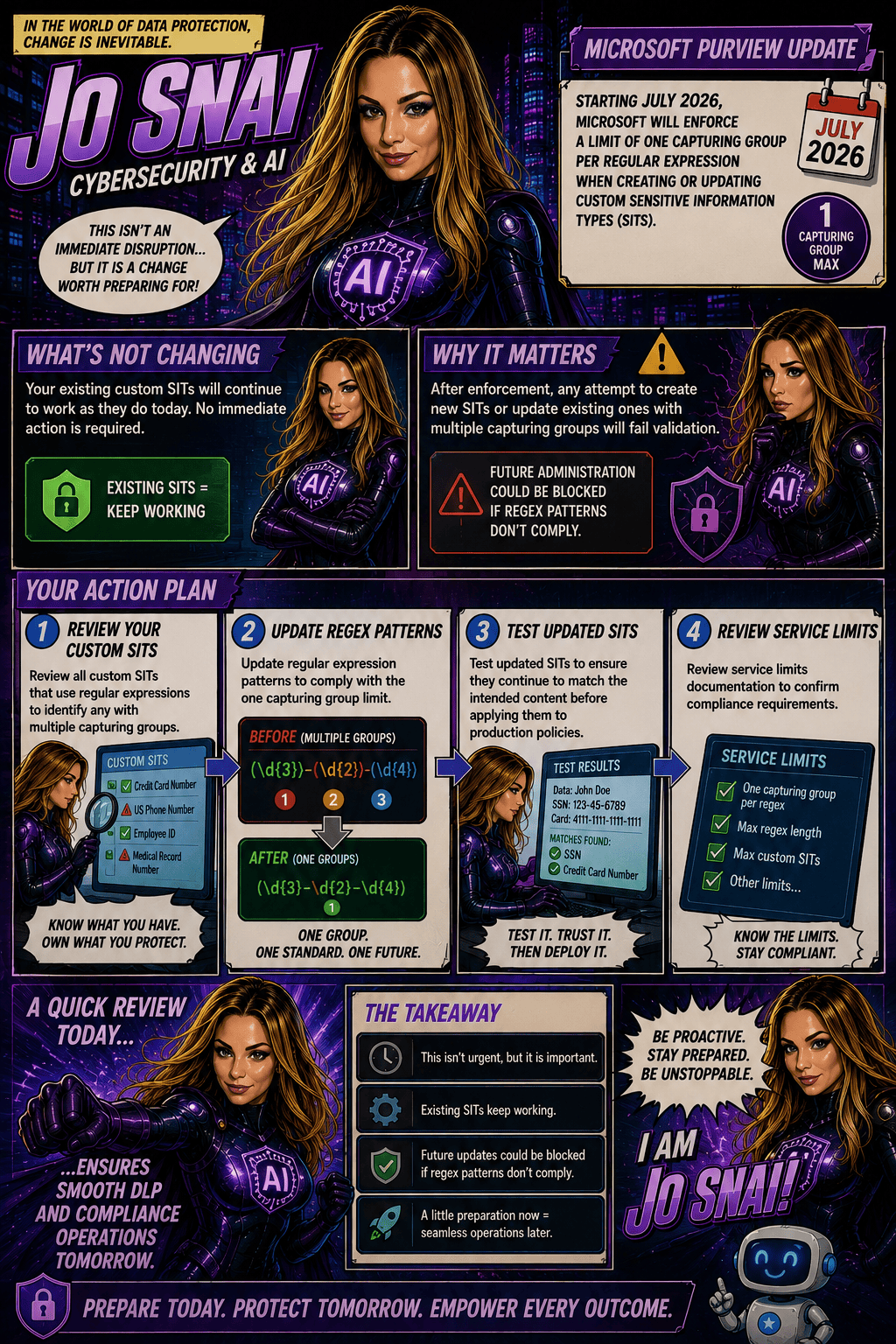
Existing custom SITs that contain multiple capturing groups will continue to work in their current state. However, they become a potential issue the moment you need to modify, update, or re-save them.

In other words, if an existing SIT contains a regex pattern with multiple capturing groups, you’ll need to redesign that pattern to comply with the one-capturing-group rule before any future changes can be saved.

Many organizations rely on custom SITs to identify sensitive business information and power key compliance capabilities such as:

Why does this matter?
  • Data Loss Prevention (DLP)
  • Data classification
  • Compliance monitoring
  • Information protection policies

If a custom SIT cannot be updated because it fails validation, it could delay policy changes, compliance updates, or new data protection initiatives.
What should you do now?

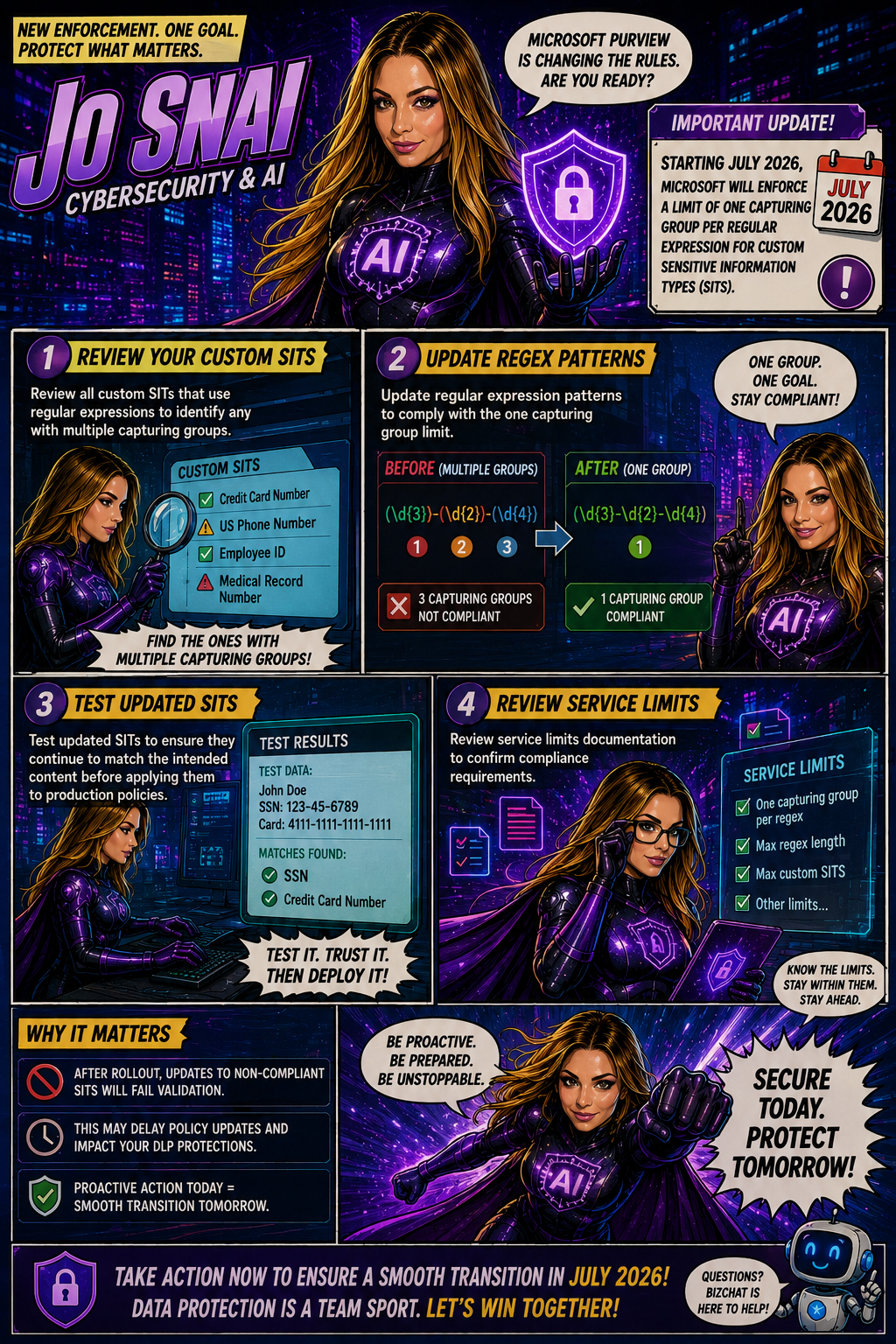
To avoid surprises, Microsoft Purview administrators should proactively:

  1. Audit existing custom SITs
  2. Identify regex patterns that use multiple capturing groups
  3. Redesign patterns to use a single capturing group
  4. Test and validate updated SITs before future modifications are required
Smarter Insider Risk Coverage with Microsoft Purview

Microsoft is making Insider Risk Management in Purview even more useful with the introduction of a Policy Recommendation panel, a feature designed to help admins quickly spot gaps in their current risk coverage and strengthen their defenses.

Let’s face it: even with policies in place, it’s not always easy to know what you might be missing. That’s where this new capability comes in. It analyzes your existing setup and highlights missing or high-impact policies, offering clear, actionable suggestions to improve your security posture.

What’s new?

The Policy Recommendation panel lives directly on the Policies page and automatically reviews your current configuration. Using built-in analytics, it identifies areas where you could increase protection and recommends policies to cover common insider risk scenarios like:

  • Data leakage
  • Data theft
  • IP theft
  • Risky AI usage
  • Other security violations

It’s essentially a built-in advisor that helps you get more value from Insider Risk Management without needing to manually audit everything.

A quick reminder: what Insider Risk Management does

Microsoft Purview Insider Risk Management works by correlating signals across your environment to detect potentially risky behavior, whether intentional or accidental.

It’s also designed with privacy in mind, including:

  • Pseudonymization by default
  • Role-based access controls
  • Audit logs for transparency

So you can investigate risks while still protecting user privacy.

Rollout timeline
  • Public Preview: Mid–June 2026 → Late June 2026
  • General Availability: Mid–July 2026 → Late July 2026

This message is associated with Microsoft 365 Roadmap ID 560600.

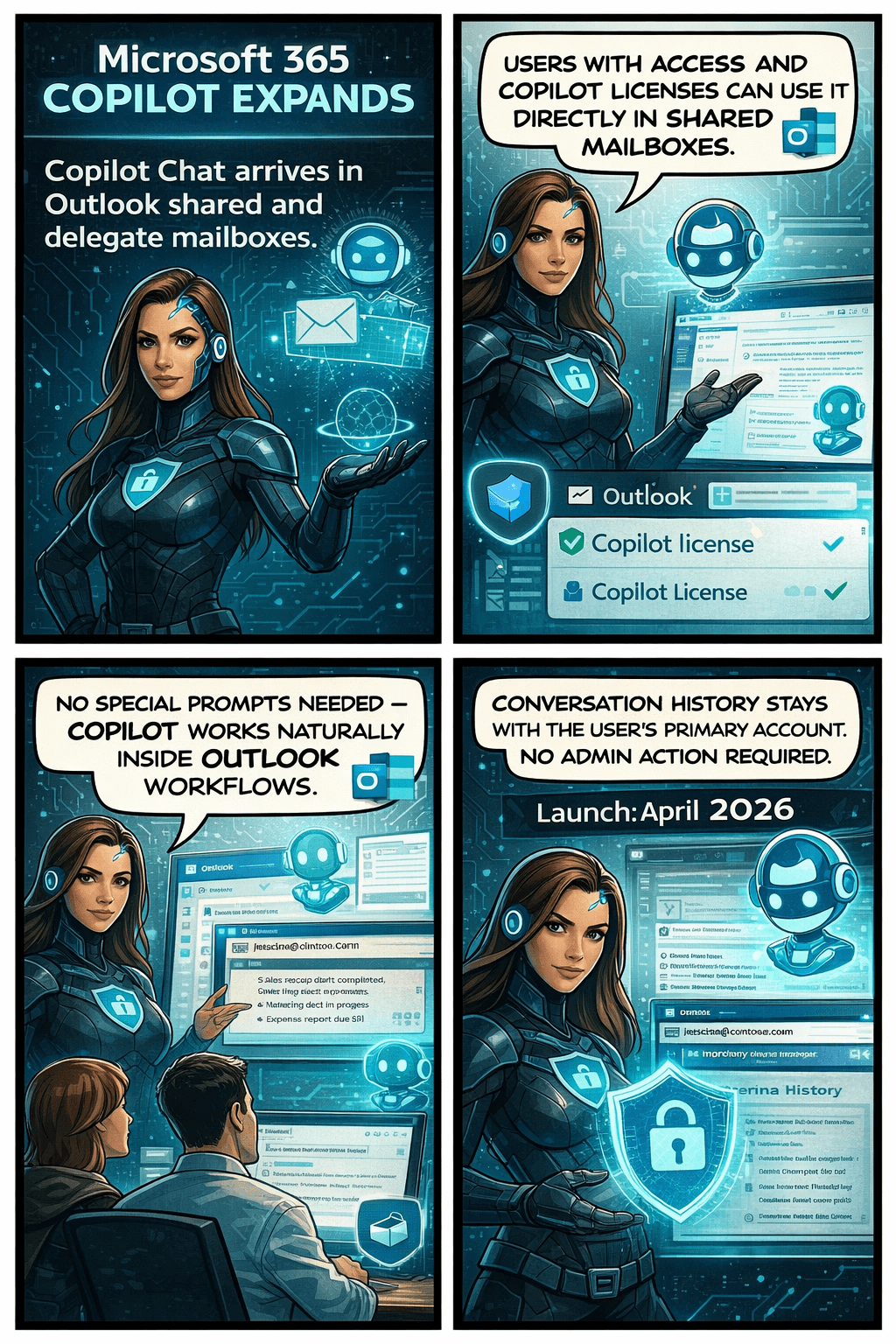
Copilot in Outlook Becomes Even Smarter: Shared & Delegate Mailboxes Now Supported

Microsoft is rolling out an exciting update that will make life noticeably easier for anyone who works with shared or delegated inboxes in Outlook. Whether you’re an executive assistant managing a busy calendar, part of an HR or finance team working from a shared mailbox, or supporting customers from a service desk account—Copilot is about to become your new best friend.

Until now, Copilot features like summarizing threads or drafting replies were only available when you were in your own mailbox. But that’s changing. With this update, Copilot will work natively inside the shared or delegated mailboxes you already use every day, bringing AI assistance directly to the place where your work actually happens.

This enhancement is tracked under Microsoft 365 Roadmap ID 554936, and it’s one of the most practical Copilot improvements so far for collaborative teams.

When is this coming?

  • Targeted Release: Rolling out from early April 2026 through early May 2026
  • General Availability: Rolling out from early May 2026 through early June 2026

In other words—it’s coming soon, and it will reach everyone within the next couple of months.

What’s changing and who benefits?

This update applies to:

  • People who work in shared or delegated Outlook mailboxes
  • Organizations where users are licensed for Microsoft 365 Copilot

Once enabled, users will be able to:

✔ Use Copilot Chat directly inside shared or delegated mailboxes

You no longer need to switch back to your primary inbox to engage Copilot.

✔ Access features like Summarize, Draft, and other Copilot prompts

These capabilities will now operate on the content of the shared mailbox itself.

✔ Skip awkward prompt wording

No more typing things like “in @domain.com…”.
You can simply ask Copilot naturally, and it understands the context of the mailbox you’re currently in.

✔ Benefit from full support for:

  • Full-access shared mailboxes
  • Shared folder permissions
  • Folder-level access models commonly used by support desks and admin teams

✔ Keep your Copilot history private

Even though multiple people may work in the same shared mailbox, the Copilot conversation history stays tied to your personal account, not the shared mailbox.
No cross-user visibility. No confusion.

What does this mean for your organization?

The good news:
There’s nothing you need to turn on.
This feature will light up automatically for licensed users once rollout reaches your tenant.

Still, it’s worth doing a quick review of:

  • Your shared mailbox permission structure
  • Folder-level roles (especially for teams with tiered access)
  • Training materials or internal FAQs that mention Copilot in Outlook

You may want to update your documentation so users understand they can now use Copilot directly within shared inboxes.

Compliance considerations