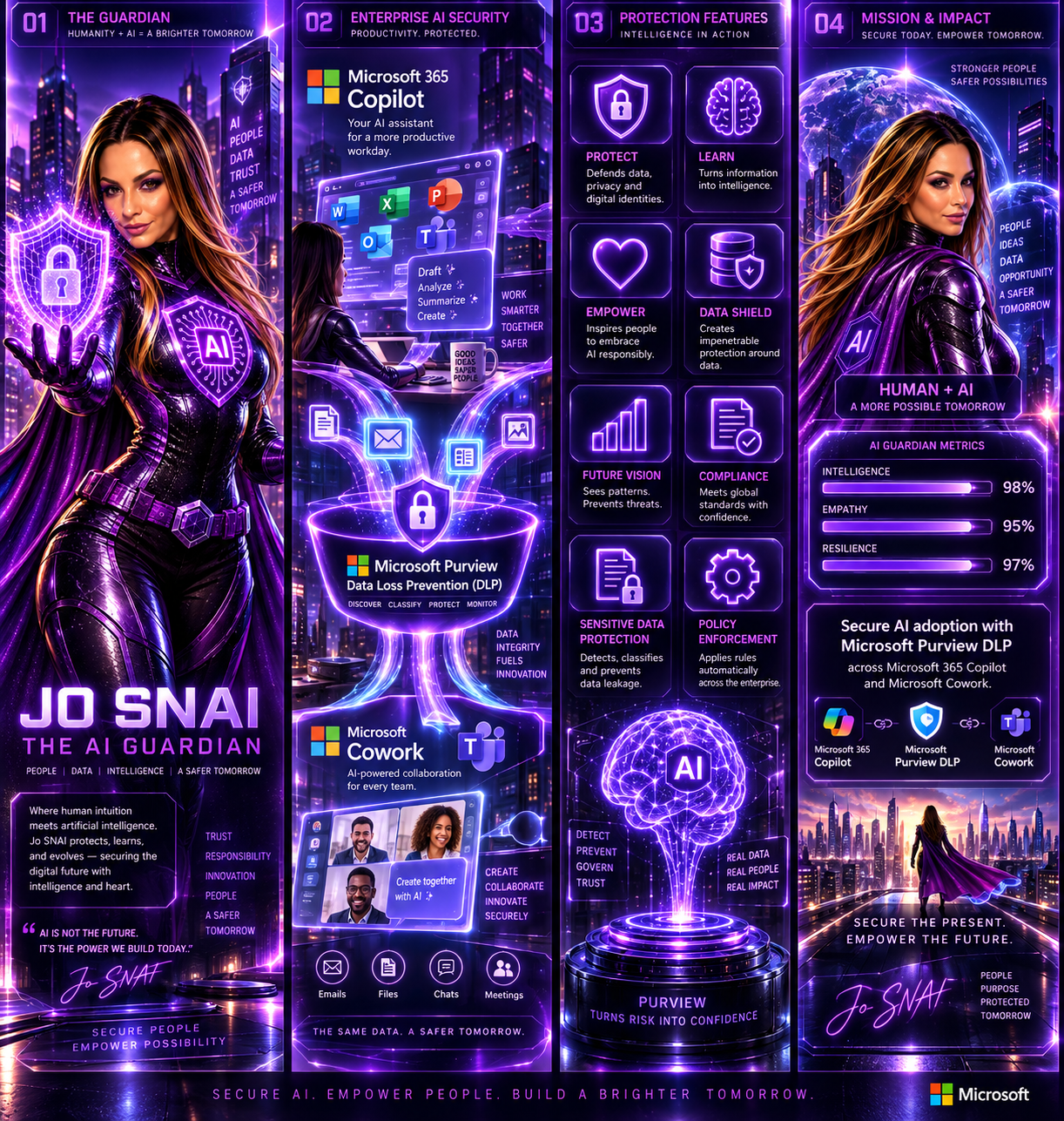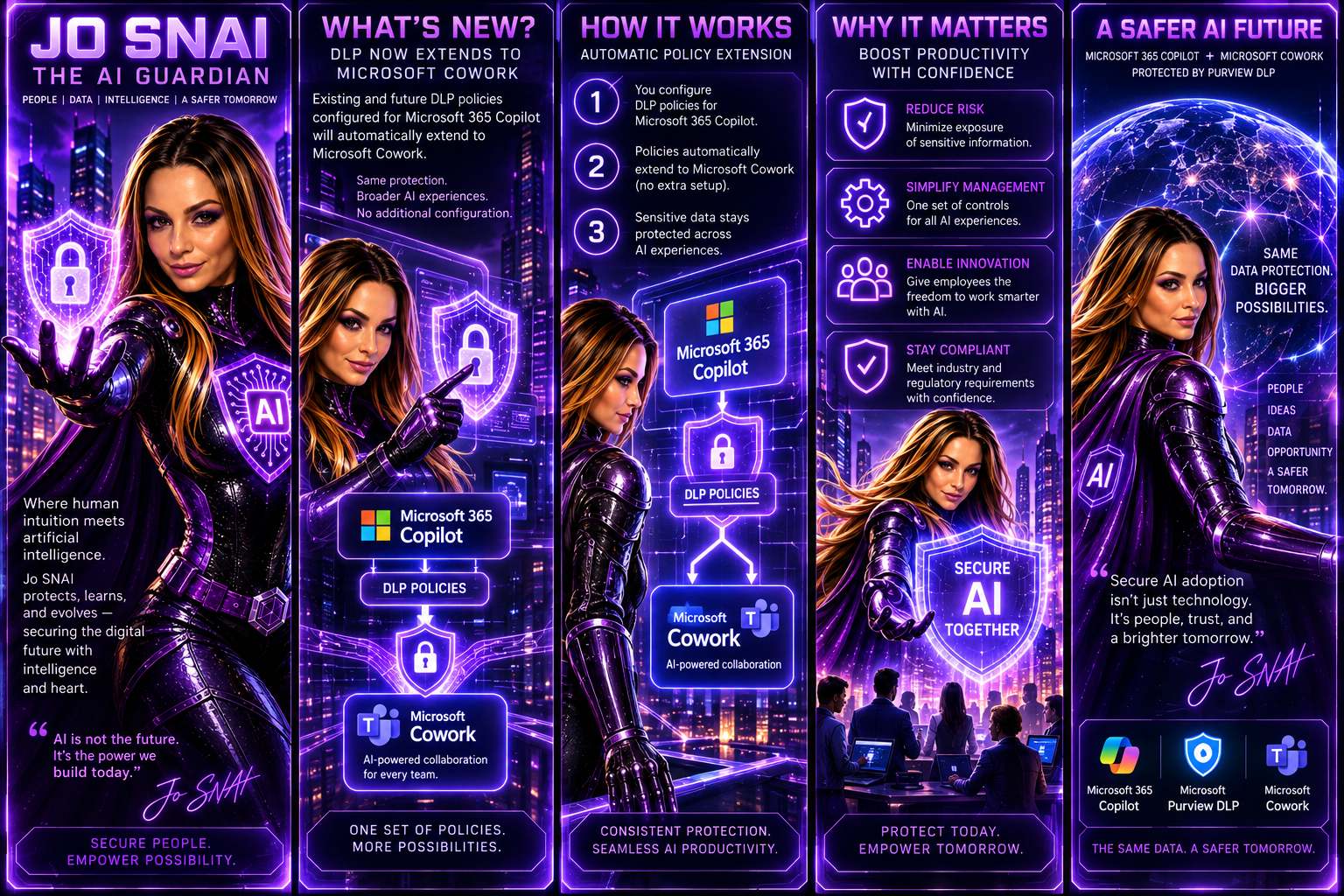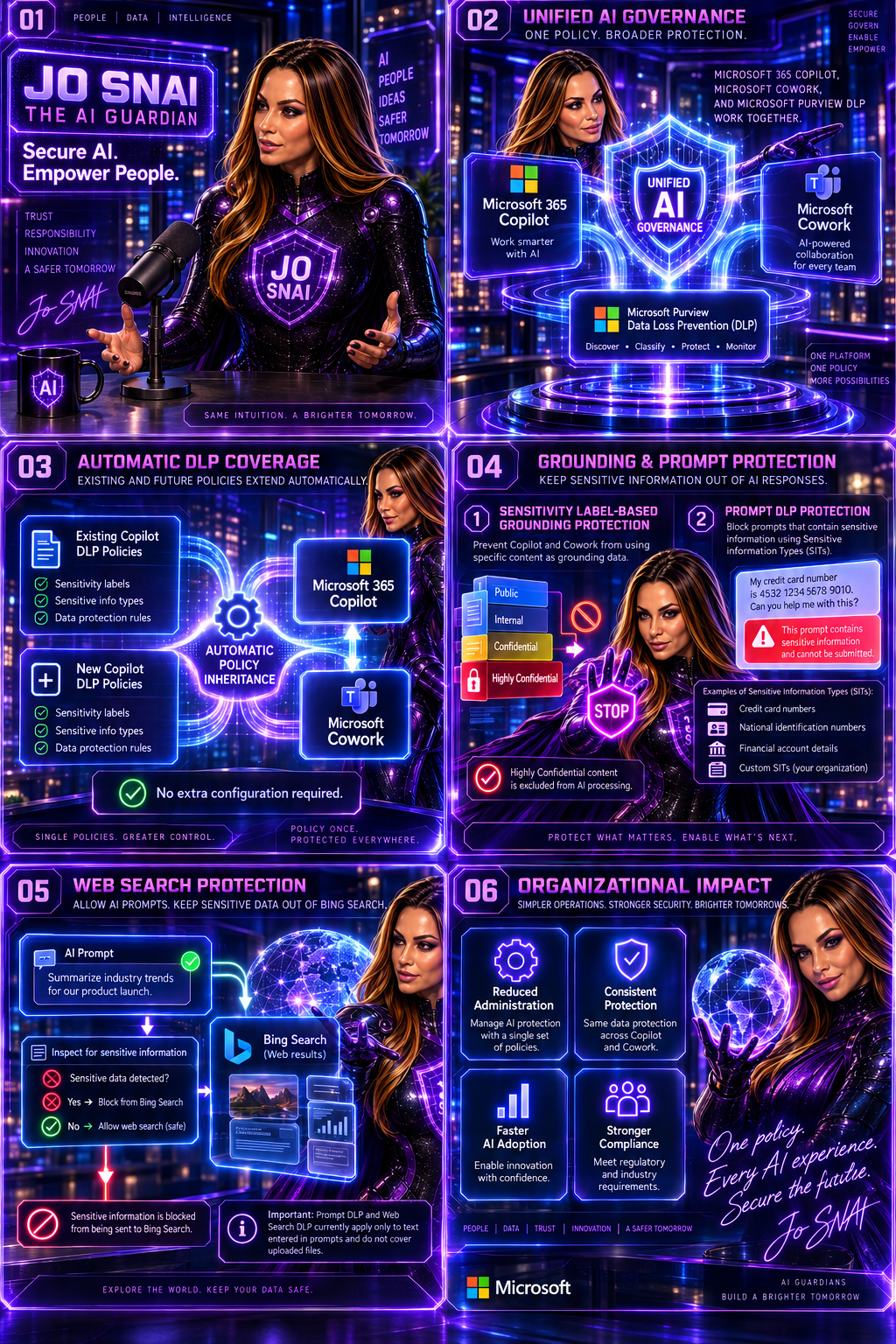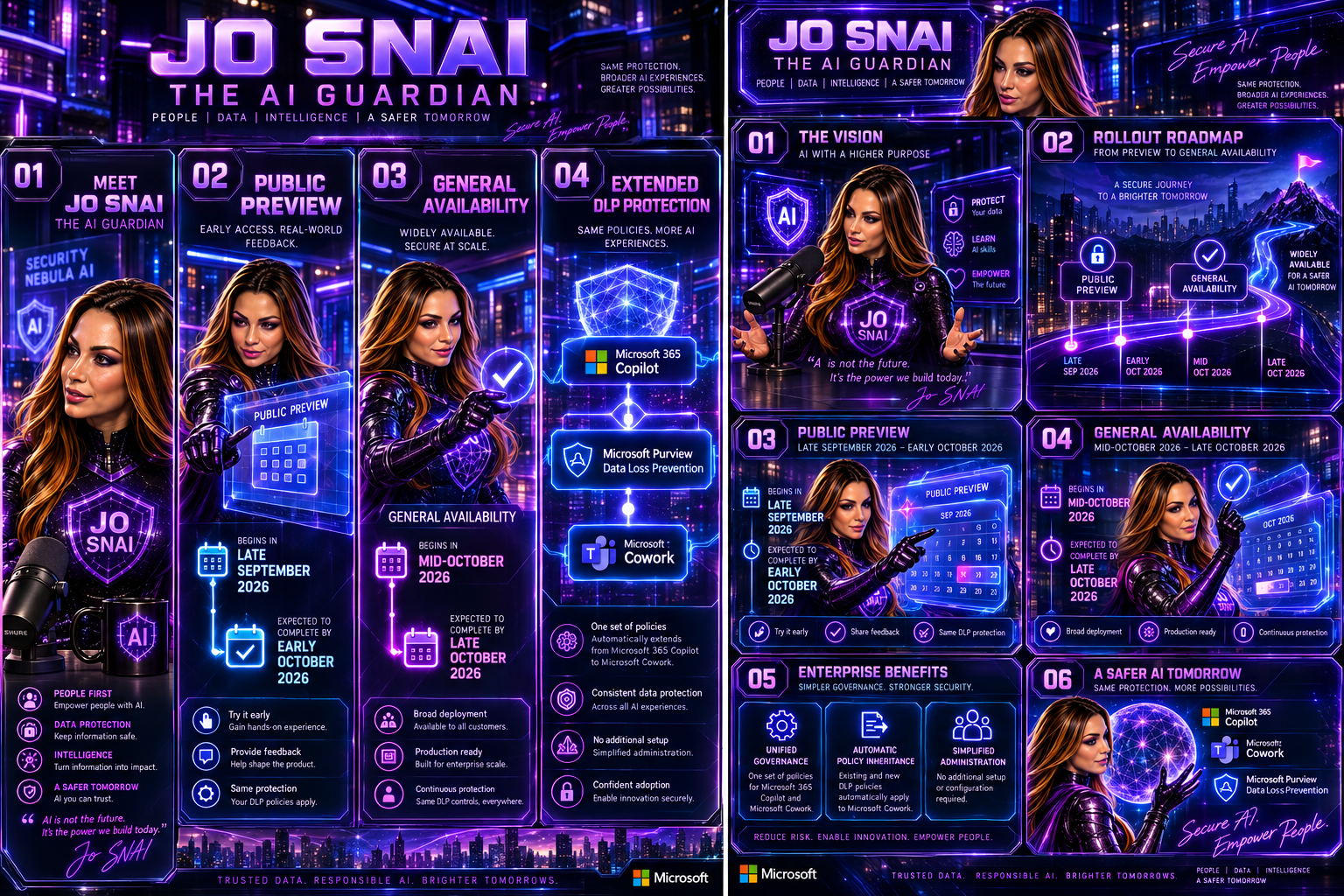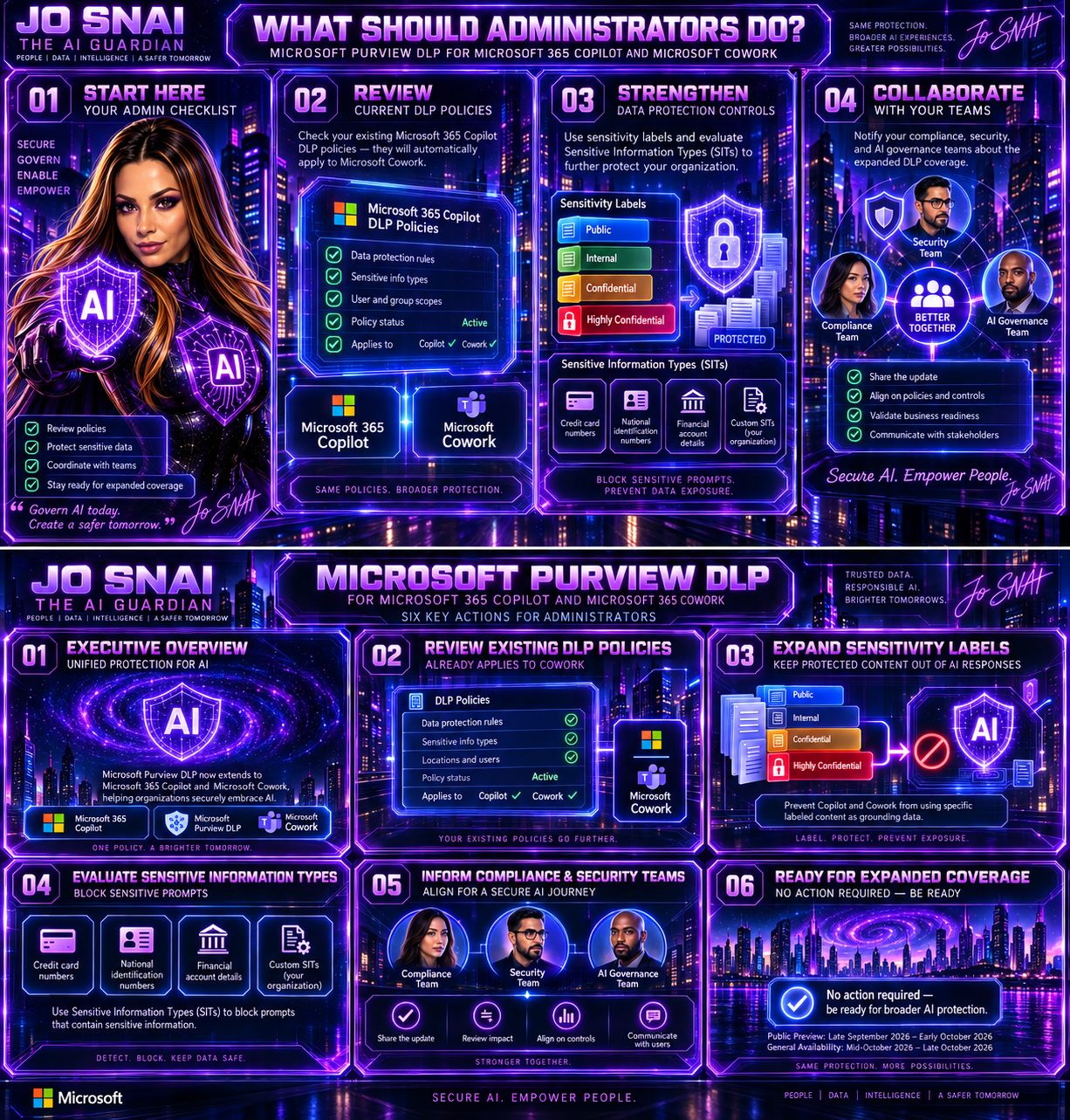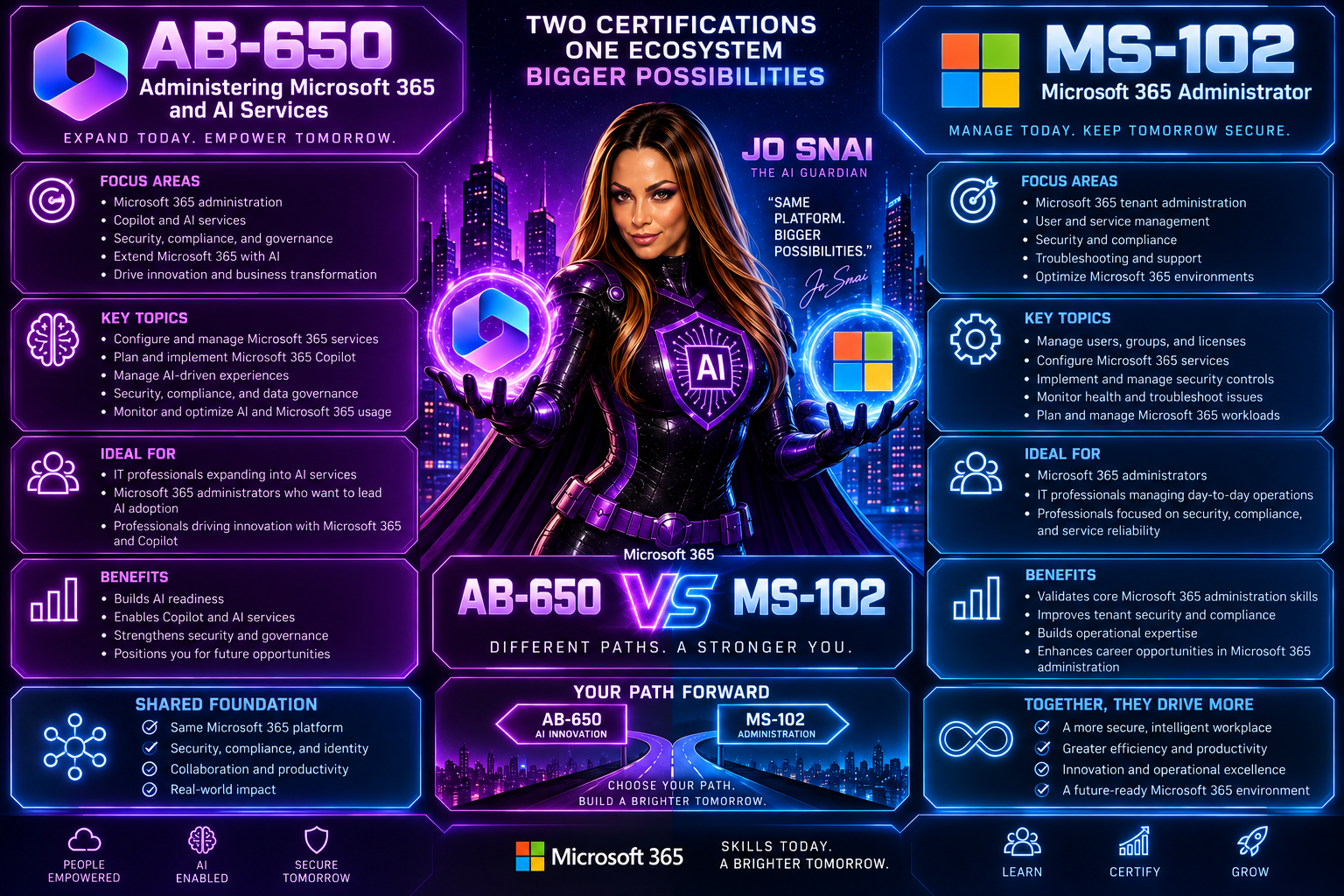
Microsoft 365 Copilot Gets Clearer DLP Notifications

Have you ever wondered why Copilot couldn’t access, process, or return certain content?
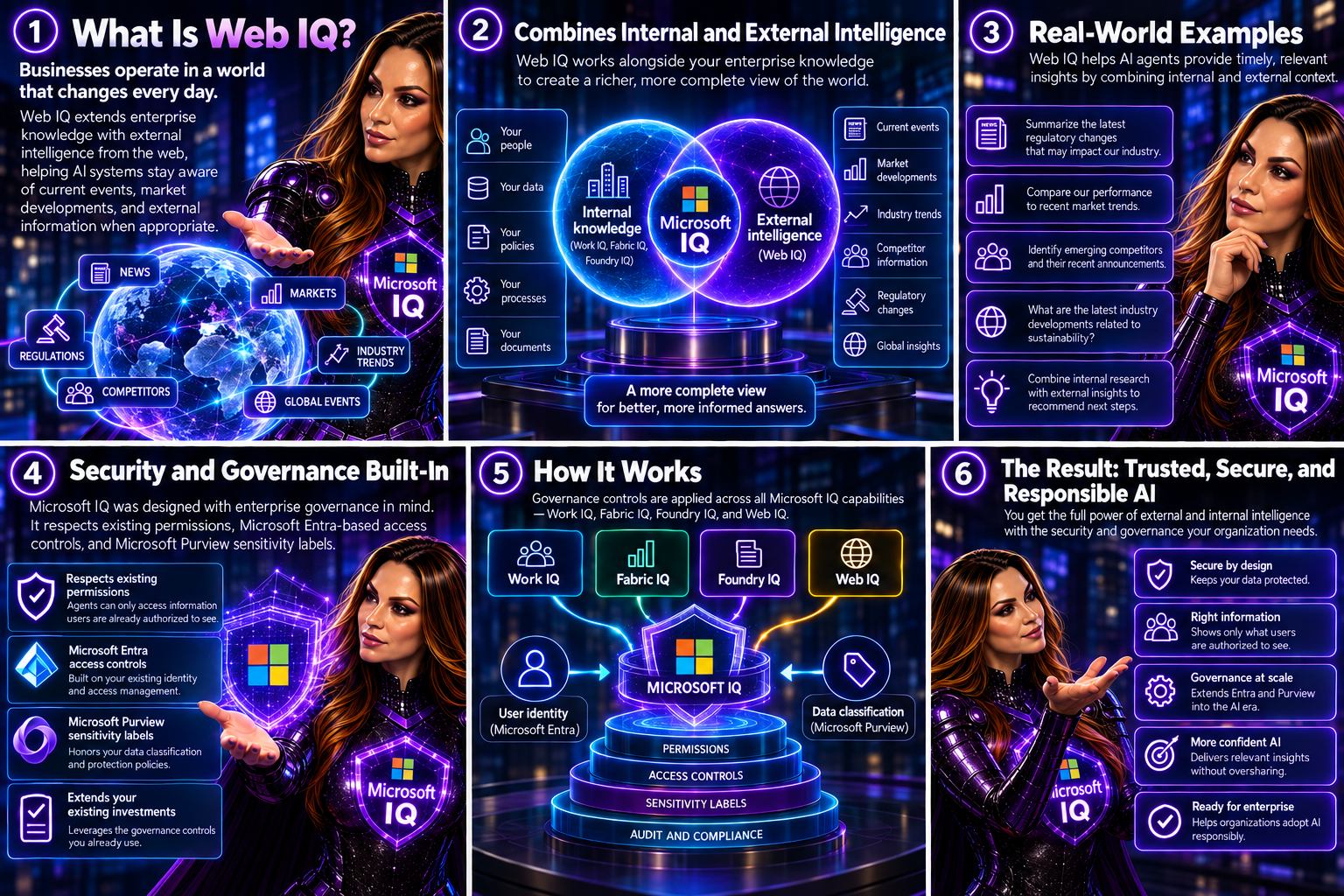
Microsoft is making that experience much easier to understand. Previously, users could see different messages depending on how a Microsoft Purview Data Loss Prevention (DLP) policy was triggered, which sometimes made it unclear why content wasn’t available.

With this update, Microsoft 365 Copilot will now display a consistent notification whenever organisational DLP policies prevent access to content. The goal is simple: improve transparency, reduce confusion, and help users understand that Copilot is respecting their organisation’s data protection policies.

What’s Covered?

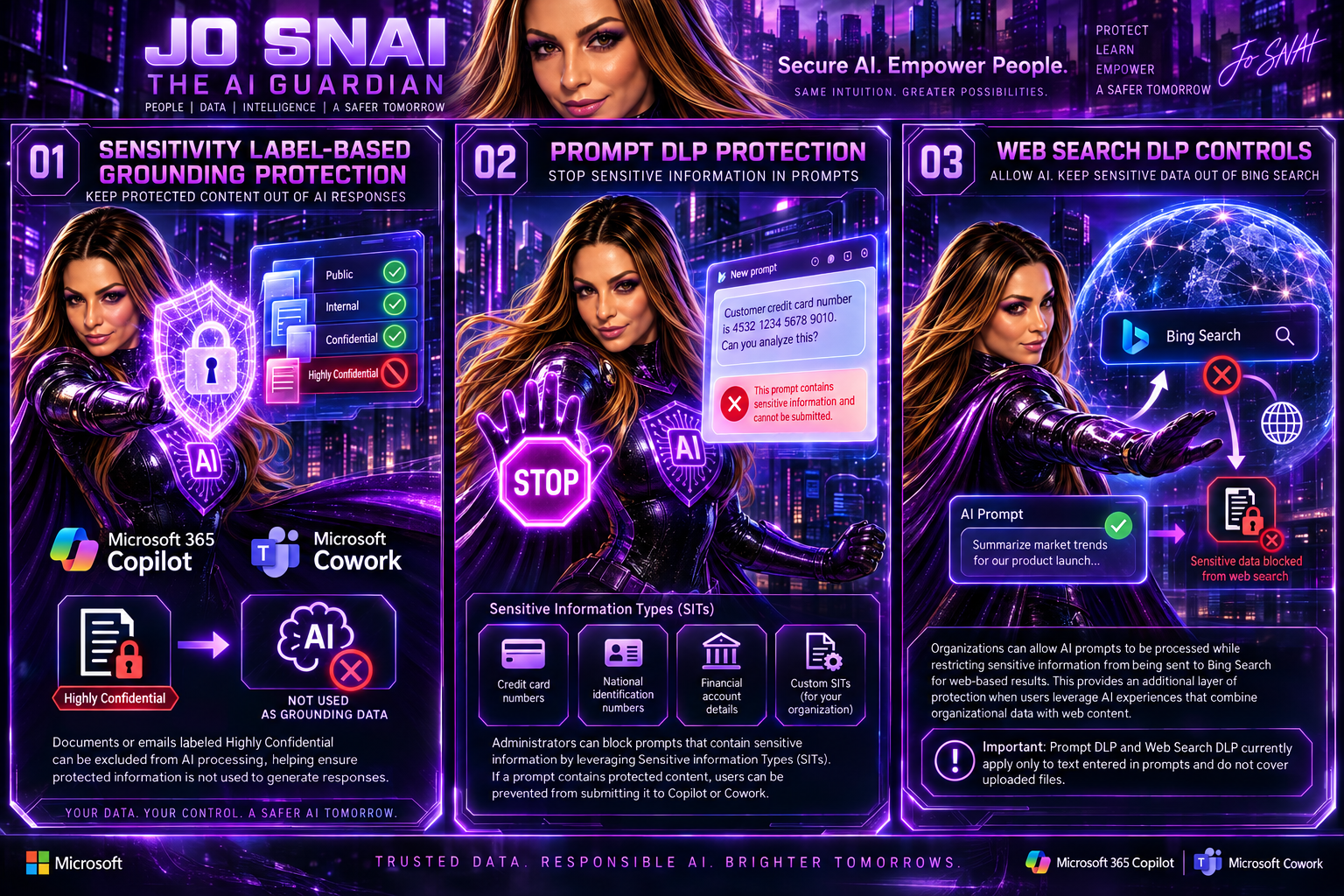
The new standardized message applies to Microsoft Purview DLP protections across Microsoft 365 Copilot and Copilot Chat, including:

  • Grounding DLP
  • Prompt DLP
  • External Email DLP

Where Will Users See It?

The unified notification can appear across Microsoft 365 Copilot experiences powered by Microsoft 365 Chat orchestration, including:

  • Microsoft 365 Copilot
  • Microsoft 365 Copilot Chat
  • Microsoft Teams Copilot experiences
  • Outlook on the web Copilot experiences
  • Microsoft Edge Copilot experiences
  • Other Microsoft 365 Copilot chat experiences that rely on Microsoft 365 Chat orchestration

Whenever a DLP policy restricts Copilot from using specific content, users will see the same clear message indicating that access to some content has been restricted by an organisational policy.

Rollout Timeline

The feature is now rolling out across all environments:

  • Worldwide: Available from July 15, 2026
  • GCC: Available from July 20, 2026
  • GCC High and DoD: Available from July 23, 2026

What This Means for Your Organisation

Organizations already using Microsoft Purview DLP with Microsoft 365 Copilot or Copilot Chat don’t need to take any action. The update does not change how DLP policies work. Instead, it improves the user experience by providing a clearer and more consistent explanation when content is blocked.

For IT administrators, this is a good opportunity to review existing training materials, user documentation, and support resources to ensure they reflect the new messaging experience.

Bottom line: the protection remains the same, but the explanation gets better. Users gain more clarity on why content is unavailable, while organisations continue to benefit from the same trusted data protection controls.

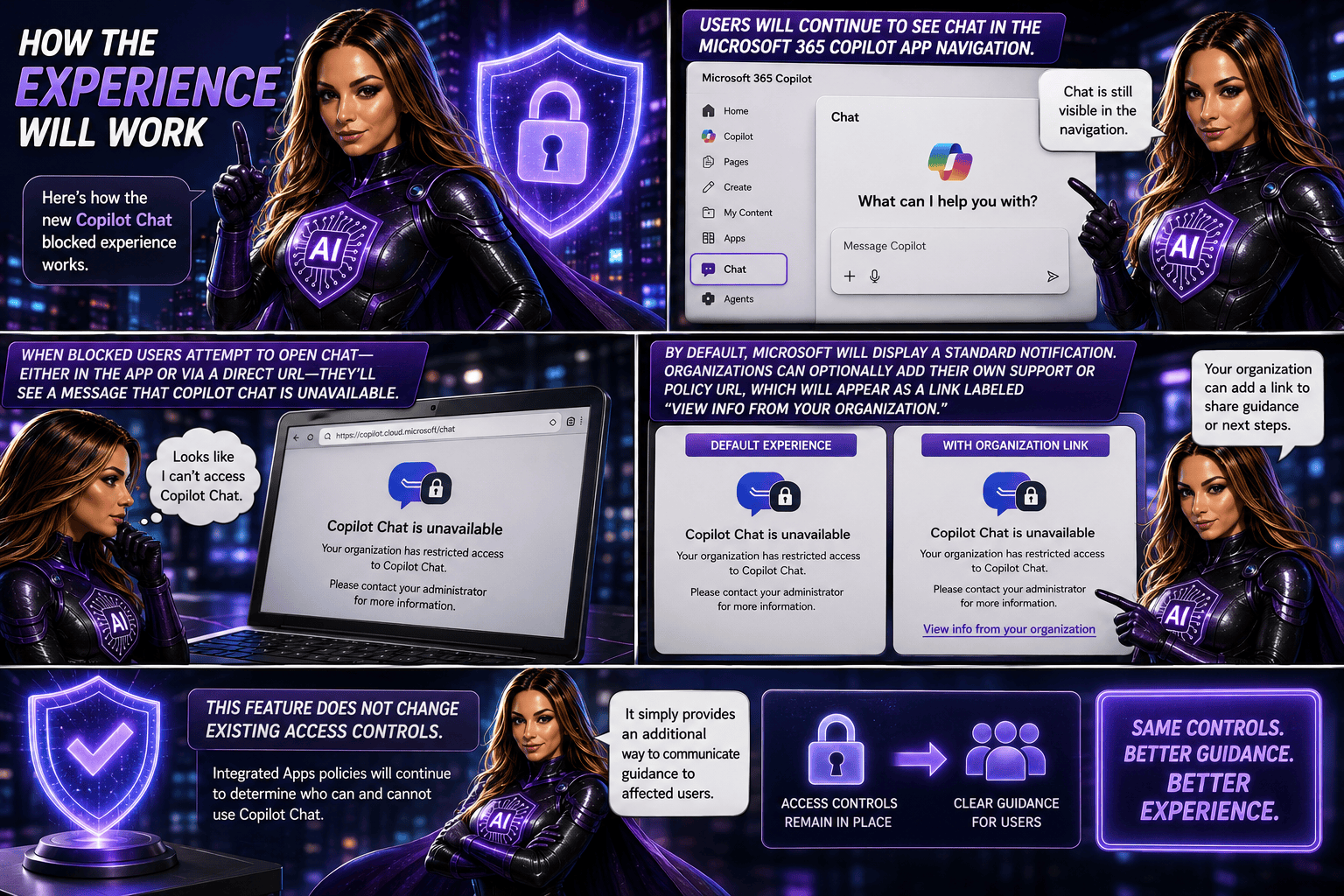
🚀Microsoft 365 Copilot Adds Custom Guidance Links for Users Blocked from Copilot Chat

Starting in July 2026, Microsoft 365 Copilot will introduce a new optional feature that allows administrators to add a custom policy or guidance link for users who are blocked from accessing Copilot Chat. When restricted users attempt to open Copilot Chat, they’ll be directed to organisation-specific information that can explain access requirements and provide next steps. The feature can be configured through the Microsoft 365 admin centre and does not affect existing access controls or policies. No administrative action is required unless organisations choose to enable and customise this experience.

What’s changing?

Organisations will now have the option to add a custom policy or support link for users who are blocked from Copilot Chat through administrative policies. Instead of only seeing a standard Microsoft message, affected users can be directed to organization-specific guidance that explains why access is restricted and outlines the appropriate next steps.

This enhancement is designed to reduce confusion, improve communication, and make it easier for users to find the information they need when access is unavailable.

Rollout timeline

  • General Availability (Worldwide): Starting in July 2026
  • Expected completion: August 2026

Who is affected?

This update may be relevant for:

  • Organizations using the Microsoft 365 Copilot app
  • Administrators managing Copilot access through Integrated Apps policies
  • Users whose access to Copilot Chat has been restricted by policy

What admins should know

This feature is optional and disabled by default. Organisations that want to provide customised guidance can configure a support URL in the Microsoft 365 admin centre under Copilot settings.

Potential uses include:

  • Explaining why access is restricted
  • Sharing internal Copilot adoption policies
  • Providing licensing information
  • Directing users to support resources or help-desk contacts
  • Outlining the process for requesting access

Recommended actions

No action is required.

However, organizations that want to take advantage of this feature should consider:

  • Reviewing their current Copilot access policies
  • Identifying relevant internal guidance or support resources
  • Configuring a custom URL in the Microsoft 365 admin center
  • Preparing helpdesk teams for the updated experience
  • Monitoring Microsoft Learn documentation for additional setup guidance

Copilot Cowork is now available in Frontier

Copilot Cowork has officially landed in Frontier for Microsoft 365 Copilot (Premium) users. This release brings a more collaborative way for Copilot to work across apps, handling multi‑step tasks while keeping you in control.

With Copilot Cowork, tasks can span multiple Microsoft 365 apps, with clear user approvals along the way and built‑in progress tracking so you always know what’s happening. It’s designed to feel less like a single command and more like a coworker helping you get things done.

To use Copilot Cowork, users need to be enrolled in Frontier. It currently works with Microsoft‑built agents and uses Anthropic as a subprocessor. For customers in the EU, data boundary controls are in place to help meet regional compliance requirements.

The good news? No admin action is required to get started eligible users can simply explore the experience once Frontier is enabled.

When is this happening?

Copilot Cowork is already rolling out and is available today in Frontier.
General availability for all customers will be announced later—Microsoft will share details once it’s ready for broader release.

What this means for your organization

This update introduces a new way for Copilot to work alongside users—taking on longer, multi‑step tasks across Microsoft 365 apps while keeping people firmly in control. Think of it as Copilot stepping up from quick help to ongoing collaboration.

Who can use Copilot Cowork?

Copilot Cowork is available to:

  • Users with a Microsoft 365 Copilot (Premium) license
  • Users who are enabled for Frontier
  • English‑language users (for now)
Prerequisites and controls to be aware of

Before Copilot Cowork can be used, a few requirements need to be in place:

  • The tenant must be enrolled in the Frontier program
  • Microsoft‑built agents must be enabled
  • Anthropic must be enabled as a subprocessor (this is on by default)

For organizations based in the European Union (EU):

  • Anthropic is turned off by default to meet EU Data Boundary requirements
  • It must be explicitly enabled for Copilot Cowork to function
  • If Anthropic remains off, users may see Copilot Cowork listed but won’t be able to use it

Admins also need to be enrolled in Frontier to see Copilot Cowork listed in the Agent Inventory.

What users can expect

Once available, users can:

  • Install Copilot Cowork directly from the Agent Store in the Microsoft 365 Copilot app
  • Pin it to the left rail for easy access

From there, users can simply describe what they want to achieve—in plain, natural language—and Copilot Cowork will:

  • Create a multi‑step plan based on the user’s Microsoft 365 context
  • Coordinate work across apps like Word, PowerPoint, Outlook, and more
  • Continue working over time, with clear checkpoints and progress tracking

Importantly, Copilot Cowork never acts without permission. It will always propose actions first and wait for explicit user approval before doing things like:

  • Sending emails or Teams messages
  • Scheduling, declining, or rescheduling meetings
  • Editing, moving, or organizing files

Users stay in control at all times—they can pause, adjust, or stop execution whenever they want, and come back later to review progress.

Default behavior and governance

For eligible tenants, Copilot Cowork is enabled by default and respects existing Microsoft 365 permissions and policies. The only exception is where EU Data Boundary settings apply, which may limit functionality unless explicitly configured.

Wave 3 of Microsoft 365 Copilot – The Ultimate Game Changer

Today Microsoft is rolling out some major updates that truly reshape how AI shows up in everyday work. Here’s what’s new:

  • Wave 3 of Microsoft 365 Copilot
  • More model diversity, with Claude and next‑gen OpenAI models available starting today
  • Agent 365 becoming generally available on May 1 at $15 per user
  • Microsoft 365 E7: The Frontier Suite, also coming May 1, priced at $99 per user

Wave 3 is honestly the biggest shift I’ve seen in Copilot so far. It doesn’t feel like “AI that helps you write or summarize” anymore, it feels like Microsoft is moving Copilot into a true agent that can actually do work for you, not just respond to prompts. And this changes everything in how we’ll use Microsoft 365.

Frontier Transformation – What It Really Means

Microsoft is talking about “Frontier Transformation” but at its core, it’s actually simple: AI should help people achieve their highest goals — not just make processes a little faster.

Copilot Cowork – The game changer

The main highlight is Copilot Cowork, built together with Anthropic (the team behind Claude). What I love about it is that it can finally take on a whole piece of work, break it into steps, run those steps in Word, Excel, PowerPoint, Outlook, and keep you updated as it goes.

Not instantly, but over minutes or even hours.
So instead of: “Write a one‑page summary”
It becomes: “Prepare the full report, build the Excel analysis, create the PowerPoint, and draft the email to the team.”
And it actually moves this work forward across the apps we already use daily.

Edit with Copilot – In-app agentic editing

Another thing I like is that “Agent Mode” is gone.
It’s now simply called Edit with Copilot, and it works right inside the apps:

  • Word: turns your messy draft into something polished
  • Excel: actually builds formulas and charts (not just suggests)
  • PowerPoint: creates slides using your real templates and brand
  • Outlook: drafts or refines emails in the compose window

No more copy-paste. No more losing sensitivity labels. Everything stays governed and saved where it should be.

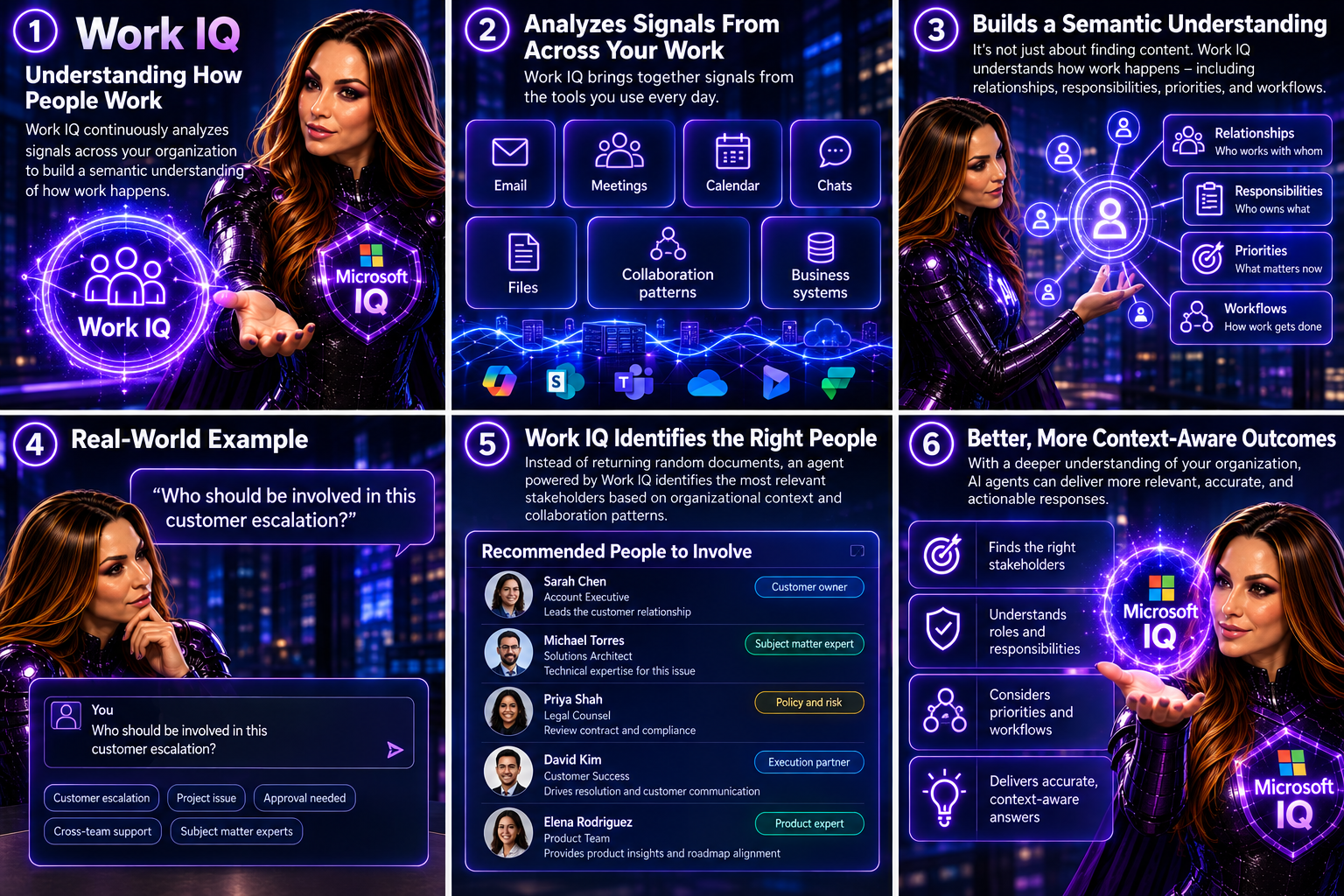
Work IQ – Copilot that “knows how you work”

Wave 3 also introduces Work IQ, which gives Copilot a deeper understanding of:

  • Your organization’s content
  • Your collaboration patterns
  • The apps and workflows you use
  • The context behind your requests

This is what helps Copilot choose the right model (Claude or OpenAI) depending on the task.

Multi‑model Copilot (Claude + OpenAI)

For the first time, Copilot becomes model-agnostic.
You’ll be able to pick or automatically use:

  • Anthropic Claude (via the Frontier program)
  • OpenAI models

A model selector is coming to Copilot Chat so you can choose which model works best, depending on the task.

New licensing tier: Microsoft 365 E7 “The Frontier Suite”

Microsoft also launched a brand new enterprise tier — their first in 11 years:
Microsoft 365 E7 (The Frontier Suite)

It bundles:

  • M365 E5
  • Copilot
  • Agent 365
  • Additional security + analytics tools

This shows how seriously Microsoft is betting on agentic AI becoming the new standard.

Rollout timeline

Wave 3 features are:

  • Already in research preview for selected customers
  • Expanding via the Frontier Program starting March 2026

With Wave 3, Agent 365, Work IQ, and the new E7 suite, AI is shifting from early experimentation to real, scalable, enterprise-wide value. Microsoft is not only imagining what AI could be it’s giving organizations the tools to build that future right now.

You can read more in the official Microsoft article here.

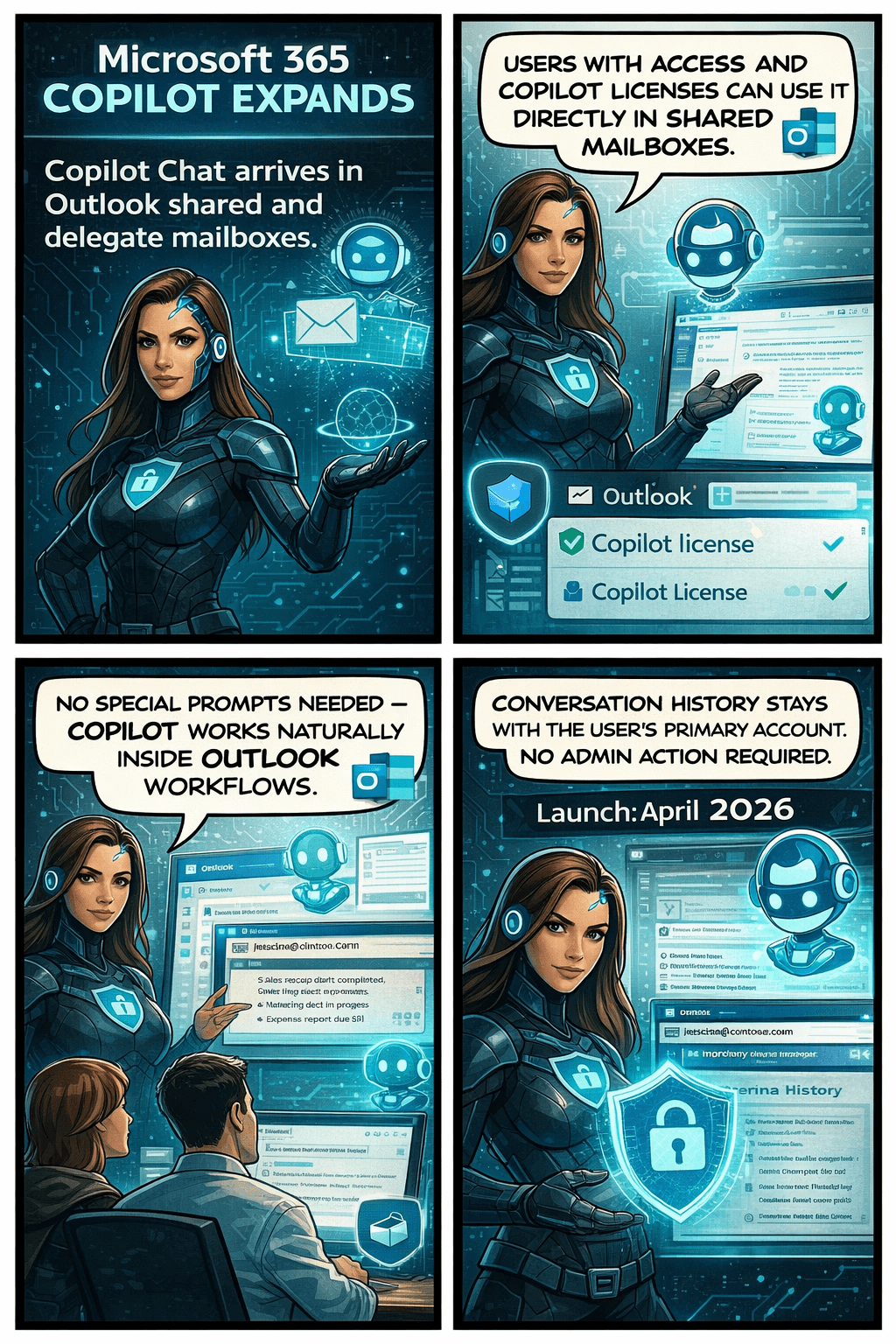
Copilot in Outlook Becomes Even Smarter: Shared & Delegate Mailboxes Now Supported

Microsoft is rolling out an exciting update that will make life noticeably easier for anyone who works with shared or delegated inboxes in Outlook. Whether you’re an executive assistant managing a busy calendar, part of an HR or finance team working from a shared mailbox, or supporting customers from a service desk account—Copilot is about to become your new best friend.

Until now, Copilot features like summarizing threads or drafting replies were only available when you were in your own mailbox. But that’s changing. With this update, Copilot will work natively inside the shared or delegated mailboxes you already use every day, bringing AI assistance directly to the place where your work actually happens.

This enhancement is tracked under Microsoft 365 Roadmap ID 554936, and it’s one of the most practical Copilot improvements so far for collaborative teams.

When is this coming?

  • Targeted Release: Rolling out from early April 2026 through early May 2026
  • General Availability: Rolling out from early May 2026 through early June 2026

In other words—it’s coming soon, and it will reach everyone within the next couple of months.

What’s changing and who benefits?

This update applies to:

  • People who work in shared or delegated Outlook mailboxes
  • Organizations where users are licensed for Microsoft 365 Copilot

Once enabled, users will be able to:

✔ Use Copilot Chat directly inside shared or delegated mailboxes

You no longer need to switch back to your primary inbox to engage Copilot.

✔ Access features like Summarize, Draft, and other Copilot prompts

These capabilities will now operate on the content of the shared mailbox itself.

✔ Skip awkward prompt wording

No more typing things like “in @domain.com…”.
You can simply ask Copilot naturally, and it understands the context of the mailbox you’re currently in.

✔ Benefit from full support for:

  • Full-access shared mailboxes
  • Shared folder permissions
  • Folder-level access models commonly used by support desks and admin teams

✔ Keep your Copilot history private

Even though multiple people may work in the same shared mailbox, the Copilot conversation history stays tied to your personal account, not the shared mailbox.
No cross-user visibility. No confusion.

What does this mean for your organization?

The good news:
There’s nothing you need to turn on.
This feature will light up automatically for licensed users once rollout reaches your tenant.

Still, it’s worth doing a quick review of:

  • Your shared mailbox permission structure
  • Folder-level roles (especially for teams with tiered access)
  • Training materials or internal FAQs that mention Copilot in Outlook

You may want to update your documentation so users understand they can now use Copilot directly within shared inboxes.

Compliance considerations